

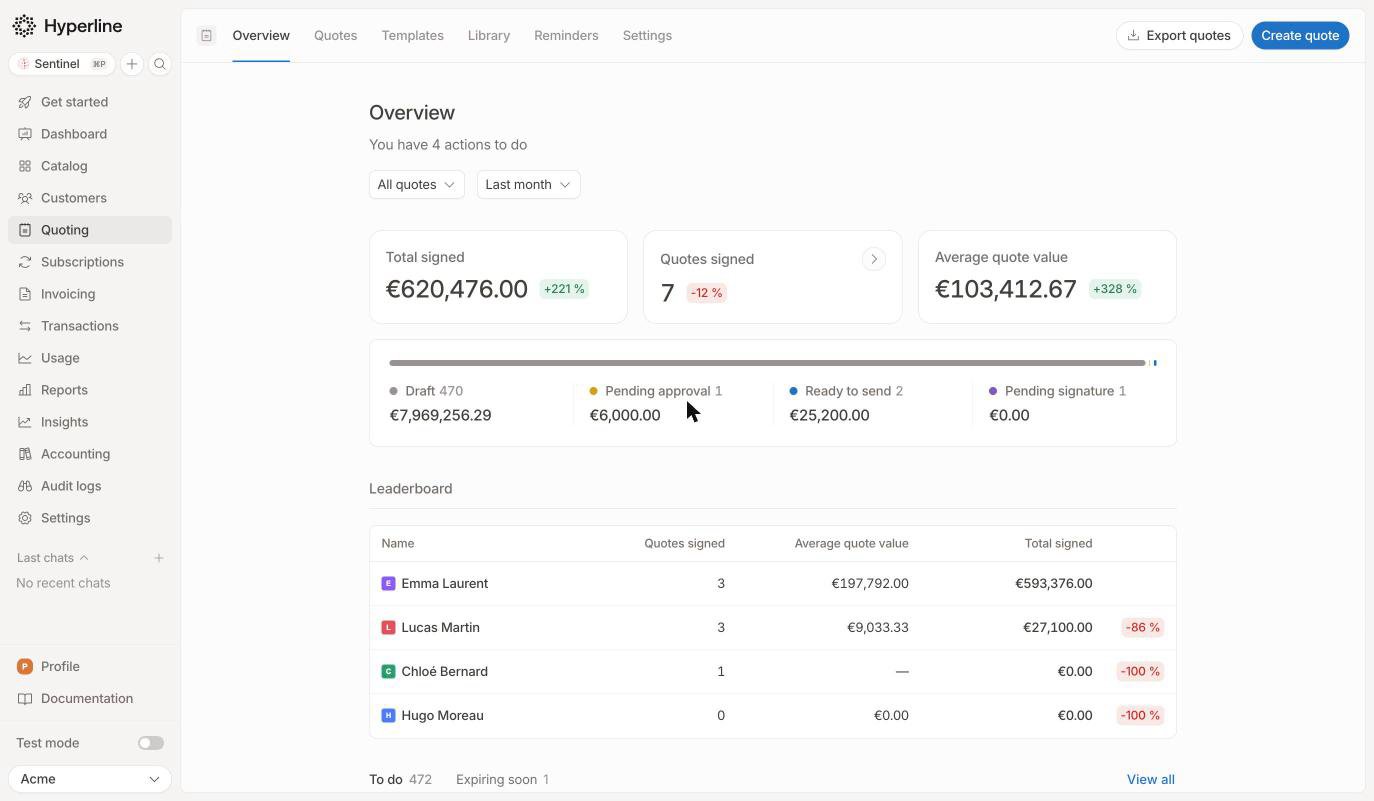
Choose what you see
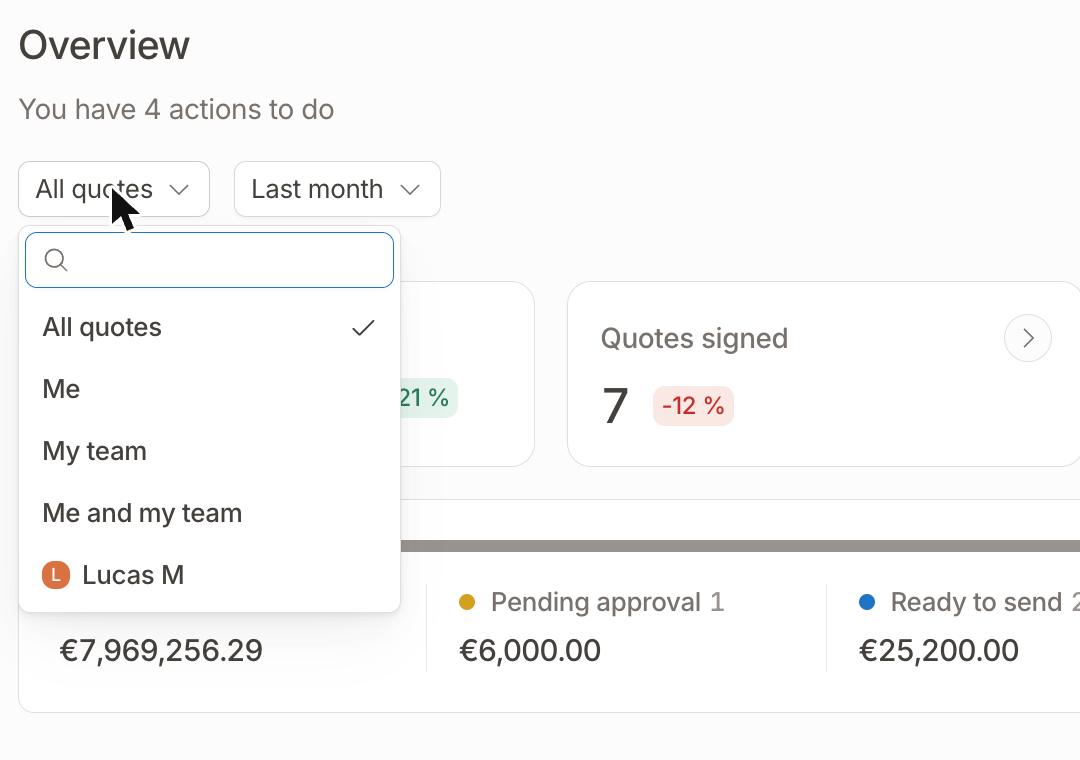
Two selectors at the top of the page define the scope of the overview. View sets whose quotes are included:- All quotes (default): every quote in your account.
- Me: the quotes you own.
- My team and Me and my team: available to managers, based on the manager set on each team member.
- A team member: search a person to see only their quotes.
- This month: from the first day of the month until today, compared with the same number of days of the previous month.
- Last month and Last 3 months: compared with the period of the same length just before.
Signed figures
Three cards summarize the quotes signed over the selected period:- Total signed: the total value of signed quotes.
- Quotes signed: the number of signed quotes. Click the card to open these quotes in the quotes list.
- Average quote value: the total signed divided by the number of signed quotes.
Pipeline
The pipeline shows your open quotes by stage, with their number and total value. It always reflects the current state of your quotes, whatever the selected period.
Click a stage to open the matching quotes in the quotes list.
Leaderboard
If you manage a team, the leaderboard ranks your team members by signed value over the period. For each person, you see the number of quotes signed, the average quote value, the total signed, and the change compared with the previous period. Click a row to open that person’s signed quotes.Quotes that need your attention
The bottom of the page lists the quotes you need to act on.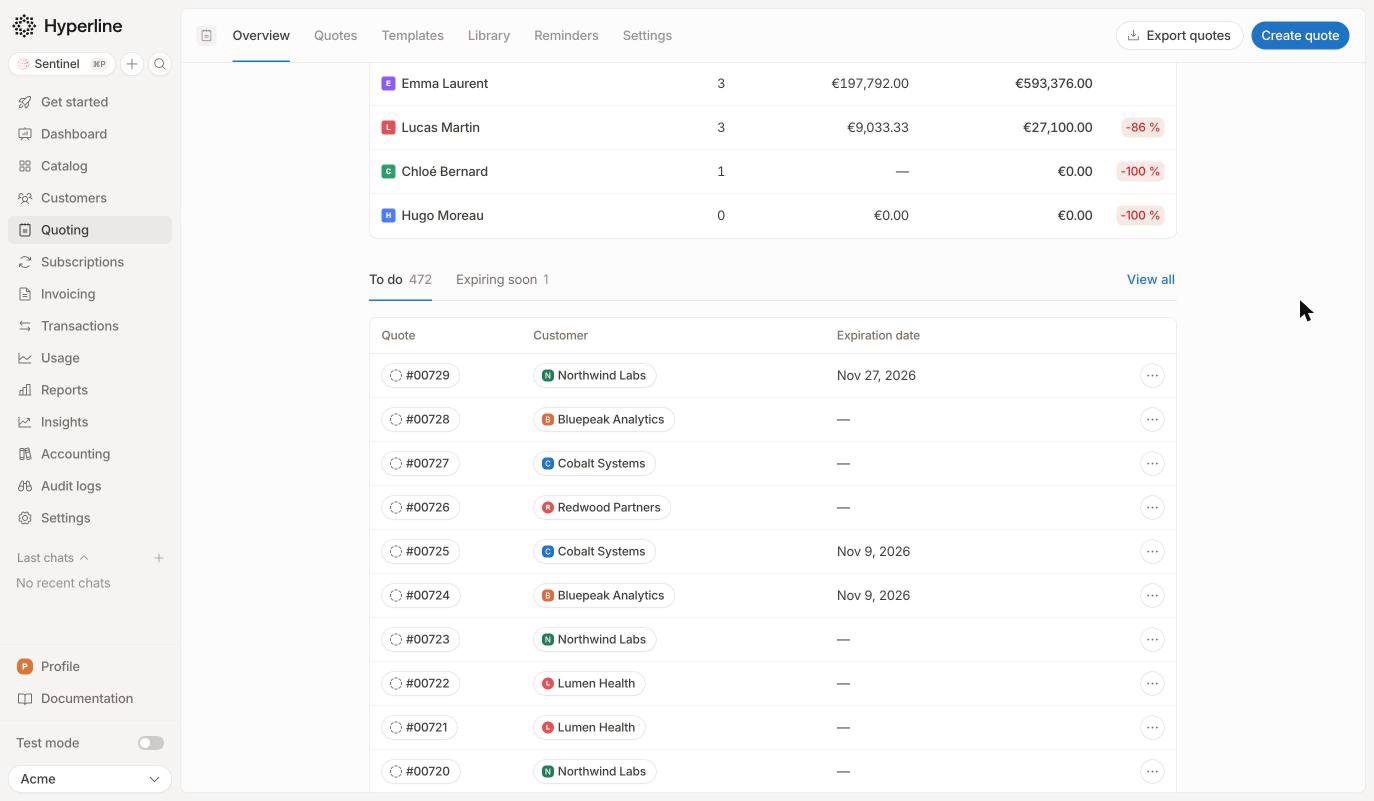
- To approve: when you use approval workflows, the quotes waiting for your approval. Open the menu on a row to approve or reject the quote.
- To do: open quotes to work on: drafts, quotes with changes requested, and approved quotes ready to send.
- Expiring soon: quotes awaiting signature, sorted by expiration date so the most urgent ones come first.