

- Opening balances when you start using a ledger
- Adjustments such as accruals, reclassifications, or period-end corrections
- Corrections to accounting activity that wasn’t produced by an invoice
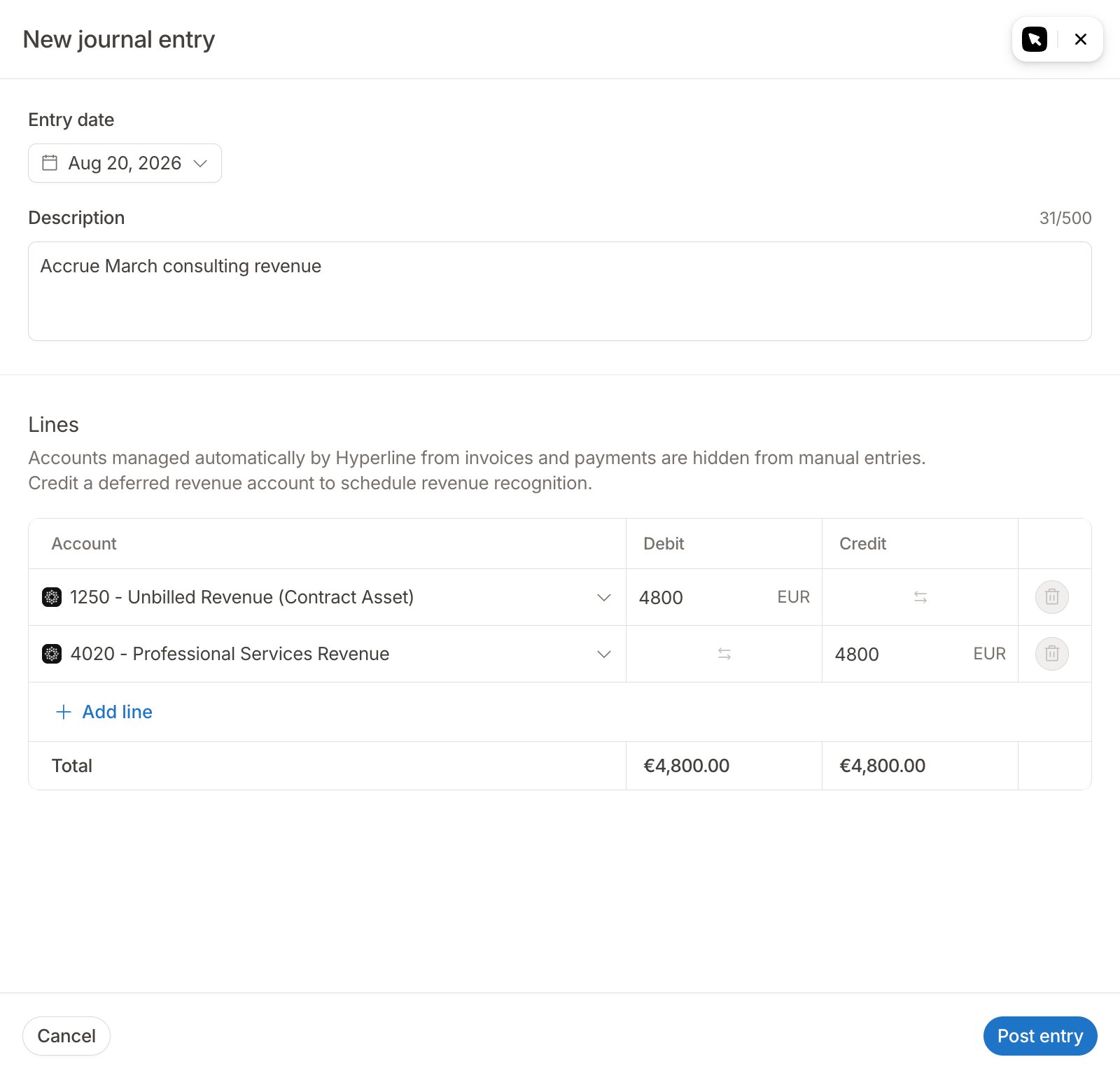
Post a manual entry
- Go to Accounting > Journal for the ledger you want to post to.
- Click New entry.
- Set the Entry date and a Description (up to 500 characters).
- Add at least two lines. On each line, select an Account and enter an amount in either Debit or Credit. A single line carries one side only. Click the switch icon on a line to flip its amount between debit and credit.
- Check the totals. Total debit must equal total credit; the totals turn red while the entry is unbalanced.
- Click Post entry.
Accounts managed by Hyperline
Some accounts don’t appear in the account picker on the entry form. As the form notes, accounts managed automatically by Hyperline from invoices and payments are hidden from manual entries. This applies to your accounts receivable. A/R driven by invoices is a control account: its balance always equals your outstanding customer invoices, net of payments and credit notes, and Hyperline keeps it reconciled to those invoices. A manual entry has no invoice behind it, so posting one to a managed A/R account would break that reconciliation. To protect it, any account used in an accounts-receivable role by an accounting rule is hidden from the entry form.To record a receivable by hand, create your own separate receivables account
in the chart of accounts and post there. Both accounts still add
up to your total accounts receivable on the balance sheet, and the entry stays
balanced, so your balance sheet and P&L remain correct.Keep in mind this manual account is yours to reconcile and clear, and it won’t
appear in the invoice-based aging.
Revenue recognition on a manual entry
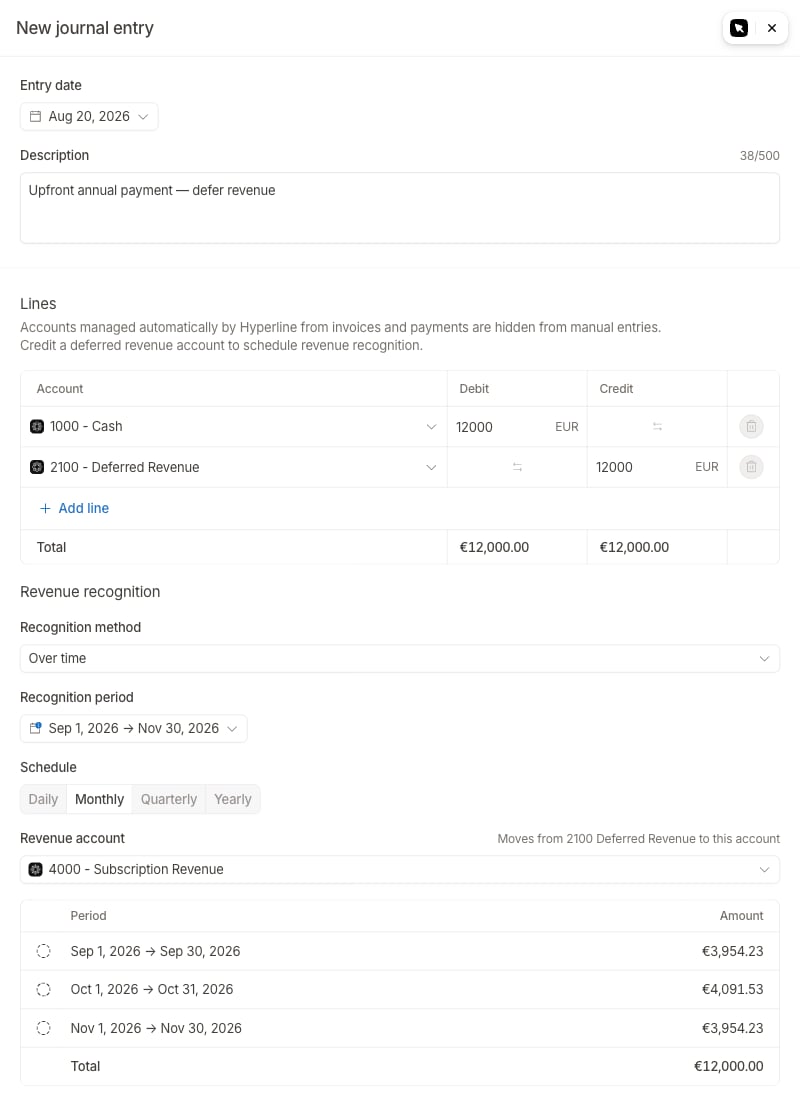
When one of your lines credits a deferred-revenue account (tagged Deferred revenue in the account picker), a Revenue recognition section appears on the form. Setting up a recognition schedule is required. Deferred revenue is a liability that must be released over time, so Hyperline won’t let you post the credit without telling it how. You can defer revenue on one credit line per entry. To spread revenue across several deferred accounts, post them as separate entries. In the recognition section you set:- Recognition method: Point in time (recognize the full amount on a single Recognition date) or Over time (spread it evenly over the Recognition period you pick, at the Schedule you select: Daily, Monthly, Quarterly, or Yearly).
- Revenue account: the account the revenue moves to as it is earned.
After posting
A manual entry sits in the ledger alongside automatically generated entries, with a few markers that set it apart:- It carries a Manual tag in the journal entries list.
- The Source filter lets you show only
ManualorAuto-generatedentries. - The entry’s detail panel shows its origin (manual) and the user who created it.
Is something still unclear? Don’t hesitate to reach out to our team via the
in-app chat if you need additional support.