

Rule types
Accounting > Settings > Accounting rules shows one section per rule type:Rules of all types can coexist in the same ledger. A Revenue recognition rule is resolved on its own when an invoice is posted, not as part of the Invoice posted rule.
Account mappings
Each rule specifies which GL account to use for each role in the journal entry. The available account roles depend on the rule type: Invoice posted- Accounts Receivable
- Discounts
- Sales Tax / VAT
- Bank / Cash
- Clearing Account
- Provider Fees
- Processing Fees
- Processing Revenue
- Customer Credits
- Write-off debit account
- Allowance for Doubtful Accounts
- Revenue Account (when recognized)
- Deferred Revenue (until recognized)
- Discounts and Deferred Discount
- Unbilled revenue (recognized before it is invoiced: usage billed in arrears and contract-based recognition)
- The Recognition method: over time, point in time, or usage-based
- The Schedule (for over time) or the Recognition date (for point in time)
- The Discount method: immediate, deferred, or use net amount
Accounting software sync rules
Accounting software sync rules map Hyperline billing records to the accounts expected by your connected accounting provider. When Hyperline sends a record to an external accounting provider, Hyperline converts the resolved account to the provider account code or internal account ID required by that provider.These rules are not configured on the Accounting rules page. Set them up under Settings > Integrations, on the connected provider.
View the rule tree
Each section of Accounting > Settings > Accounting rules displays that type’s rules as a tree, showing which rules would apply and in what order. This is useful for auditing your rule configuration before going live. Rules filtered on a custom property show as<property> = <value> branches.

Filters
You can scope rules using one or more filters. Available filters depend on the rule type. When a billing event occurs, Hyperline evaluates all matching rules and applies them in priority order. Invoice posted
Invoice settled
Credit Note created
Revenue recognition
An empty filter matches everything. Rules with no filters act as catch-all defaults.
You can also scope rules to specific customers, but only through the API. Customer scoping is not offered in the rule form.
Criteria reference
The rule form can use the following criteria, depending on the selected rule type:The Invoice type filter offers two values, Invoice (standard invoices) and Document (custom documents). A rule scoped to Invoice also applies to credit notes and refunds. Hyperline treats them as standard-invoice flavours. Leave the filter empty to match every invoice type.
Custom property filters
The Custom properties filter scopes a rule to invoices carrying a given custom property value. Only custom properties available on the invoice entity are offered. The filter is also available oninvoice accounting software sync rules.
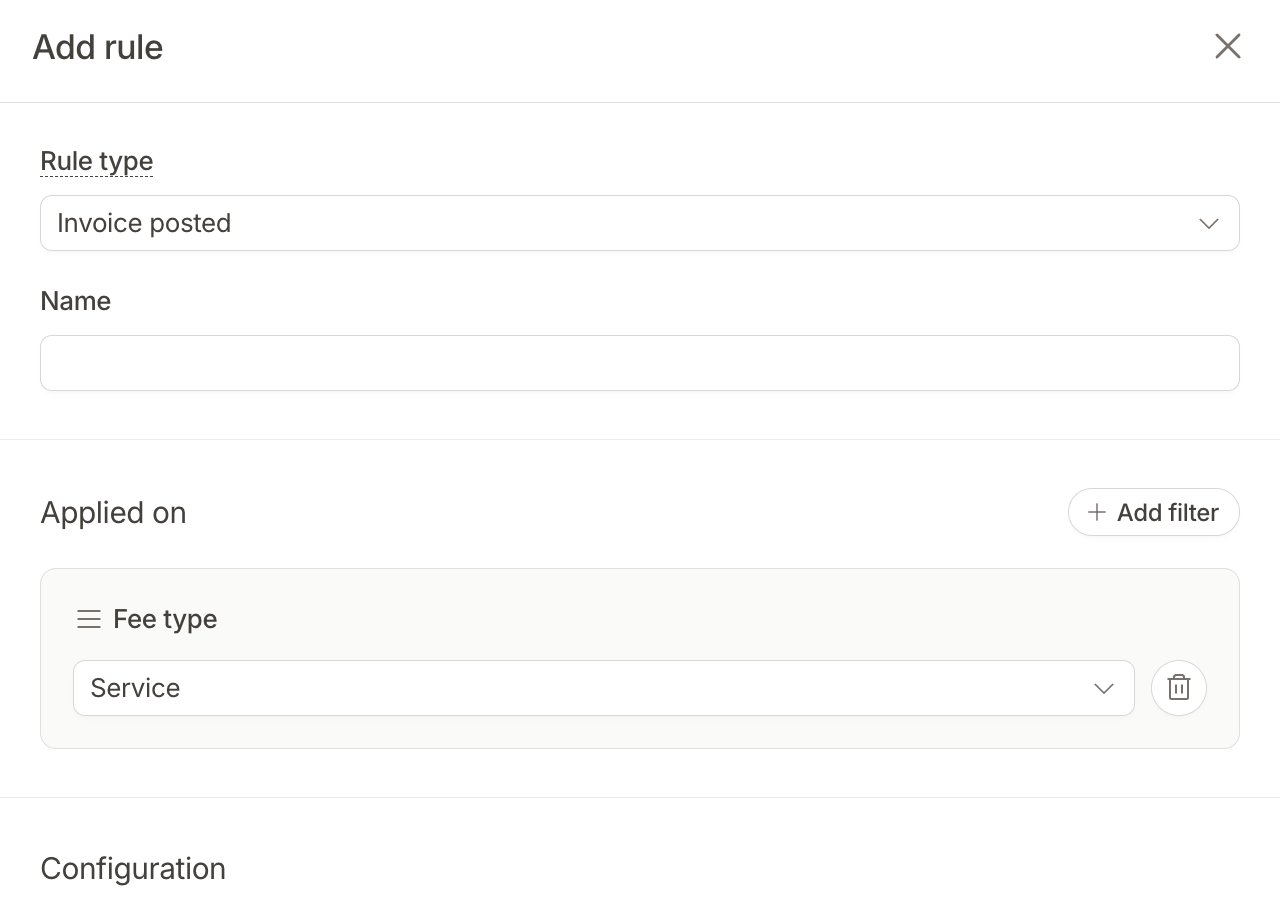
- Select, boolean, text, email, number, and date properties take one value, and the invoice must have that value. Text and email matching is case-sensitive, so
testdoesn’t matchTest. - Multi-select properties take several values, and the rule matches when the invoice has at least one of them.
Example 💡
You have an invoice custom property Fee type of type select, with the values
Subscription and Service. You add a revenue recognition rule filtered on Fee type = Service, mapping revenue to 4200 – Professional services. Invoices tagged Service post their revenue to 4200, and every other invoice keeps using your default revenue account.Priority and fallback
In the app, priority is not something you set. Hyperline derives it from what the rule is scoped on. A rule that names a specific customer, product, coupon, payment provider, or bank account ranks above rules scoped only by broader criteria, such as product type, currency, or custom property. Among broader rules, more filters mean a higher priority. The form displays the resulting value read-only under Advanced. Through the API, you set the priority yourself. When multiple rules match the same billing event, Hyperline applies them as a priority overlay:- Hyperline collects all matching rules and sorts them by priority (ascending)
- Hyperline applies the rules in order: each rule overrides only the account roles it explicitly defines
- For any given account role, the highest-priority rule that defines it wins
Example 💡
You have a default revenue recognition rule with no filters, mapping all revenue to account
4000 – Revenue. You then add a second rule scoped to a specific product, mapping its revenue to 4100 – Usage Revenue. The second rule is narrower, so it gets the higher priority. When an invoice is issued for that product, Hyperline uses 4100 for that product’s line items and 4000 for everything else.Overlapping rules
Specificity is scored against the line actually being posted, not against the rule in the abstract. A customer-scoped rule only outranks a product-scoped one when the line’s customer is one of those the rule names. If it isn’t, that rule doesn’t match at all.Add a rule
Go to Accounting > Settings > Accounting rules and click Add rule.
- Select the Rule type.
- Under Applied on, optionally add filters to scope the rule.
- Under Configuration, map an account to each role. For an Invoice posted rule, these accounts sit under the heading Invoice issued. They are the same thing.
- Advanced shows the priority Hyperline derived from your filters. It is read-only.