

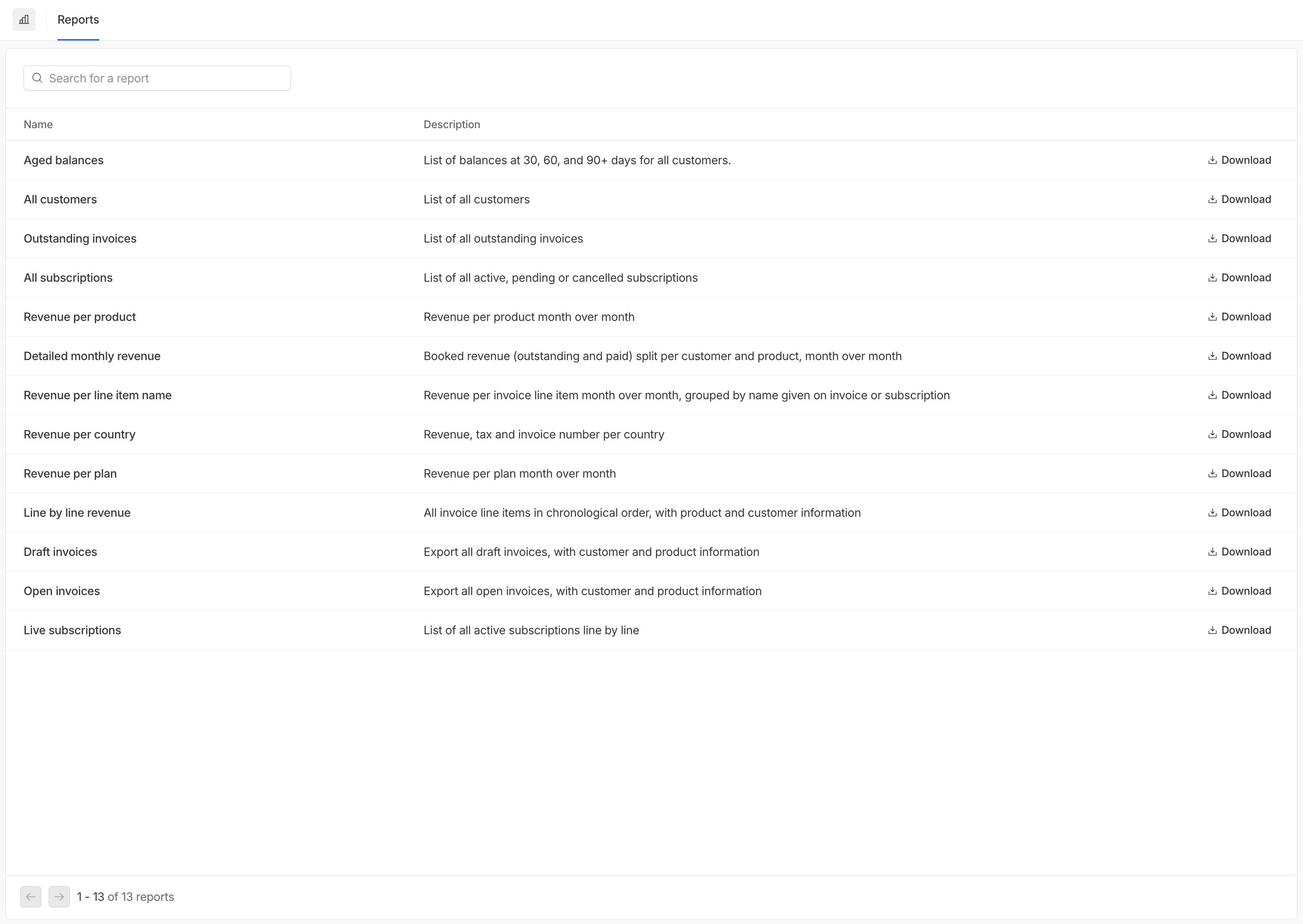
Available reports
Hyperline offers a curated selection of reports essential for assessing various aspects of your company’s financial health. You can view many reports directly in the platform with interactive filtering. All reports are also downloadable as CSV files, giving you convenient access to the data you need at any time. You can also export these reports using the exports API.Preview reports
You can view many reports directly in Hyperline with interactive filtering and pagination. Click the View button next to a report to explore the data in a table format with infinite scroll for large datasets.Available viewable reports
The following reports support in-app viewing:- Aged Balances: View outstanding invoices grouped by age
- Revenue per Product: Analyze revenue breakdown by product
- Revenue per Country: View revenue distribution by country
- Outstanding Invoices: See all unpaid invoices
- All Customers: Browse your complete customer list
- All Subscriptions: View all active and past subscriptions
- Detailed Revenue: Explore granular revenue data
- Revenue per Line Item: Analyze revenue by line item
- Revenue per Plan: View revenue breakdown by subscription plan
- Line by Line Revenue: Detailed line-level revenue analysis
- Draft Invoices: Review invoices in draft status
- Open Invoices: View all open invoices
- Live Subscriptions: See currently active subscriptions
- Credit balances: Monthly roll-forward of prepaid credit balances per customer and credit type
Filtering reports
When viewing a report, you can apply filters to narrow down the data:- Date range: Select a specific time period to analyze (with quick presets for this month, last month, last 3/6/12 months, this year, last year, or all time)
- Invoicing entity: Filter by specific invoicing entities (for aged balances)
- Currency: Filter by specific currencies
- Age bucket: Filter aged balances by age ranges (1-30, 31-60, 61-90, 90+ days)
- Customers: Filter by specific customers (for revenue reports)
- Products: Filter by specific products (for revenue reports)
Downloading reports
To download a report as a CSV file:- Navigate to the Reports page or open a report in view mode
- Click the Download or Download CSV button
- Review the export confirmation modal showing:
- Report name
- Date range (period)
- Total row count
- Click Download to generate the CSV file
You can’t export reports with more than 10,000 rows as CSV. Please narrow your date range or apply filters to reduce the number of rows.
Exports history
The Exports tab on the Reports page lists every export previously generated from your account, most recent first. Use it to find and re-download a file without re-running the export. Each row shows:- Name: the report or dataset the export was generated from
- Format: the file format (
CSV,XLSX, orJSON) - Status: the current state of the export
- Created: the date and time the export was requested
- Download: available once the export is ready
The list refreshes automatically while an export is
Pending or Processing, so the Download button appears as soon as the file is ready. Click Download to retrieve the file.