Manual customer creation
Fill in the general information and billing details
Enter the customer details, then click Save customer.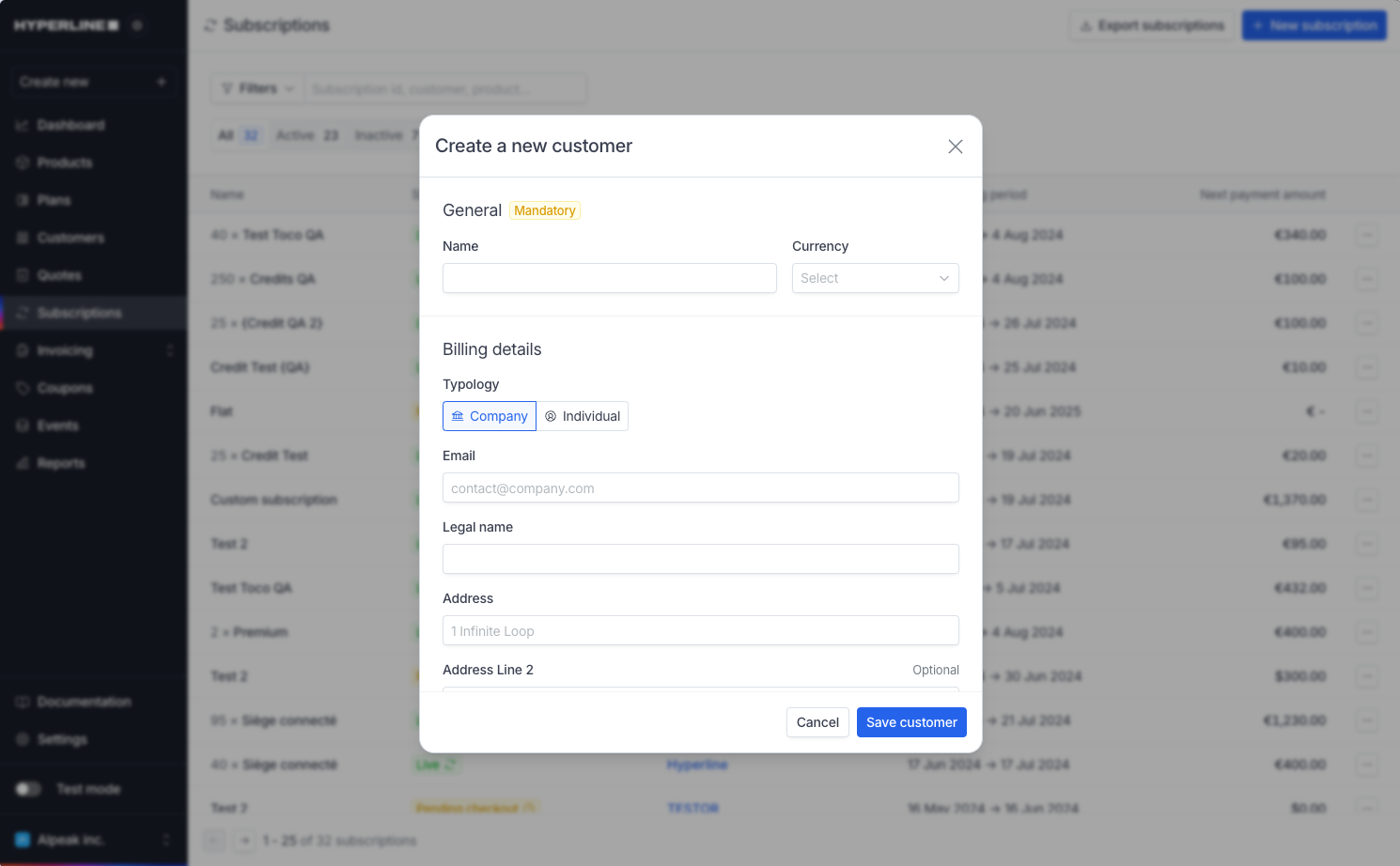
Your new customer is created
The customer will appear immediately in your customer list (under the 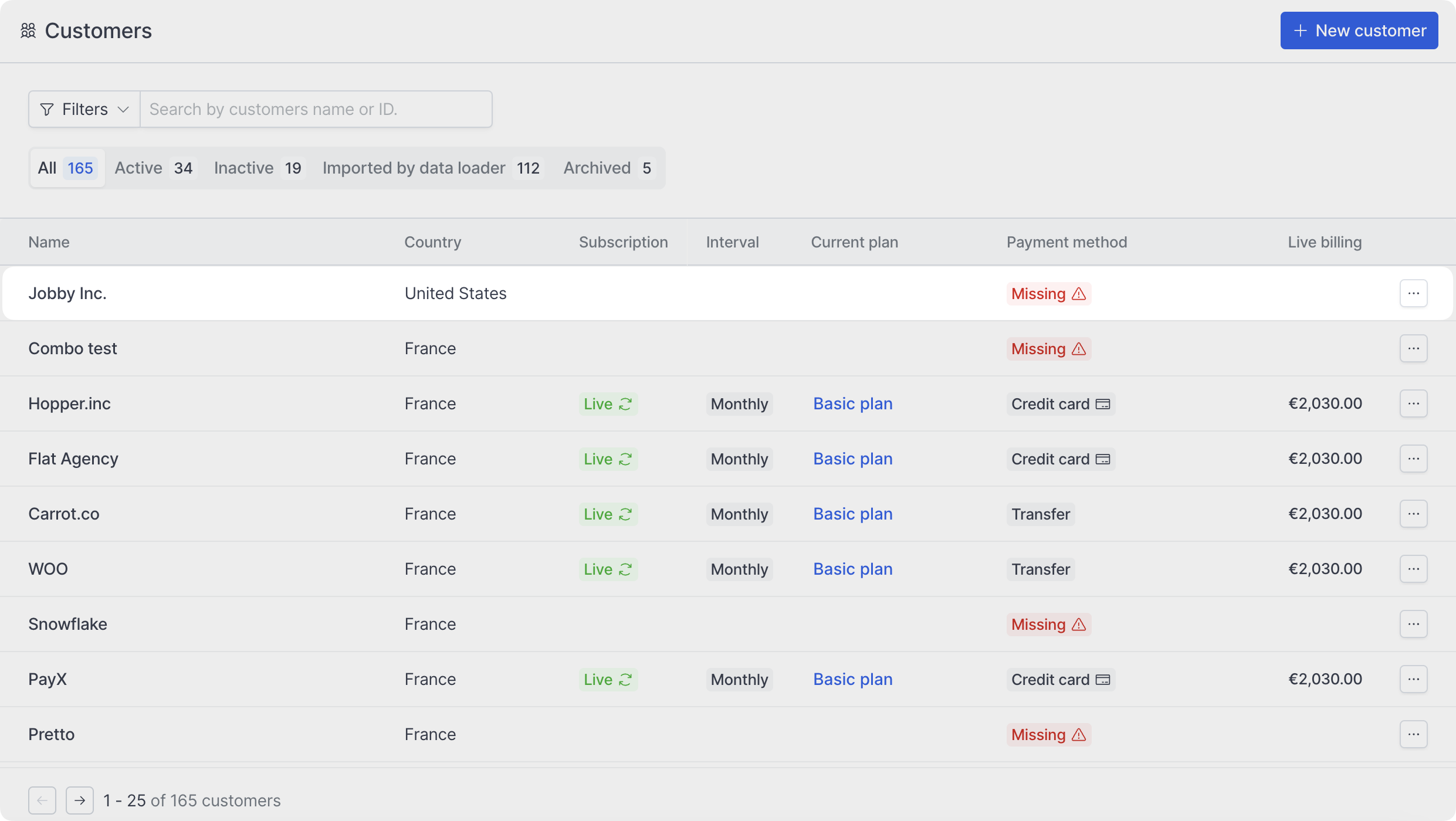
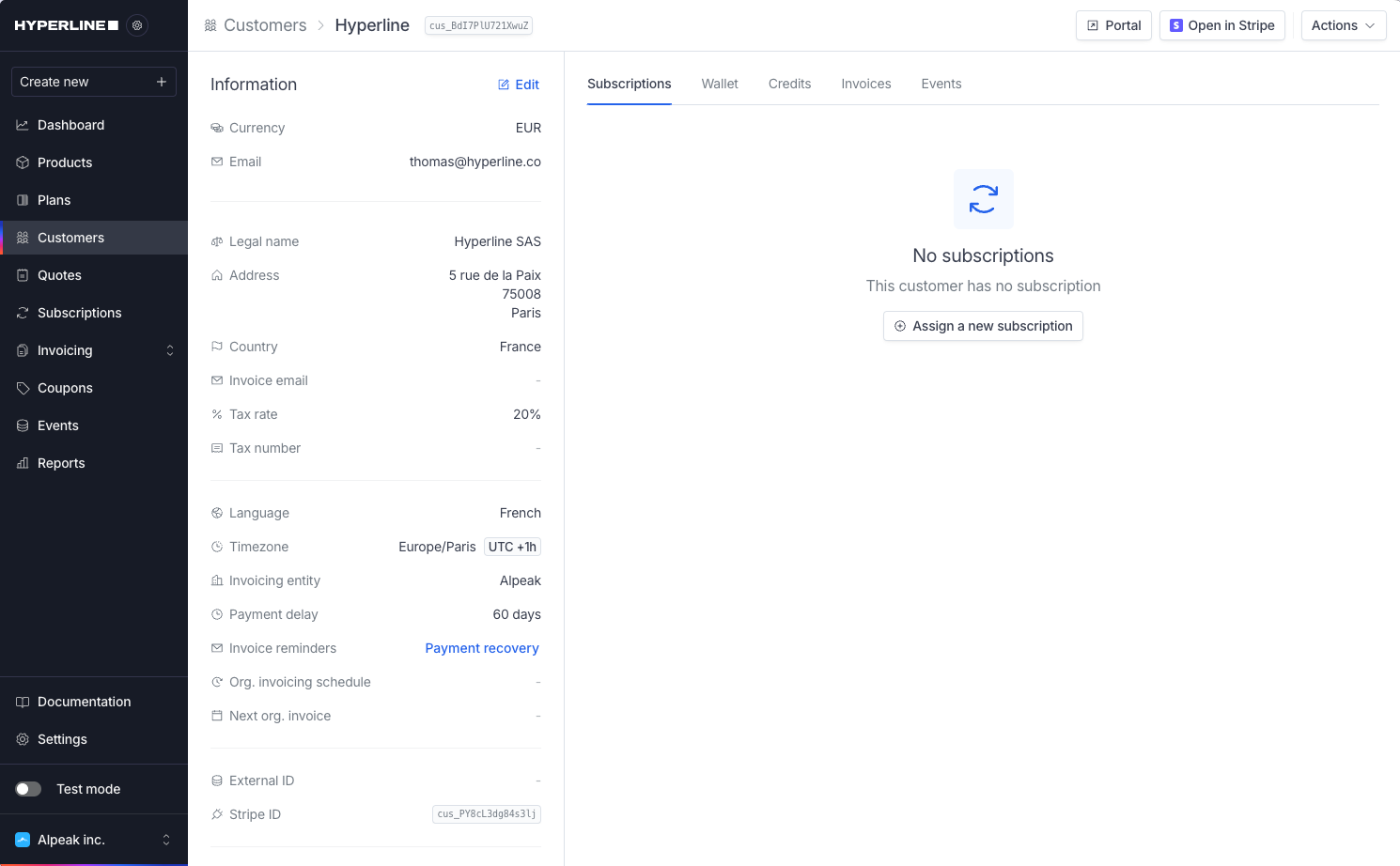
All filter).Automatic customer creation
Customers can be created programmatically using the API. Additionally, when a CRM is connected and configured to automatically sync customers to Hyperline, customers will be created automatically.Default language and country
When creating a customer, the language is determined through a cascade: if explicitly provided, that value is used; otherwise, if a country is provided, the language is inferred from that country; if neither is provided, the language defaults to the invoicing entity’s language. The country follows a simpler fallback: the provided country is used if available; otherwise, it defaults to the invoicing entity’s country. This ensures that every customer has valid language and country settings, even when not explicitly specified.Edit customer information
Customer information can be updated at any time by clicking Edit in the actions dropdown.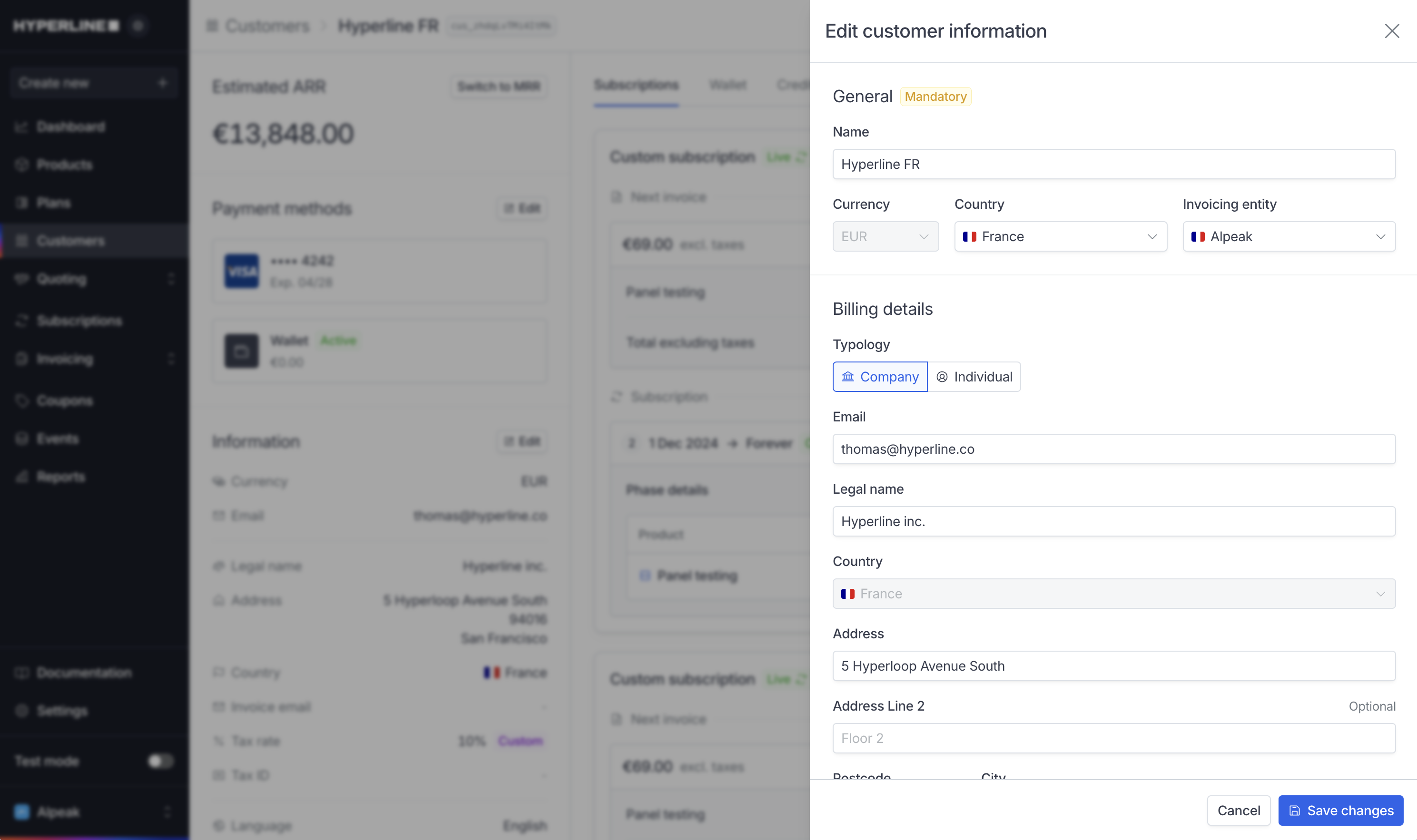
The currency cannot be changed in the following cases:
- Once a customer has a wallet with funds or an active payment method (you must remove the payment method and delete the wallet first)
- When using an external billing engine (the currency must be managed in the external tool)
Addresses
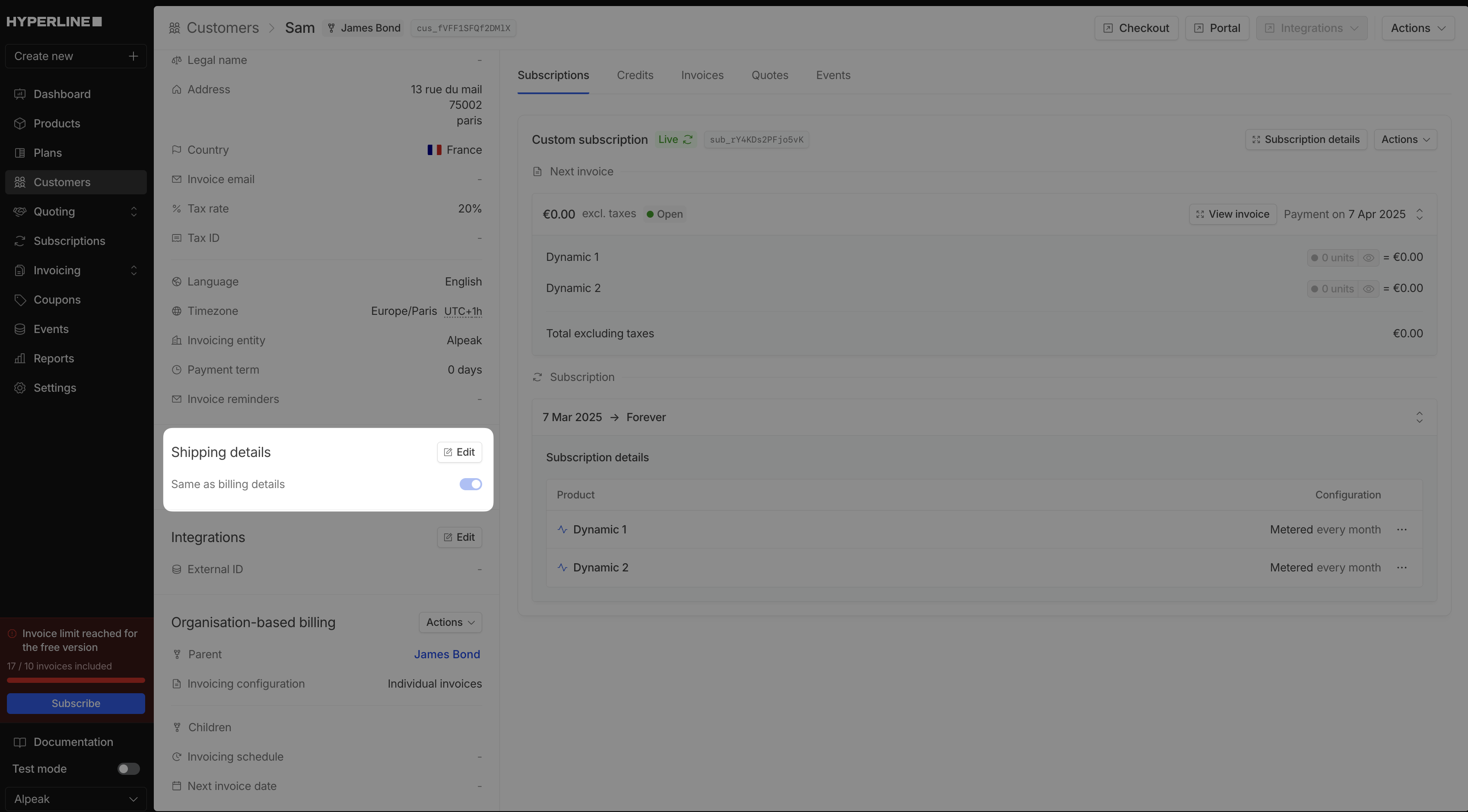
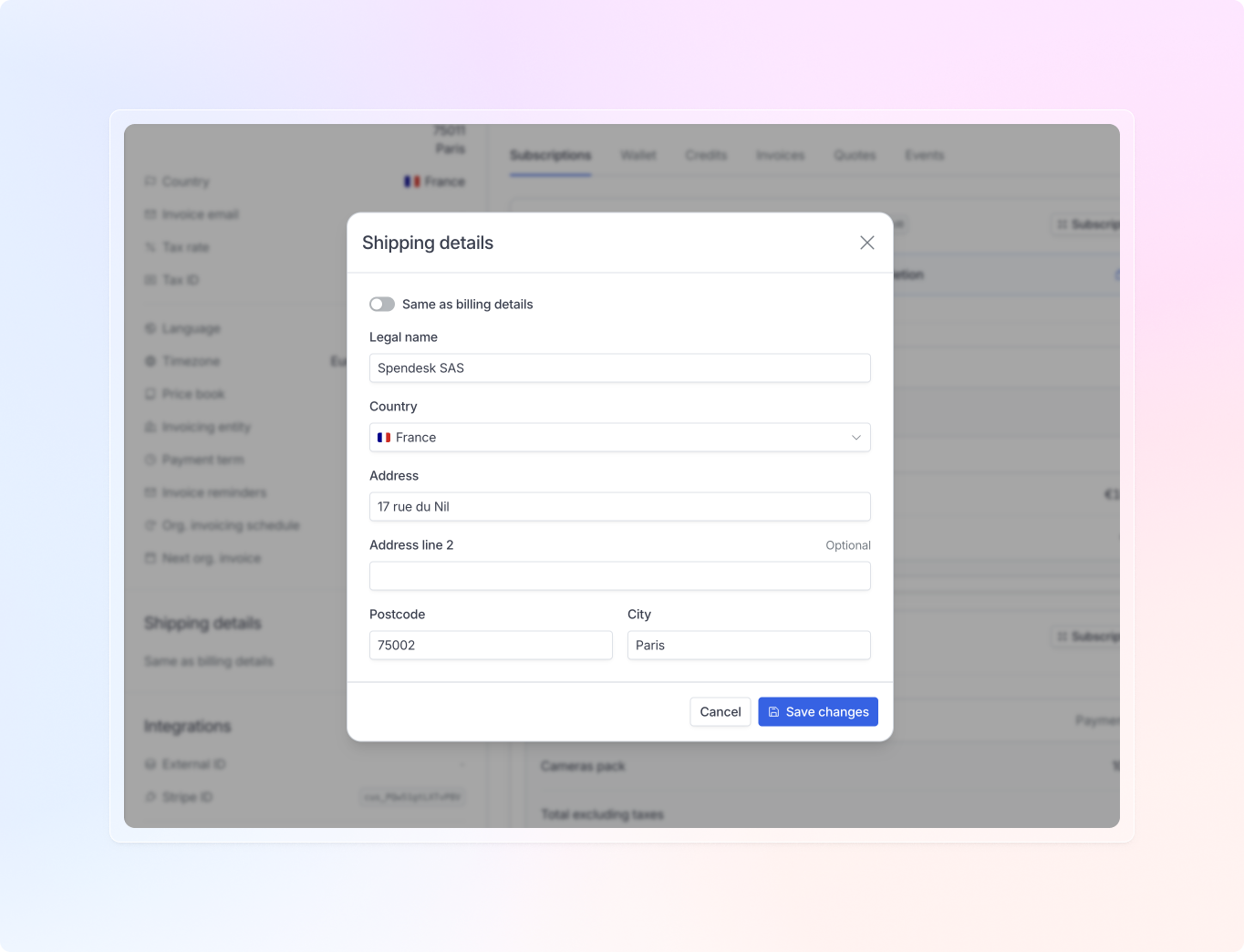
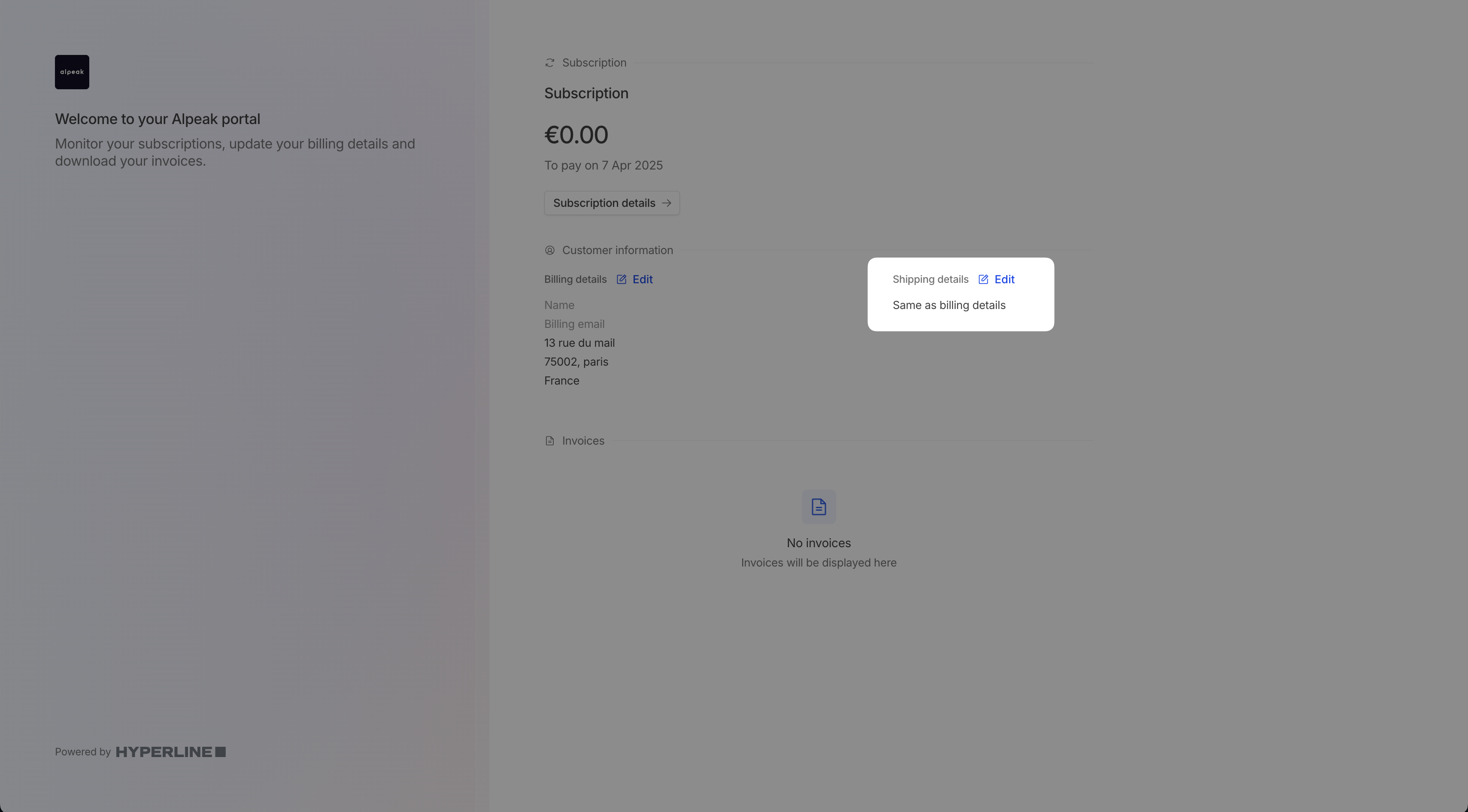
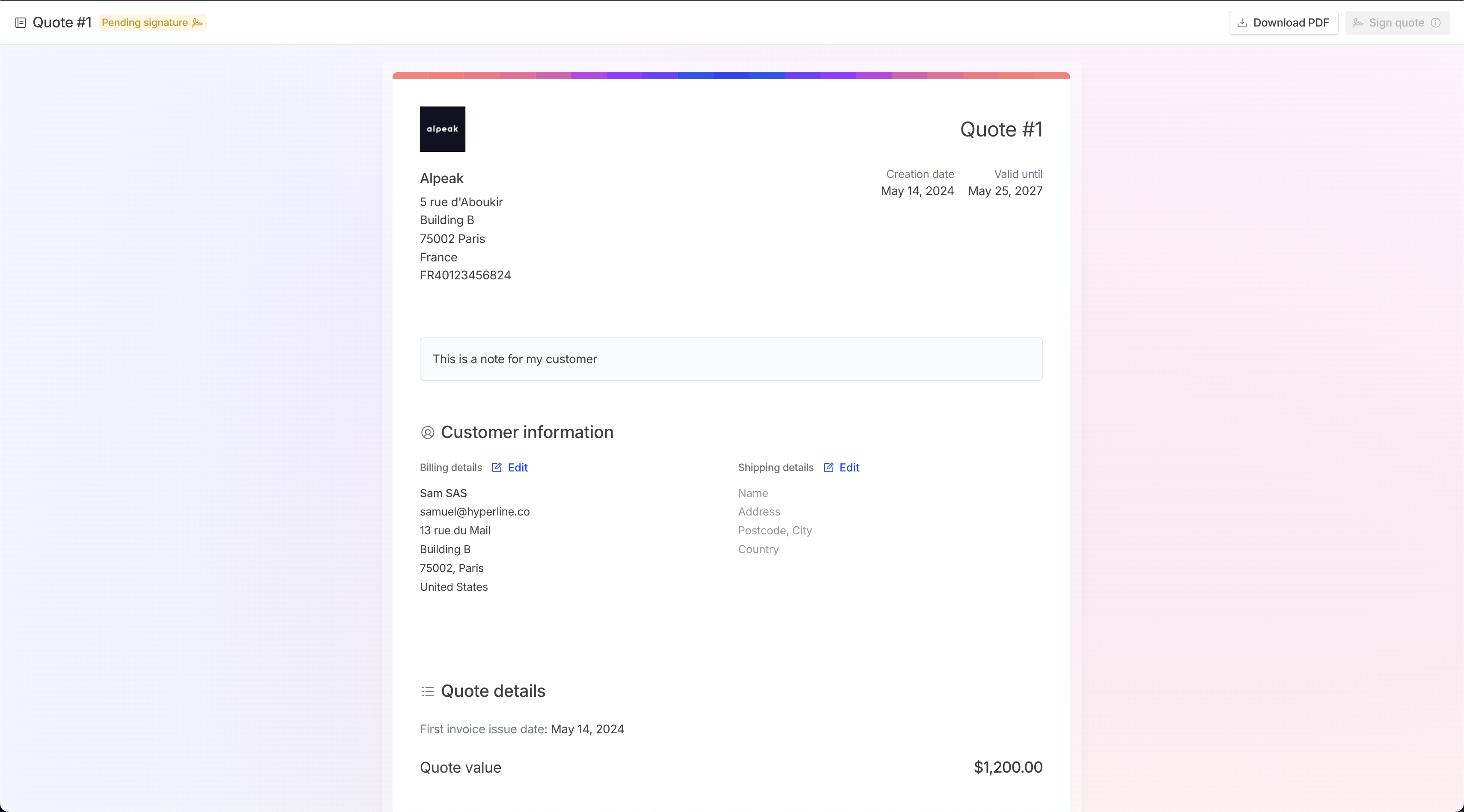
You can add multiple addresses to a customer. These addresses will be available for use in quotes, invoices, and other documents. By default, the billing address is used as the shipping address. To use a different shipping address, click the Edit button on the customer details page.