

MCP servers are part of Customer intelligence, a paid add-on. Contact the Hyperline team through the in-app chat to enable it.
This page covers connecting your MCP server to Hyperline. To use Hyperline from an AI assistant such as Claude or Cursor, see the Hyperline MCP server.
Prerequisites
- An MCP server that uses the Streamable HTTP transport.
- A server URL that starts with
https://and is reachable from the internet. Hyperline rejects local and private network addresses, and URLs that contain a username or password. - A bearer token or an API key, if the server requires authentication.
- Tools marked as read-only by the server. See Read-only tools.
Connect an MCP server
1
Go to Settings > Integrations and open the Data tab
2
Click Connect on MCP server
3
Fill in the connection details
- Name: the name the agent and your team see, for example
Product usage. - Server URL: the HTTPS address of the server.
- Authentication: None, Bearer token, or API key. For a bearer token or an API key, paste the value in the field that appears.
4
Click Connect
The server appears in your active integrations.
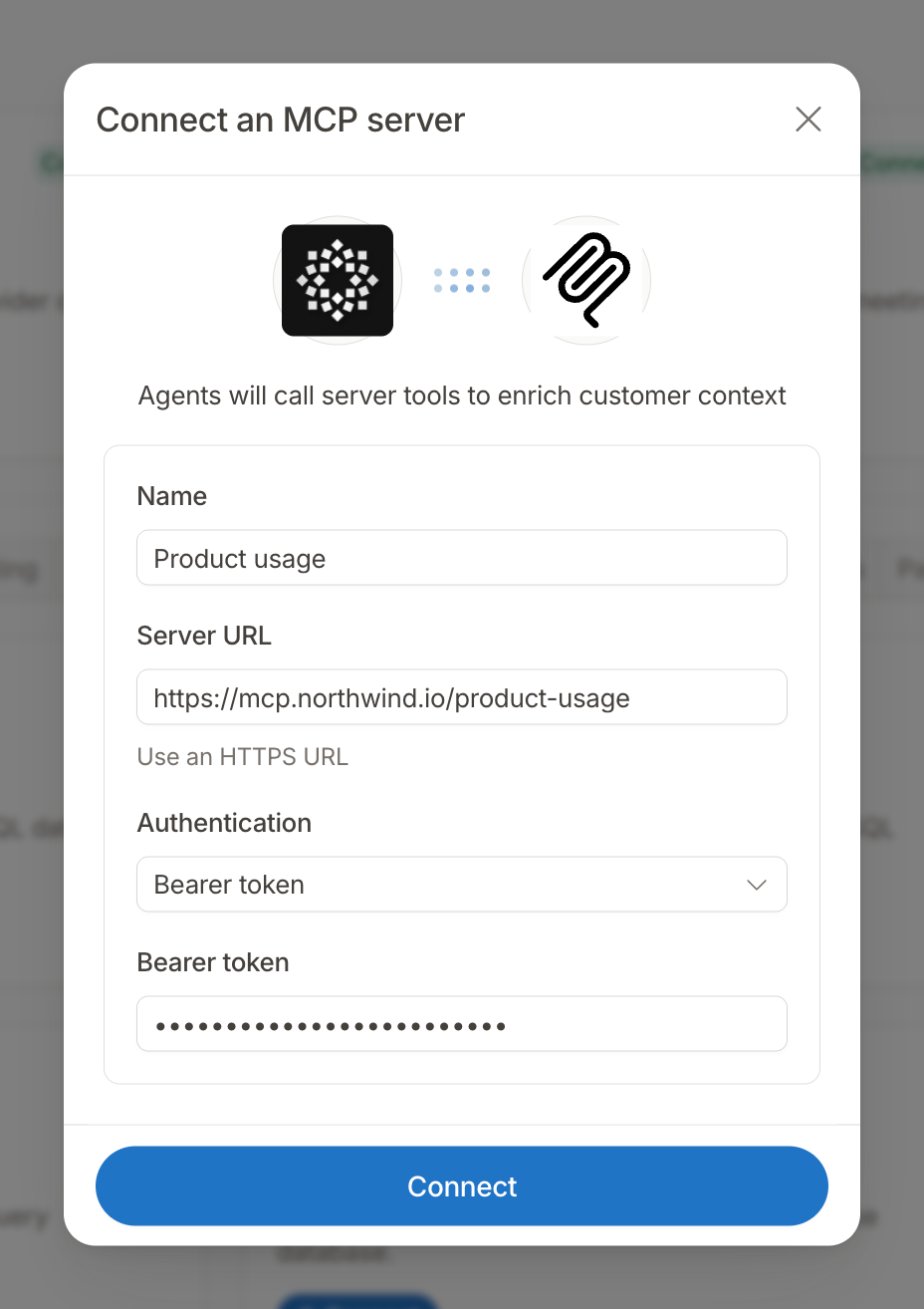
Hyperline sends a bearer token in the
Authorization header (Bearer <token>) and an API key in the x-api-key header.Check the connection and its tools
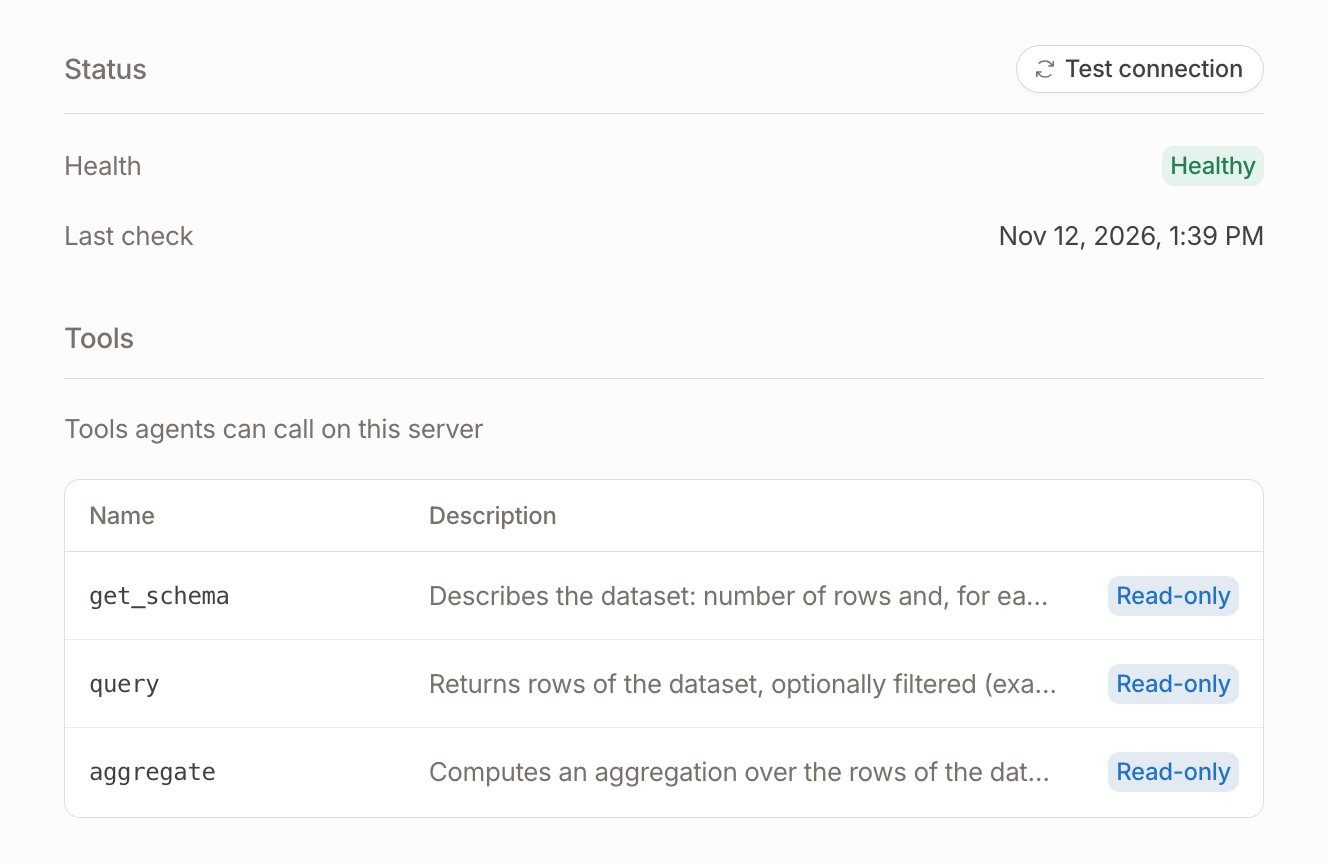
Open the MCP server from Settings > Integrations to manage it:
Click Test connection to check the server again and refresh its list of tools.
Enable the server for an agent
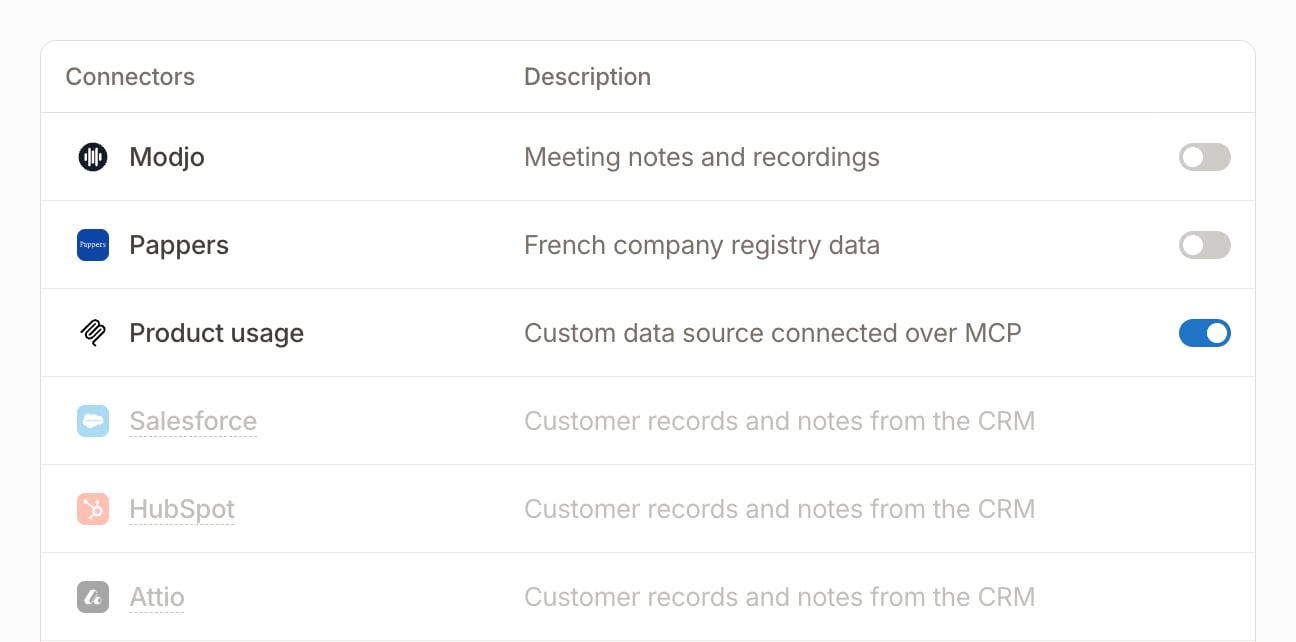
A connected MCP server is not used until you enable it on an agent.- Go to Customers > Monitoring and open the agent.
- Go to the Connectors tab.
- Turn on the toggle next to the MCP server.
- Click Save changes.
How the agent uses MCP tools
At the start of each run, the agent loads the tools of every MCP server enabled on it. Changes you make to the server’s tools apply from the next run. During an analysis, the agent decides which tools to call and what to send them, based on the tool names, descriptions, and inputs, and on the agent’s Context. The tools the agent called appear in Data sources and tools used on the analysis result.Read-only tools
The agent runs on its own only the tools the server marks as read-only. A tool counts as read-only when the server sets itsreadOnlyHint annotation and does not set destructiveHint.
The agent never runs a tool that is not marked this way on its own, even when the tool only reads data. If a tool you expect is missing from the agent’s analyses, check that it shows the Read-only tag in the Tools section, and ask the team that maintains the server to add the annotation.
Configure the agent’s context
The agent picks MCP tools from their names and descriptions only. To get reliable results, explain your data in the agent’s Context tab:- Go to Customers > Monitoring and open the agent.
- Go to the Context tab.
- Fill in General context and Scoring instructions, as described below.
- Click Save changes.
The agent knows each customer’s Hyperline ID, name, and domain. Name the one your server expects, and write field names exactly as the server returns them.
Example 💡
Your product usage export lists one row per customer per month, keyed by Hyperline customer ID. Write the following in the agent’s Context tab:The agent then reads each customer’s usage history, weighs it in the Usage and engagement and Communication dimensions, and lists the notes in the positive signals or risk factors.
Check the result
- Open the agent and click Actions > Trigger analysis.
- Select one or two customers whose data you know, and start the run.
- Open an analysis. The MCP tools the agent called appear in Data sources and tools used, and the reasoning cites the data they returned.