> ## Documentation Index
> Fetch the complete documentation index at: https://docs.hyperline.co/llms.txt
> Use this file to discover all available pages before exploring further.
# Segment
> Learn how to ingest events from Segment
## What is Segment?
[Segment](https://segment.com) is a Customer Data Platform (CDP). It simplifies collecting and using data from the users of your digital properties (websites, apps, etc.). It allows you to collect, transform, send, and archive your first-party customer data. You can also enrich the customer data you collect by connecting data from your other tools, and then aggregate it to monitor performance, inform decision-making processes, and create uniquely customized user experiences.
All this data can be easily sent to Hyperline to collect your customer's usage and automate usage-based billing and invoicing.
## Send usage from Segment to Hyperline
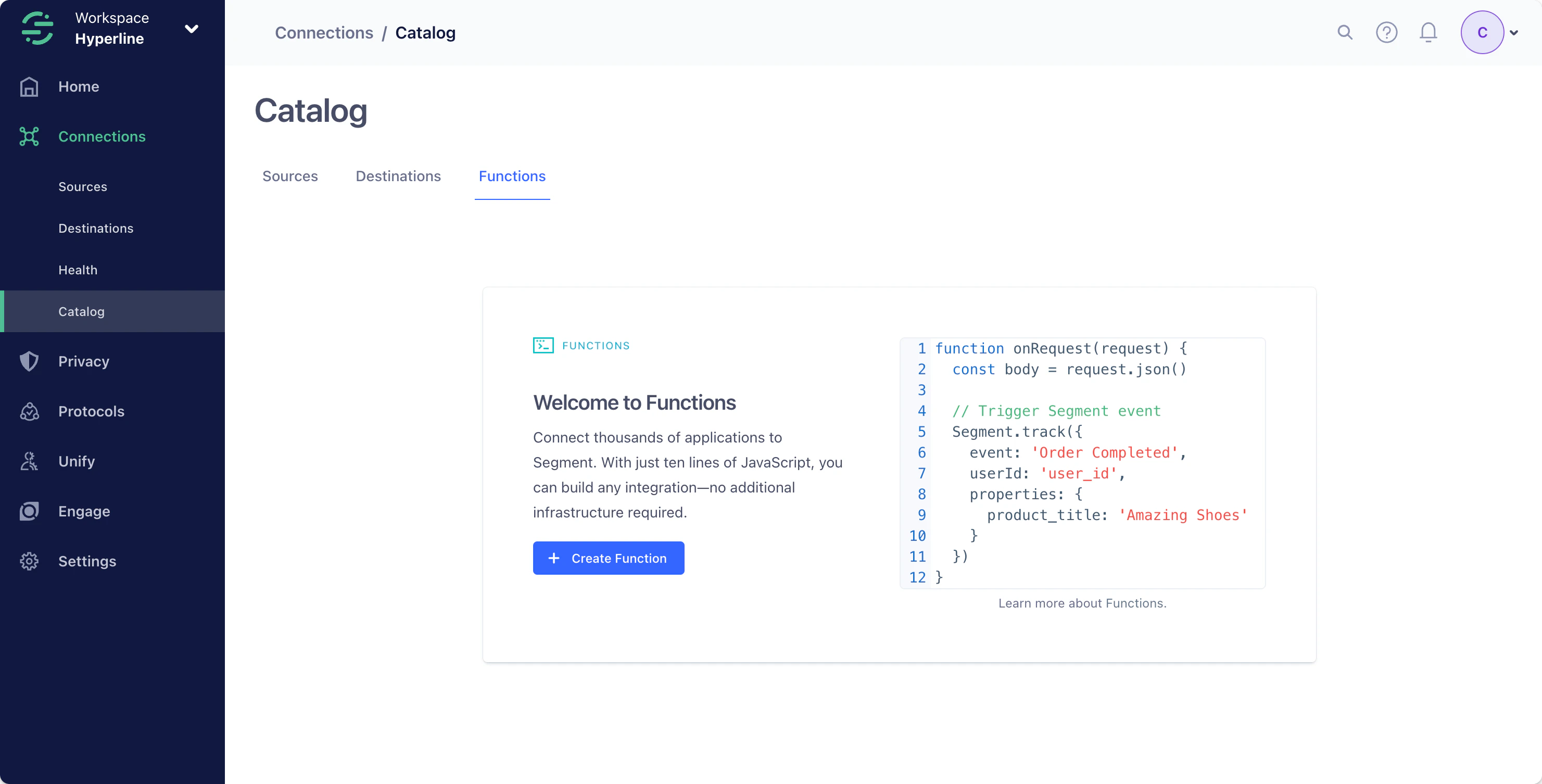
To facilitate the transmission of usage data to Hyperline, we will generate and use a custom Function within Segment.
Learn more about functions in [Segment's documentation](https://segment.com/docs/connections/functions).
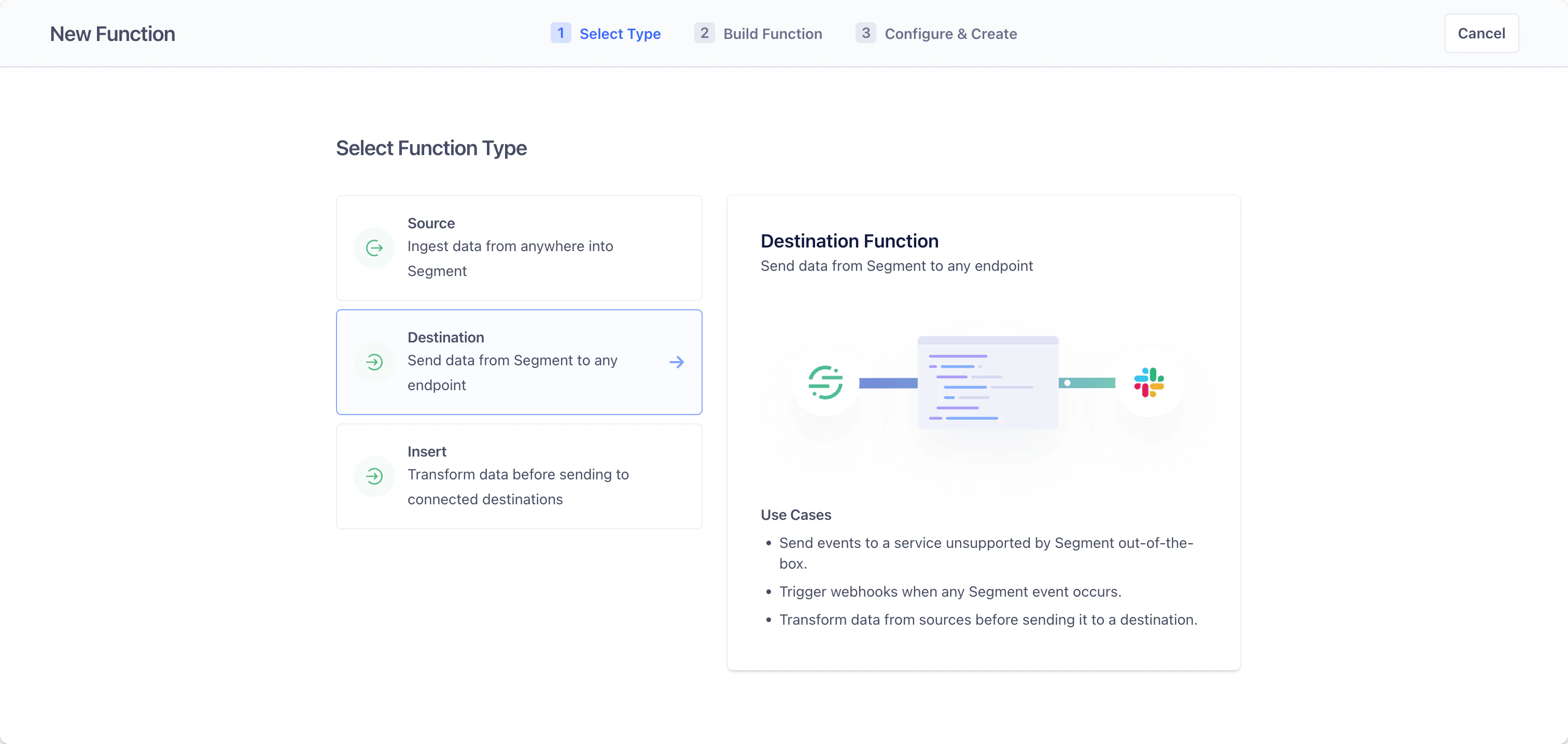 Replace the pre-written `onTrack` function in the code editor with the following code.
The provided code will catch a Track event from Segment, and post it on Hyperline with the required properties picked from the Segment event.
You can add any properties (with a value of type string, number, boolean, or array of the same types) you want to ingest in Hyperline by adding them in the `record` object. The field `my_property` is an exemple of an additional property pushed to Hyperline.
```javascript theme={null}
async function onTrack(event, settings) {
const endpoint = "https://ingest.hyperline.co/v1/events";
// https://docs.hyperline.co/api-reference/endpoints/billable-events/create-billable-event
const event = {
customer_id: event.userId,
event_type: event.event,
timestamp: event.timestamp,
record: {
id: event.messageId,
my_property: event.properties.customProperty,
// add any custom properties you want to ingest in Hyperline
},
};
try {
// Post request
const response = await fetch(endpoint, {
method: "POST",
headers: {
Authorization: `Bearer ${settings.apiKey}`,
"Content-Type": "application/json",
},
body: JSON.stringify(event),
});
// Retry on 5xx (server errors) and 429s (rate limits)
if (response.status >= 500 || response.status === 429) {
throw new RetryError(`Failed with ${response.status}`);
}
return response.json();
} catch (error) {
// Retry on connection error
throw new RetryError(error.message);
}
}
```
This code example will forward all event types to Hyperline. If you want to limit the events sent, you can use the Segment [Destination Filters](https://segment.com/docs/connections/destinations/destination-filters), or alternatively modify the code to filter out the data you don't want to send.
In the provided code snippet, the API key is a secret configured within the **Settings** tab on the right panel. This approach helps you refrain from hard-coding private variables directly into the function.
To implement this:
1. Click on **Add Setting**
2. Input `API Key` as the label (resulting in the generated name `apiKey`)
3. Choose the type `String`
4. Enter your Hyperline API key on the input on the right. You can generate a key with the [following guide](../api-reference/docs/authentication#how-to-generate-an-api-key).
5. Toggle the `Required` and `Sensitive` options
6. Save your setting
Finalize the creation of the function with a name ("Test Function" in the example below) and an optional description.
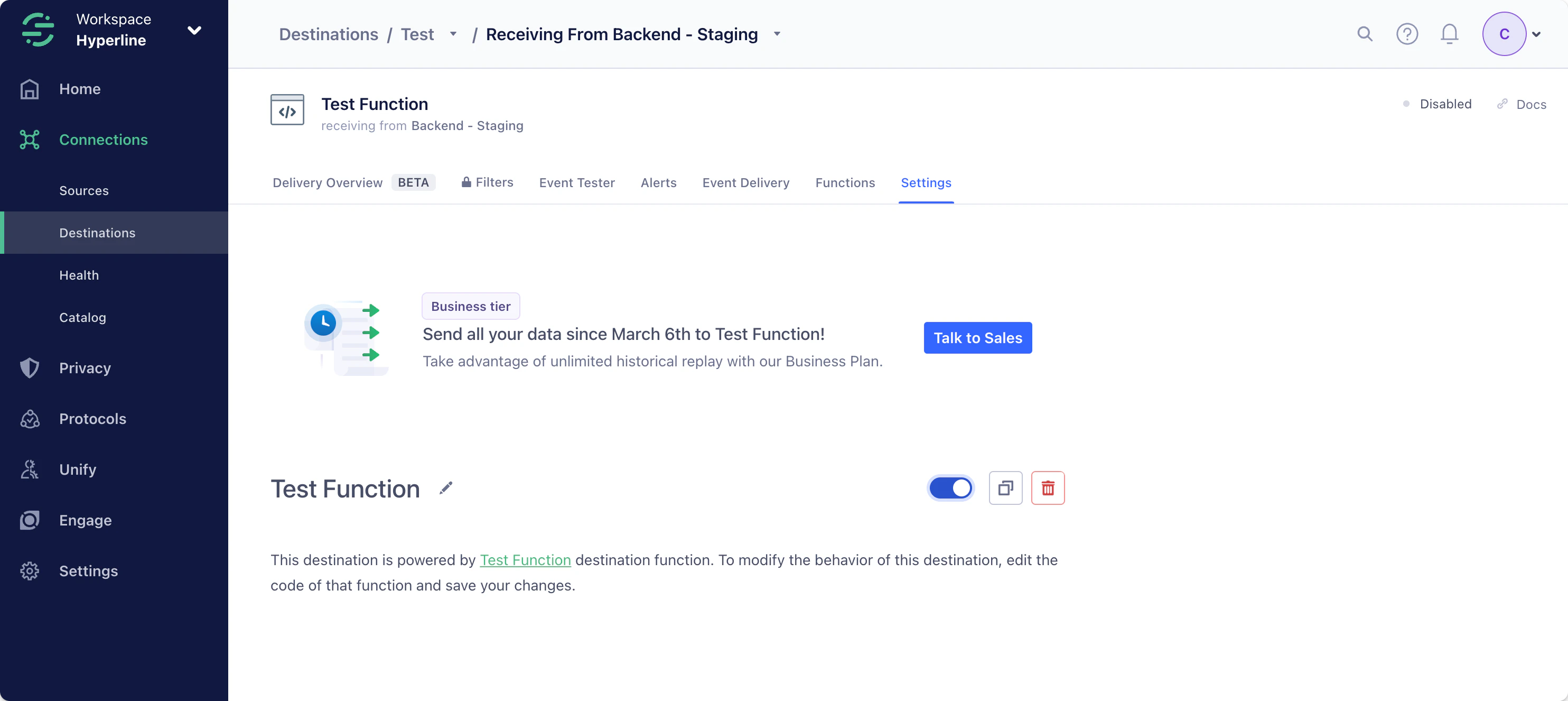
After creating the function, you can use it as a Destination of an existing source (in the example below it's the `Backend - Staging` source). Make sure to enable it to start receiving events from Segment in Hyperline.
Replace the pre-written `onTrack` function in the code editor with the following code.
The provided code will catch a Track event from Segment, and post it on Hyperline with the required properties picked from the Segment event.
You can add any properties (with a value of type string, number, boolean, or array of the same types) you want to ingest in Hyperline by adding them in the `record` object. The field `my_property` is an exemple of an additional property pushed to Hyperline.
```javascript theme={null}
async function onTrack(event, settings) {
const endpoint = "https://ingest.hyperline.co/v1/events";
// https://docs.hyperline.co/api-reference/endpoints/billable-events/create-billable-event
const event = {
customer_id: event.userId,
event_type: event.event,
timestamp: event.timestamp,
record: {
id: event.messageId,
my_property: event.properties.customProperty,
// add any custom properties you want to ingest in Hyperline
},
};
try {
// Post request
const response = await fetch(endpoint, {
method: "POST",
headers: {
Authorization: `Bearer ${settings.apiKey}`,
"Content-Type": "application/json",
},
body: JSON.stringify(event),
});
// Retry on 5xx (server errors) and 429s (rate limits)
if (response.status >= 500 || response.status === 429) {
throw new RetryError(`Failed with ${response.status}`);
}
return response.json();
} catch (error) {
// Retry on connection error
throw new RetryError(error.message);
}
}
```
This code example will forward all event types to Hyperline. If you want to limit the events sent, you can use the Segment [Destination Filters](https://segment.com/docs/connections/destinations/destination-filters), or alternatively modify the code to filter out the data you don't want to send.
In the provided code snippet, the API key is a secret configured within the **Settings** tab on the right panel. This approach helps you refrain from hard-coding private variables directly into the function.
To implement this:
1. Click on **Add Setting**
2. Input `API Key` as the label (resulting in the generated name `apiKey`)
3. Choose the type `String`
4. Enter your Hyperline API key on the input on the right. You can generate a key with the [following guide](../api-reference/docs/authentication#how-to-generate-an-api-key).
5. Toggle the `Required` and `Sensitive` options
6. Save your setting
Finalize the creation of the function with a name ("Test Function" in the example below) and an optional description.
After creating the function, you can use it as a Destination of an existing source (in the example below it's the `Backend - Staging` source). Make sure to enable it to start receiving events from Segment in Hyperline.