> ## Documentation Index
> Fetch the complete documentation index at: https://docs.hyperline.co/llms.txt
> Use this file to discover all available pages before exploring further.
# Hightouch
> Learn how to sync data from Hightouch
## What is Hightouch?
[Hightouch](https://hightouch.com) is a platform that enables businesses to sync data between different systems, databases, or applications, often associated with data integration and synchronization. It facilitates the movement of data between various sources and destinations, allowing companies to streamline their operations, automate processes, and ensure that different tools or databases remain up-to-date with the most recent information.
All this data can be easily sent to Hyperline to collect your customer's usage and automate usage-based billing and invoicing.
## Send usage from Hightouch to Hyperline
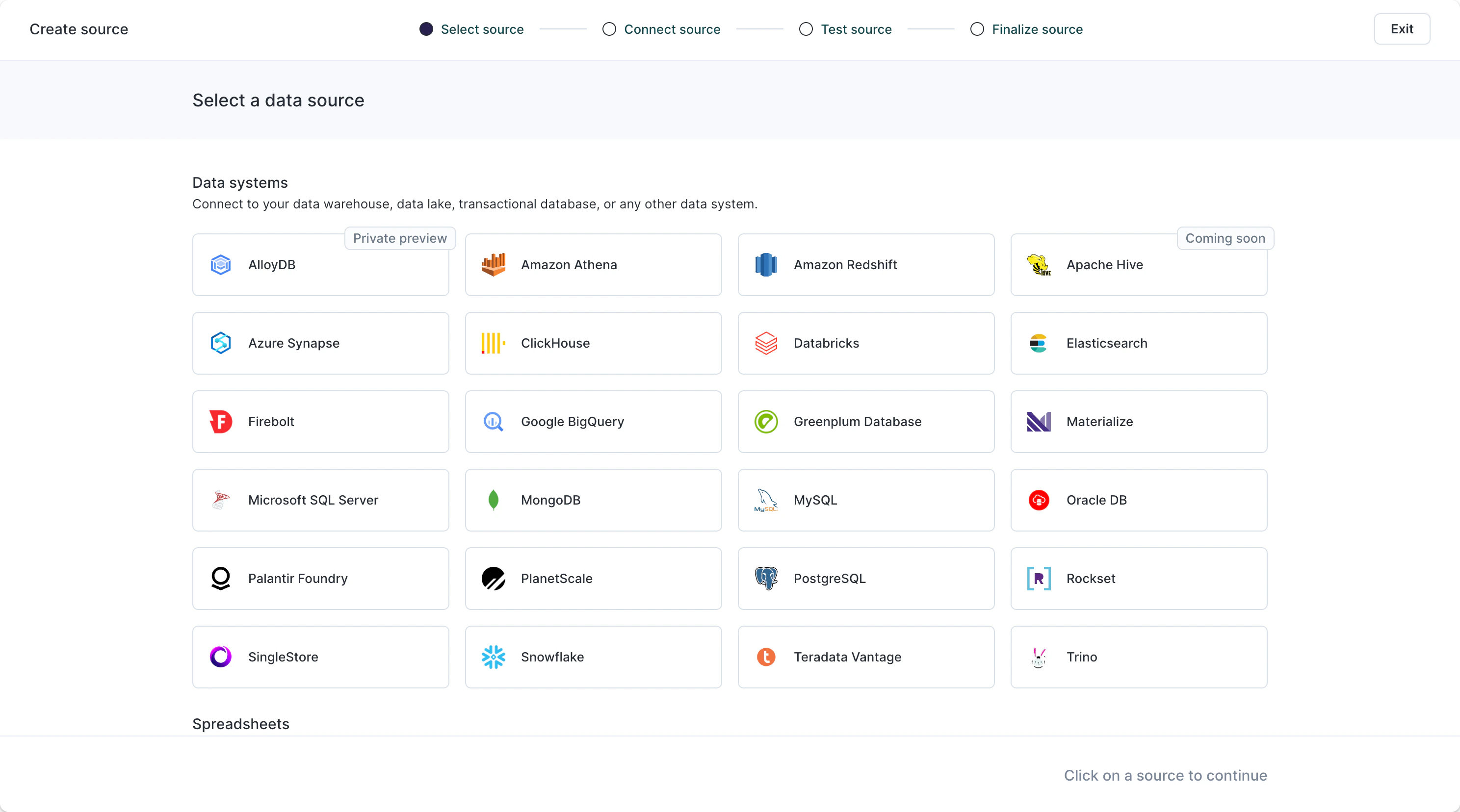
### Configure a data source
The first thing you need to create in Hightouch is a `source`.
The source can be of any type (spreadsheet, database, warehouse, etc).
 ### Create a HTTP Request destination
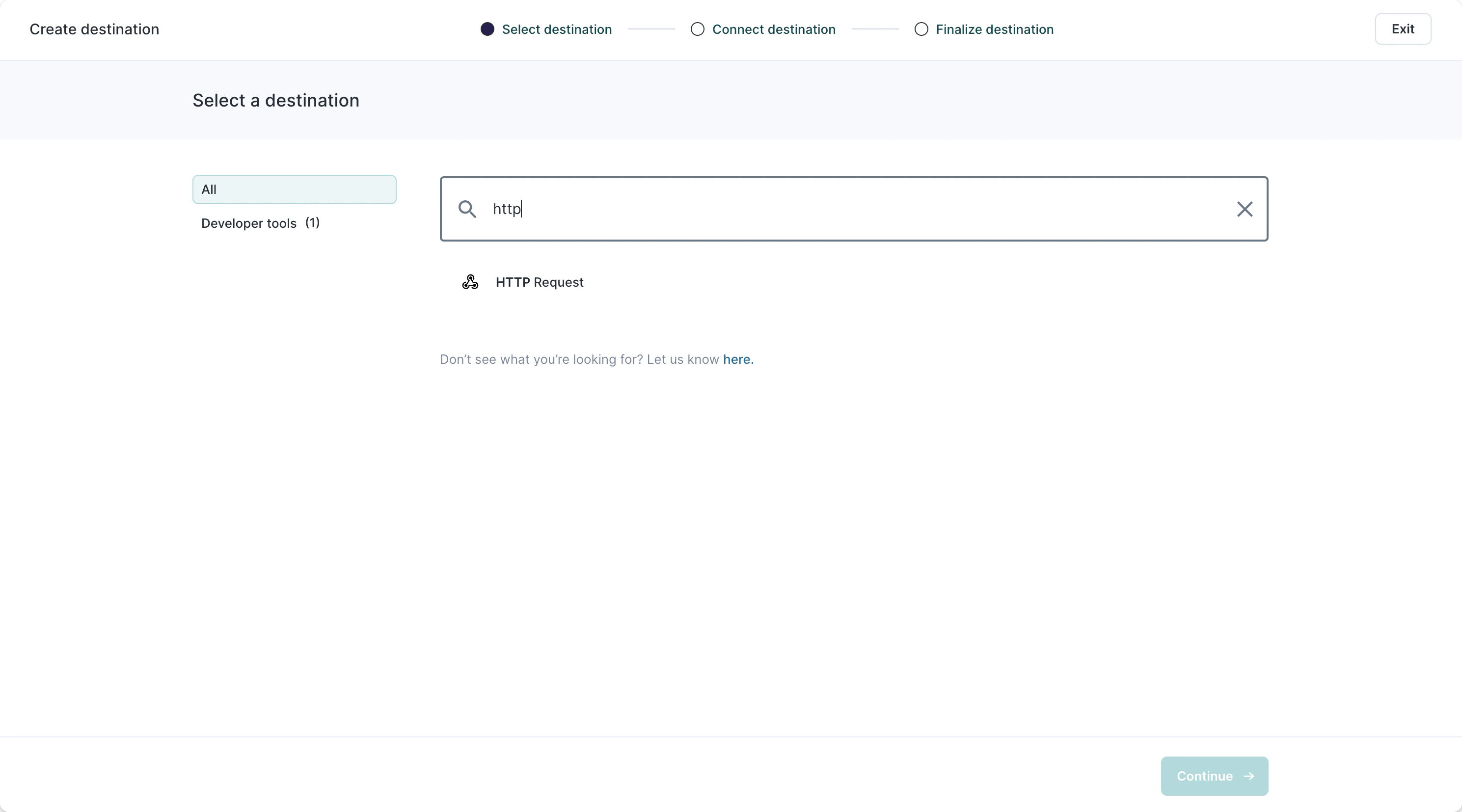
Hyperline uses HTTP requests to ingest usage. Setting up this `destination` in Hightouch takes only a few clicks:
### Create a HTTP Request destination
Hyperline uses HTTP requests to ingest usage. Setting up this `destination` in Hightouch takes only a few clicks:
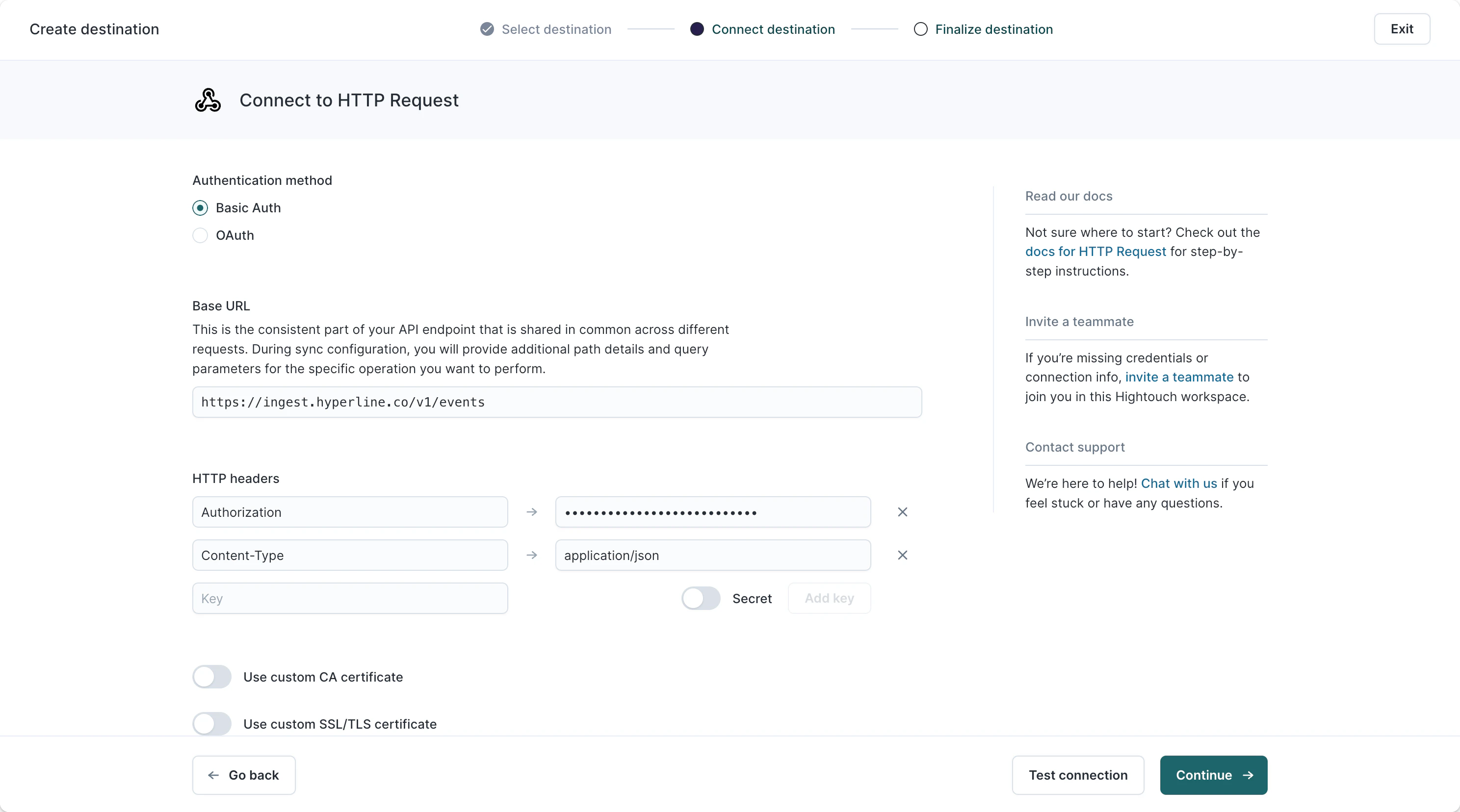
 You need to add two headers:
* `Authorization` with `Bearer ` as a **secret** value
* `Content-Type` with `application/json` as value
You need to add two headers:
* `Authorization` with `Bearer ` as a **secret** value
* `Content-Type` with `application/json` as value
 ### Create a model
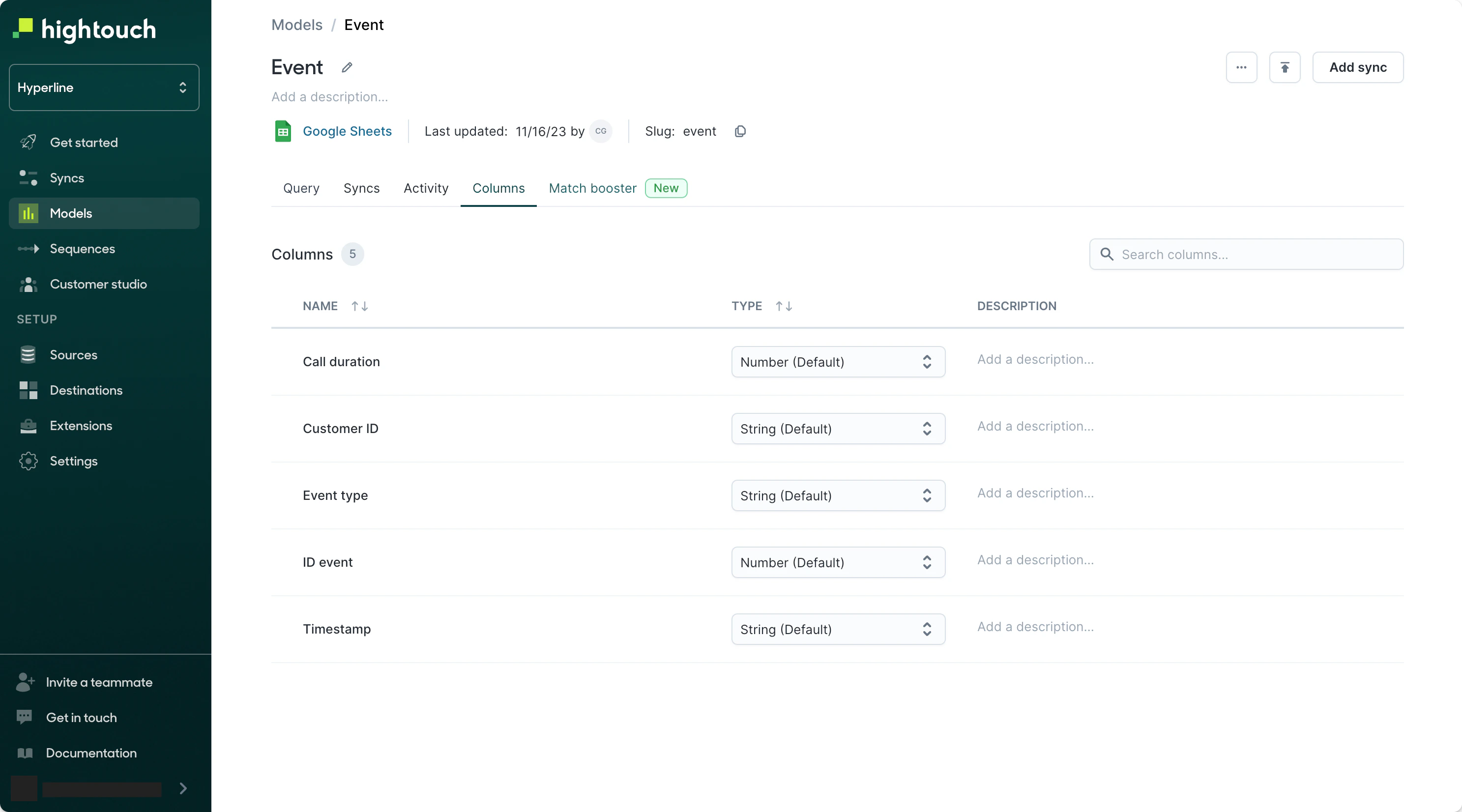
After saving the destination, you need to create a `model` representing the entity you want to sync (represented as `event` in Hyperline).
Put a name and select a primary key from the source fields.
### Create a model
After saving the destination, you need to create a `model` representing the entity you want to sync (represented as `event` in Hyperline).
Put a name and select a primary key from the source fields.
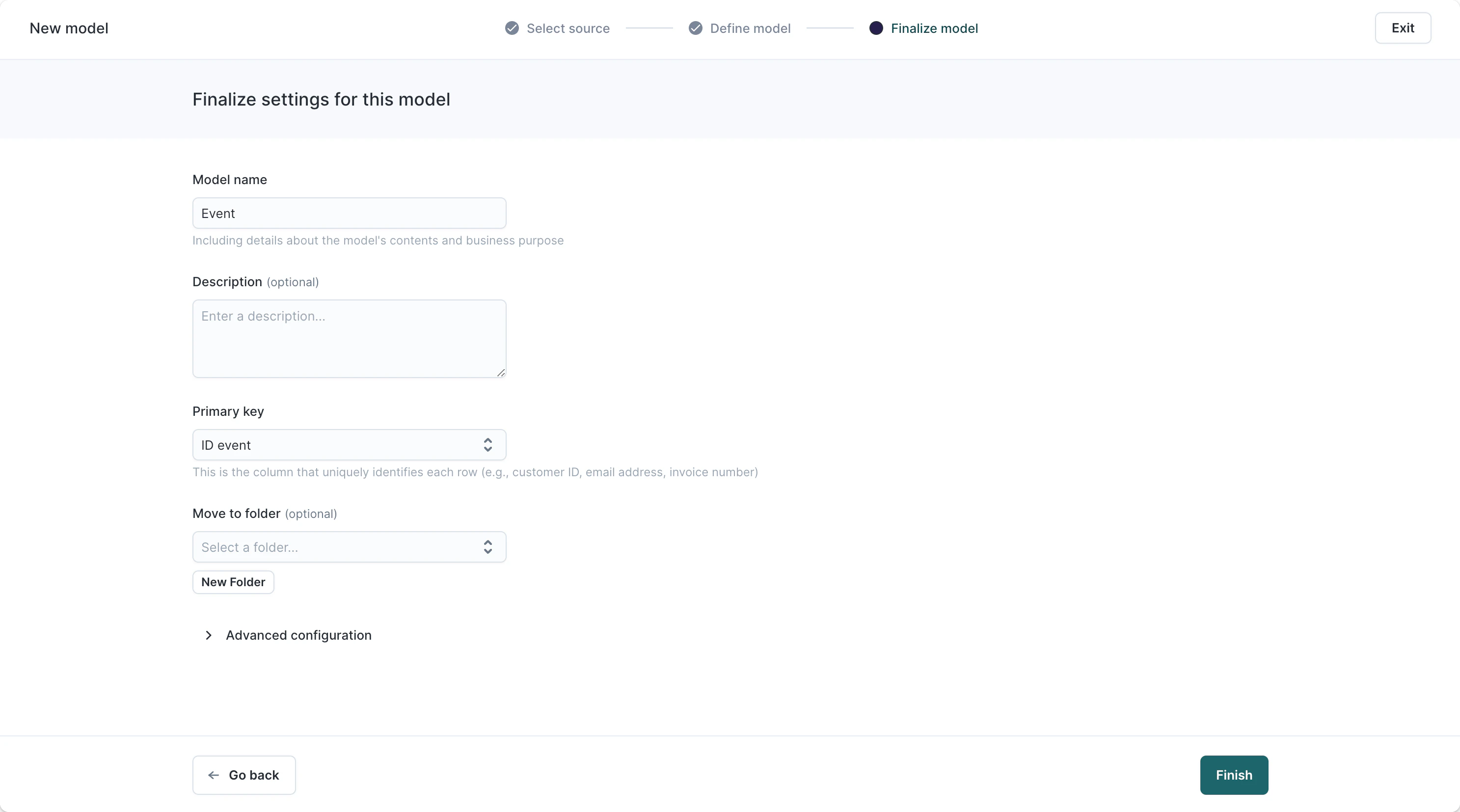 After finishing the model, you can also configure more settings on it like columns types, descriptions, etc.
 ### Create a sync
The last step you need to configure is a `sync`. Syncs declare how you want query results from a model to appear in your destination (Hyperline).
Put a name and select a primary key from the source fields.
Select **Row added** and **Row updated** triggers, **POST** HTTP request method, don't change the URL, **JSON** as type of payload with **Use JSON editor**.
Here is an example of JSON payload that can be sent to the Hyperline ingest API.
```json theme={null}
{
"customer_id": "{{ row.customerId }}",
"event_type": "{{ row.eventType }}",
"timestamp": "{{ row.timestamp }}",
"record": {
"id": "{{ row.eventId }}",
"my_property": "{{ row.customProperty }}", // add any custom properties you want to ingest in Hyperline
},
}
```
Hightouch supports Liquid template language to insert variables from your source to your JSON payload. These variables are created following this syntax: `{{ row.variable }}`, `variable` being the column name of your source.
Verify your synchronization by using a data sample. A new event should appear on your events [explore](https://app.hyperline.co/app/events/explore) page within Hyperline.
When you're ready, activate this sync and specify a periodic trigger.
### Create a sync
The last step you need to configure is a `sync`. Syncs declare how you want query results from a model to appear in your destination (Hyperline).
Put a name and select a primary key from the source fields.
Select **Row added** and **Row updated** triggers, **POST** HTTP request method, don't change the URL, **JSON** as type of payload with **Use JSON editor**.
Here is an example of JSON payload that can be sent to the Hyperline ingest API.
```json theme={null}
{
"customer_id": "{{ row.customerId }}",
"event_type": "{{ row.eventType }}",
"timestamp": "{{ row.timestamp }}",
"record": {
"id": "{{ row.eventId }}",
"my_property": "{{ row.customProperty }}", // add any custom properties you want to ingest in Hyperline
},
}
```
Hightouch supports Liquid template language to insert variables from your source to your JSON payload. These variables are created following this syntax: `{{ row.variable }}`, `variable` being the column name of your source.
Verify your synchronization by using a data sample. A new event should appear on your events [explore](https://app.hyperline.co/app/events/explore) page within Hyperline.
When you're ready, activate this sync and specify a periodic trigger.