> ## Documentation Index
> Fetch the complete documentation index at: https://docs.hyperline.co/llms.txt
> Use this file to discover all available pages before exploring further.
# Attio
> Learn how to connect Attio with Hyperline
The Hyperline-Attio integration provides a seamless connection between your Attio workspace and Hyperline.
With this integration, you can access dedicated widgets and actions directly from your Attio record pages, allowing you to create and manage Hyperline quotes, subscriptions, and customers without leaving your CRM. These features embed the full Hyperline interface inside Attio, ensuring a smooth and efficient flows.
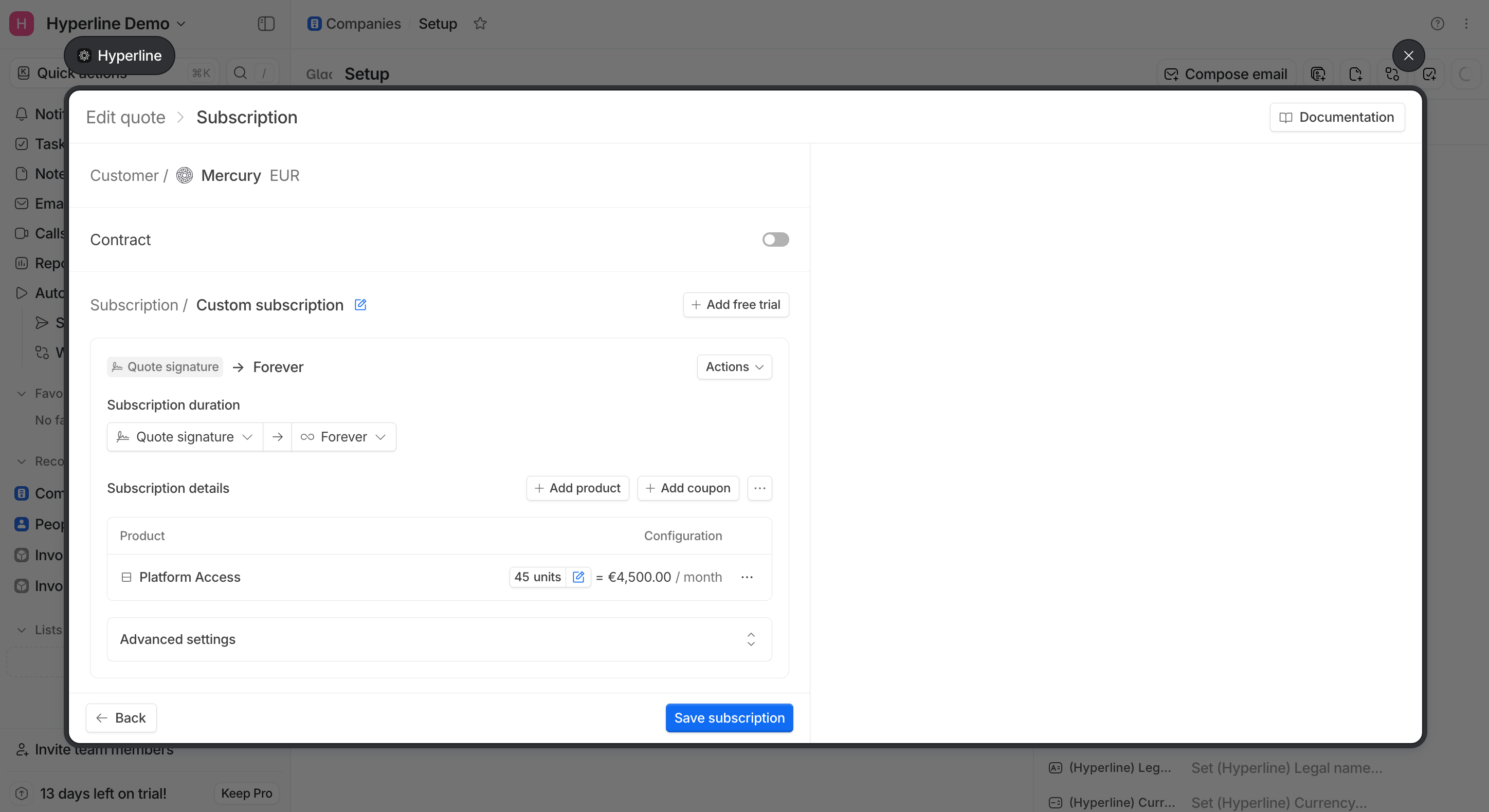 In addition, the integration enables optional and automatic data synchronization between Hyperline entities—such as quotes, subscriptions, and invoice details—and Attio's custom objects. This ensures you always have the most up-to-date information at your fingertips, allowing this data to be used for internal automations, workflows, and reporting within Attio.
 ## Prerequisites
You must have a valid [Attio account](https://attio.com) with admin rights as well as access to the settings of your Hyperline account.
We recommend creating a dedicated Attio test workspace before going live, and using the [test mode](../docs/getting-started/sandbox) of your Hyperline account during setup and experimentation.
## Embedded Hyperline UIs in Attio
### Installation
Upon connecting your Attio account to Hyperline, the Hyperline app is automatically installed in your Attio workspace.
You'll then need to configure a **Workspace Connection**:
1. In Attio, navigate to Workspace settings > Apps > Hyperline > Workspace Connection > Connect
2. Enter an [API key created in your Hyperline settings](../api-reference/docs/authentication#how-to-generate-an-api-key) with **read access**
#### Sandbox
To use the Hyperline Attio app with your Hyperline **sandbox (test mode)** account, go to Workspace settings > Apps > Hyperline > Settings in Attio, and select "Sandbox" as the environment.
In this case, please use an API key created in your Hyperline **sandbox** account for the Attio app Workspace Connection.
### Record actions
Once the integration is set up, new Hyperline actions become available directly from your Attio company and deal records.
These actions allow you to:
* create Hyperline quotes
* create Hyperline subscriptions
* manage the related Hyperline customer
Each action opens a dedicated Hyperline interface embedded directly within Attio, giving you access to the full Hyperline experience without leaving your CRM—and ensuring seamless interoperability between both systems.
### Widgets
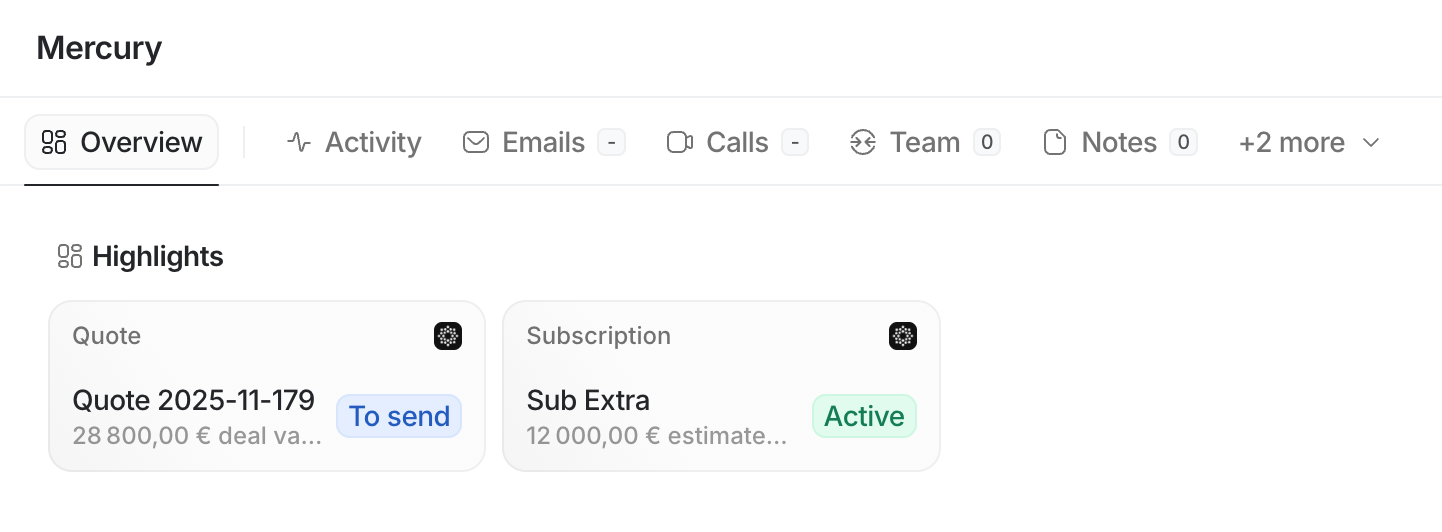
In addition to record actions, the integration provides dedicated Hyperline widgets that can be embedded directly into your Attio company and deal record pages.
* **Subscription widget**: Displays a preview of the customer's active subscription along with its associated ARR. Clicking the widget opens the corresponding Hyperline subscription page.
* **Quote widget**: Displays a preview of the currently open quote and its associated value. Clicking the widget opens the corresponding Hyperline quote page.
If multiple subscriptions or quotes are linked to the Attio record, the widget will instead display the number of related items. Clicking it will open a list of all associated subscriptions or quotes.
### User access
Attio users do not need an existing Hyperline account. When a user triggers a Hyperline action for the first time, a corresponding Hyperline user is automatically created using their Attio email address and assigned to your default Hyperline role (the ['Account manager' role](../docs/getting-started/configure-account#account-manager-role) if not changed).
When Hyperline interfaces are opened inside Attio, the user's Hyperline role is applied to ensure the correct view and edit permissions. These permissions are managed directly in Hyperline under Settings > Team.
### Data reconciliation
When retrieving Hyperline customer data from an Attio company or deal record, the following lookup mechanism is applied:
1. If it's a deal record, use the associated company record for the lookup.
2. If the company record is already linked to a Hyperline customer (via the Integrations section on the Hyperline customer page), that customer is used.
3. If the company record has a value in the Hyperline customer ID custom field, we attempt to resolve the corresponding Hyperline customer.
4. If the company record has a value in the Hyperline external ID custom field, we attempt to resolve the Hyperline customer whose ID or external ID matches that value.
If the Attio company and the Hyperline customer were not previously linked, the link is automatically created—provided the integration settings allow it (customer sync enabled, sync direction including Attio → Hyperline, and the company flagged for sync).
If a customer is found but the settings do not allow automatic linking, Hyperline will surface the suggested customer in Attio, along with an action to manually trigger the link.
If no customer is found but the “Allow creating new customer” setting is enabled, the Attio user will be able to create a new related Hyperline customer and proceed with the desired action.
## Data synchronization
In addition to the fully built-in embedded UIs, the integration can also synchronize data from Hyperline to Attio custom objects. This synchronization is optional and can be configured afterward.
## Prerequisites
You must have a valid [Attio account](https://attio.com) with admin rights as well as access to the settings of your Hyperline account.
We recommend creating a dedicated Attio test workspace before going live, and using the [test mode](../docs/getting-started/sandbox) of your Hyperline account during setup and experimentation.
## Embedded Hyperline UIs in Attio
### Installation
Upon connecting your Attio account to Hyperline, the Hyperline app is automatically installed in your Attio workspace.
You'll then need to configure a **Workspace Connection**:
1. In Attio, navigate to Workspace settings > Apps > Hyperline > Workspace Connection > Connect
2. Enter an [API key created in your Hyperline settings](../api-reference/docs/authentication#how-to-generate-an-api-key) with **read access**
#### Sandbox
To use the Hyperline Attio app with your Hyperline **sandbox (test mode)** account, go to Workspace settings > Apps > Hyperline > Settings in Attio, and select "Sandbox" as the environment.
In this case, please use an API key created in your Hyperline **sandbox** account for the Attio app Workspace Connection.
### Record actions
Once the integration is set up, new Hyperline actions become available directly from your Attio company and deal records.
These actions allow you to:
* create Hyperline quotes
* create Hyperline subscriptions
* manage the related Hyperline customer
Each action opens a dedicated Hyperline interface embedded directly within Attio, giving you access to the full Hyperline experience without leaving your CRM—and ensuring seamless interoperability between both systems.
### Widgets
In addition to record actions, the integration provides dedicated Hyperline widgets that can be embedded directly into your Attio company and deal record pages.
* **Subscription widget**: Displays a preview of the customer's active subscription along with its associated ARR. Clicking the widget opens the corresponding Hyperline subscription page.
* **Quote widget**: Displays a preview of the currently open quote and its associated value. Clicking the widget opens the corresponding Hyperline quote page.
If multiple subscriptions or quotes are linked to the Attio record, the widget will instead display the number of related items. Clicking it will open a list of all associated subscriptions or quotes.
### User access
Attio users do not need an existing Hyperline account. When a user triggers a Hyperline action for the first time, a corresponding Hyperline user is automatically created using their Attio email address and assigned to your default Hyperline role (the ['Account manager' role](../docs/getting-started/configure-account#account-manager-role) if not changed).
When Hyperline interfaces are opened inside Attio, the user's Hyperline role is applied to ensure the correct view and edit permissions. These permissions are managed directly in Hyperline under Settings > Team.
### Data reconciliation
When retrieving Hyperline customer data from an Attio company or deal record, the following lookup mechanism is applied:
1. If it's a deal record, use the associated company record for the lookup.
2. If the company record is already linked to a Hyperline customer (via the Integrations section on the Hyperline customer page), that customer is used.
3. If the company record has a value in the Hyperline customer ID custom field, we attempt to resolve the corresponding Hyperline customer.
4. If the company record has a value in the Hyperline external ID custom field, we attempt to resolve the Hyperline customer whose ID or external ID matches that value.
If the Attio company and the Hyperline customer were not previously linked, the link is automatically created—provided the integration settings allow it (customer sync enabled, sync direction including Attio → Hyperline, and the company flagged for sync).
If a customer is found but the settings do not allow automatic linking, Hyperline will surface the suggested customer in Attio, along with an action to manually trigger the link.
If no customer is found but the “Allow creating new customer” setting is enabled, the Attio user will be able to create a new related Hyperline customer and proceed with the desired action.
## Data synchronization
In addition to the fully built-in embedded UIs, the integration can also synchronize data from Hyperline to Attio custom objects. This synchronization is optional and can be configured afterward.
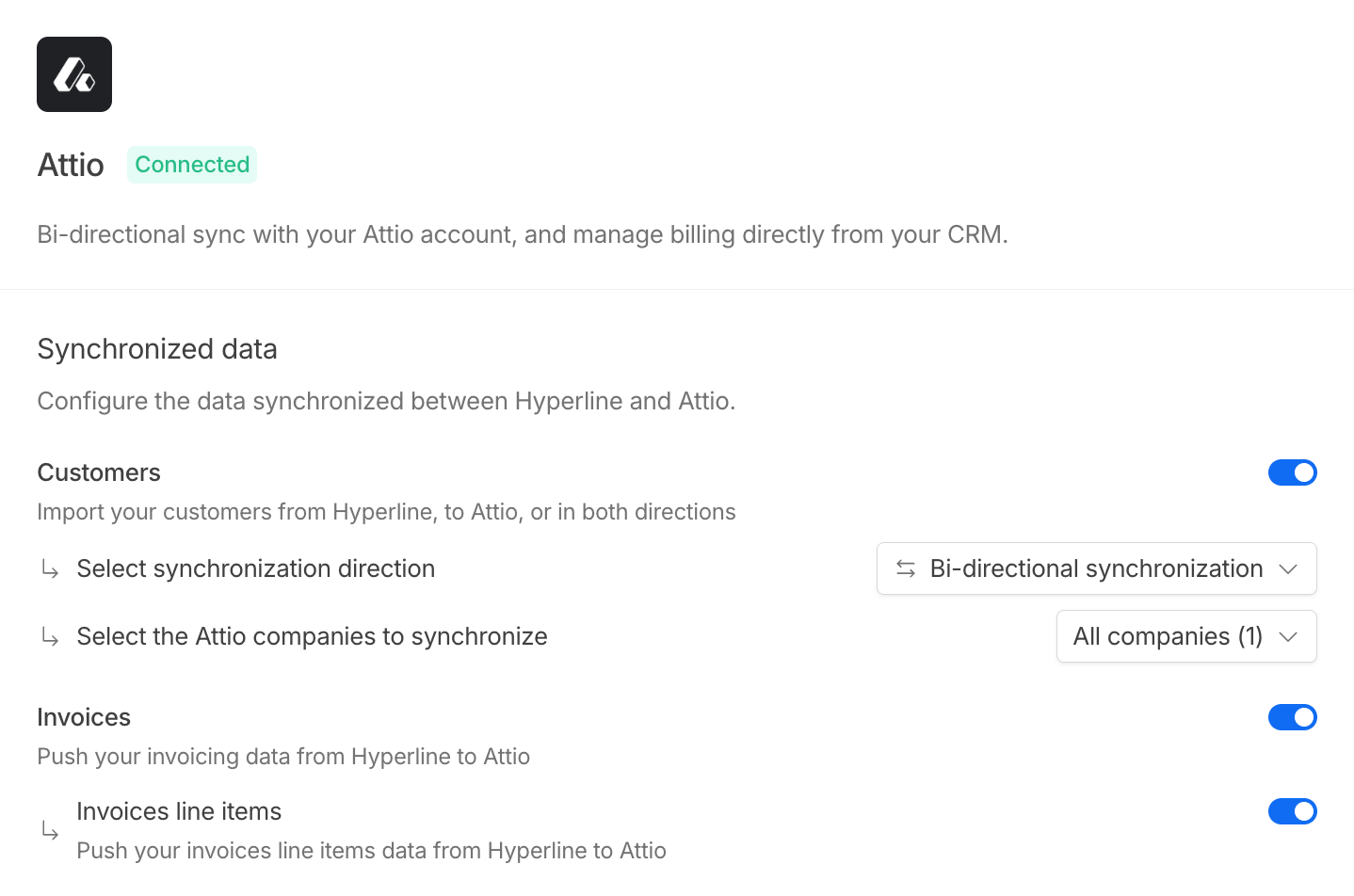 When you connect your Attio workspace and select which entities you want to synchronize in the Hyperline settings, Hyperline automatically creates the required custom objects and their associated fields in Attio (if they do not already exist) and sets up the synchronization mechanisms.
Deleting or manually modifying a Hyperline custom objects and custom fields in
Attio may break the integration and lead to unexpected behavior.
Changing the data you choose to synchronize requires reconfiguring the integration. This process may take a few minutes to complete.
### Customers sync
When enabled, Hyperline customers are synchronized with Attio companies. You can choose the synchronization direction (one-way or bidirectional).
During the integration setup, Hyperline creates a “(Hyperline) Synchronize” checkbox custom field (`hyperline_sync` slug) on the Company object.
An Attio company is imported and synchronized into Hyperline only when this checkbox is enabled; companies without it checked are ignored.
### Mapping
Below are the objects mappings between Hyperline entities and Attio custom objects.
| Entity | Attio object slug |
| --------------------- | ---------------------------------- |
| Quote | `hyperline_quotes` |
| Quote line item | `hyperline_quote_line_items` |
| Quote coupon | `hyperline_quote_coupons` |
| Quote phase | `hyperline_quote_phases` |
| Quote file | `hyperline_quote_files` |
| Subscription | `hyperline_subscriptions` |
| Subscription product | `hyperline_subscription_products` |
| Subscription coupon | `hyperline_subscription_coupons` |
| Subscription phase | `hyperline_subscription_phases` |
| Invoice | `hyperline_invoices` |
| Invoice line item | `hyperline_invoice_line_items` |
| Custom property value | `hyperline_custom_property_values` |
### Manually trigger a sync
You can also manually trigger customer data synchronization from the Hyperline customer page. In the Integrations dropdown, click “Sync with Attio” to push (or pull, depending on the sync direction) the customer's data and send all associated quotes, subscriptions, and invoices to Attio.
## Troubleshooting
If you encounter any issues with the integration (missing data, failed entity synchronization, etc.), we recommend checking the Hyperline issues page for more details: Settings > Integrations > Attio > View issues.
## Disconnect
At any time, you can disconnect the integration by clicking the Disconnect button located in the top-right corner of the Attio integration settings page.
Disconnecting the integration will stop all synchronization, but the custom objects, custom fields, and any previously pushed data in Attio will remain intact—they will not be deleted.
When you connect your Attio workspace and select which entities you want to synchronize in the Hyperline settings, Hyperline automatically creates the required custom objects and their associated fields in Attio (if they do not already exist) and sets up the synchronization mechanisms.
Deleting or manually modifying a Hyperline custom objects and custom fields in
Attio may break the integration and lead to unexpected behavior.
Changing the data you choose to synchronize requires reconfiguring the integration. This process may take a few minutes to complete.
### Customers sync
When enabled, Hyperline customers are synchronized with Attio companies. You can choose the synchronization direction (one-way or bidirectional).
During the integration setup, Hyperline creates a “(Hyperline) Synchronize” checkbox custom field (`hyperline_sync` slug) on the Company object.
An Attio company is imported and synchronized into Hyperline only when this checkbox is enabled; companies without it checked are ignored.
### Mapping
Below are the objects mappings between Hyperline entities and Attio custom objects.
| Entity | Attio object slug |
| --------------------- | ---------------------------------- |
| Quote | `hyperline_quotes` |
| Quote line item | `hyperline_quote_line_items` |
| Quote coupon | `hyperline_quote_coupons` |
| Quote phase | `hyperline_quote_phases` |
| Quote file | `hyperline_quote_files` |
| Subscription | `hyperline_subscriptions` |
| Subscription product | `hyperline_subscription_products` |
| Subscription coupon | `hyperline_subscription_coupons` |
| Subscription phase | `hyperline_subscription_phases` |
| Invoice | `hyperline_invoices` |
| Invoice line item | `hyperline_invoice_line_items` |
| Custom property value | `hyperline_custom_property_values` |
### Manually trigger a sync
You can also manually trigger customer data synchronization from the Hyperline customer page. In the Integrations dropdown, click “Sync with Attio” to push (or pull, depending on the sync direction) the customer's data and send all associated quotes, subscriptions, and invoices to Attio.
## Troubleshooting
If you encounter any issues with the integration (missing data, failed entity synchronization, etc.), we recommend checking the Hyperline issues page for more details: Settings > Integrations > Attio > View issues.
## Disconnect
At any time, you can disconnect the integration by clicking the Disconnect button located in the top-right corner of the Attio integration settings page.
Disconnecting the integration will stop all synchronization, but the custom objects, custom fields, and any previously pushed data in Attio will remain intact—they will not be deleted.