> ## Documentation Index
> Fetch the complete documentation index at: https://docs.hyperline.co/llms.txt
> Use this file to discover all available pages before exploring further.
# Pull usage data with connectors
> No-code usage based with Hyperline connectors and automatic data pulling
If you don't fancy integrating our API, we have released a connector system allowing you to import data directly from your own database.
## Prerequisites
* You need a Postgres database that can receive incoming trafic from our IPs `15.188.105.163`, `15.188.215.105` and `35.181.129.14`
* The associated database URL (should look something like `postgres://username:password@host.com/database`)
The best practice here is to use a read replica and create a limited user specifically for us that will only be able to access the needed subset in the database.
## Load your data
To get start, just go to the [data loaders page](https://app.hyperline.co/app/events/loaders) in Hyperline. You should see an empty state.
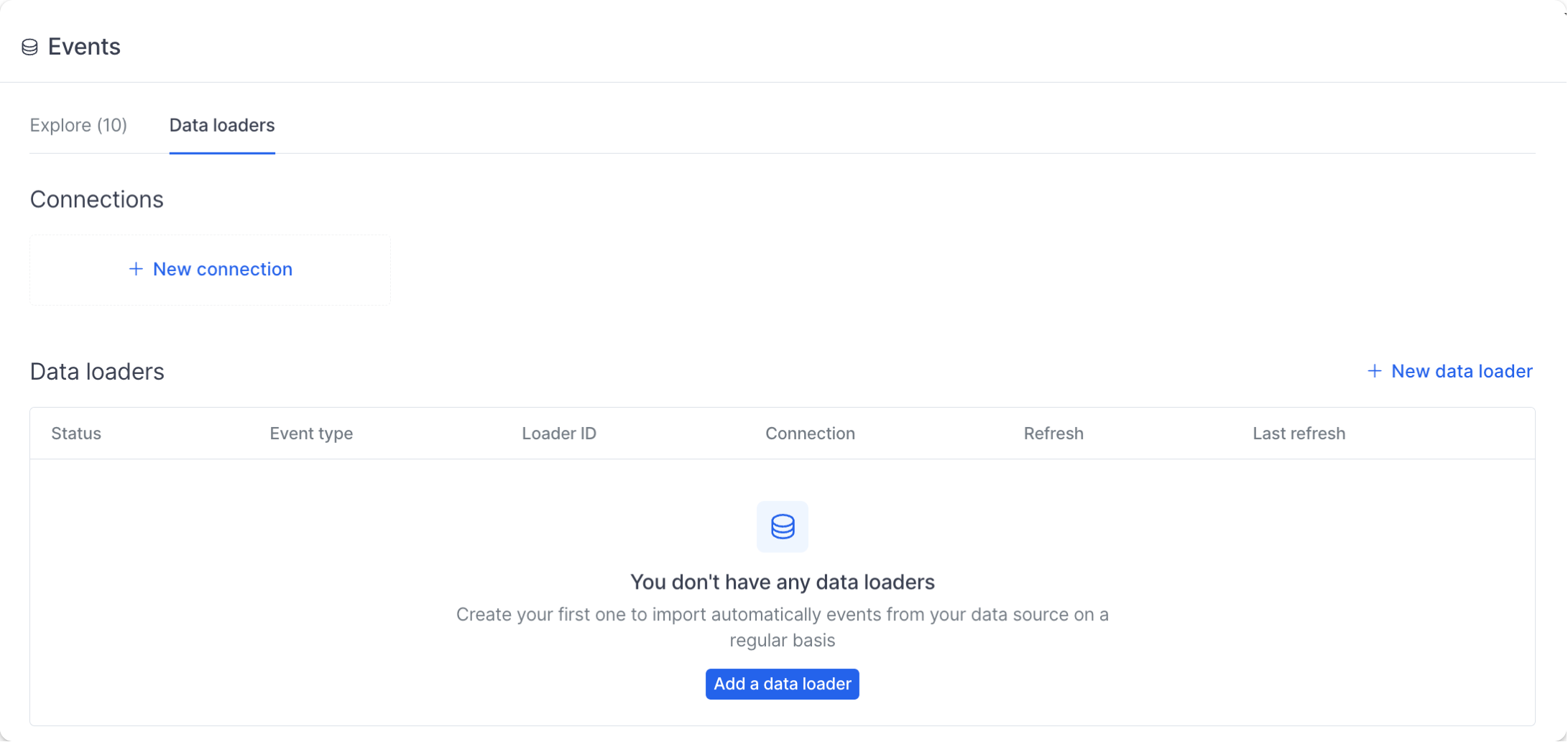 Let's add your first connection by clicking on "New connection". In the modal,
* Select a provider
* Give a name you'll remember to your connection
* Enter the URL you got from the prerequisites
When you click on submit, we do a quick check to make sure your database is accessible by running a blank query. You should now see your connection live.
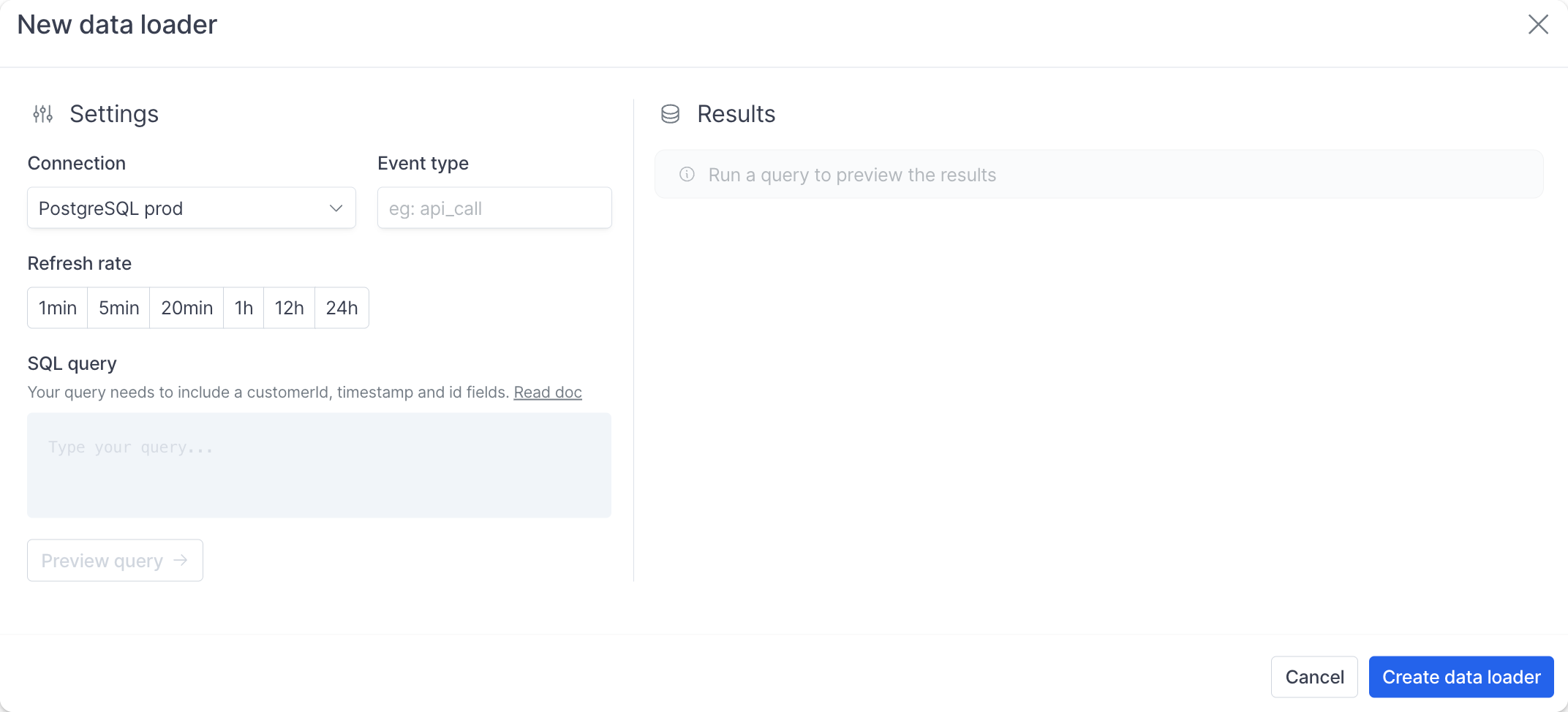
Time to create pour first loader by clicking on "New data loader" on the right side of the screen. This opens up a slightly longer modal but don't worry, it's really easy.
* Select the connection you just created
* Set an Event type for this query, it's the identifier we'll use later in the product to refer to the data from this query. It could be `api_calls` or `active_users` for instance
* Select the refresh rate depending on your use case, to get started every hour is largely sufficient
Let's add your first connection by clicking on "New connection". In the modal,
* Select a provider
* Give a name you'll remember to your connection
* Enter the URL you got from the prerequisites
When you click on submit, we do a quick check to make sure your database is accessible by running a blank query. You should now see your connection live.
Time to create pour first loader by clicking on "New data loader" on the right side of the screen. This opens up a slightly longer modal but don't worry, it's really easy.
* Select the connection you just created
* Set an Event type for this query, it's the identifier we'll use later in the product to refer to the data from this query. It could be `api_calls` or `active_users` for instance
* Select the refresh rate depending on your use case, to get started every hour is largely sufficient
 ## Getting the SQL right
Now it's time to start typing your query. Hyperline will need a few things from you and expect a specific format as the query output.
We'll need 3 fields to validate the query:
* `timestamp` — The date used to determine whether a record falls within a billing period. For example, if you bill monthly API calls, only events with a timestamp within the current billing cycle are included. This field is less critical if your pricing does not rely on periodic metering.
* `customerId` — The Hyperline ID or external ID of the customer. This field is used to associate each record with the corresponding customer.
* `id` — A unique identifier for the record (can be an ID from your system). Hyperline uses this field to de-duplicate and update records, so ensure it uniquely represents each record.
When importing records, Hyperline will try to match an existing customer or create a new one with a status `automatically_created` that won't be displayed by default in your customers list to avoid spam (but you can access them using the `pending customers` table).
Optionally, you can also return a `customerName` property so we had a name to the customer when creating it, which will make it easier for you to find them later.
To to summarise, the minimum acceptable request looks like this
```sql theme={null}
-- Make sure to use quotes in postgres to make the query case sensitive
SELECT id, company_id as "customerId", created_at as timestamp from api_calls
```
Or to import the customer name
```sql theme={null}
-- Adding customer name
SELECT id, company_id as "customerId", companies.name as "customerName", created_at as timestamp FROM api_calls LEFT JOIN companies on companies.id=api_calls.company_id
```
That's the minimum for a query to be accepted and loaded into Hyperline. You can then add any other fields to your query, but please make sure you only include what's necessary to keep data sharing to the bare minimum.
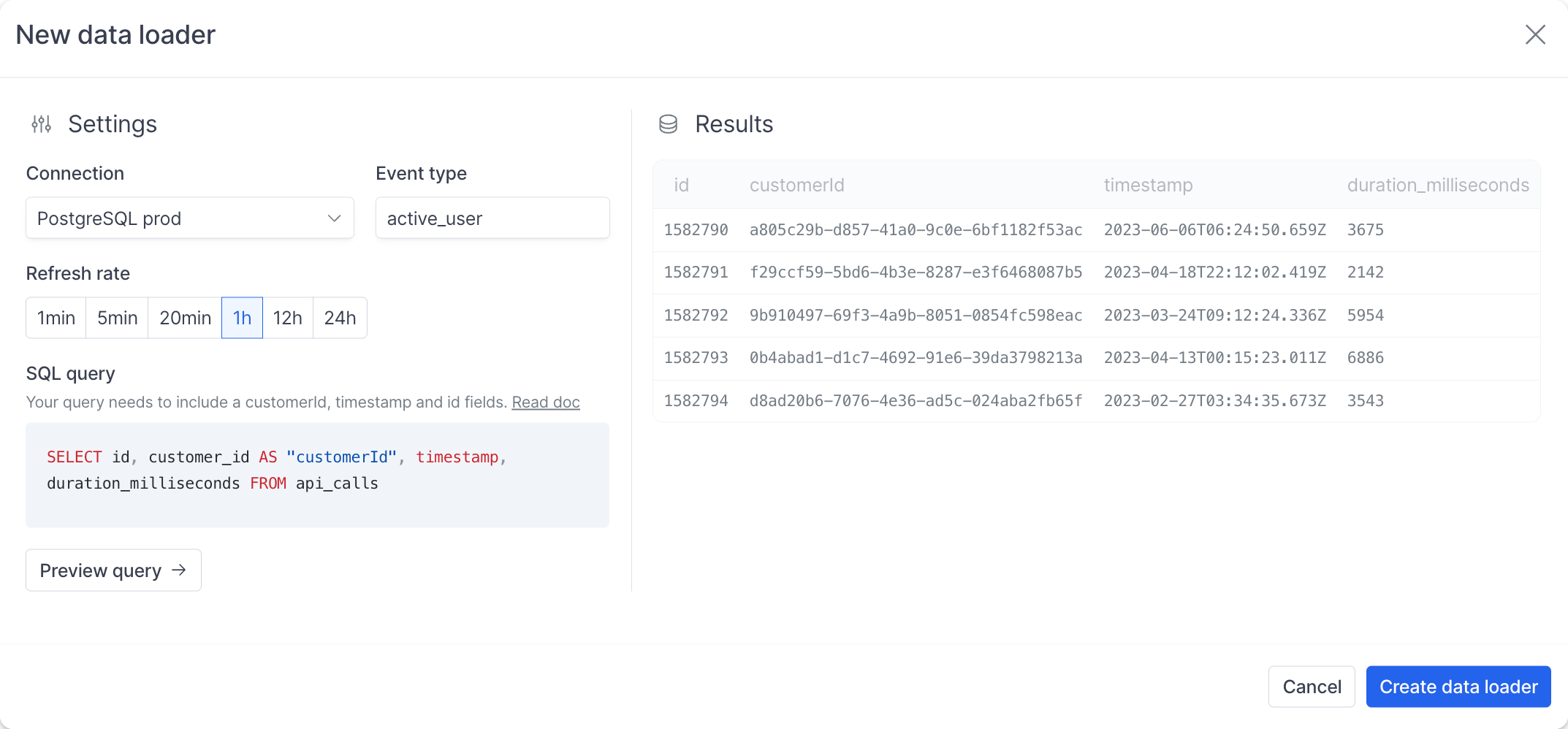
Then click on preview query, we'll validate the presence of the required fields and display a preview of 5 records so you can make sure everything is in order.
## Getting the SQL right
Now it's time to start typing your query. Hyperline will need a few things from you and expect a specific format as the query output.
We'll need 3 fields to validate the query:
* `timestamp` — The date used to determine whether a record falls within a billing period. For example, if you bill monthly API calls, only events with a timestamp within the current billing cycle are included. This field is less critical if your pricing does not rely on periodic metering.
* `customerId` — The Hyperline ID or external ID of the customer. This field is used to associate each record with the corresponding customer.
* `id` — A unique identifier for the record (can be an ID from your system). Hyperline uses this field to de-duplicate and update records, so ensure it uniquely represents each record.
When importing records, Hyperline will try to match an existing customer or create a new one with a status `automatically_created` that won't be displayed by default in your customers list to avoid spam (but you can access them using the `pending customers` table).
Optionally, you can also return a `customerName` property so we had a name to the customer when creating it, which will make it easier for you to find them later.
To to summarise, the minimum acceptable request looks like this
```sql theme={null}
-- Make sure to use quotes in postgres to make the query case sensitive
SELECT id, company_id as "customerId", created_at as timestamp from api_calls
```
Or to import the customer name
```sql theme={null}
-- Adding customer name
SELECT id, company_id as "customerId", companies.name as "customerName", created_at as timestamp FROM api_calls LEFT JOIN companies on companies.id=api_calls.company_id
```
That's the minimum for a query to be accepted and loaded into Hyperline. You can then add any other fields to your query, but please make sure you only include what's necessary to keep data sharing to the bare minimum.
Then click on preview query, we'll validate the presence of the required fields and display a preview of 5 records so you can make sure everything is in order.
 Save the data loader and go to your events page, after a few seconds, you should see a table with your newly ingested events. We're limiting exploration capabilities for now but will add more features later. See it as a debugger.
### Updating records
Hyperline automatically updates existing records, we're using a combination of the supplied `id` and `customerId` and always keep the latest version. We don't update customer names in Hyperline even if the name has changed, you'll need to change in the interface.
### Deleting records
Hyperline doesn't delete records automatically to avoid any issue, we recommend that you add a `deletedAt` fields in the query that you set to something when the record is deleted. You'll then be able to filter these records out in our pricing engine.
### Loading big tables
Hyperline processes query in batches, so you should be covered as long as your query is reasonable (we can process up to 120k rows per minute). If your table is bigger that this, consider importing only records that have been updated after the last refresh, or importing them less often. It's actually quite easy.
```sql theme={null}
-- Adapt this to your refresh time
SELECT xxx FROM table WHERE (updated_at + interval '60 minutes') > NOW()
```
Save the data loader and go to your events page, after a few seconds, you should see a table with your newly ingested events. We're limiting exploration capabilities for now but will add more features later. See it as a debugger.
### Updating records
Hyperline automatically updates existing records, we're using a combination of the supplied `id` and `customerId` and always keep the latest version. We don't update customer names in Hyperline even if the name has changed, you'll need to change in the interface.
### Deleting records
Hyperline doesn't delete records automatically to avoid any issue, we recommend that you add a `deletedAt` fields in the query that you set to something when the record is deleted. You'll then be able to filter these records out in our pricing engine.
### Loading big tables
Hyperline processes query in batches, so you should be covered as long as your query is reasonable (we can process up to 120k rows per minute). If your table is bigger that this, consider importing only records that have been updated after the last refresh, or importing them less often. It's actually quite easy.
```sql theme={null}
-- Adapt this to your refresh time
SELECT xxx FROM table WHERE (updated_at + interval '60 minutes') > NOW()
```