> ## Documentation Index
> Fetch the complete documentation index at: https://docs.hyperline.co/llms.txt
> Use this file to discover all available pages before exploring further.
# Getting Started
> Configure your first usage-based subscription
To configure a usage-based subscription, you first need to connect your data as Hyperline will need some dataset for you to configure usage-based products. If it's not done already, you can use a [CSV file](./import-events-csv), our [API](./send-usage-data) ou [data loaders](./usage-data-with-connectors).
When your first events have arrived, you'll be able to create a usage-based product [here](https://app.hyperline.co/app/products/create/select/).
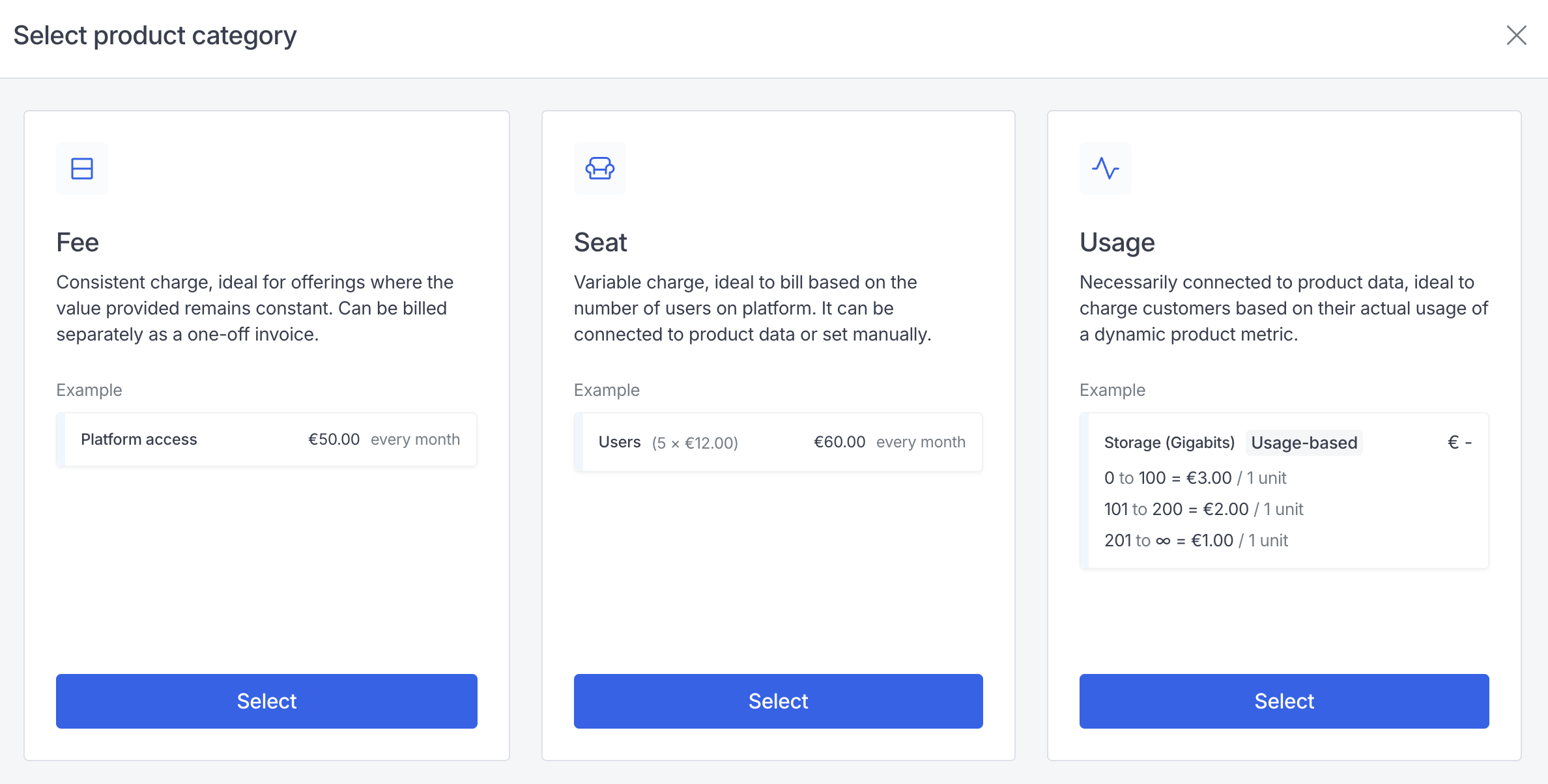 Select the usage based product, then link an [aggregator](./aggregators) to attach your product to the data you want to bill. If you haven't created an aggregator yet, head to **Usage > Aggregators** first. To know more about metering configuration, take a look at our [product catalog guide](../products/overview#usage).
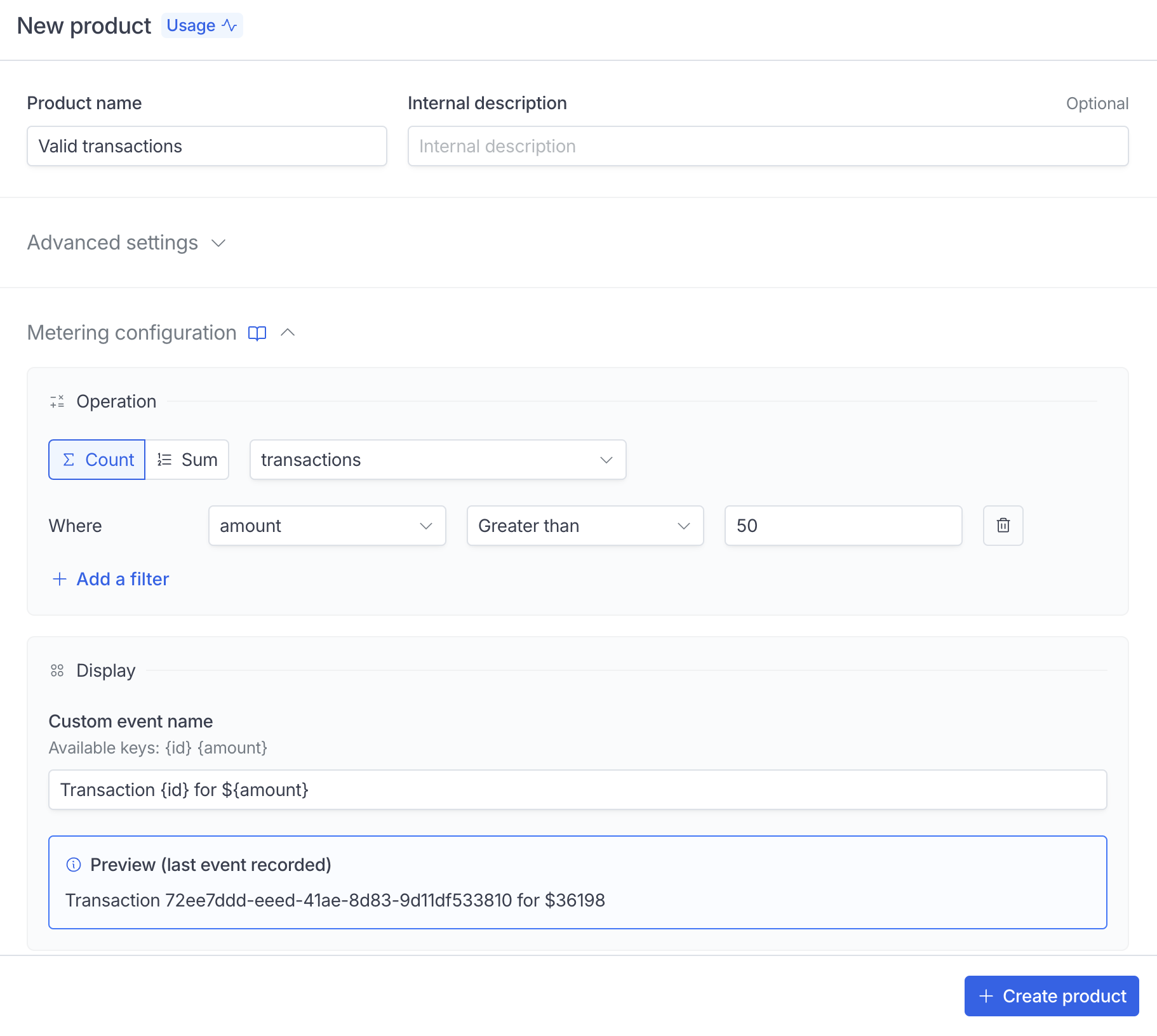 Once the product is setup and at least one recurring price is defined, you'll be able to assign it to a subscription.
Head over to the subscription tabs and click on [new subscription](https://app.hyperline.co/app/subscriptions/create), select your customer and then click on add product.
Select your product, an interface will appear for you to configure prices, the subscription schedule and various parameters.
Once the product is setup and at least one recurring price is defined, you'll be able to assign it to a subscription.
Head over to the subscription tabs and click on [new subscription](https://app.hyperline.co/app/subscriptions/create), select your customer and then click on add product.
Select your product, an interface will appear for you to configure prices, the subscription schedule and various parameters.
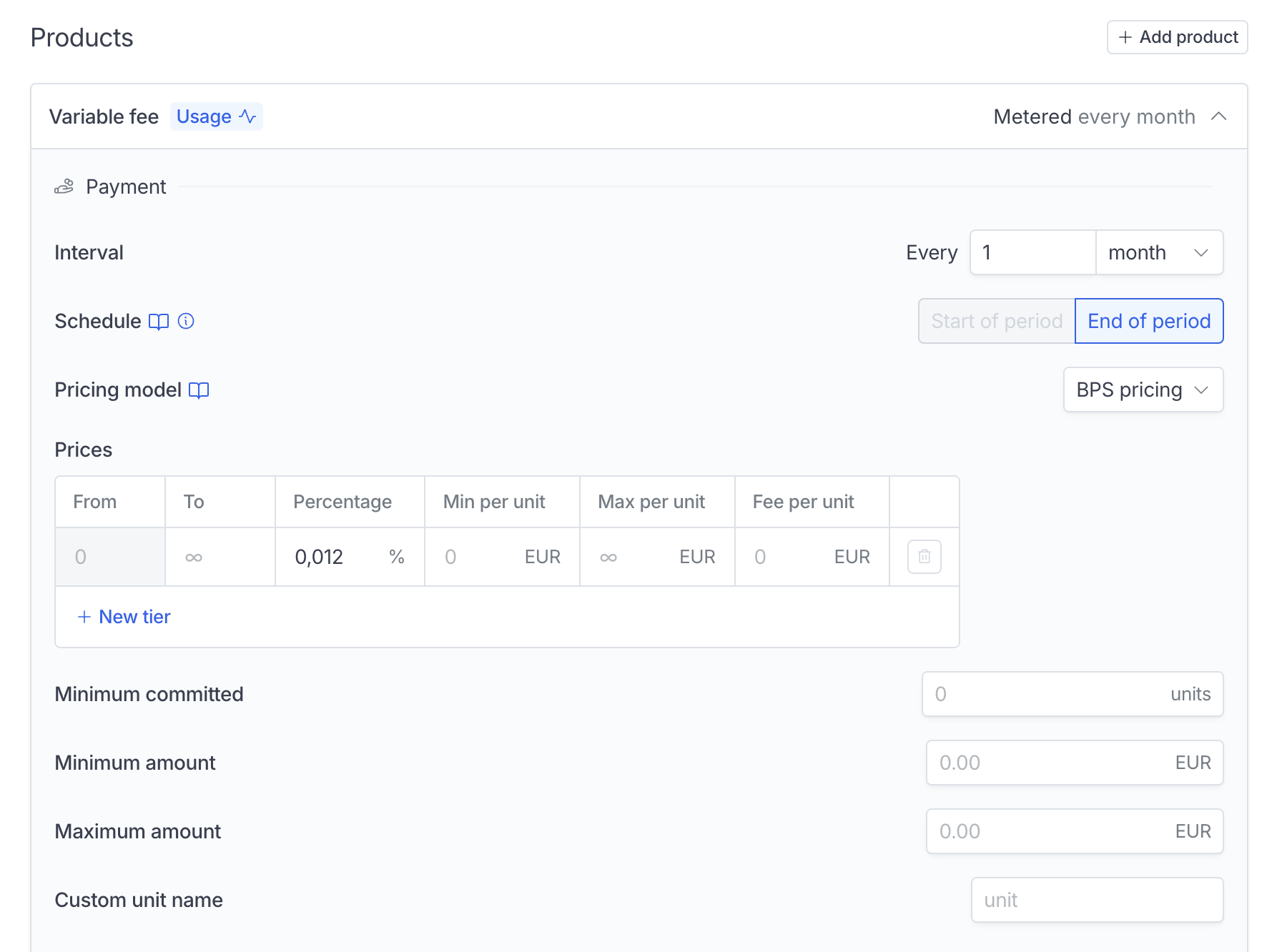 If you want to learn more about metering options on a subscription, read our [metering guide](../products/metering).
Click on payment settings and assign the subscription using the `Manually later` option, you'll be redirected to the customer page, the subscription should display the current usage.
If you're in [test mode](../getting-started/sandbox), you'll be able to simulate new events directly from the "events" tab.
If you want to learn more about metering options on a subscription, read our [metering guide](../products/metering).
Click on payment settings and assign the subscription using the `Manually later` option, you'll be redirected to the customer page, the subscription should display the current usage.
If you're in [test mode](../getting-started/sandbox), you'll be able to simulate new events directly from the "events" tab.
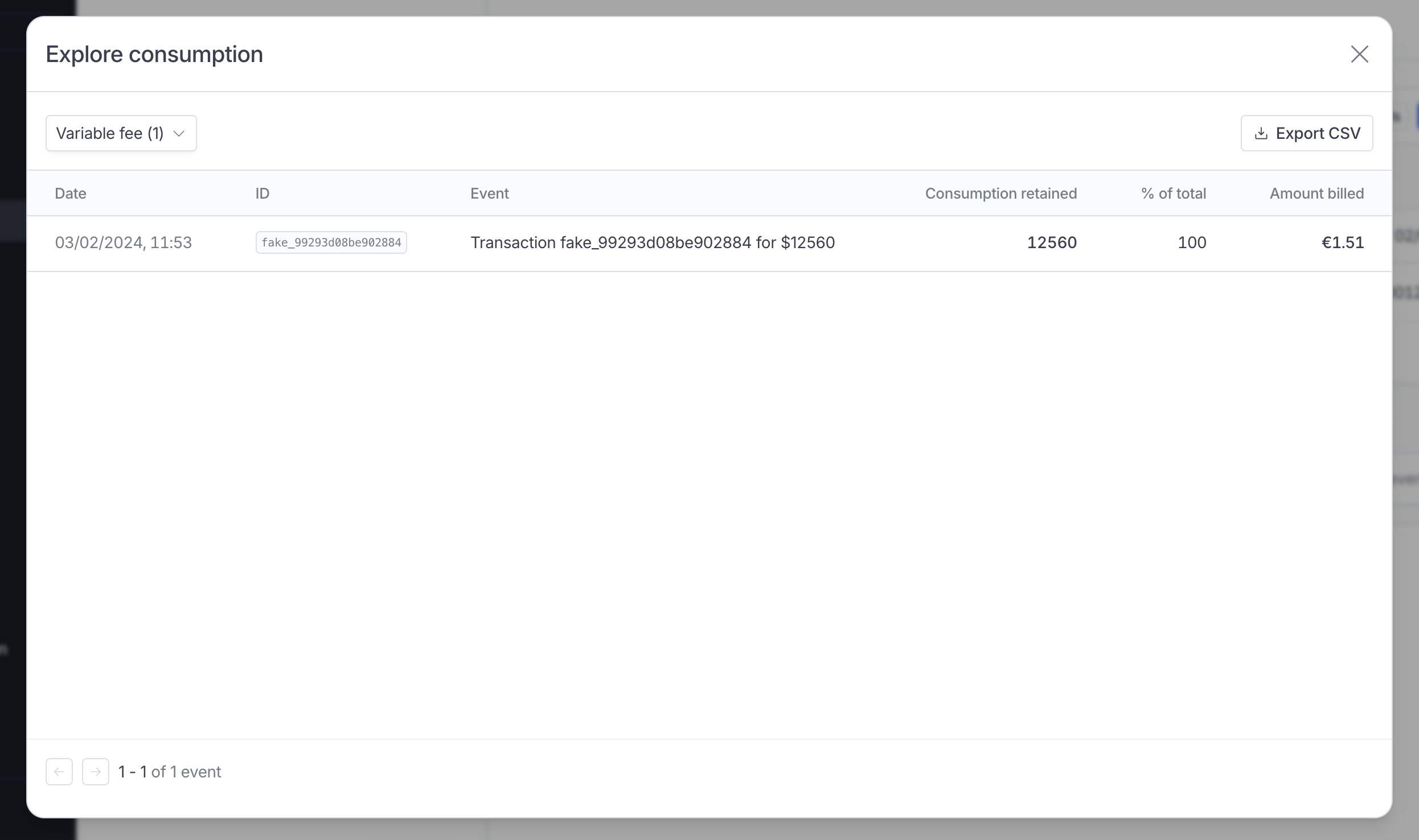
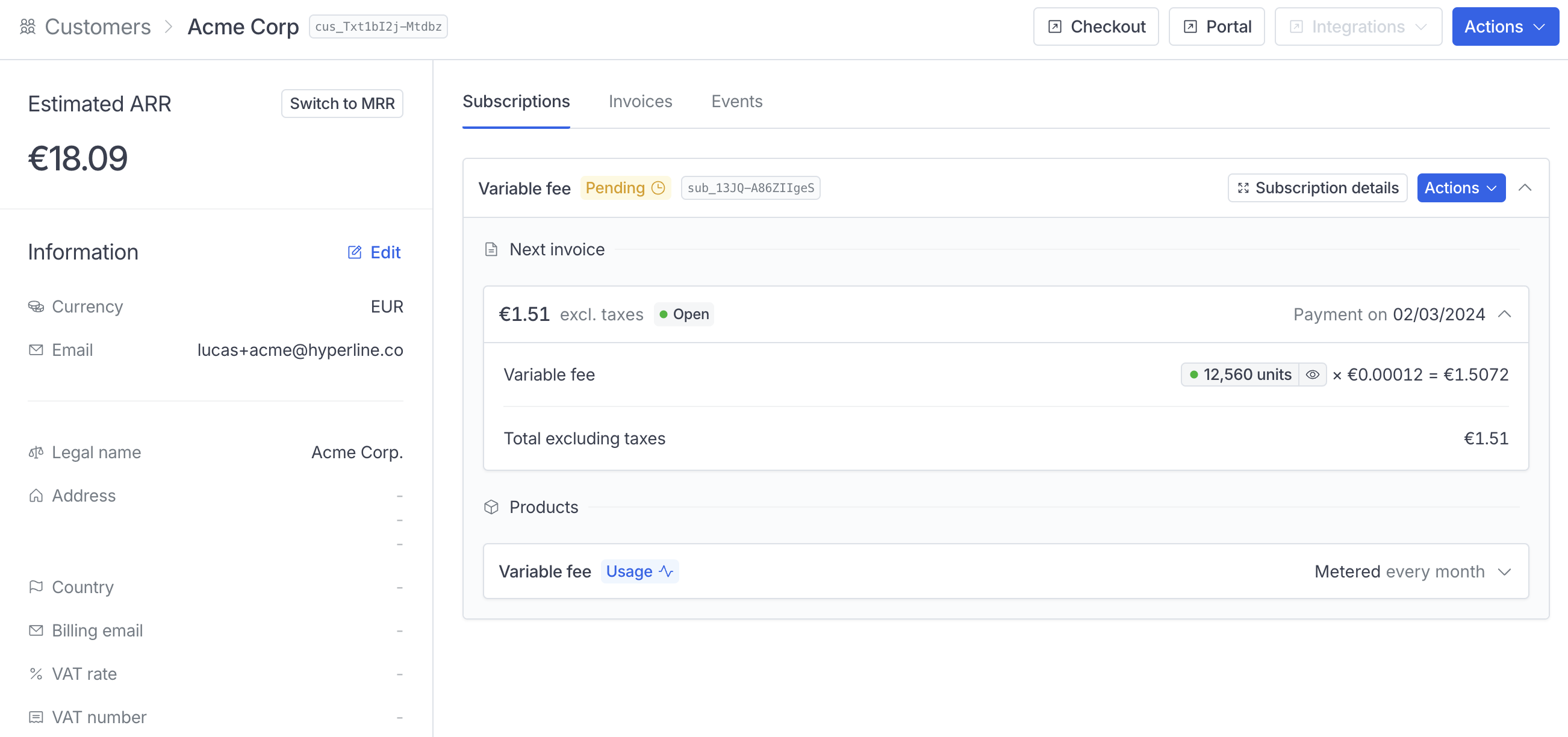 If you want to explore your consumption, you can click on the little eye icon next to the unit count, it will open the live consumption modal and will give you the detail of your consumption.
 And done! Feel free to browse our documentation specific to subscriptions or to contact us on Intercom to get some help on your use case!