> ## Documentation Index
> Fetch the complete documentation index at: https://docs.hyperline.co/llms.txt
> Use this file to discover all available pages before exploring further.
# Explore your data usage
> Exploring your data usage to understand how your customers are consuming your products
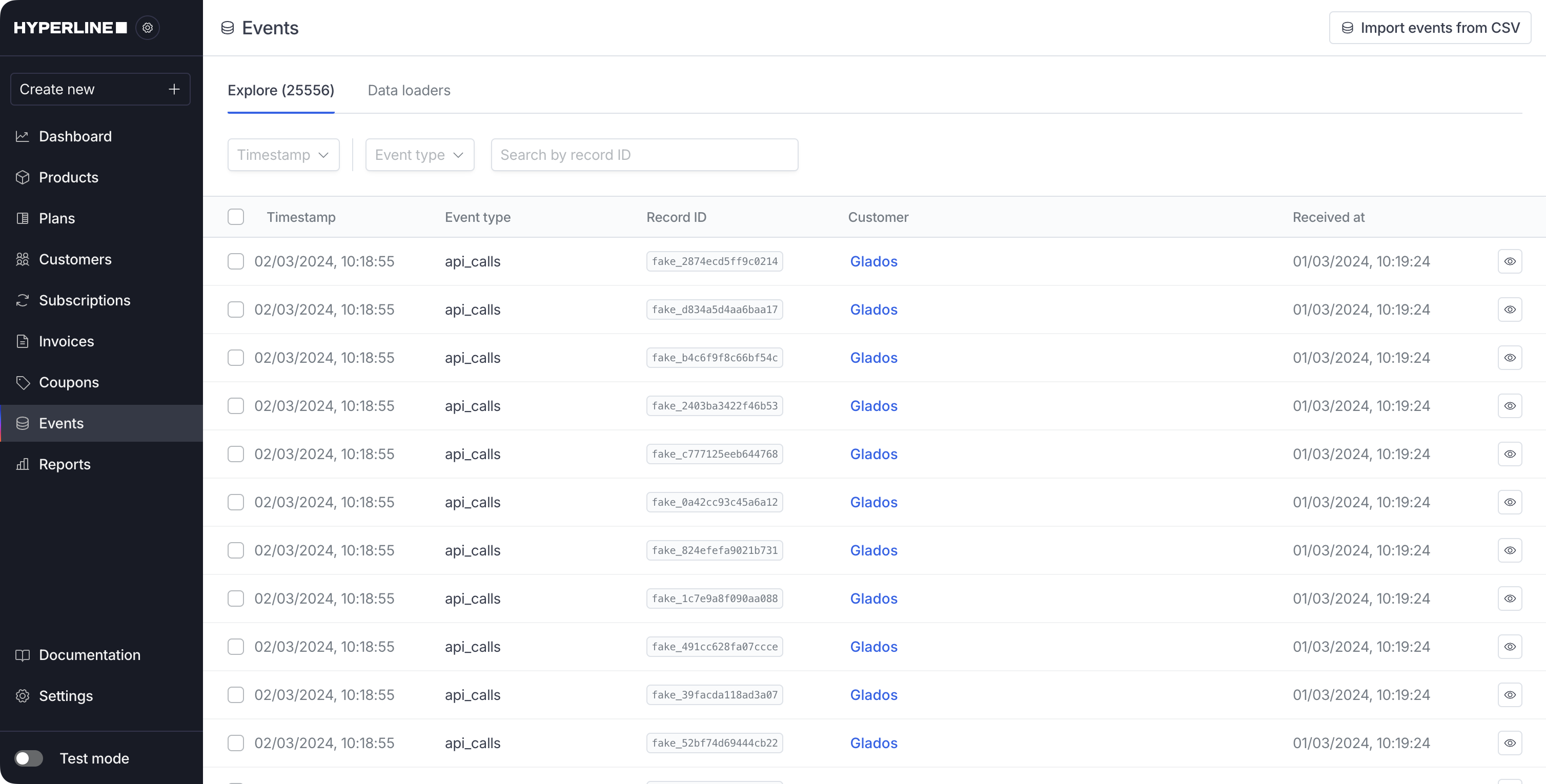
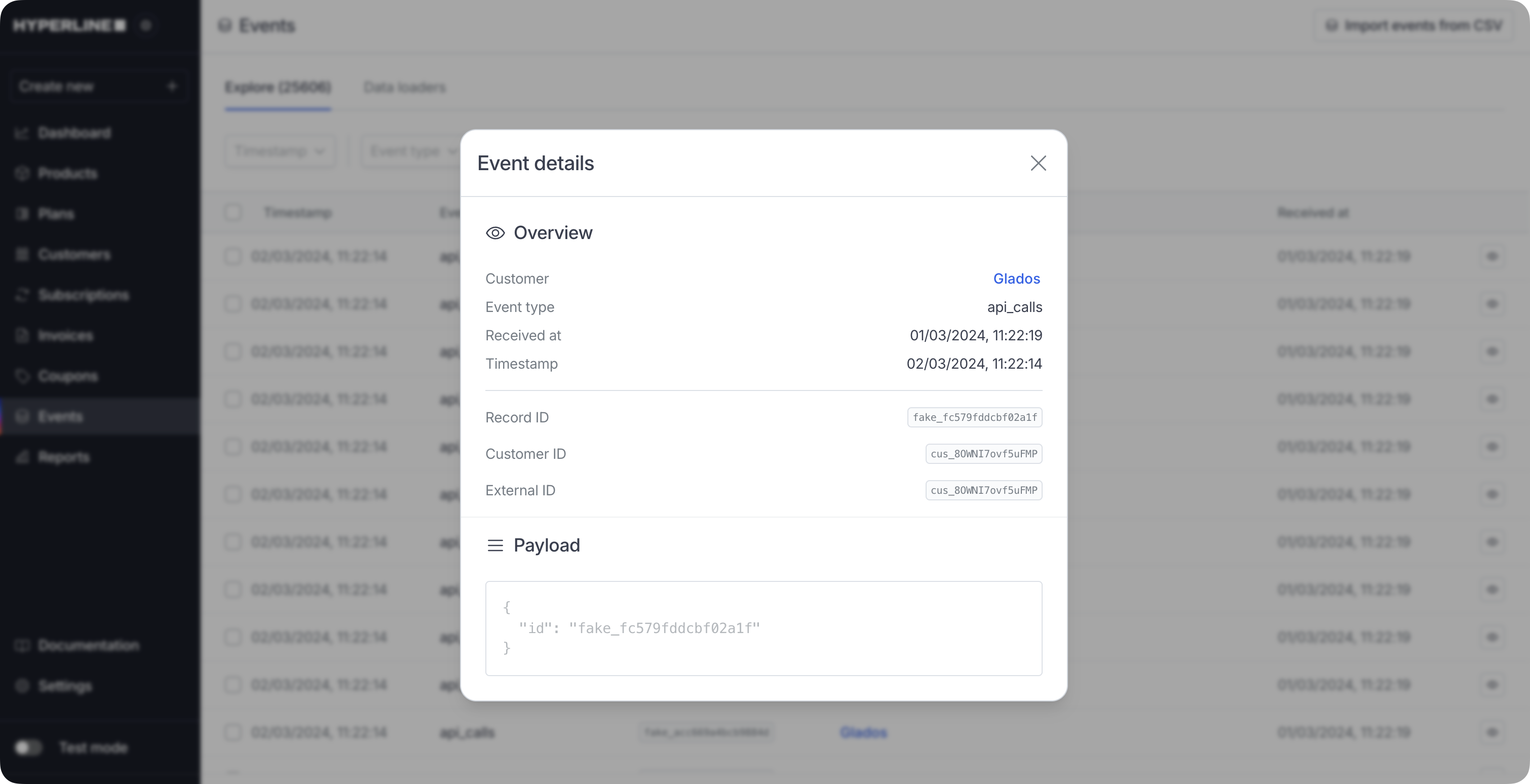
In the Hyperline platform, an event is a specific action or occurrence that can be tracked and measured.
You can explore it in the **Events** section or retrieve events programmatically via the [API](../../api-reference/endpoints/billable-events/get-events).
This view is global and will show all the events that are being tracked.
 However, for each subscription and invoice, you can explore a more detailed view of the events.
## Explore usage data
You will be able to view the product's consumption along with the amount billed for each event.
However, for each subscription and invoice, you can explore a more detailed view of the events.
## Explore usage data
You will be able to view the product's consumption along with the amount billed for each event.
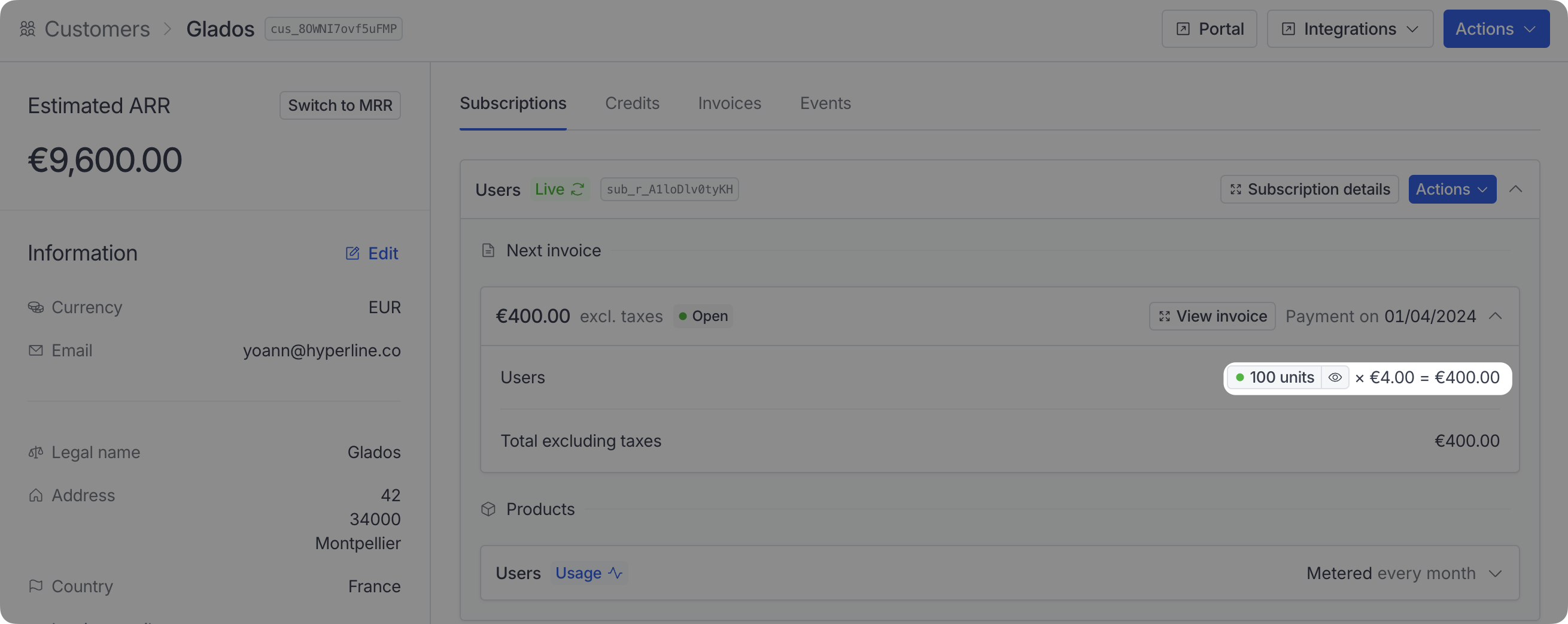
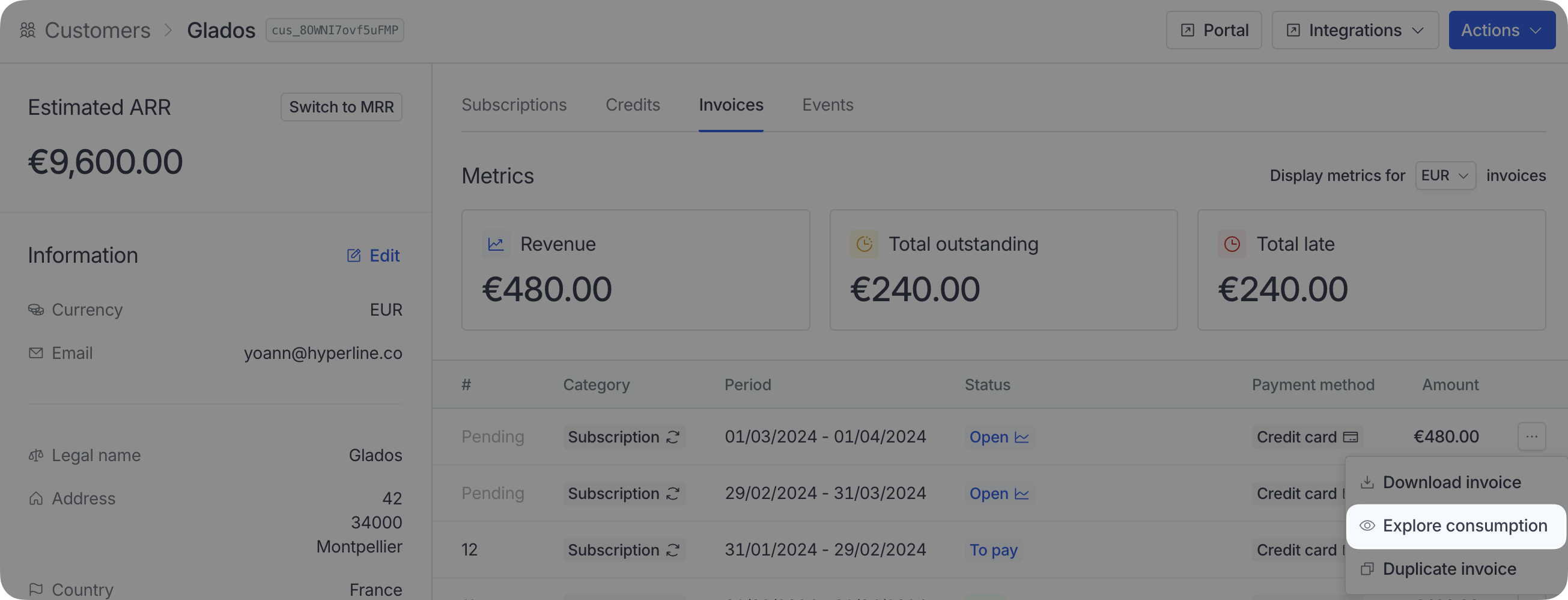
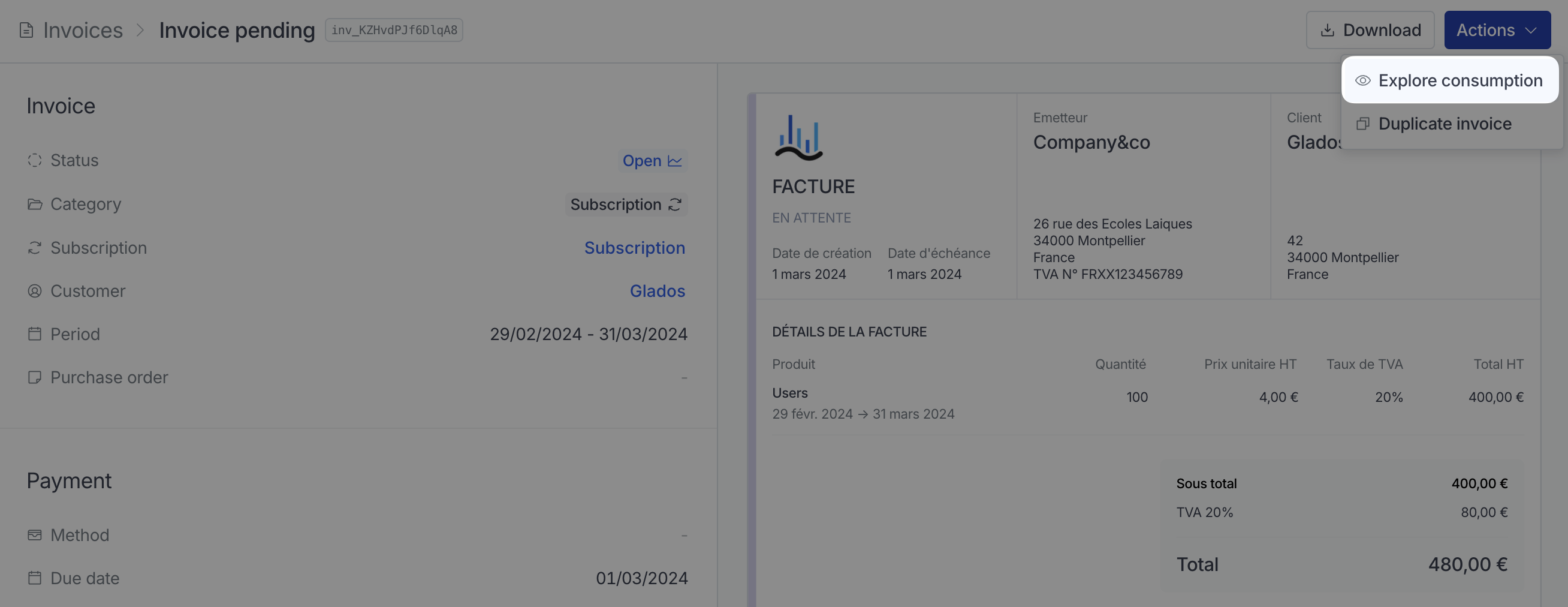
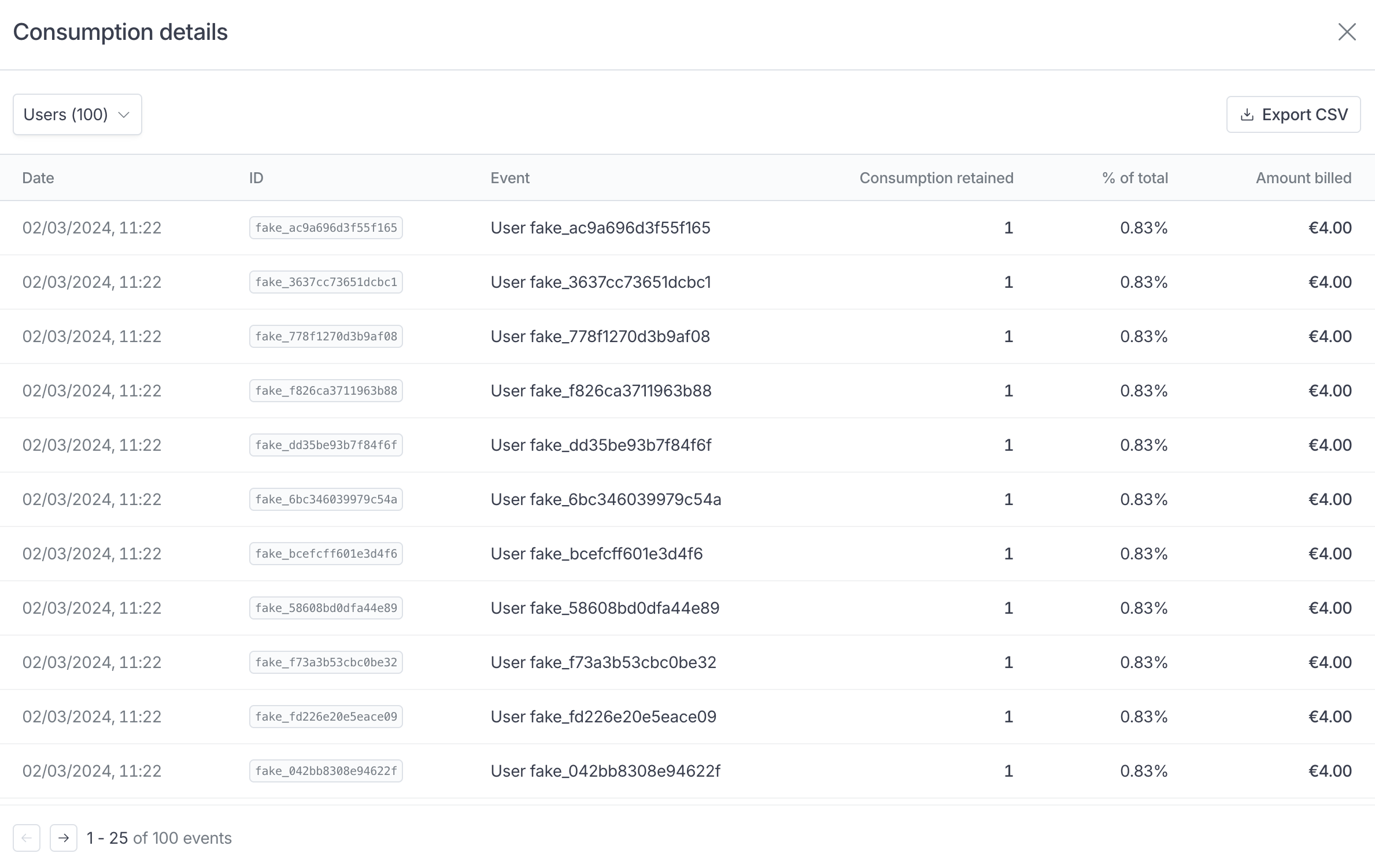 In order to do so, an action **Explore consumption** is available on different levels:
### Open data consumption on subscription
In order to do so, an action **Explore consumption** is available on different levels:
### Open data consumption on subscription
 ### Explore invoice consumption
 ### Explore consumption on customer portal
In the customer portal, you can delve into the consumption details of each subscription.
This can be found in the 'Subscription Details' section.
### Explore consumption on customer portal
In the customer portal, you can delve into the consumption details of each subscription.
This can be found in the 'Subscription Details' section.
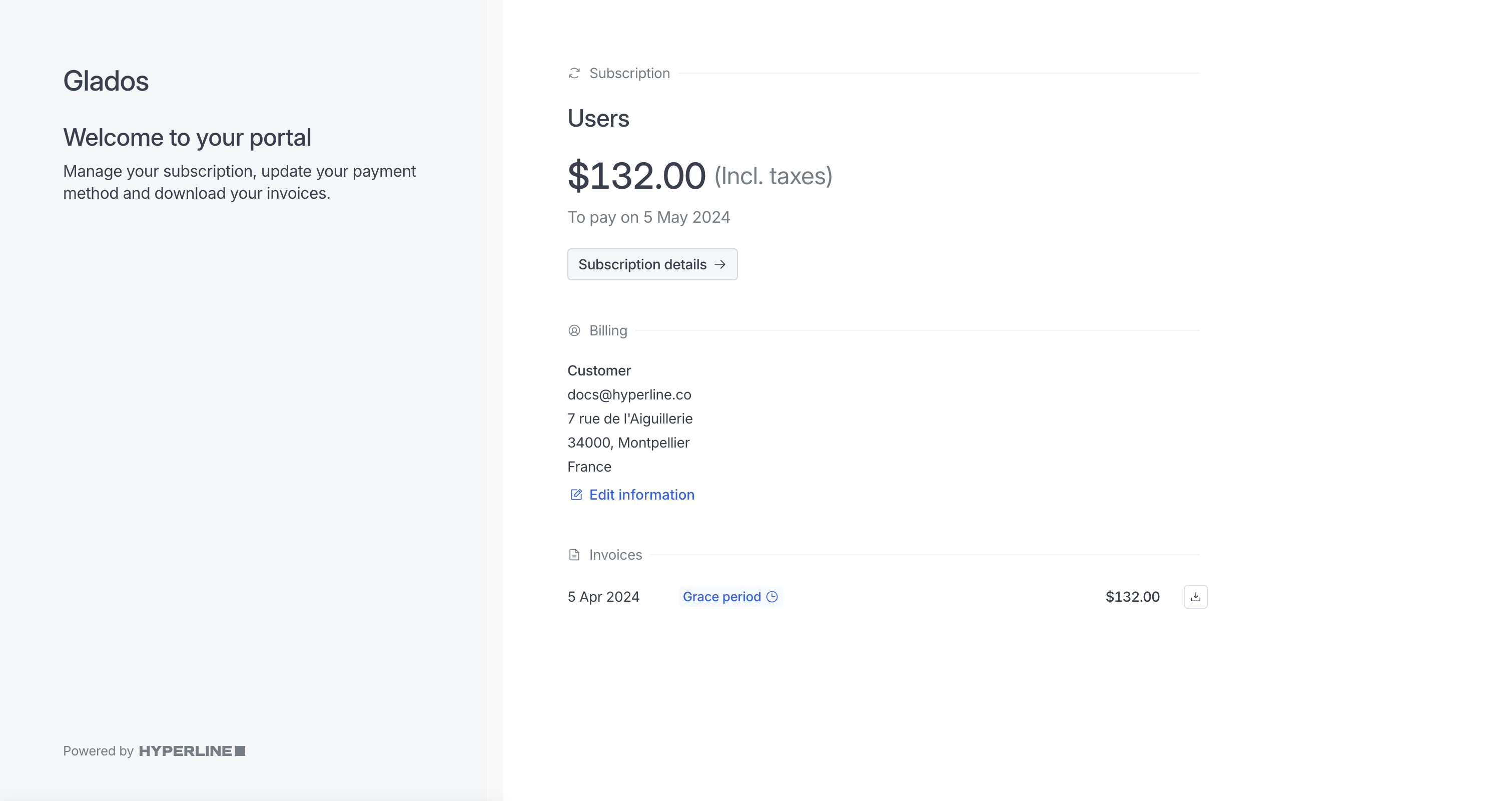 Here, you can view and analyze the usage data associated with each subscription.
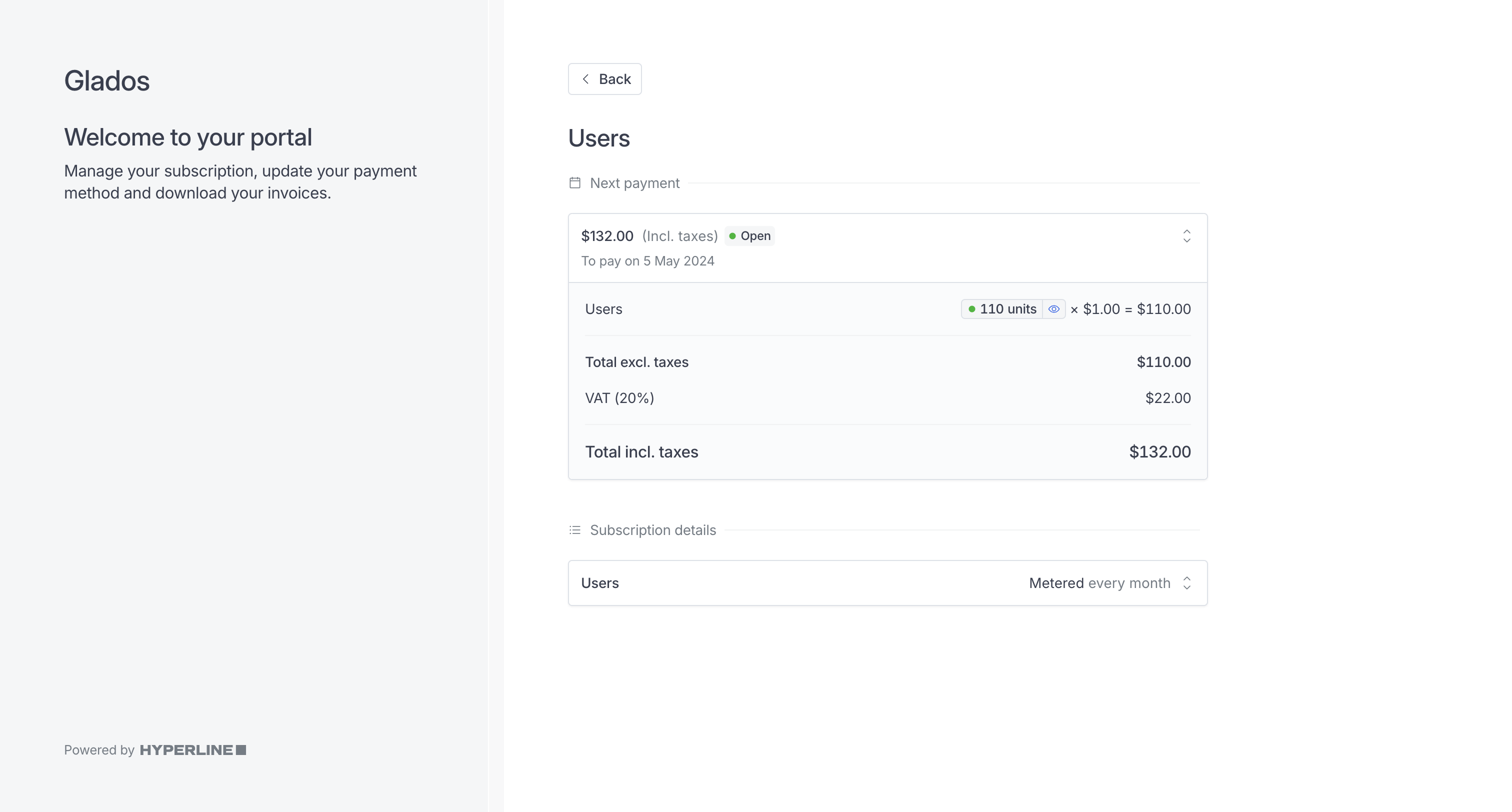 ## Download usage data
You can export usage data in CSV format for analysis and processing.
### Export single product events
To download events for a specific product, click the **Export CSV** button in the consumption view.
## Download usage data
You can export usage data in CSV format for analysis and processing.
### Export single product events
To download events for a specific product, click the **Export CSV** button in the consumption view.
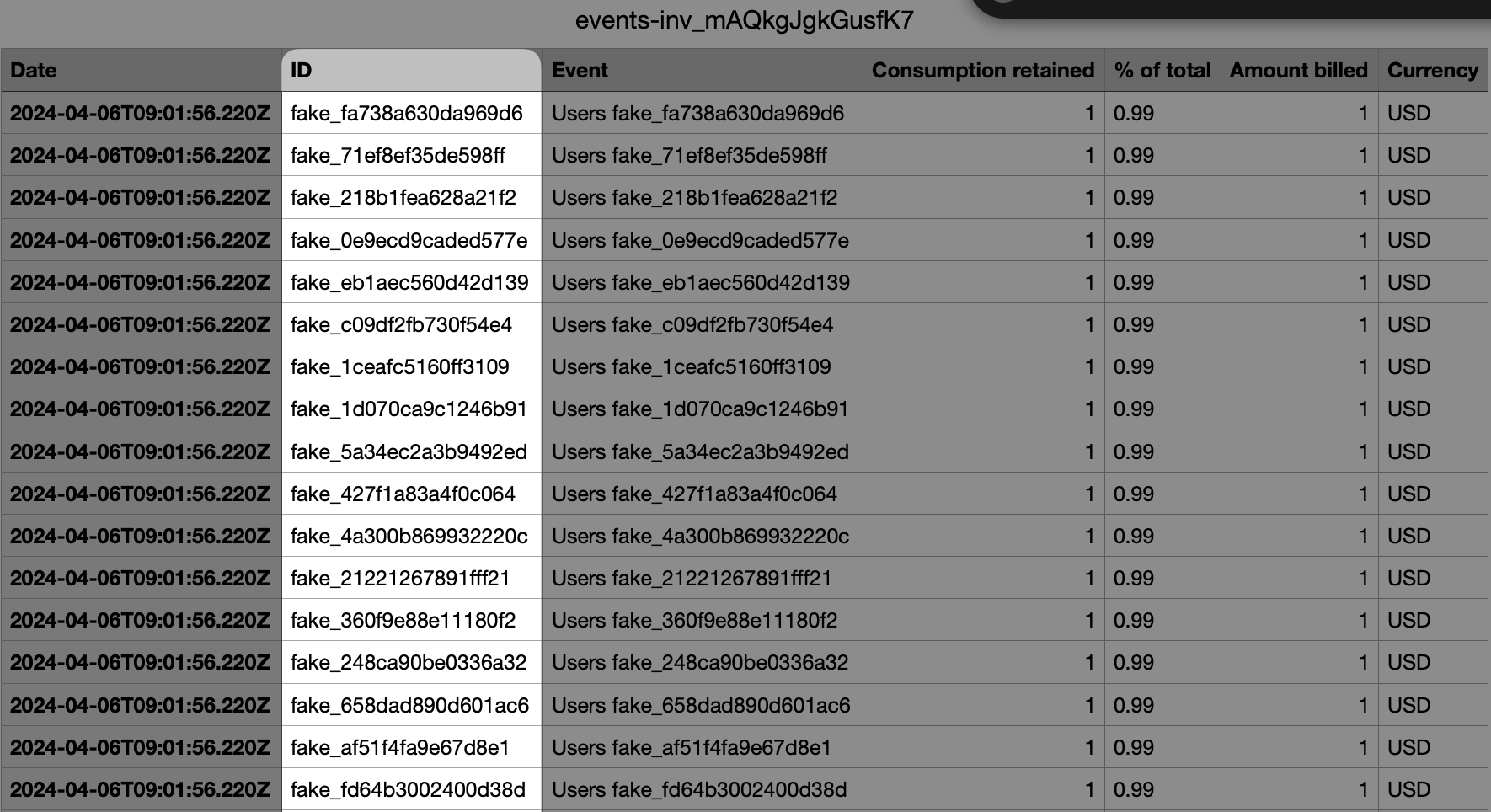
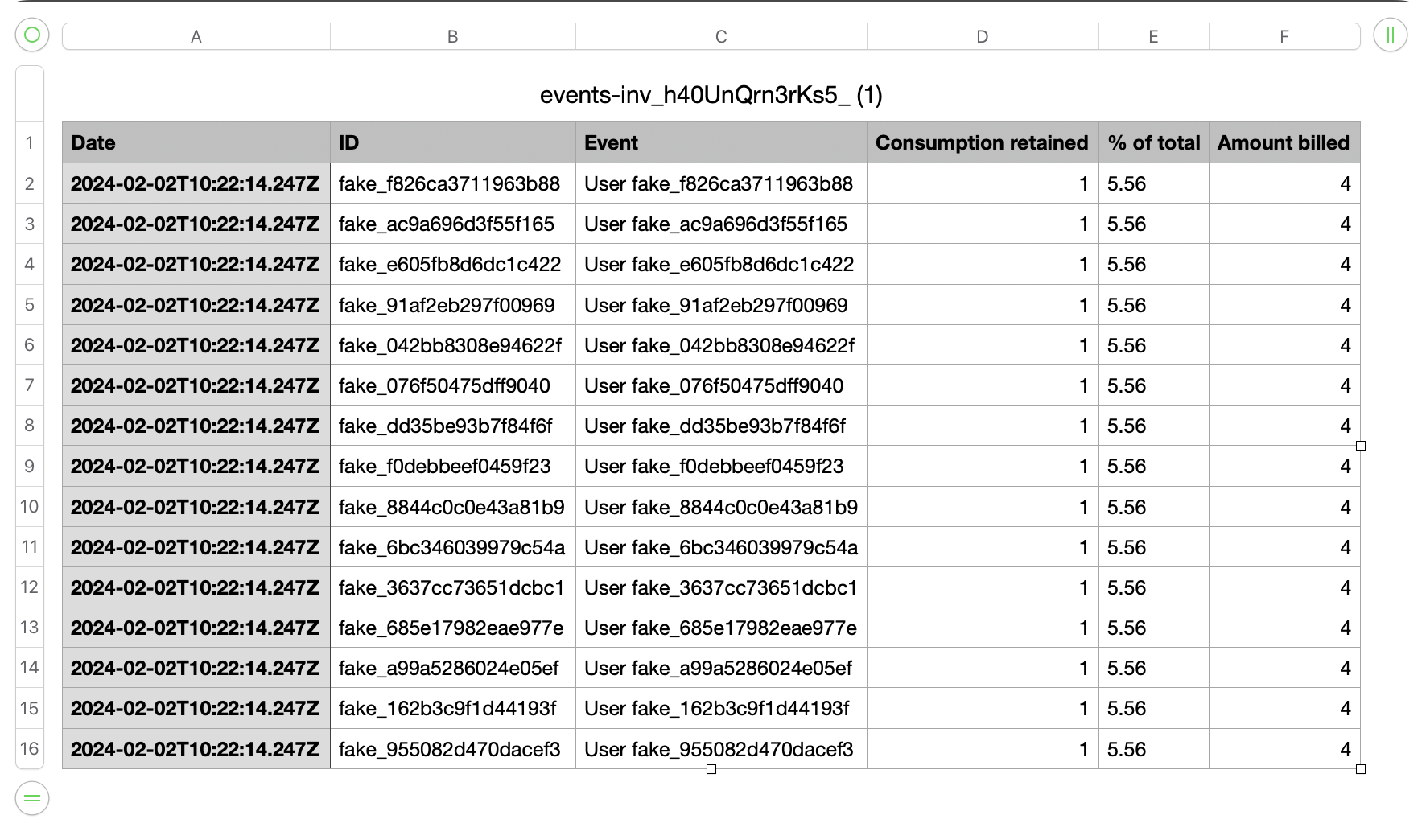
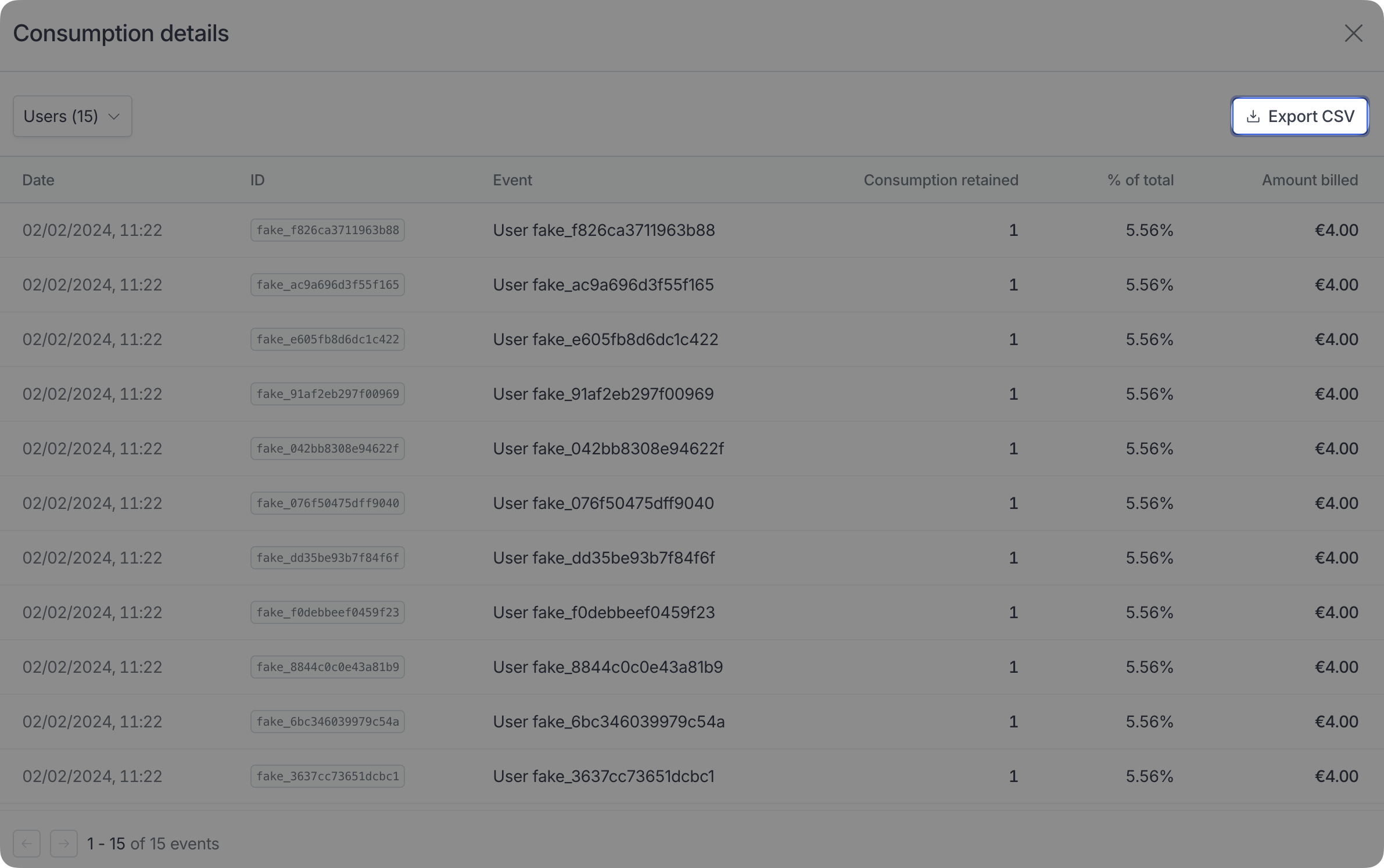 The CSV file includes the following columns:
 ### Export all invoice events
When viewing an invoice with multiple usage-based products, you can download all events at once as a ZIP file containing separate CSV files for each product.
Click the **Export all events** button on the invoice page. The ZIP file will be named `events-{invoiceNumber}.zip` and contain one CSV file per product, with filenames based on the product names.
This is particularly useful when you need to analyze usage data across multiple products for a single billing period.
## Customize displayed event name
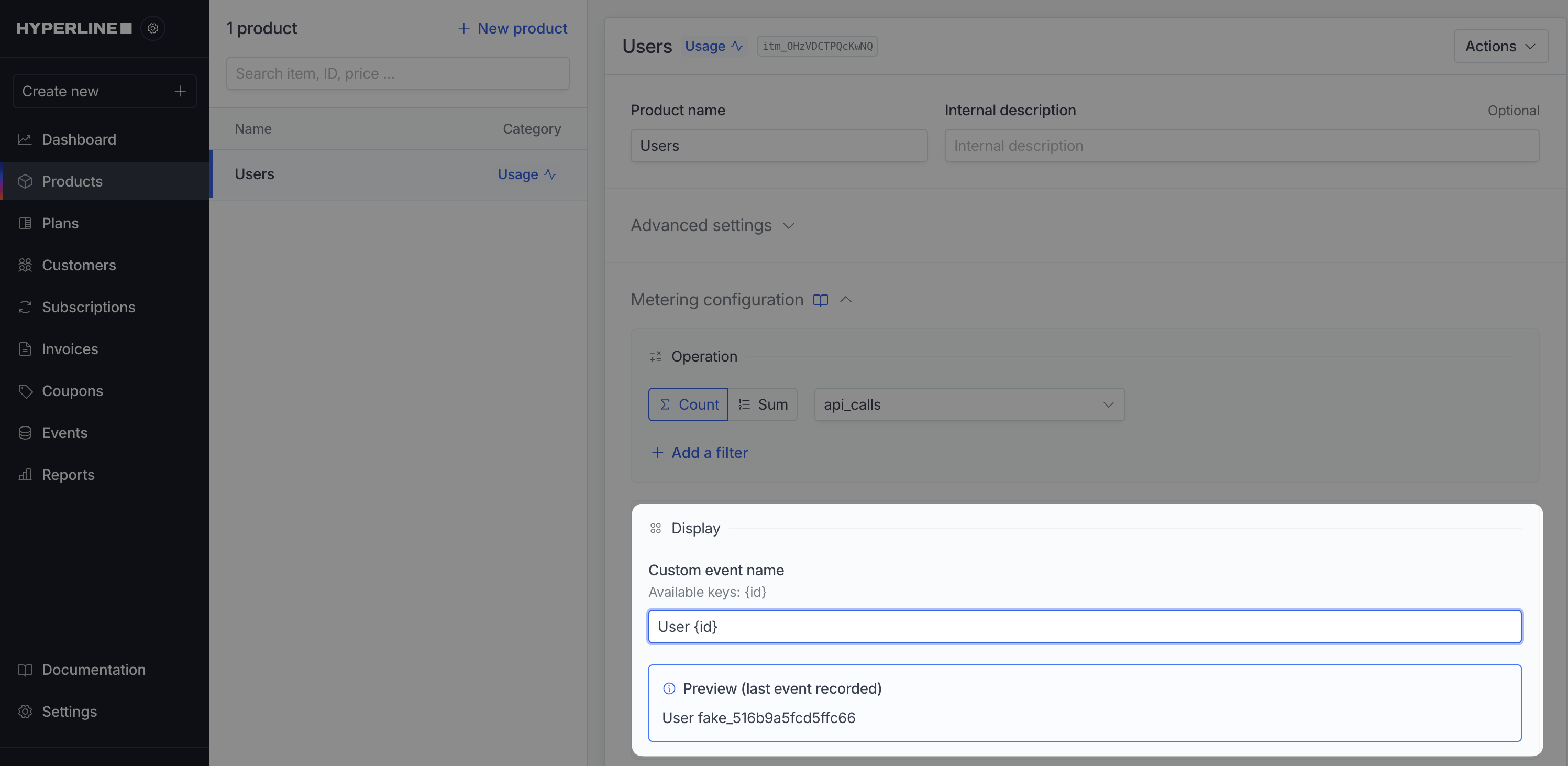
The event name can be customized when you create or edit the product.
It will be used to identify the event in the consumption.
In order to have a dynamic name for each event, it can depend on a specific key of the event.
### Export all invoice events
When viewing an invoice with multiple usage-based products, you can download all events at once as a ZIP file containing separate CSV files for each product.
Click the **Export all events** button on the invoice page. The ZIP file will be named `events-{invoiceNumber}.zip` and contain one CSV file per product, with filenames based on the product names.
This is particularly useful when you need to analyze usage data across multiple products for a single billing period.
## Customize displayed event name
The event name can be customized when you create or edit the product.
It will be used to identify the event in the consumption.
In order to have a dynamic name for each event, it can depend on a specific key of the event.
 ## Customize exposed columns
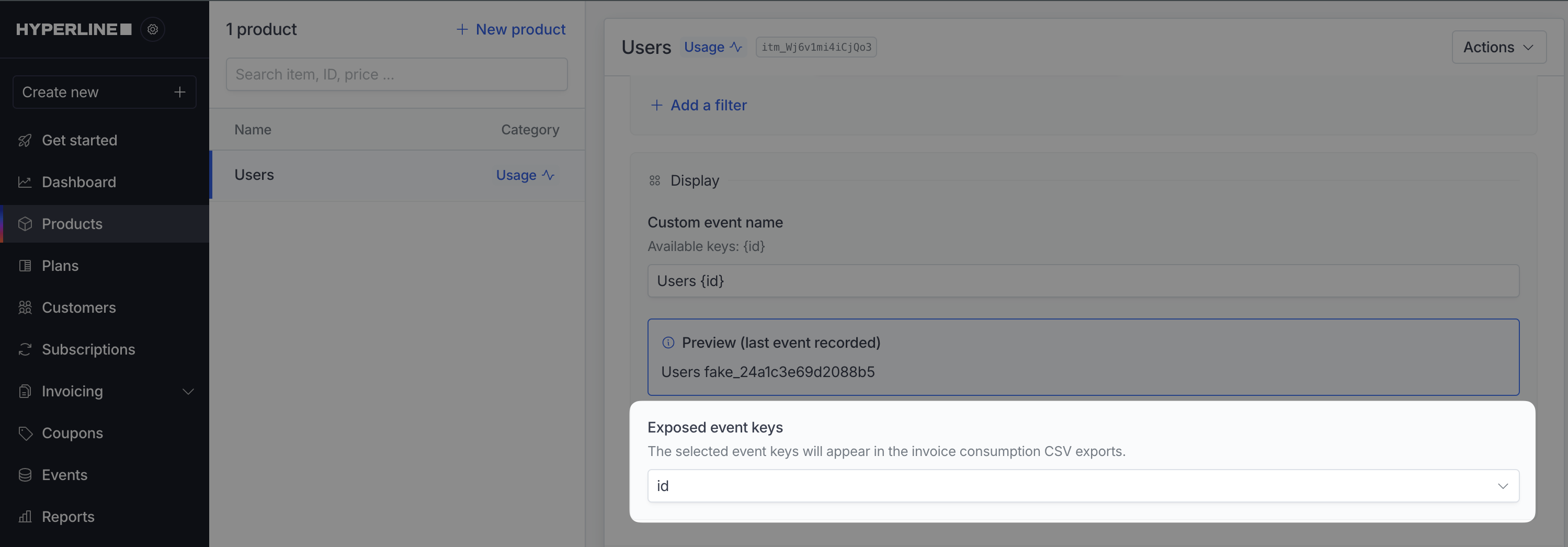
In the product editing section, you have the option to customize the columns that appear in the consumption CSV export.
## Customize exposed columns
In the product editing section, you have the option to customize the columns that appear in the consumption CSV export.