> ## Documentation Index
> Fetch the complete documentation index at: https://docs.hyperline.co/llms.txt
> Use this file to discover all available pages before exploring further.
# Manage a subscription
> Manage a subscription lifecycle, pause or cancel it
## Activate a pending subscription
If you want to activate a subscription from a `pending` status (e.g., if **manually**, **after checkout**, or **after quote signature** activation strategies were used during assignment), you can:
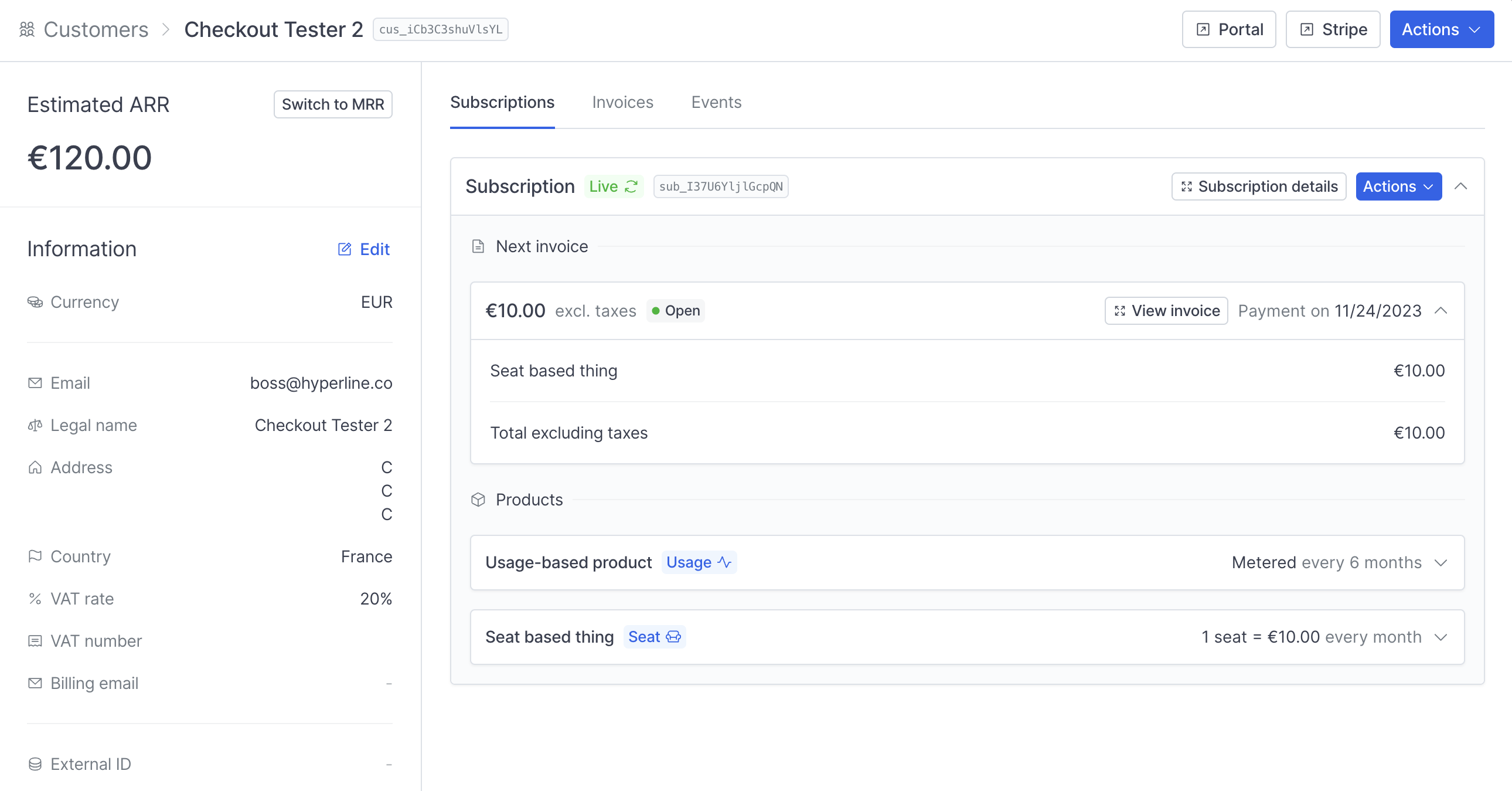
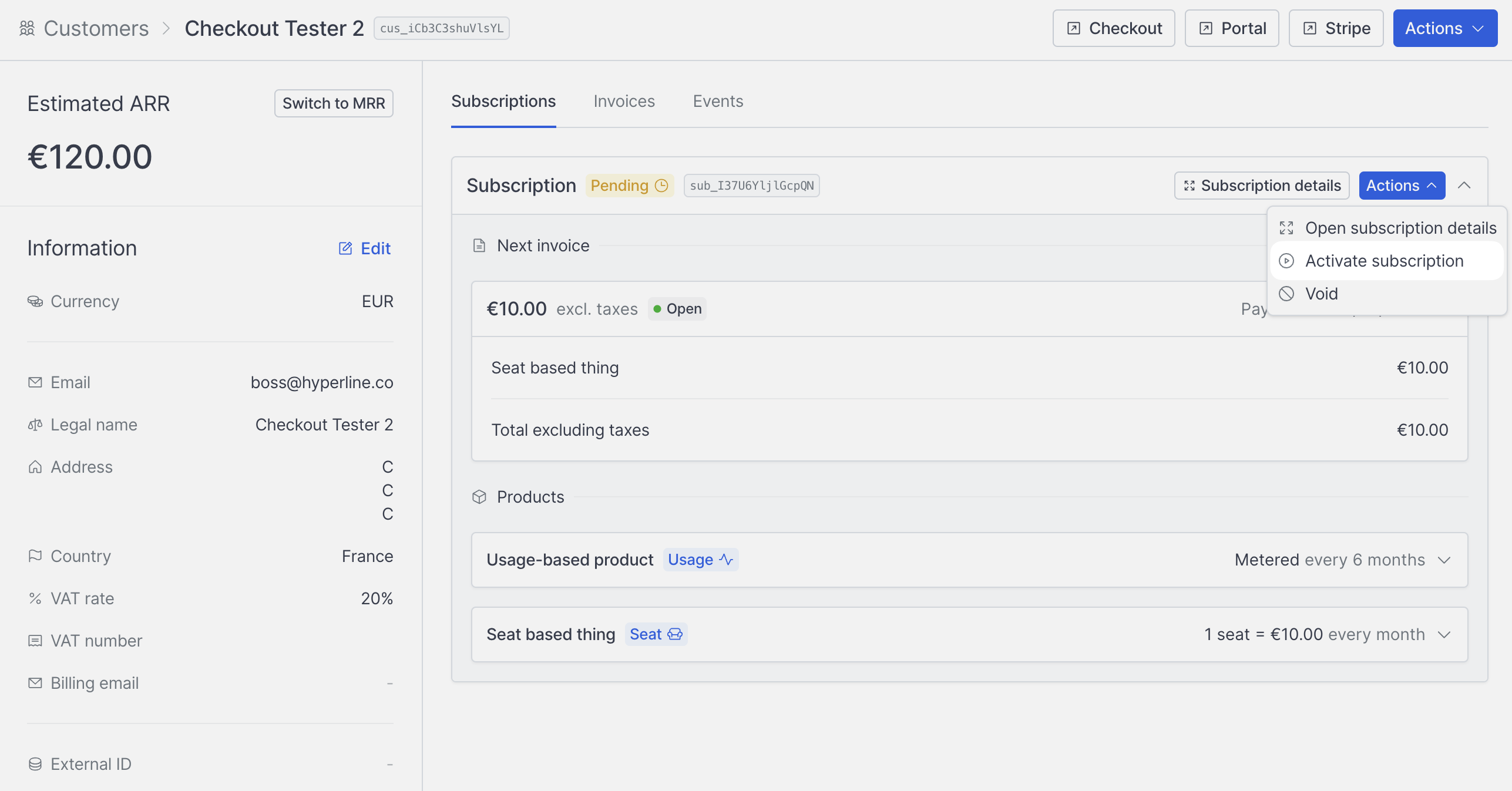 If the subscription's **start date is today or is already exceeded**, the subscription will switch to an active state (with a `Live` tag), and products that need to be billed at the start of the period will be charged immediately.
If the **start date is in the future**, the subscription will switch to a `Starts on ...` state, signifying that the subscription is now active but hasn't started yet. The products will begin to be charged on the starting date.
If the subscription's **start date is today or is already exceeded**, the subscription will switch to an active state (with a `Live` tag), and products that need to be billed at the start of the period will be charged immediately.
If the **start date is in the future**, the subscription will switch to a `Starts on ...` state, signifying that the subscription is now active but hasn't started yet. The products will begin to be charged on the starting date.
 ## Pause payment collection
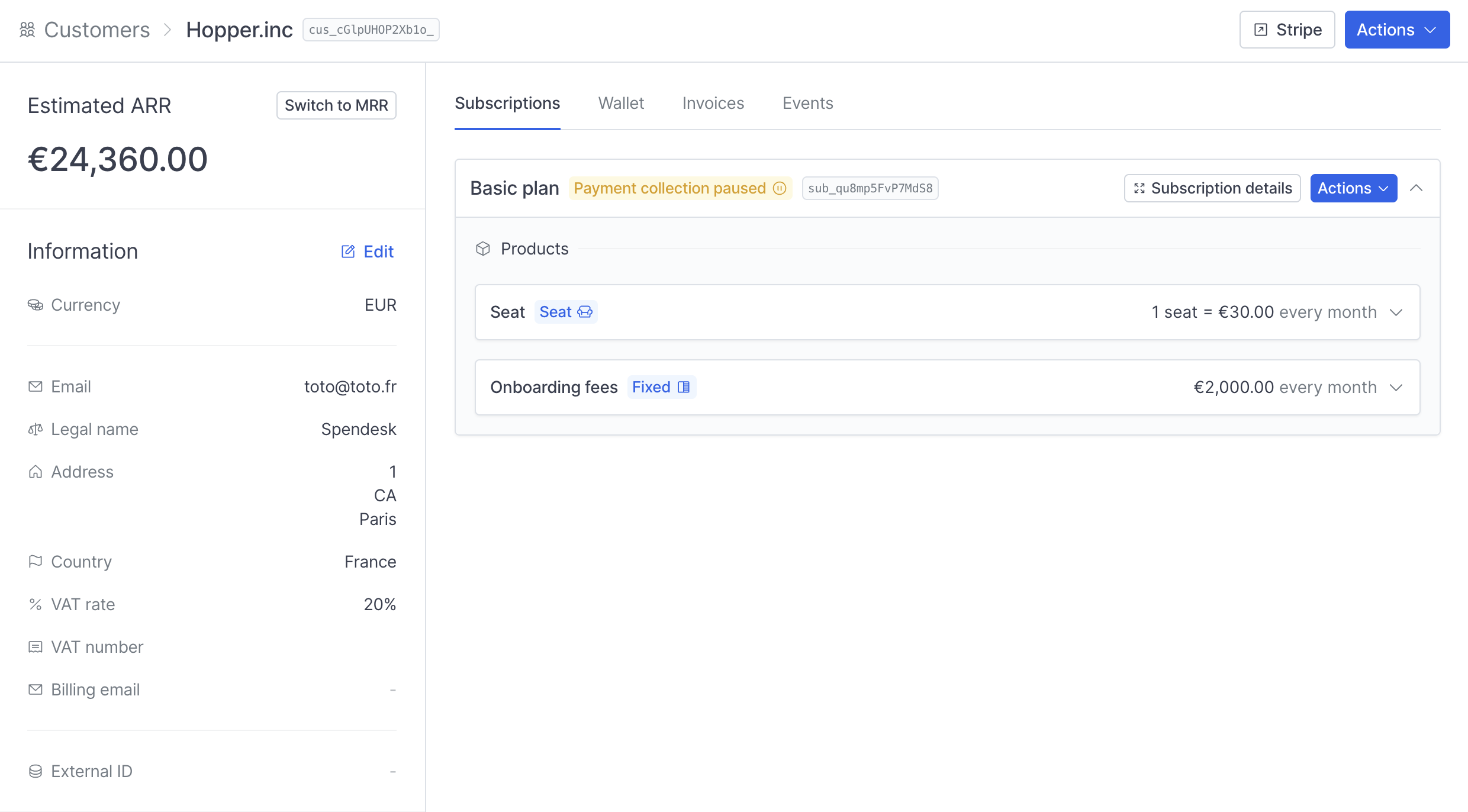
You can pause a subscription if you want to stop payment collection without cancelling the subscription:
## Pause payment collection
You can pause a subscription if you want to stop payment collection without cancelling the subscription:
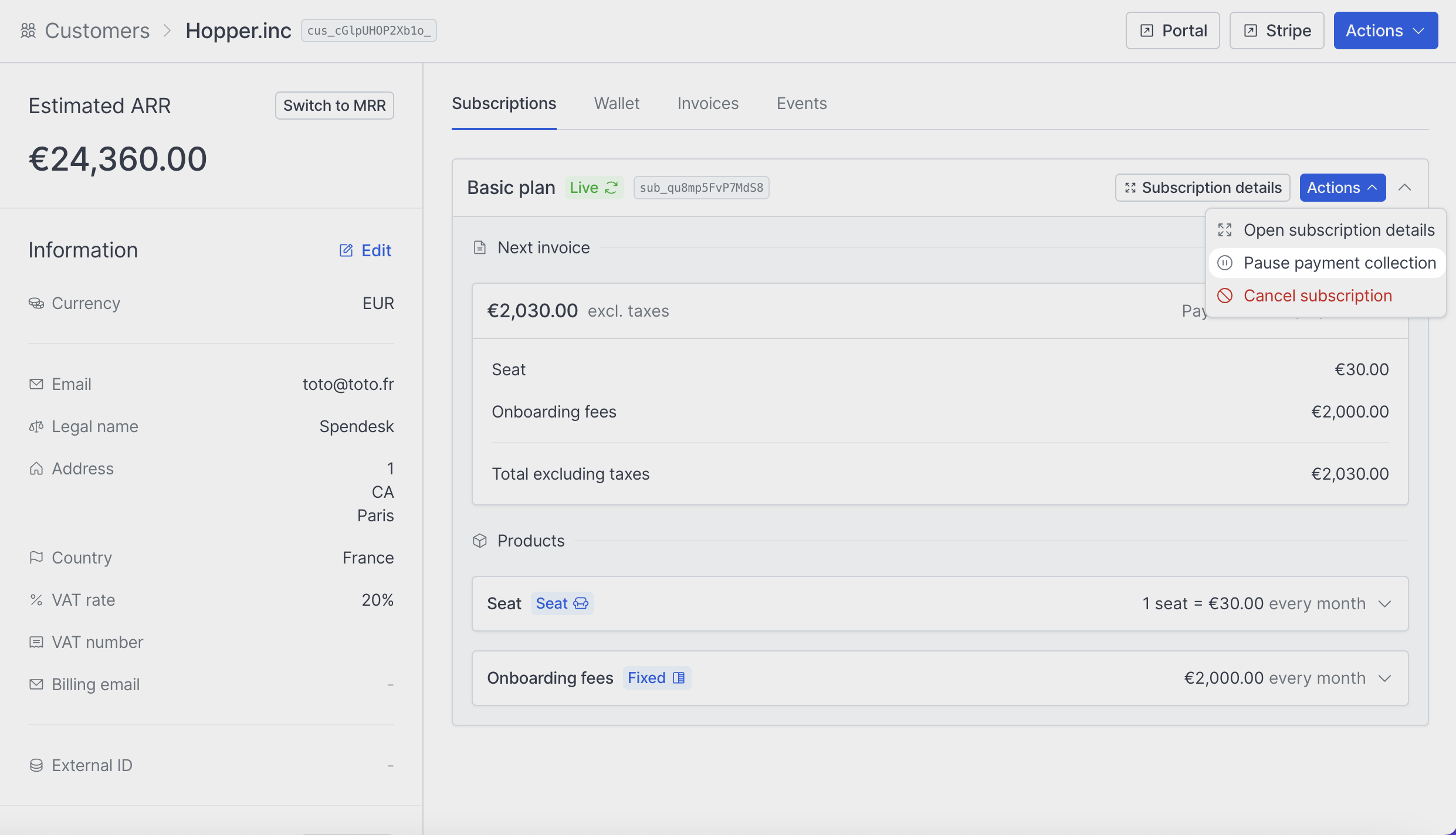 The subscription is not charged while paused. You can reactivate it anytime (instantly or later).
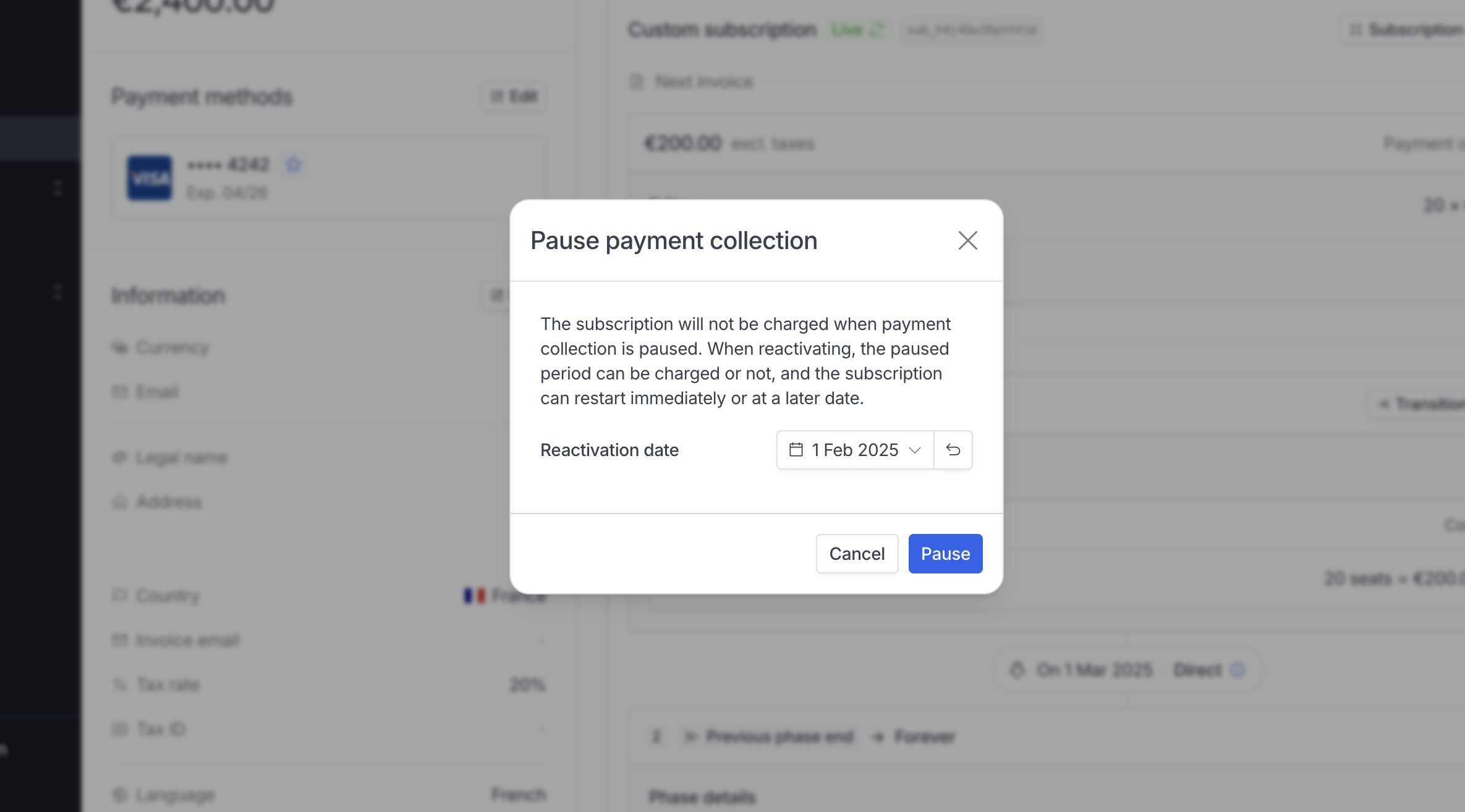 When pausing the payment collection, you can optionally select a date when the subscription will automatically restart.
 ## Reactivate a paused subscription
Click on **Actions** then **Reactivate payment collection**. Upon reactivation, the customer **will not be billed** for any past period that was paused and is due.
## Cancel subscription
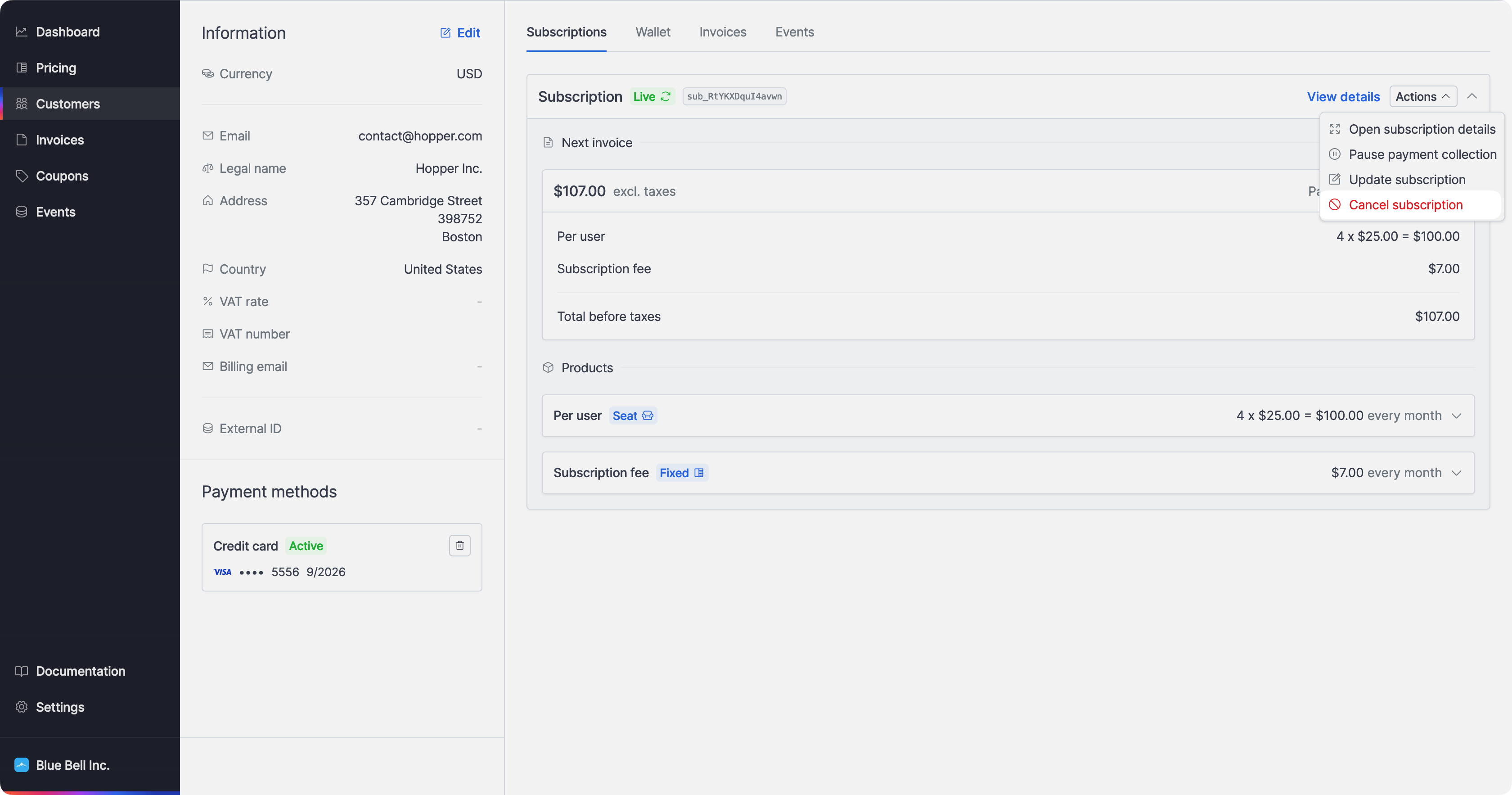
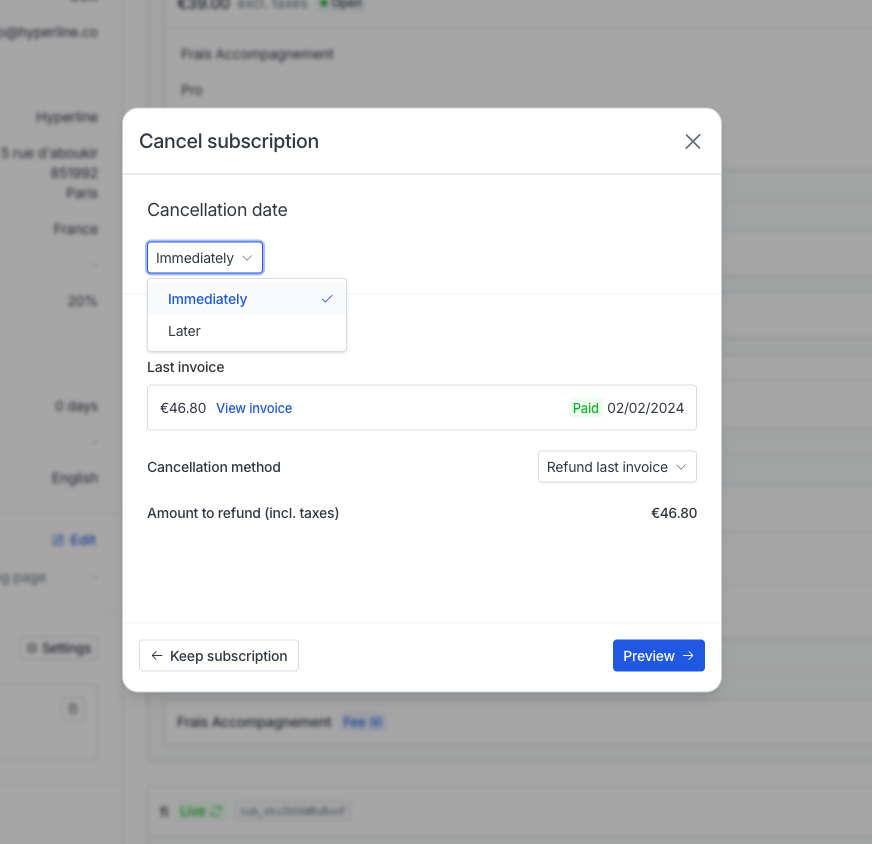
If a customer wishes to stop their subscription or if you need to make changes to their subscription that can't be done through the update subscription option, you can cancel the subscription.
## Reactivate a paused subscription
Click on **Actions** then **Reactivate payment collection**. Upon reactivation, the customer **will not be billed** for any past period that was paused and is due.
## Cancel subscription
If a customer wishes to stop their subscription or if you need to make changes to their subscription that can't be done through the update subscription option, you can cancel the subscription.
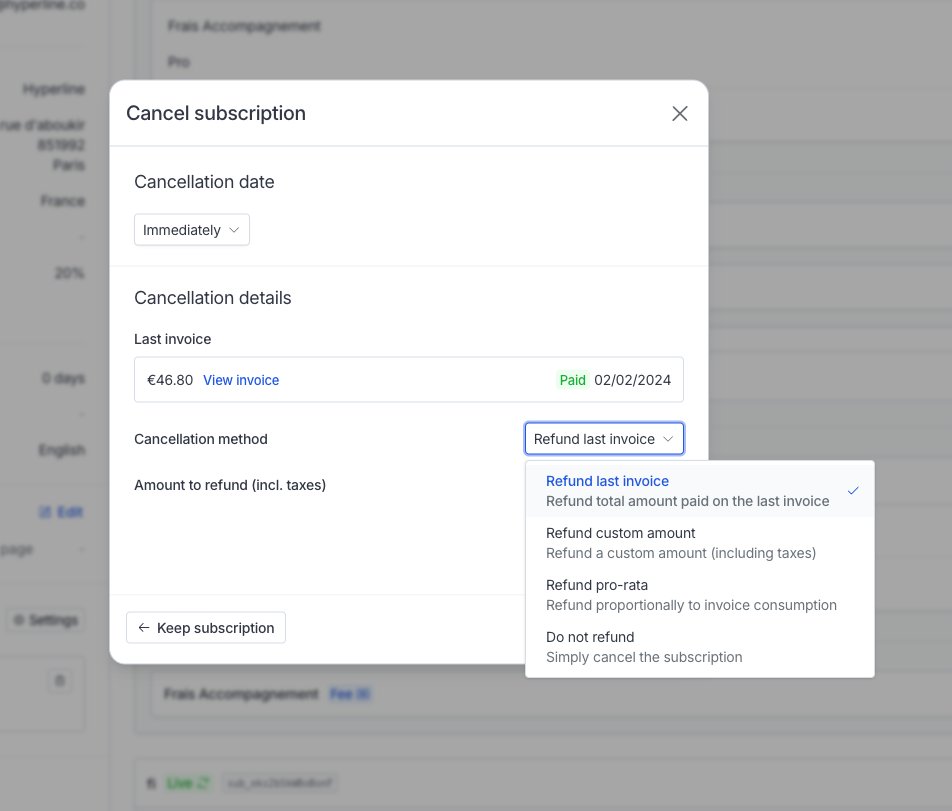 * **Refund last invoice:** Refunds the total of the last settled invoice to your customer, if available.
* **Refund custom amount:** Displays a field for entering a custom refund amount to your customer.
* **Refund pro rata:** Refunds a pro-rata amount based on customer usage so far, with a breakdown showing the products and respective balances.
* **Do not refund:** Cancels the subscription without issuing a refund to your customer.
When canceling a subscription before billing, for instance, the products within the subscription are billed at month-end ("end of period") and the cancellation is initiated mid-month you'll have the option to charge the customer instead. The selection choices will stay consistent, with the exception of the 'last invoice' option, which will be adjusted to reflect the estimated amount for the upcoming invoice.
* **Refund last invoice:** Refunds the total of the last settled invoice to your customer, if available.
* **Refund custom amount:** Displays a field for entering a custom refund amount to your customer.
* **Refund pro rata:** Refunds a pro-rata amount based on customer usage so far, with a breakdown showing the products and respective balances.
* **Do not refund:** Cancels the subscription without issuing a refund to your customer.
When canceling a subscription before billing, for instance, the products within the subscription are billed at month-end ("end of period") and the cancellation is initiated mid-month you'll have the option to charge the customer instead. The selection choices will stay consistent, with the exception of the 'last invoice' option, which will be adjusted to reflect the estimated amount for the upcoming invoice.
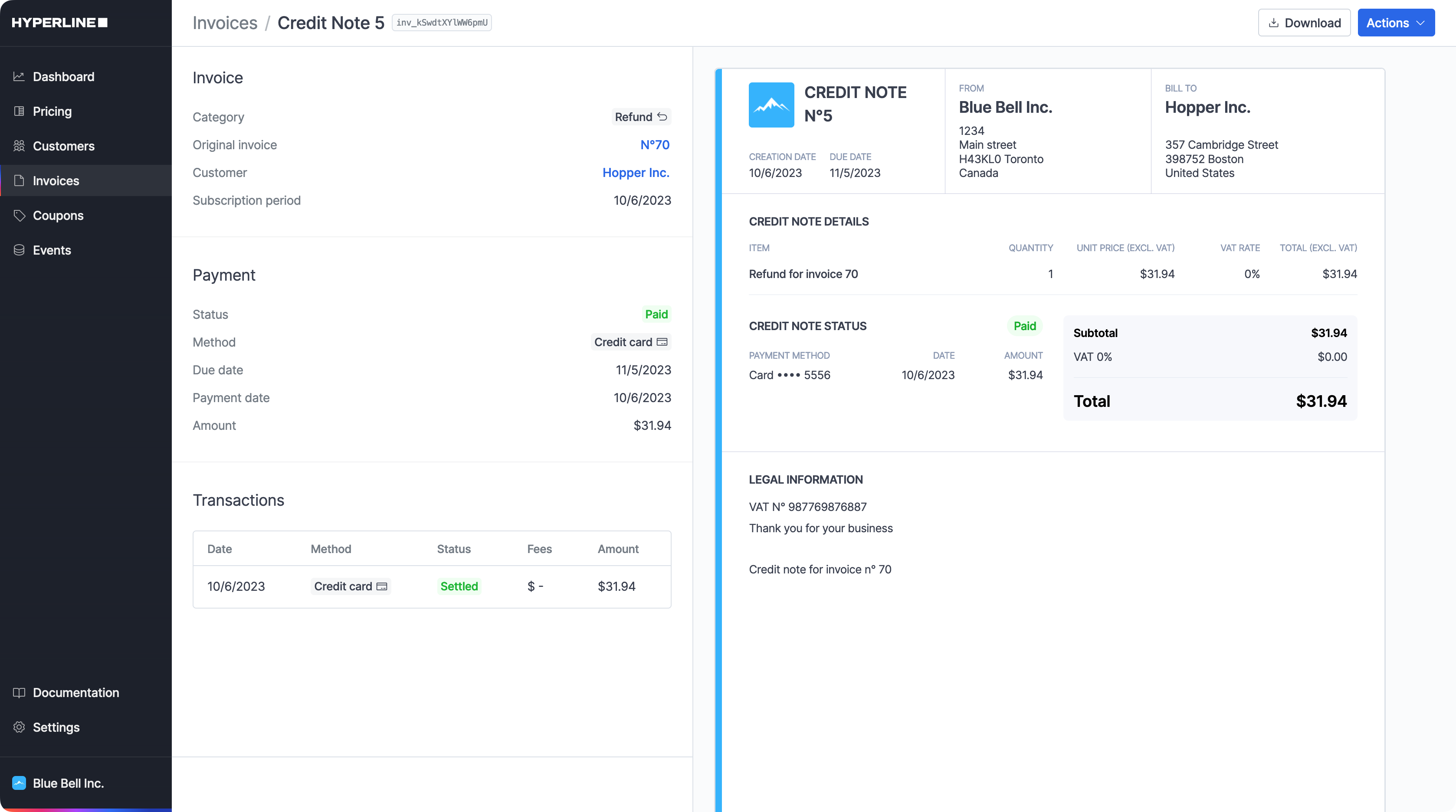
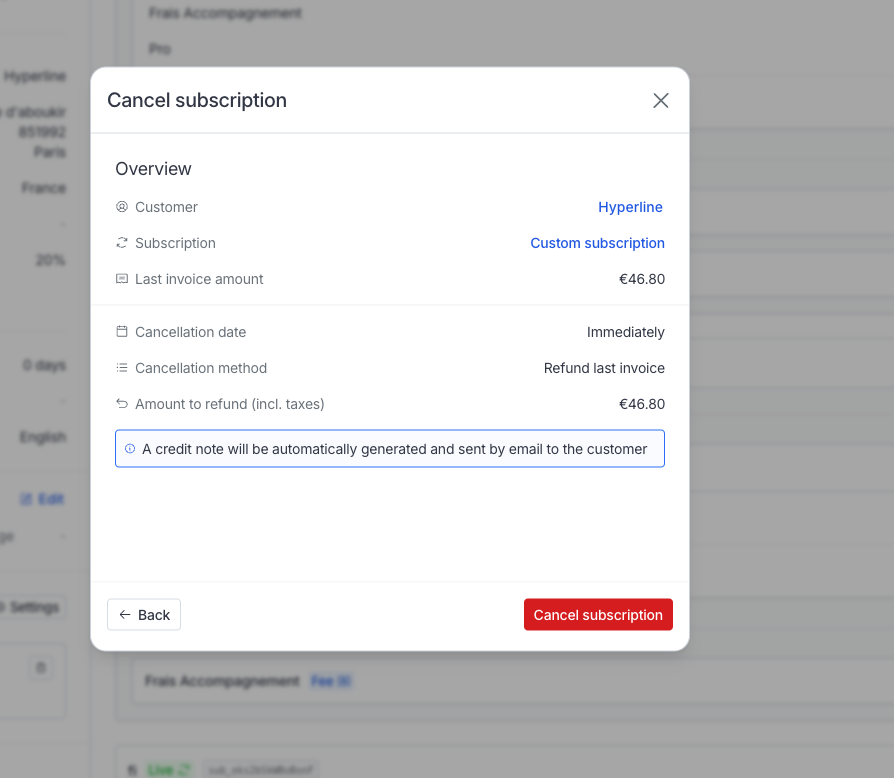 A credit note will be issued and visible in the Invoices page of this
customer. Its category will be `Refund` with an item "Refund for invoice X".
A credit note will be issued and visible in the Invoices page of this
customer. Its category will be `Refund` with an item "Refund for invoice X".
 ## Generate future invoices
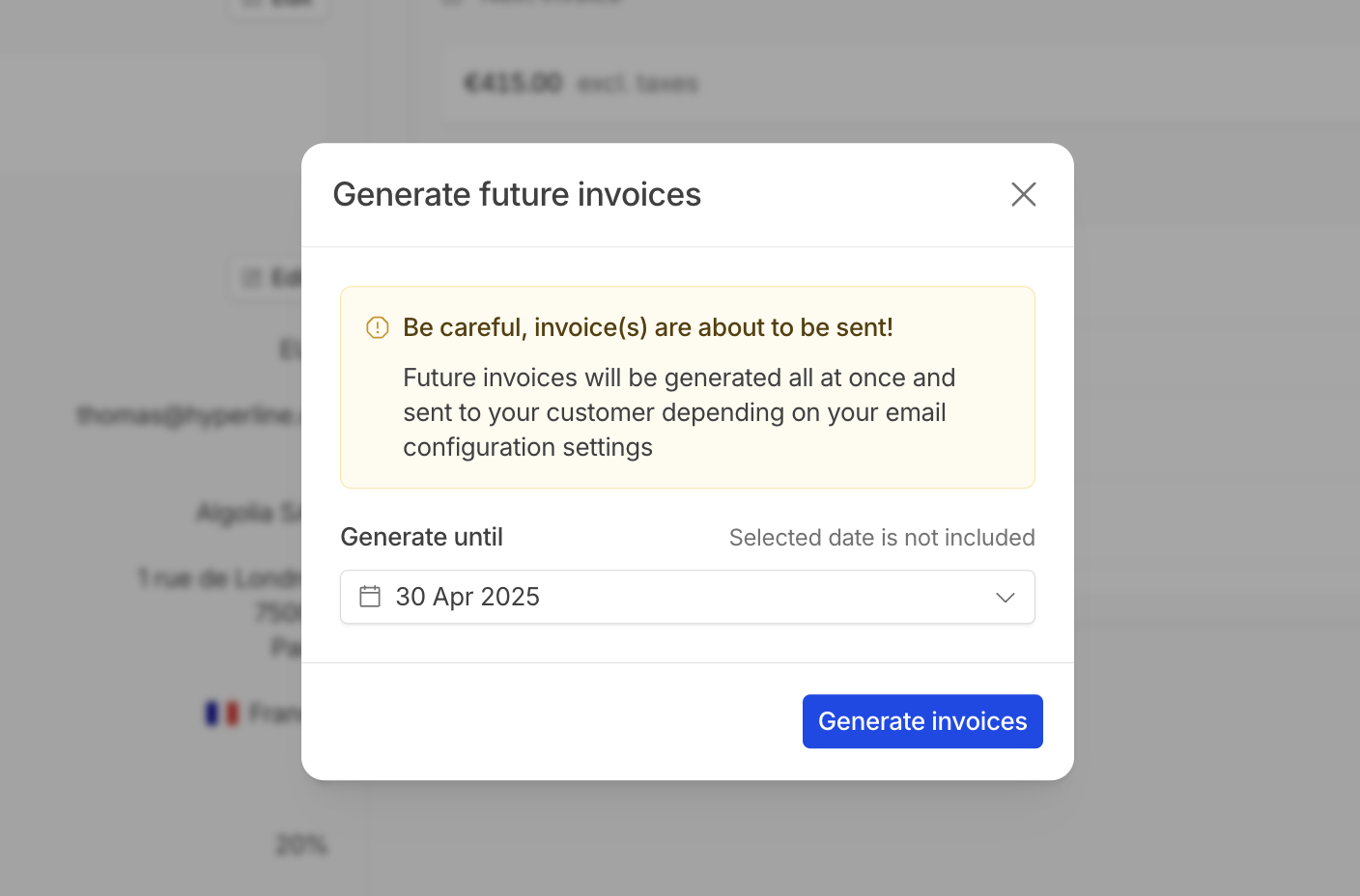
Hyperline allows you to generate subscription invoices in advance. To do so, go to Subscription > Generate future invoices, then select the date up to which you want invoices to be issued. The subscription will be advanced to that date, and all corresponding invoices will be generated and sent immediately.
Depending on the payment method:
* Invoices will be **charged automatically** (credit card, direct debit)
* Invoices will be marked as **to pay** (bank transfers, outside of Hyperline)
## Generate future invoices
Hyperline allows you to generate subscription invoices in advance. To do so, go to Subscription > Generate future invoices, then select the date up to which you want invoices to be issued. The subscription will be advanced to that date, and all corresponding invoices will be generated and sent immediately.
Depending on the payment method:
* Invoices will be **charged automatically** (credit card, direct debit)
* Invoices will be marked as **to pay** (bank transfers, outside of Hyperline)
 ## Viewing past subscription history
In order to provide enhanced transparency regarding subscription activities, you have now access to your past subscription history. This feature is particularly useful for tracking changes and cancellations of subscriptions that are no longer active.
Upon navigating to a customer's subscriptions page, you will find a section titled 'Past subscriptions'.
## Viewing past subscription history
In order to provide enhanced transparency regarding subscription activities, you have now access to your past subscription history. This feature is particularly useful for tracking changes and cancellations of subscriptions that are no longer active.
Upon navigating to a customer's subscriptions page, you will find a section titled 'Past subscriptions'.
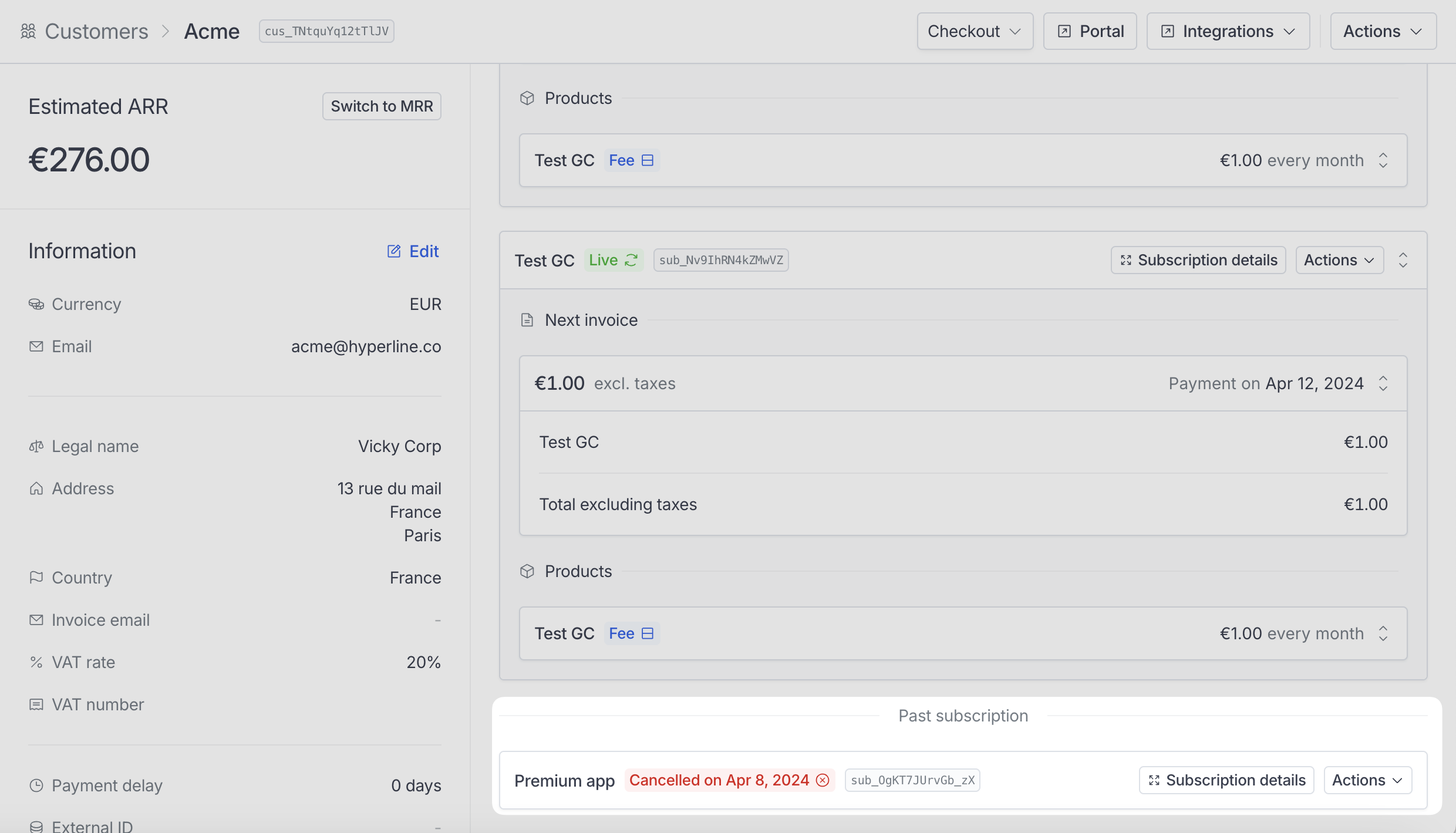 Additionally, you can choose to archive a subscription by using the 'Delete subscription' action. The subscription will then no longer be displayed in the history list.
***
## Using the API
You can also decide to manage subscriptions using the Hyperline API. Visit our API reference documentation for more details.
* [Create subscription update endpoint](../../api-reference/endpoints/subscriptions/create-subscription-update)
* [Cancel subscription endpoint](../../api-reference/endpoints/subscriptions/cancel-subscription)
Additionally, you can choose to archive a subscription by using the 'Delete subscription' action. The subscription will then no longer be displayed in the history list.
***
## Using the API
You can also decide to manage subscriptions using the Hyperline API. Visit our API reference documentation for more details.
* [Create subscription update endpoint](../../api-reference/endpoints/subscriptions/create-subscription-update)
* [Cancel subscription endpoint](../../api-reference/endpoints/subscriptions/cancel-subscription)