> ## Documentation Index
> Fetch the complete documentation index at: https://docs.hyperline.co/llms.txt
> Use this file to discover all available pages before exploring further.
# Quote templates
> Streamline your quoting process
To simplify the quote creation process, Hyperline offers a feature to create templates, allowing you to pre-configure a quote for it to be sent in a few clicks. As with any other concept in Hyperline, values entered in the quote template can be overridden after selecting the template in the quote creation process.
Editing a quote template will not impact the draft quotes created using this template.
 ## Creating a template
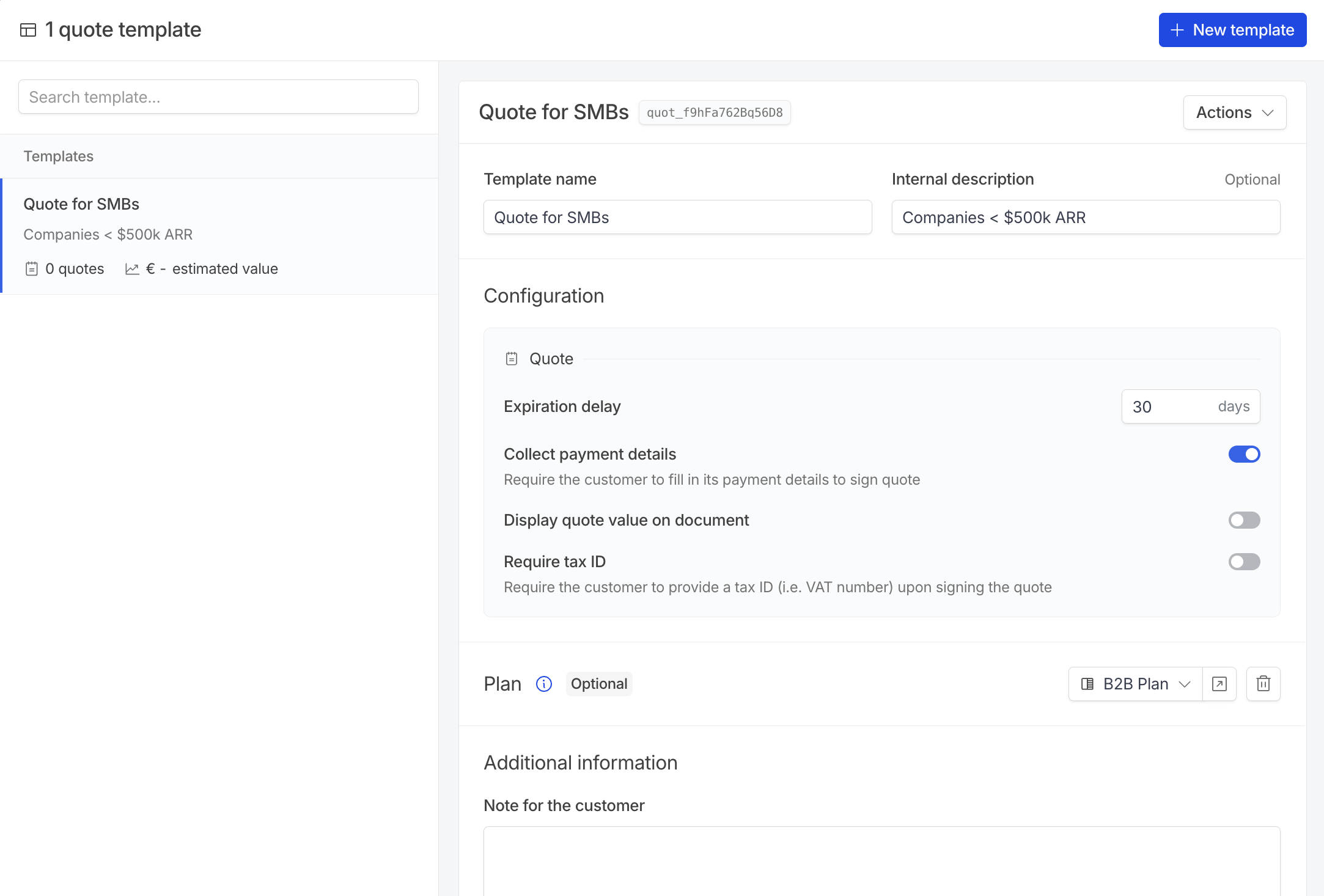
Quotes templates are nested under the `quoting` folder, on the `templates` page.
Add a name and optionally an internal description to make it easily identifiable for your sales team.
Pre-configure the expiration delay and information required from customers to sign the quote.
Quote templates can contain a pre-configured subscription template. This will generate a subscription filled with the contract, products and price configurations, coupons and invoicing settings based on the customers' country and currency. These pre-filled information can be overridden while creating the quote.
More details in the [subscription templates page](../subscriptions/templates).
You can add a note for the customer and contract terms, that can be pre-filled with clauses configured in settings > quoting.
When sending a quote to a customer, you might want to attach a contract or your terms and conditions so they can sign both the quote and the contract simultaneously.
Attachments can be :
* **Added manually** on the template
* **Added dynamically** based on the customers' country and language through localized attachments configured in settings > quoting.
## Using a template
## Creating a template
Quotes templates are nested under the `quoting` folder, on the `templates` page.
Add a name and optionally an internal description to make it easily identifiable for your sales team.
Pre-configure the expiration delay and information required from customers to sign the quote.
Quote templates can contain a pre-configured subscription template. This will generate a subscription filled with the contract, products and price configurations, coupons and invoicing settings based on the customers' country and currency. These pre-filled information can be overridden while creating the quote.
More details in the [subscription templates page](../subscriptions/templates).
You can add a note for the customer and contract terms, that can be pre-filled with clauses configured in settings > quoting.
When sending a quote to a customer, you might want to attach a contract or your terms and conditions so they can sign both the quote and the contract simultaneously.
Attachments can be :
* **Added manually** on the template
* **Added dynamically** based on the customers' country and language through localized attachments configured in settings > quoting.
## Using a template
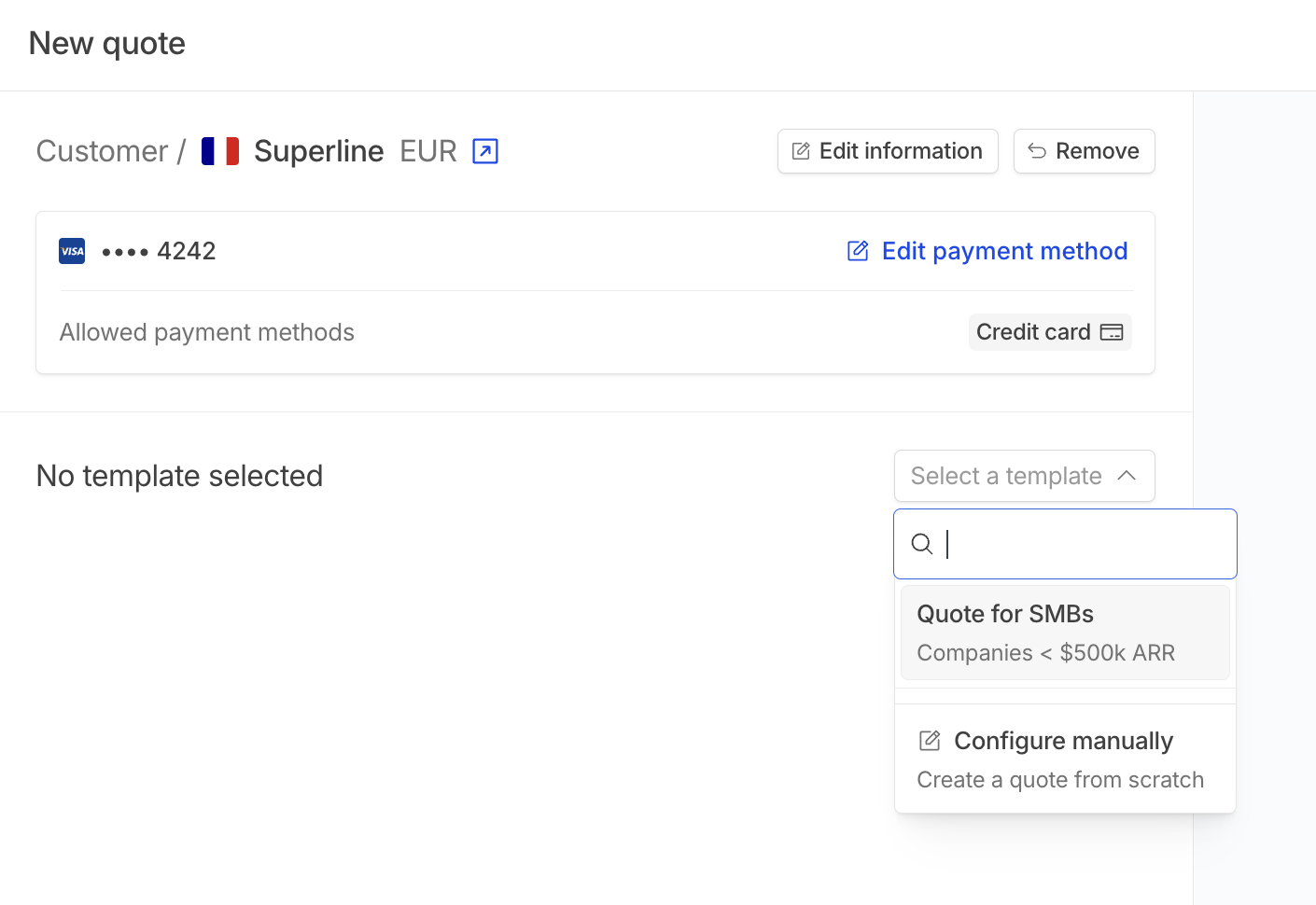 When creating a quote, you can select a pre-configured template or start with an empty quote by selecting `configure manually`.
## Localized attachments
If your team frequently sends quotes with the same contract details, manually attaching files can become time-consuming, especially for sales teams that may struggle to select the right templates.
With localized attachments, you can configure attachments to be automatically added based on the invoicing entity, country and language of the customer.
When creating a quote, you can select a pre-configured template or start with an empty quote by selecting `configure manually`.
## Localized attachments
If your team frequently sends quotes with the same contract details, manually attaching files can become time-consuming, especially for sales teams that may struggle to select the right templates.
With localized attachments, you can configure attachments to be automatically added based on the invoicing entity, country and language of the customer.
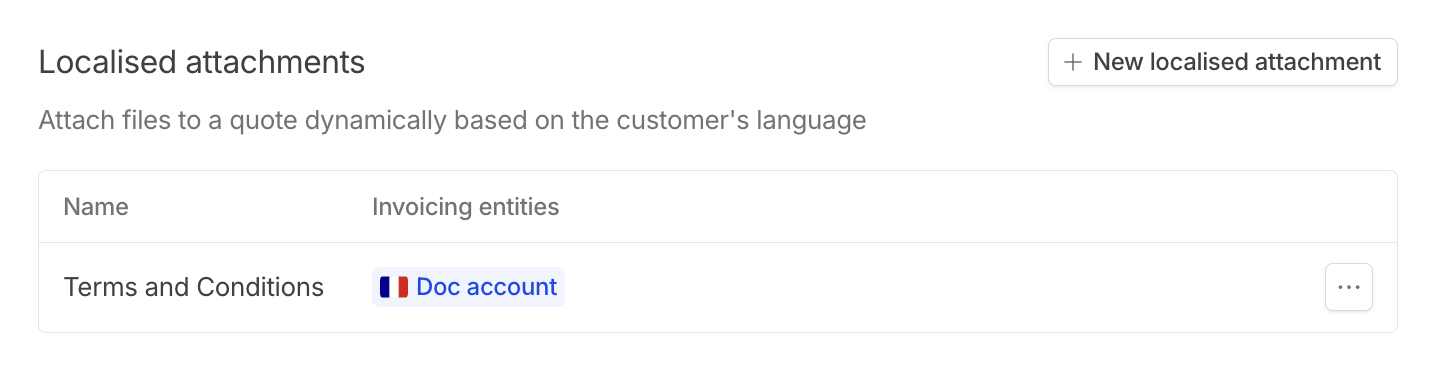 Give it a descriptive name and select the invoicing entities eligible (attachments will only be available for customers linked to selected entities).
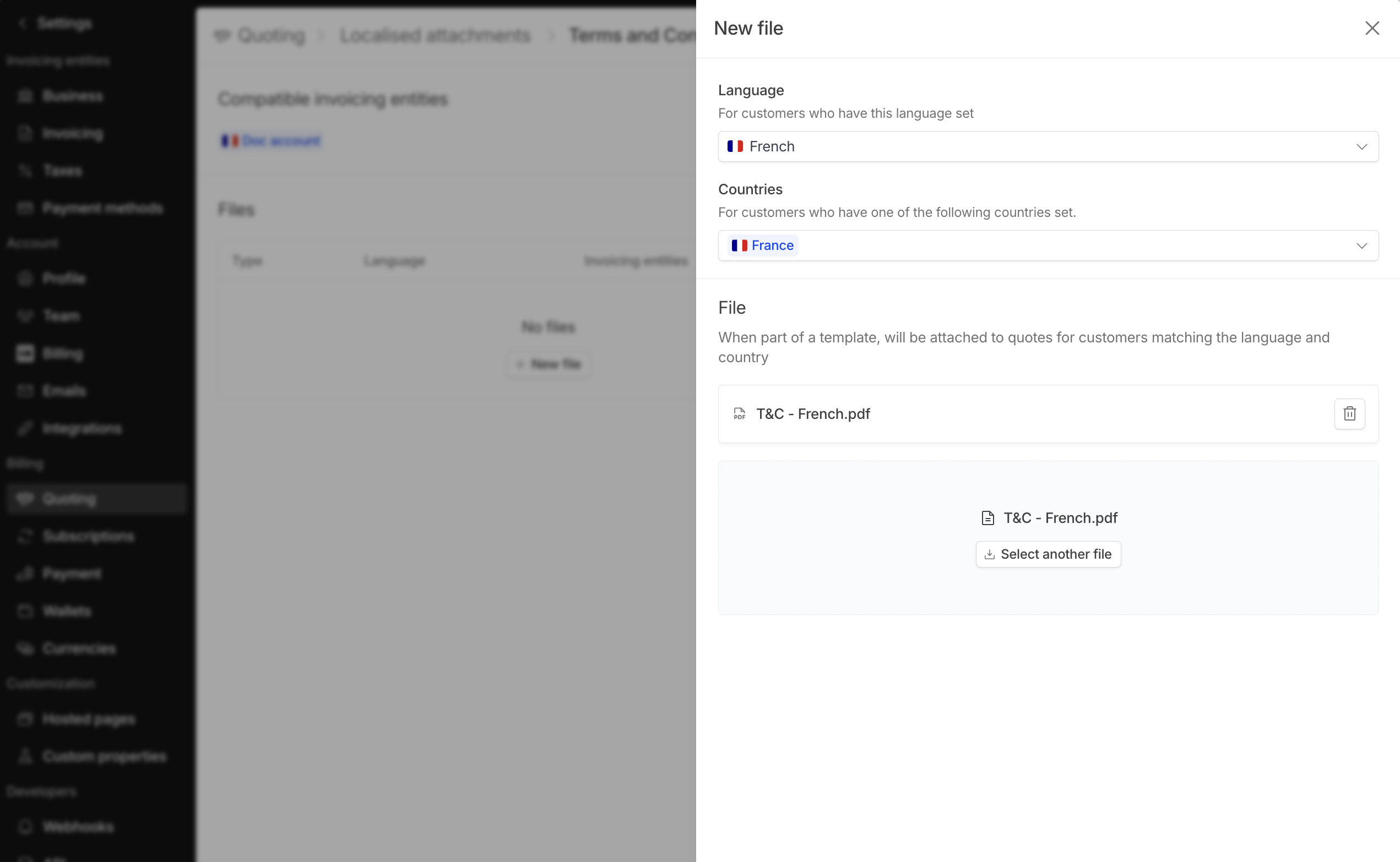 Click on `new file` and choose the language and country. The file will be automatically attached to quotes for customers matching these criteria when using a quote template with this localized attachment.
Add a file with the following format: `PDF`, `DOC`, `DOCX`, `PPT`, `PPTX`, or `TXT` with a maximum size of 5 MB.
With your localized attachment now configured, you can add it to your quote templates. Attachments will then be automatically added to quotes created using the template.
## Clauses
Clauses are a lighter version of localized attachments that allows you to add dynamic text based on the invoicing entity and customer's language in the `contract terms` text field.
Users need the **Contracts read** permission to view and use contract clauses in the quote editor. Without this permission, the clause insertion options will not be available. Learn more about [user roles & permissions](../getting-started/users).
Click on `new file` and choose the language and country. The file will be automatically attached to quotes for customers matching these criteria when using a quote template with this localized attachment.
Add a file with the following format: `PDF`, `DOC`, `DOCX`, `PPT`, `PPTX`, or `TXT` with a maximum size of 5 MB.
With your localized attachment now configured, you can add it to your quote templates. Attachments will then be automatically added to quotes created using the template.
## Clauses
Clauses are a lighter version of localized attachments that allows you to add dynamic text based on the invoicing entity and customer's language in the `contract terms` text field.
Users need the **Contracts read** permission to view and use contract clauses in the quote editor. Without this permission, the clause insertion options will not be available. Learn more about [user roles & permissions](../getting-started/users).
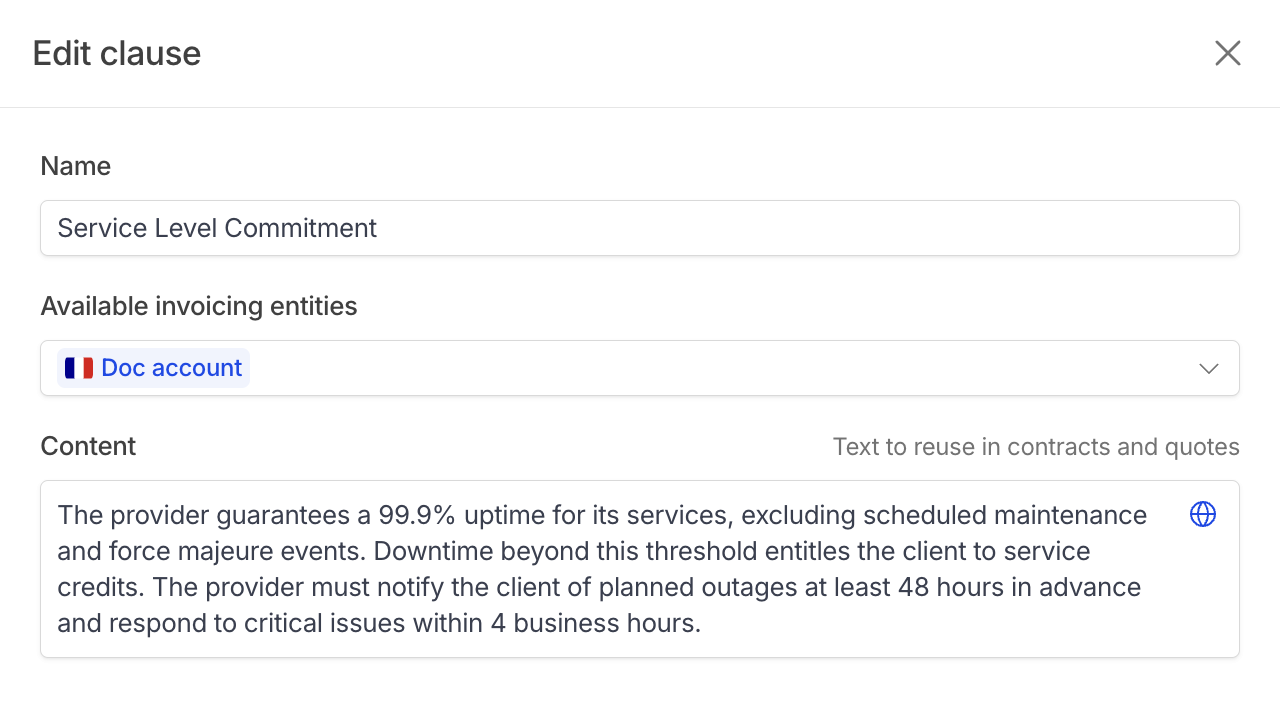 Give it a descriptive name and select the invoicing entities eligible (clauses will only be available for customers linked to selected entities).
Enter content in the text area. You can add alternative versions for different languages by clicking on the **blue globe icon**. If translations are not set, the default version will be added.
After configuring the clause, you can add it to your quote templates. When creating a quote using the template, the clause content will be automatically pre-filled in the contract terms field in the customer's language.
Give it a descriptive name and select the invoicing entities eligible (clauses will only be available for customers linked to selected entities).
Enter content in the text area. You can add alternative versions for different languages by clicking on the **blue globe icon**. If translations are not set, the default version will be added.
After configuring the clause, you can add it to your quote templates. When creating a quote using the template, the clause content will be automatically pre-filled in the contract terms field in the customer's language.