> ## Documentation Index
> Fetch the complete documentation index at: https://docs.hyperline.co/llms.txt
> Use this file to discover all available pages before exploring further.
# Signature circuit
> Collect several signatures on one quote: signers in ordered steps, internal countersignatures, viewers, and who can open the quote.
A signature circuit lets several people sign the same quote. You decide who signs, in which order, and who only needs to read it. Hyperline invites each signer when their turn comes, tracks every signature, and marks the quote as signed once the last signature is collected.
The signature circuit is available on demand. Contact our support if you are interested.
## How it works
A circuit is made of **steps**:
* Signers in the **same step** can sign in any order, at the same time.
* Steps run **one after the other**: the next step opens only when everyone in the current step has signed.
* A step can end with a **countersignature** from someone in your team.
Next to the signers, you can add **viewers**: people who receive the quote and can open it, but never sign.
Your customer's CEO and CFO both need to sign, then your own sales director countersigns.
* **Step 1**: the CEO and the CFO. Both receive the quote at the same time and can sign in any order.
* **Step 2**: your sales director, as a countersignature. They are asked to sign only once the CEO and the CFO have both signed.
* **Viewers**: the customer's procurement team, who follow the deal without signing.
## Set up the signers
You can configure signers from the quote editor, with **Configure signers** in the signature block, or from the quote details page, with **Edit** in the **Signers** section.
1. In the first step, enter the signer's first name, last name and email.
2. Click **Add signer** to add another person to the same step.
3. Click **Add step** to add a step that opens once the previous one is fully signed.
4. Drag and drop steps to reorder them.
5. Click **Save changes**.
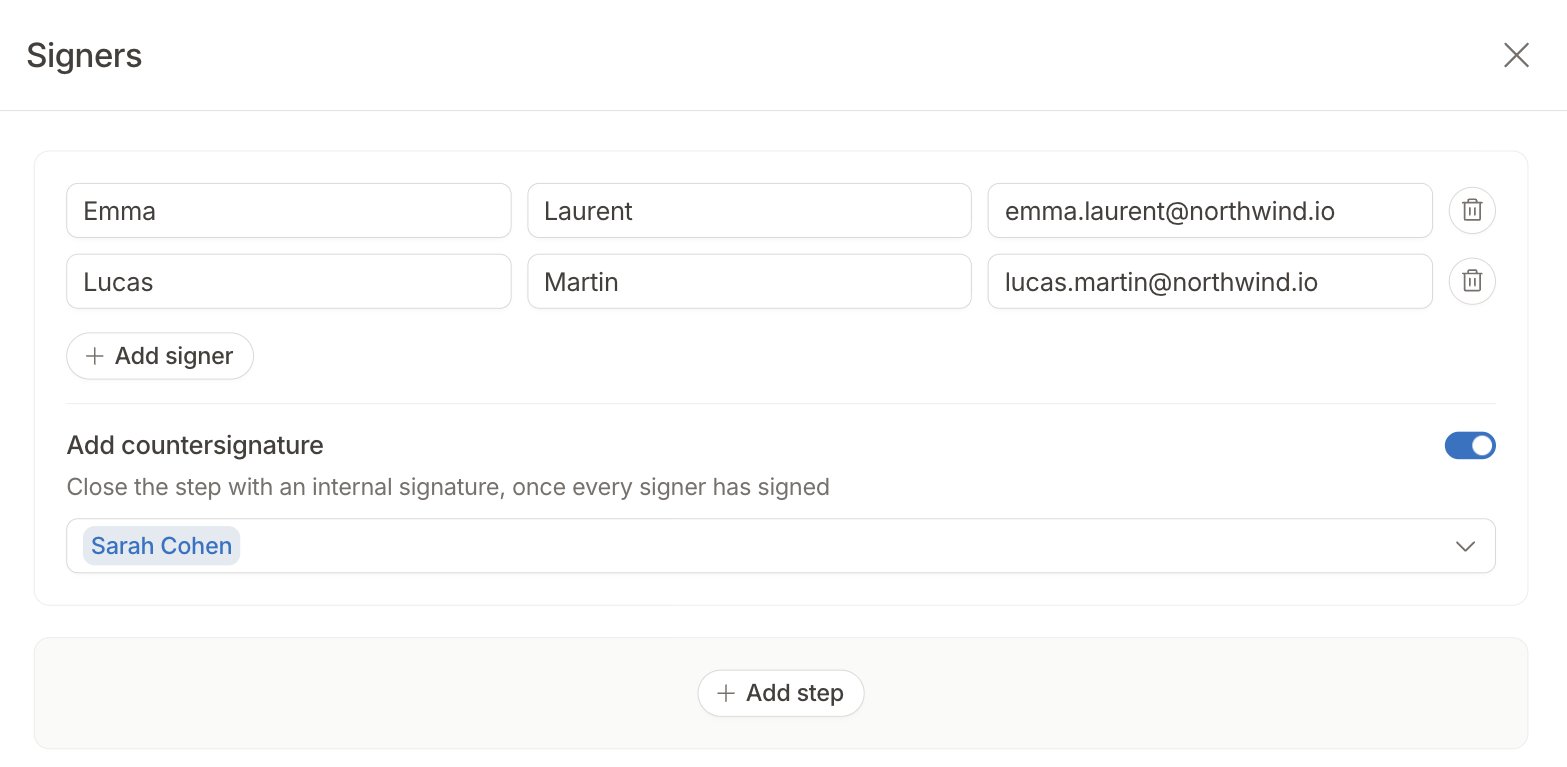 With electronic signature, every signer needs a first and last name. With basic signature, an email address is enough: the signer types their name when they sign.
A few rules apply:
* Each email address can appear only once on a quote, either as a signer or as a viewer.
* The circuit needs at least one customer signer. A countersignature always comes after a step with at least one signer.
* Each step needs at least one signer or a countersignature.
### Add a countersignature
A countersignature closes a step with a signature from your team, once every signer of that step has signed.
1. In the step, turn on **Add countersignature**.
2. Select one or more members of your team.
3. Click **Save changes**.
The countersignature becomes its own step, right after the step it closes.
With Hyperline Signature or Yousign, a member can be a countersigner only if their profile has a first and last name. Only the member can add these in their own profile.
### Use a default countersigner
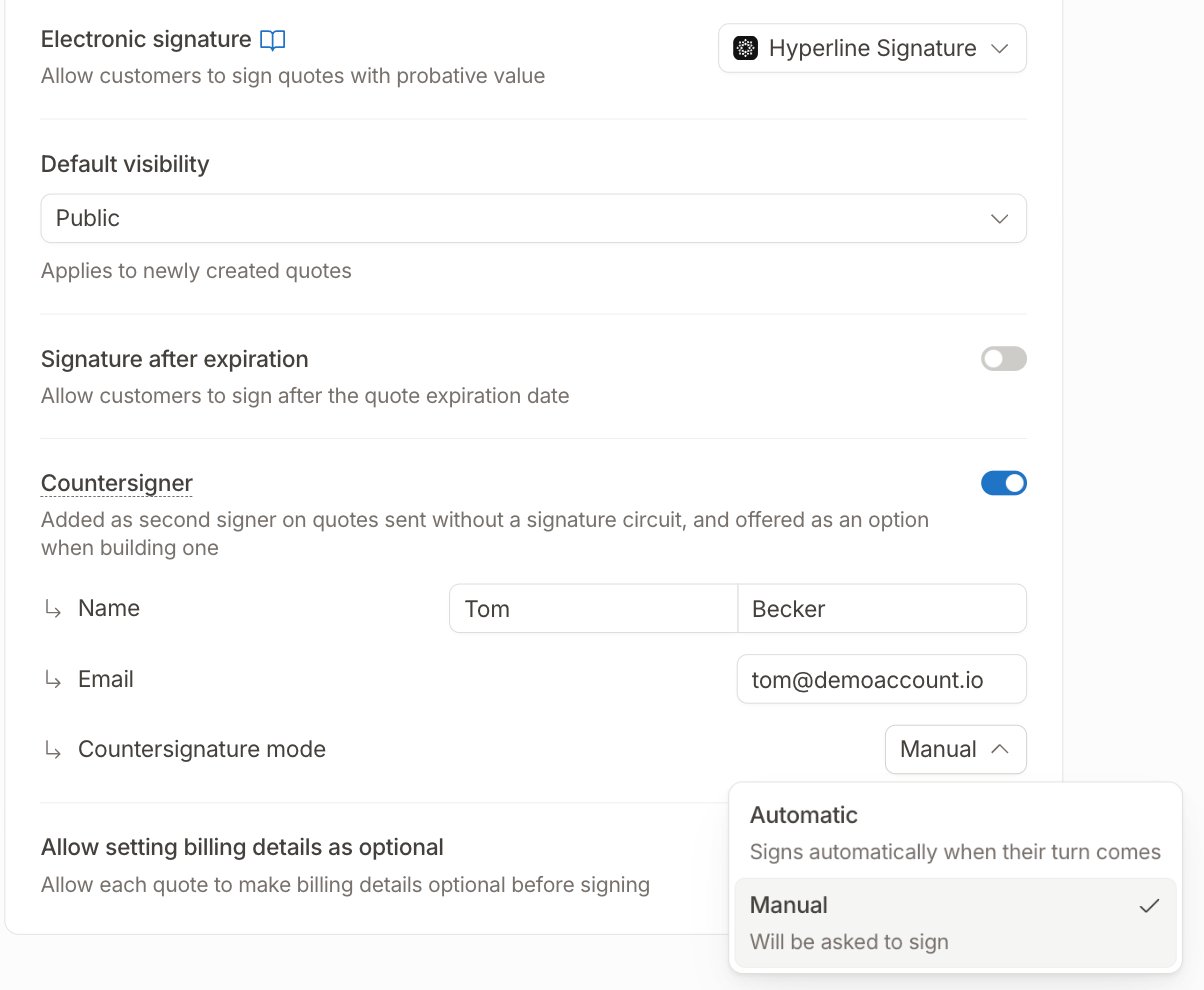
In **Quoting > Settings**, you can turn on **Countersigner** and enter the name and email of a default countersigner, typically someone from your organization:
* On quotes sent **without** a signature circuit, it is added as the second signer.
* When you build a circuit, it is added as the last step, tagged **Countersigner**. You can remove it from a specific quote with **Remove step**.
With DocuSign, the default countersigner is only added when you build a circuit, and always signs manually.
### Choose how countersignatures are given
**Countersignature mode**, set under **Countersigner** in **Quoting > Settings**, controls what happens when a countersignature step is reached. It applies to every countersignature, including the team members you add to a circuit.
| Mode | What happens |
| - | - |
| **Automatic** | The countersignature is applied automatically when its turn comes, with no action from your team. This is the default. |
| **Manual** | The countersigner receives an email and signs the quote like any other signer. |
With electronic signature, every signer needs a first and last name. With basic signature, an email address is enough: the signer types their name when they sign.
A few rules apply:
* Each email address can appear only once on a quote, either as a signer or as a viewer.
* The circuit needs at least one customer signer. A countersignature always comes after a step with at least one signer.
* Each step needs at least one signer or a countersignature.
### Add a countersignature
A countersignature closes a step with a signature from your team, once every signer of that step has signed.
1. In the step, turn on **Add countersignature**.
2. Select one or more members of your team.
3. Click **Save changes**.
The countersignature becomes its own step, right after the step it closes.
With Hyperline Signature or Yousign, a member can be a countersigner only if their profile has a first and last name. Only the member can add these in their own profile.
### Use a default countersigner
In **Quoting > Settings**, you can turn on **Countersigner** and enter the name and email of a default countersigner, typically someone from your organization:
* On quotes sent **without** a signature circuit, it is added as the second signer.
* When you build a circuit, it is added as the last step, tagged **Countersigner**. You can remove it from a specific quote with **Remove step**.
With DocuSign, the default countersigner is only added when you build a circuit, and always signs manually.
### Choose how countersignatures are given
**Countersignature mode**, set under **Countersigner** in **Quoting > Settings**, controls what happens when a countersignature step is reached. It applies to every countersignature, including the team members you add to a circuit.
| Mode | What happens |
| - | - |
| **Automatic** | The countersignature is applied automatically when its turn comes, with no action from your team. This is the default. |
| **Manual** | The countersigner receives an email and signs the quote like any other signer. |
 A change of mode also applies to quotes already out for signature.
With DocuSign, countersignatures are always manual: DocuSign does not sign on someone's behalf.
## Add viewers
Viewers receive the quote by email and can open and download it, but cannot sign or edit any details.
1. On the quote details page, click **Edit** in the **Viewers** section.
2. Enter an email address, then click **Add viewer** to add more.
3. Click **Save changes**.
You can add or remove viewers at any time until the quote is signed or voided. A viewer added after the quote was sent receives the quote by email.
## Choose who can open the quote
Each quote has a **visibility** that decides who can open its link:
| Visibility | Who can open the quote | Who can sign |
| - | - | - |
| **Public** | Anyone with the link | Only signers, after confirming their email |
| **Private** | Only viewers and signers | Only signers |
To change it, open the quote's **Actions** and click **Set visibility**. You can switch at any time until the quote is signed or voided.
A change of mode also applies to quotes already out for signature.
With DocuSign, countersignatures are always manual: DocuSign does not sign on someone's behalf.
## Add viewers
Viewers receive the quote by email and can open and download it, but cannot sign or edit any details.
1. On the quote details page, click **Edit** in the **Viewers** section.
2. Enter an email address, then click **Add viewer** to add more.
3. Click **Save changes**.
You can add or remove viewers at any time until the quote is signed or voided. A viewer added after the quote was sent receives the quote by email.
## Choose who can open the quote
Each quote has a **visibility** that decides who can open its link:
| Visibility | Who can open the quote | Who can sign |
| - | - | - |
| **Public** | Anyone with the link | Only signers, after confirming their email |
| **Private** | Only viewers and signers | Only signers |
To change it, open the quote's **Actions** and click **Set visibility**. You can switch at any time until the quote is signed or voided.
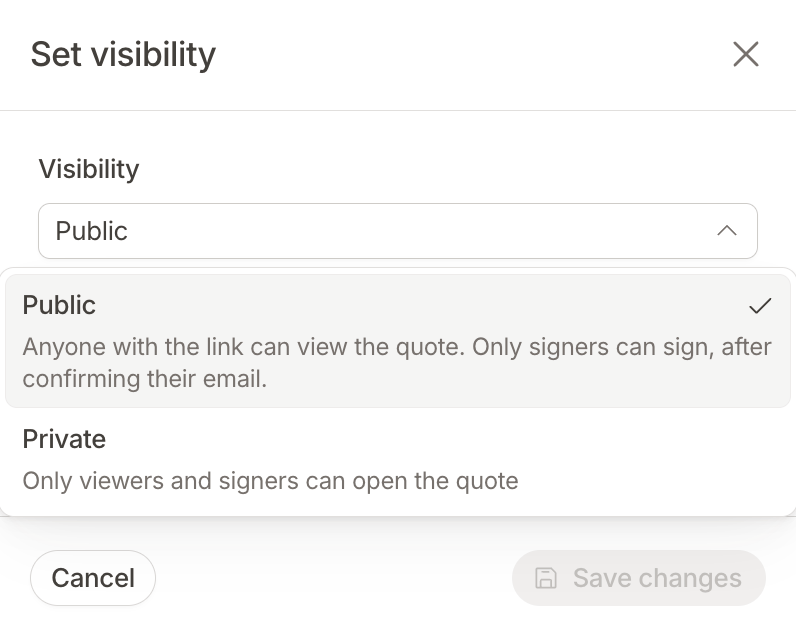 New quotes use the **Default visibility** set in **Quoting > Settings**.
Use **Private** when the quote must stay between the people you invited. Use **Public** when you share the link yourself, for example in a chat or in your CRM.
## Send the quote
Once the quote is finalized, click **Send quote**. The **Send quote** window shows who is emailed:
* **Notified now**: the viewers, and the signers of the first step that still needs signatures.
* **Notified later**: the signers of the next steps. Hyperline emails each of them automatically when their step opens.
New quotes use the **Default visibility** set in **Quoting > Settings**.
Use **Private** when the quote must stay between the people you invited. Use **Public** when you share the link yourself, for example in a chat or in your CRM.
## Send the quote
Once the quote is finalized, click **Send quote**. The **Send quote** window shows who is emailed:
* **Notified now**: the viewers, and the signers of the first step that still needs signatures.
* **Notified later**: the signers of the next steps. Hyperline emails each of them automatically when their step opens.
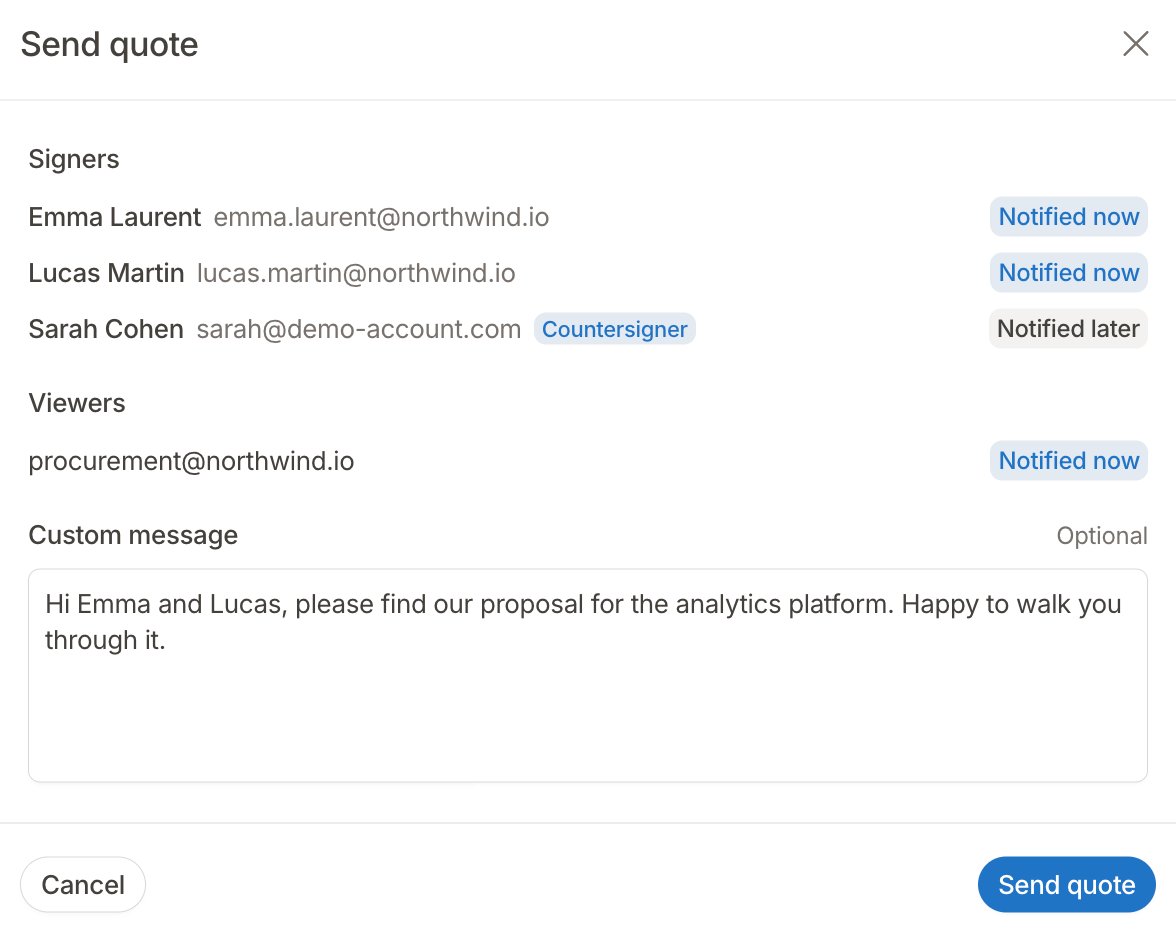 You can add an optional custom message. Clicking **Send quote** again later only emails people who have not been notified yet.
You can also click **Publish quote** to make the quote available without sending any email, and share its link yourself.
Hyperline does not send reminders: once someone has been notified, sending the quote again does not email them a second time.
## What signers see
### Confirming their email
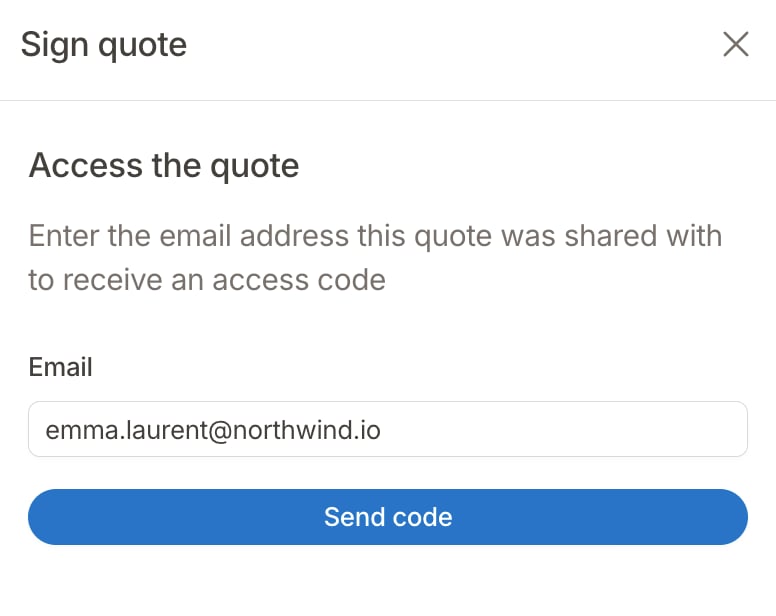
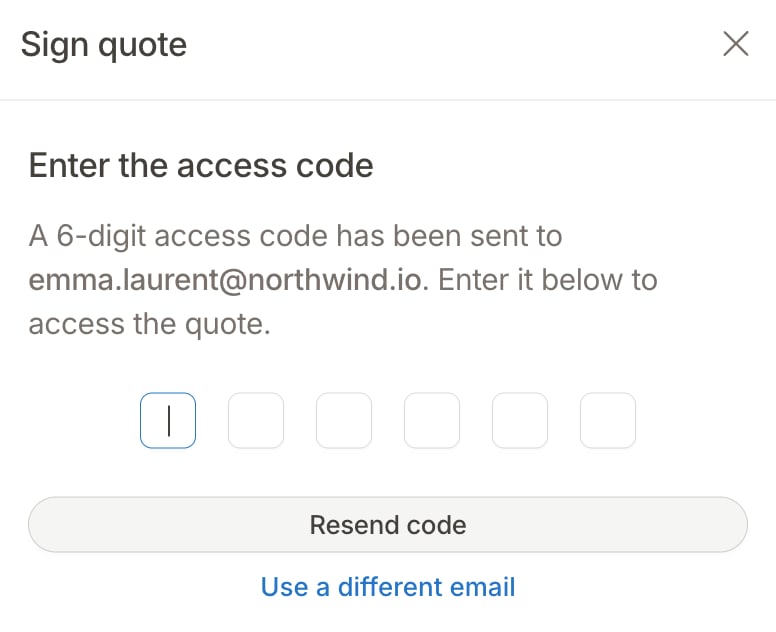
When a signer opens the quote, they confirm their email address first:
1. They enter the email address the quote was sent to, and click **Send code**.
2. They receive a 6-digit access code by email, valid for 10 minutes.
3. They enter the code to open the quote.
You can add an optional custom message. Clicking **Send quote** again later only emails people who have not been notified yet.
You can also click **Publish quote** to make the quote available without sending any email, and share its link yourself.
Hyperline does not send reminders: once someone has been notified, sending the quote again does not email them a second time.
## What signers see
### Confirming their email
When a signer opens the quote, they confirm their email address first:
1. They enter the email address the quote was sent to, and click **Send code**.
2. They receive a 6-digit access code by email, valid for 10 minutes.
3. They enter the code to open the quote.
 Once confirmed, they stay recognized for 24 hours. After 5 wrong codes, they need to wait 15 minutes before trying again.
On a **Public** quote, anyone can read the quote without a code: signers confirm their email only when they click **Sign quote**.
### Signing
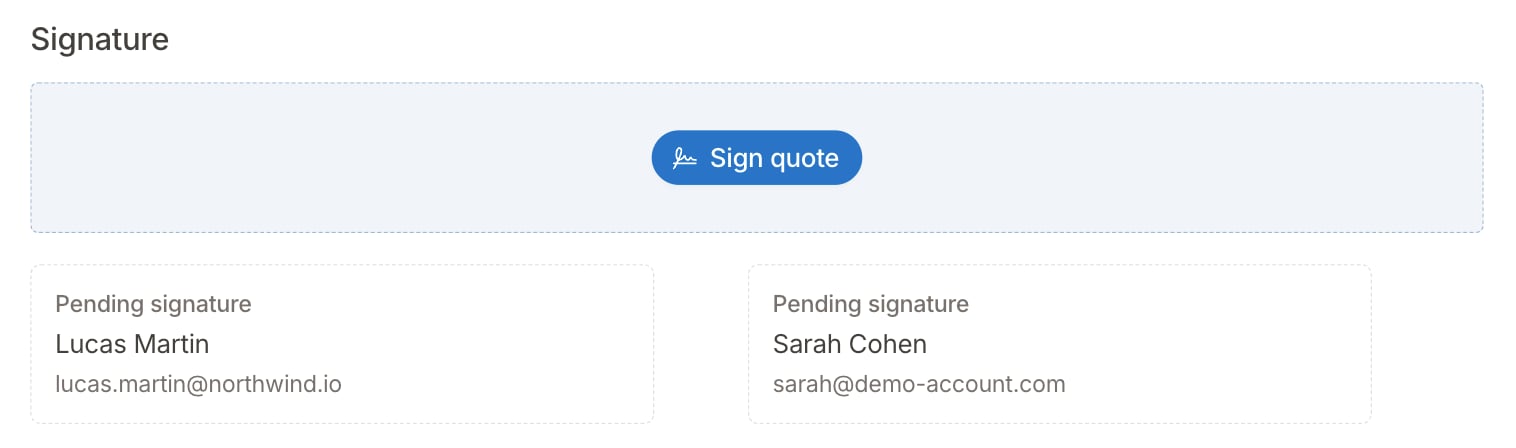
Only the signers of the current step can sign. On the quote page, the signature block shows a **Sign quote** button for the current step, and every other signer as **Pending signature**.
With **Hyperline Signature** or **Yousign**:
1. The signer clicks **Sign quote** and reviews the final document.
2. If they confirmed their email less than 30 minutes ago, they sign right away.
3. Otherwise, they click **Start signature** and enter the 4-digit verification code sent to their email.
With **DocuSign**, the signer signs in DocuSign's signing screen, embedded in the quote page.
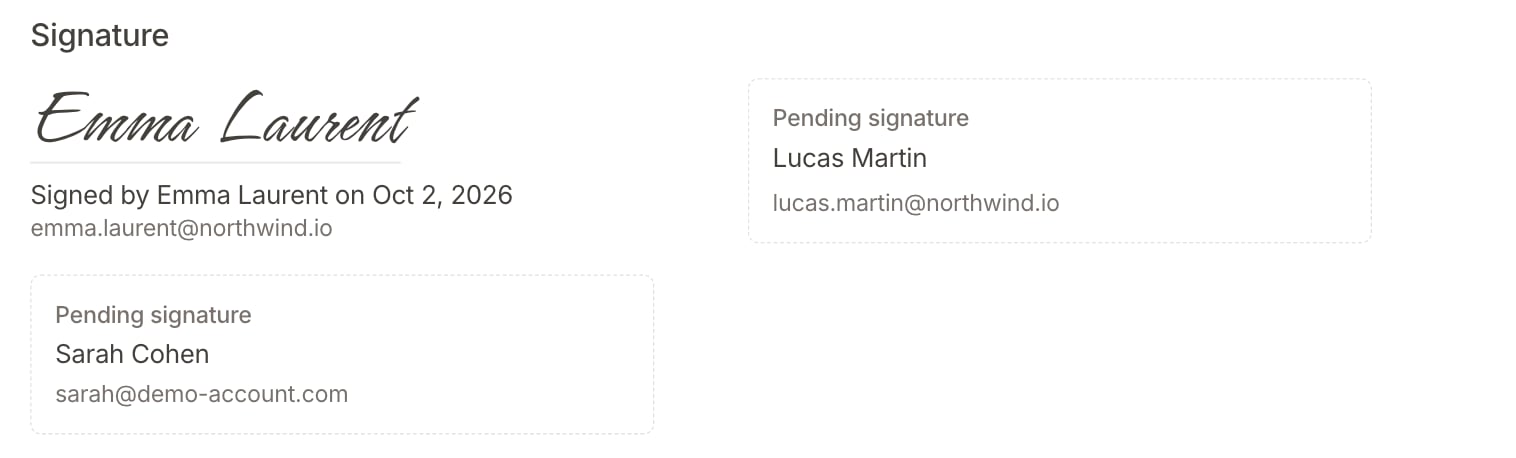
After signing, the signer sees **Signature recorded** and how many other signers are still expected. Once the last signature is collected, the quote page shows the names of everyone who signed.
Once confirmed, they stay recognized for 24 hours. After 5 wrong codes, they need to wait 15 minutes before trying again.
On a **Public** quote, anyone can read the quote without a code: signers confirm their email only when they click **Sign quote**.
### Signing
Only the signers of the current step can sign. On the quote page, the signature block shows a **Sign quote** button for the current step, and every other signer as **Pending signature**.
With **Hyperline Signature** or **Yousign**:
1. The signer clicks **Sign quote** and reviews the final document.
2. If they confirmed their email less than 30 minutes ago, they sign right away.
3. Otherwise, they click **Start signature** and enter the 4-digit verification code sent to their email.
With **DocuSign**, the signer signs in DocuSign's signing screen, embedded in the quote page.
After signing, the signer sees **Signature recorded** and how many other signers are still expected. Once the last signature is collected, the quote page shows the names of everyone who signed.
 If the quote requires payment details, they must be filled in before anyone can sign. Any customer signer can fill them in; viewers cannot.
## Track progress
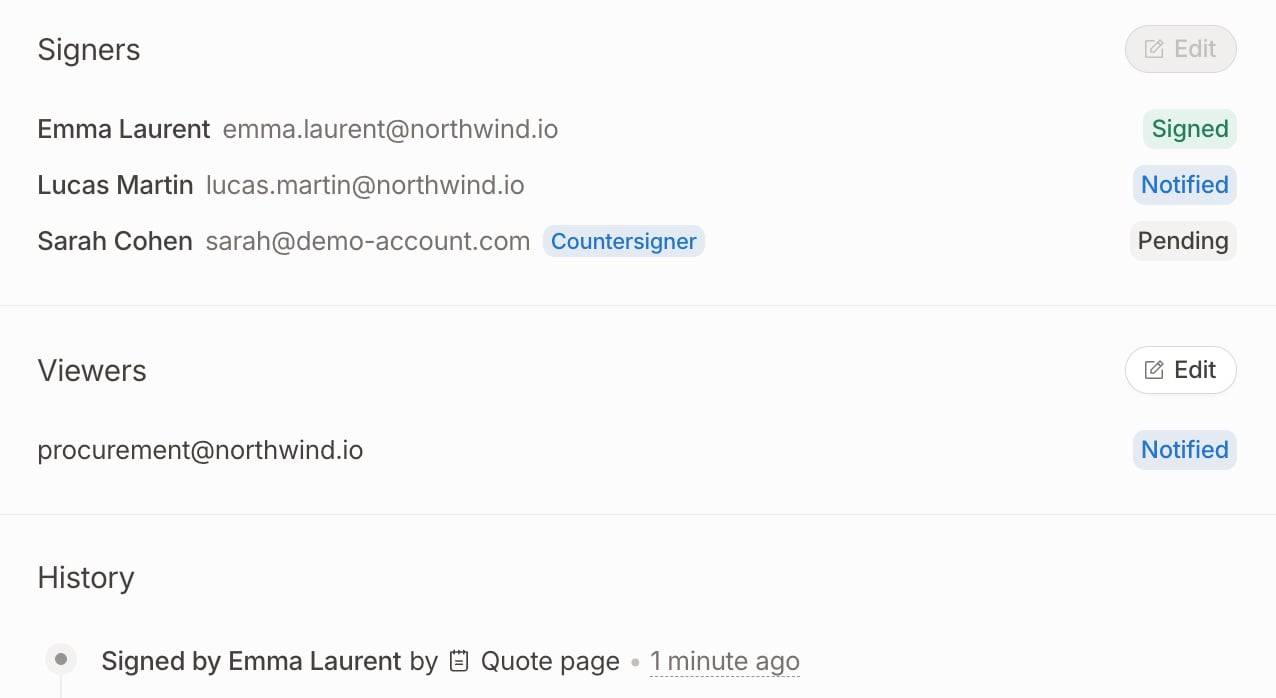
On the quote details page, the **Signers** section lists every signer in signing order with their status, and the **Viewers** section shows whether each viewer was notified.
| Status | Meaning |
| - | - |
| `Pending` | Not invited yet: their step has not opened. |
| `Notified` | Invited by email. |
| `Viewed` | Opened the quote. |
| `Signed` | Signed the quote. |
If the quote requires payment details, they must be filled in before anyone can sign. Any customer signer can fill them in; viewers cannot.
## Track progress
On the quote details page, the **Signers** section lists every signer in signing order with their status, and the **Viewers** section shows whether each viewer was notified.
| Status | Meaning |
| - | - |
| `Pending` | Not invited yet: their step has not opened. |
| `Notified` | Invited by email. |
| `Viewed` | Opened the quote. |
| `Signed` | Signed the quote. |
 The quote itself moves through these statuses:
* `Pending signature` once it is sent or published.
* `Partially signed` once at least one signer has signed. Your customers still see `Pending signature`.
* `Signed` once the last signature is collected. The quote then follows its usual post-signature process, such as activating the subscription.
The **History** section lists each signature, for example "Signed by Jane Doe" or "Countersigned automatically by John Smith".
With electronic signature, the **Audit trail** of the signature is available in the **Additional documents** section once the quote is signed.
## Change the circuit after sending
| Change | When it is possible |
| - | - |
| Add or remove viewers | Until the quote is signed or voided |
| Change visibility | Until the quote is signed or voided |
| Edit signers | With electronic signature, until the first signer starts signing. With basic signature, until the quote is signed. |
| Reorder steps | Until the first signature is collected |
| Remove a signer | Only if they have not signed yet |
Once a signer starts signing with electronic signature, the signature request exists at the provider and the signers are locked. To change them, edit the quote: this starts a new signature circuit, and the signatures collected so far are discarded.
Editing a quote that is out for signature discards every signature already collected. All signers will need to sign again.
## For developers
* The `quote.signed` webhook is sent once the last signature is collected, not after each signature.
* The API reports a partially signed quote as `pending_signature`.
## Related pages
Signature types and providers
Create and send quotes
This documentation is built and hosted on [Mintlify](https://mintlify.com), a developer documentation platform.
The quote itself moves through these statuses:
* `Pending signature` once it is sent or published.
* `Partially signed` once at least one signer has signed. Your customers still see `Pending signature`.
* `Signed` once the last signature is collected. The quote then follows its usual post-signature process, such as activating the subscription.
The **History** section lists each signature, for example "Signed by Jane Doe" or "Countersigned automatically by John Smith".
With electronic signature, the **Audit trail** of the signature is available in the **Additional documents** section once the quote is signed.
## Change the circuit after sending
| Change | When it is possible |
| - | - |
| Add or remove viewers | Until the quote is signed or voided |
| Change visibility | Until the quote is signed or voided |
| Edit signers | With electronic signature, until the first signer starts signing. With basic signature, until the quote is signed. |
| Reorder steps | Until the first signature is collected |
| Remove a signer | Only if they have not signed yet |
Once a signer starts signing with electronic signature, the signature request exists at the provider and the signers are locked. To change them, edit the quote: this starts a new signature circuit, and the signatures collected so far are discarded.
Editing a quote that is out for signature discards every signature already collected. All signers will need to sign again.
## For developers
* The `quote.signed` webhook is sent once the last signature is collected, not after each signature.
* The API reports a partially signed quote as `pending_signature`.
## Related pages
Signature types and providers
Create and send quotes
This documentation is built and hosted on [Mintlify](https://mintlify.com), a developer documentation platform.