> ## Documentation Index
> Fetch the complete documentation index at: https://docs.hyperline.co/llms.txt
> Use this file to discover all available pages before exploring further.

# Price books

> Learn about extending your product catalog with price books and fine-grained pricing attribution

## What is a price book?

A price book extends the prices in your product catalog. It can be created for specific user roles or all users within your organisation, allowing fine-grained control over product pricing.

Users with access to a price book can assign it to a customer or select it when choosing a price for a product they're adding to a quote or subscription.

## Create a price book

To create a price book, go to the [products section](https://app.hyperline.co/app/products) of the Hyperline interface.

<Steps>
  <Step title="Click on 'New price book' from the product catalog">
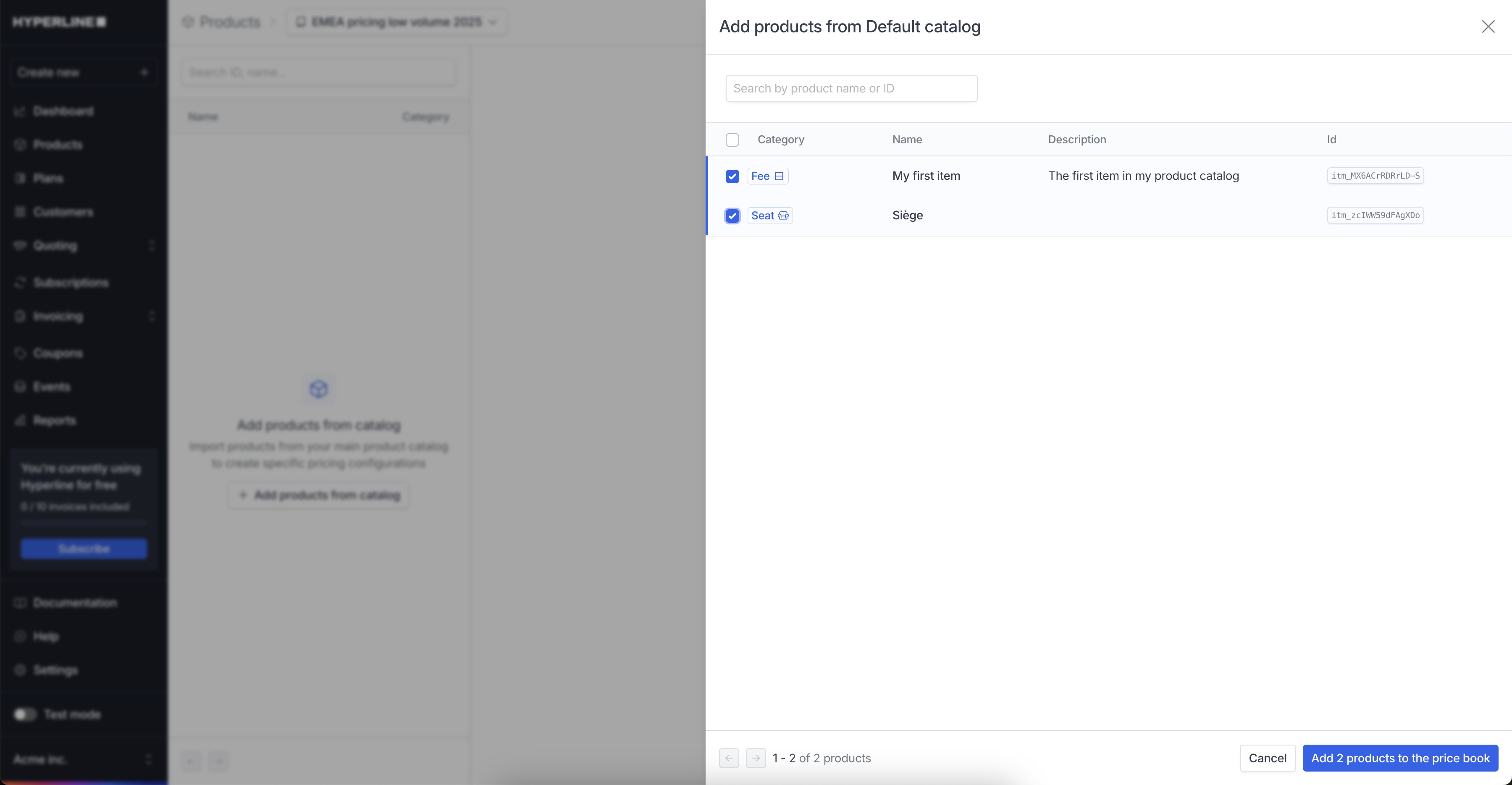
    From there, you will see a dropdown with "Default catalog". Click on it and
    select "New price book".
    <Frame>
      <img src="https://mintcdn.com/hyperline/Nzs4KUH1kGLJdieT/images/price-books/add-price-book.png?fit=max&auto=format&n=Nzs4KUH1kGLJdieT&q=85&s=6674dca2cc22116650c5a48117e1517b" width="3584" height="1864" data-path="images/price-books/add-price-book.png" />
    </Frame>
  </Step>

  <Step title="Fill in the details">
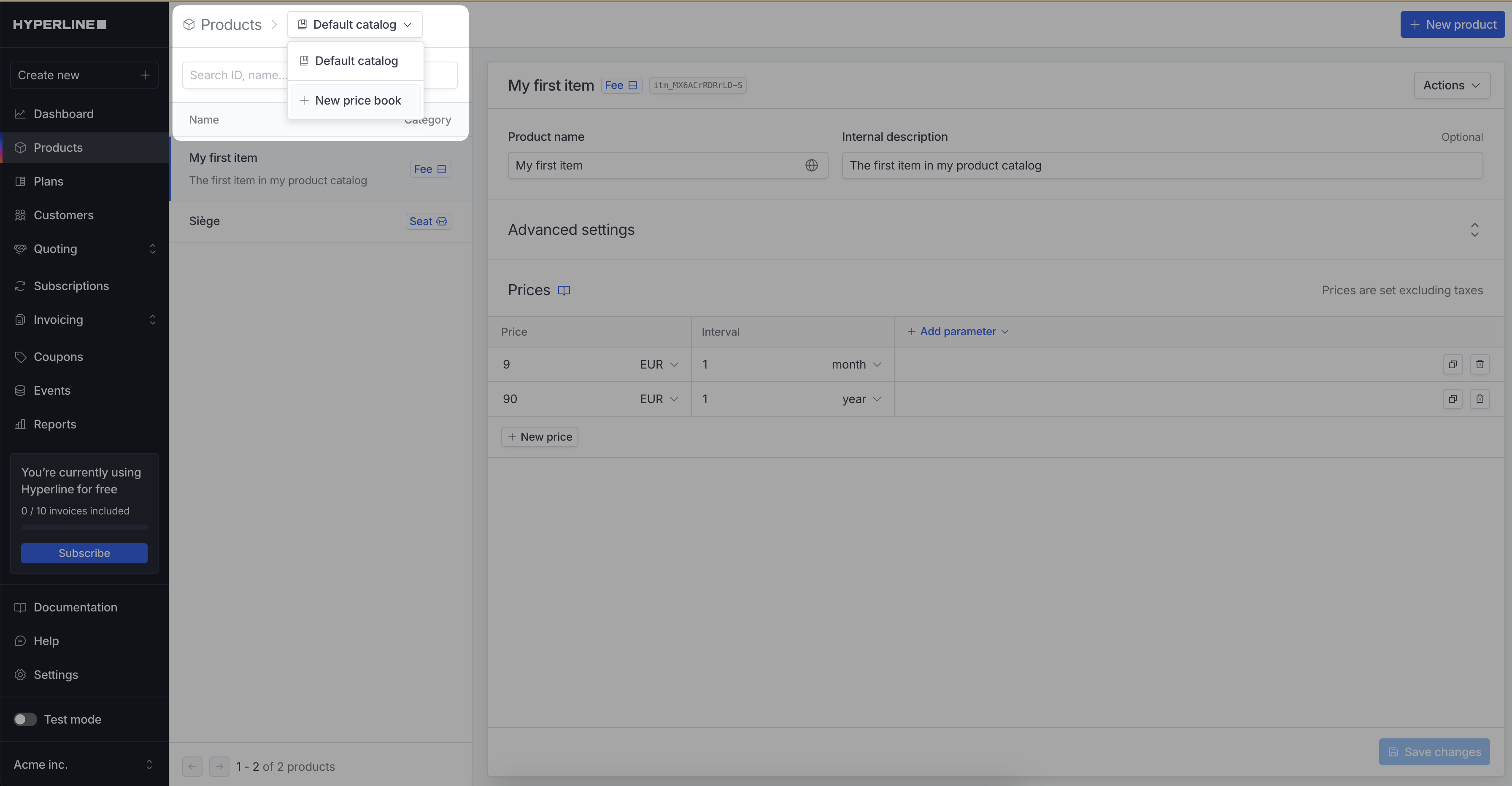
    Fill in the details of the price book and the user roles who can access it.
    <Frame caption="Users who aren't part of the selected user roles won't be able to use it">
      <img src="https://mintcdn.com/hyperline/byU6iUi1YRYNStxA/images/price-books/price-book-form.png?fit=max&auto=format&n=byU6iUi1YRYNStxA&q=85&s=d614a5cfeee73fbd7b0e966f6bd4e7e6" width="3600" height="1874" data-path="images/price-books/price-book-form.png" />
    </Frame>
  </Step>

  <Step title="Click on 'Save changes'" />
</Steps>

## Add and manage prices in a price book
<Steps>
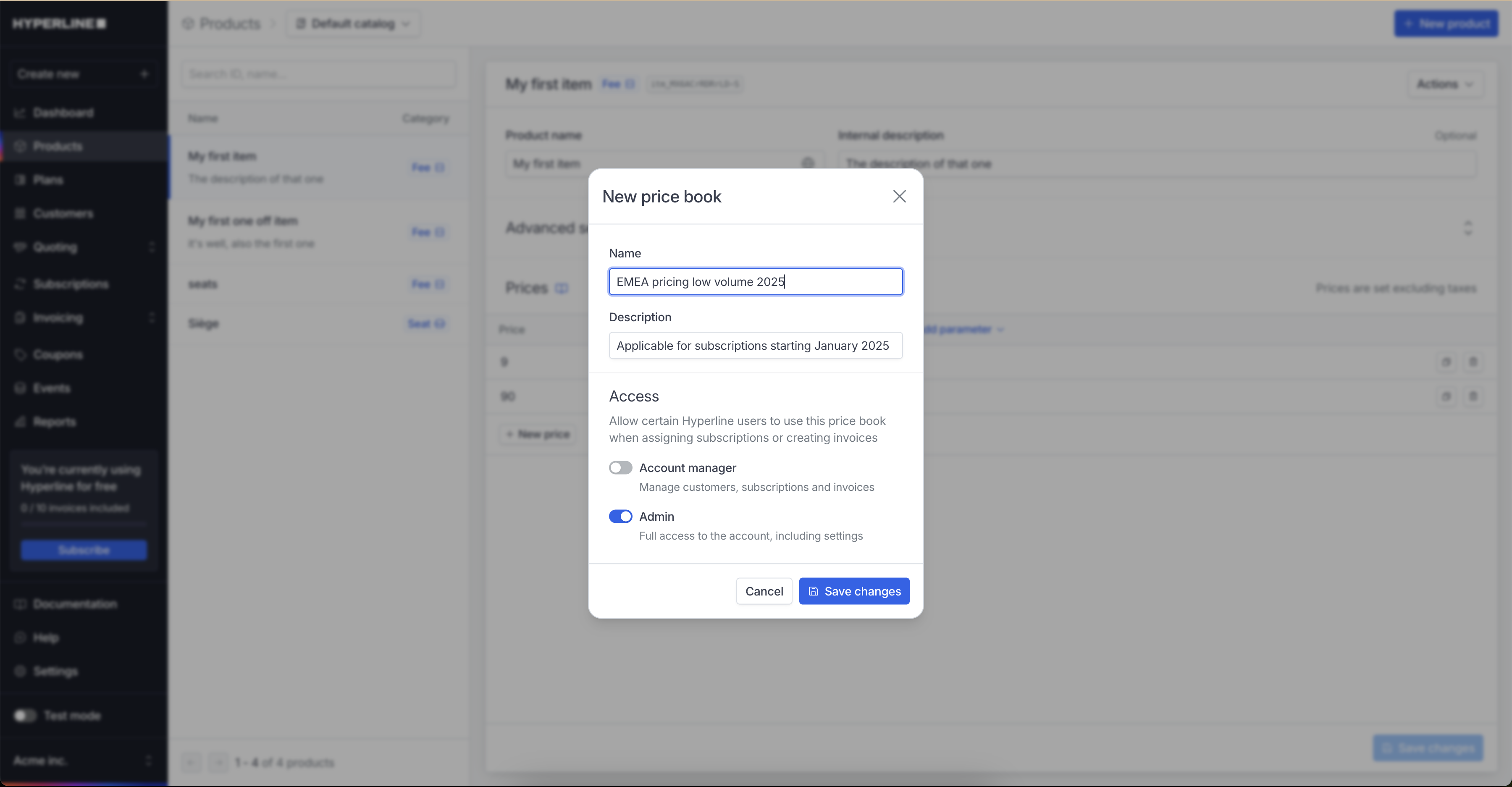
  <Step title="Click on 'Actions' then 'Add products'">
    <Frame>
      <img src="https://mintcdn.com/hyperline/Nzs4KUH1kGLJdieT/images/price-books/add-products-button.png?fit=max&auto=format&n=Nzs4KUH1kGLJdieT&q=85&s=8021373928f93799fd9597e190500953" width="3600" height="1830" data-path="images/price-books/add-products-button.png" />
    </Frame>
  </Step>

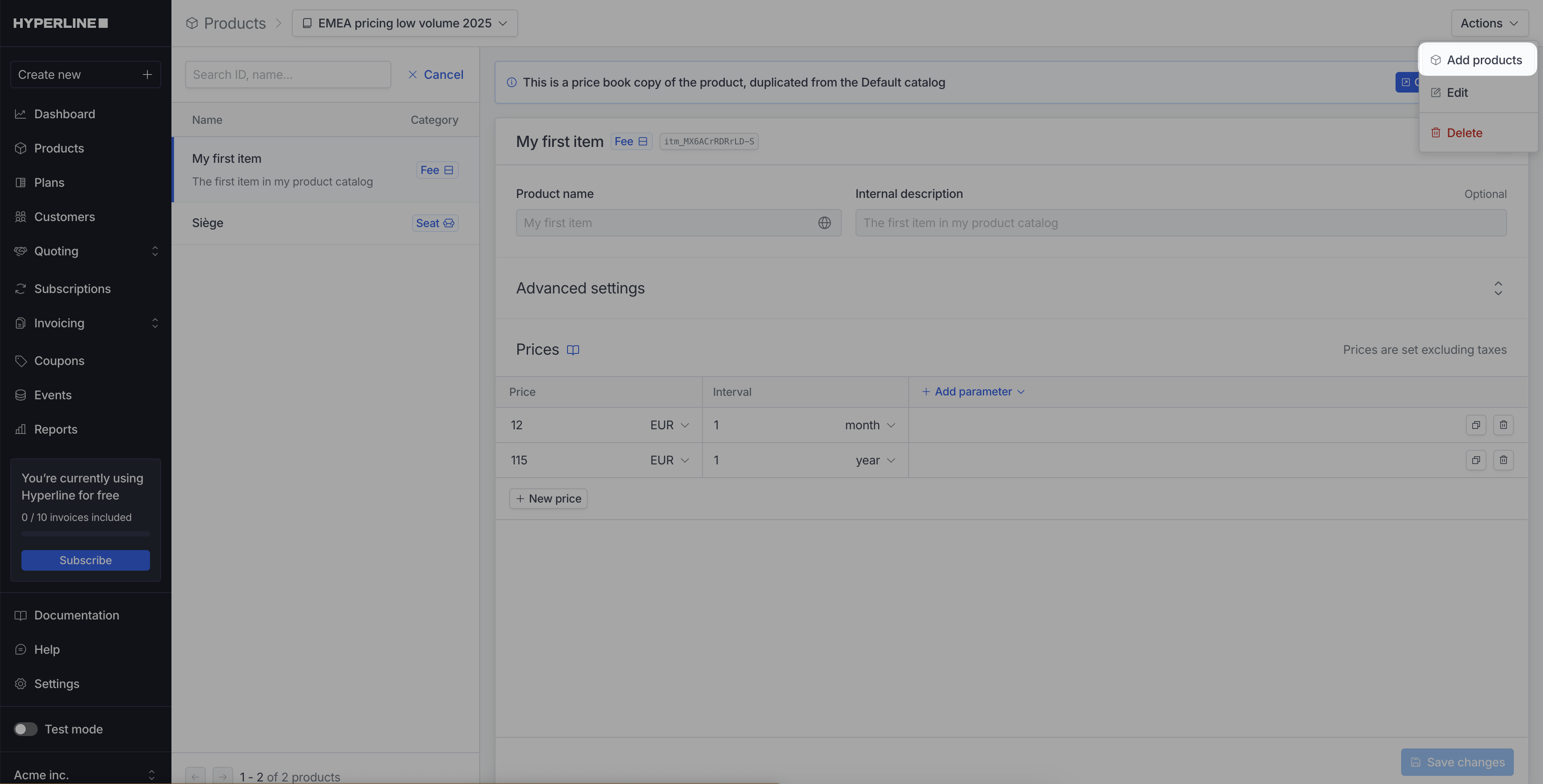
  <Step title="Select the products you want to add to the price book">
    <Frame>
      <img src="https://mintcdn.com/hyperline/Nzs4KUH1kGLJdieT/images/price-books/add-products-modal.png?fit=max&auto=format&n=Nzs4KUH1kGLJdieT&q=85&s=c8e4a13caba37531b7908a0ec7276b6b" width="3600" height="1868" data-path="images/price-books/add-products-modal.png" />
    </Frame>
  </Step>

  <Step title="Click on the 'Save' button" />
</Steps>

Once your products are added, they will be prefilled with the existing prices from your main catalog.
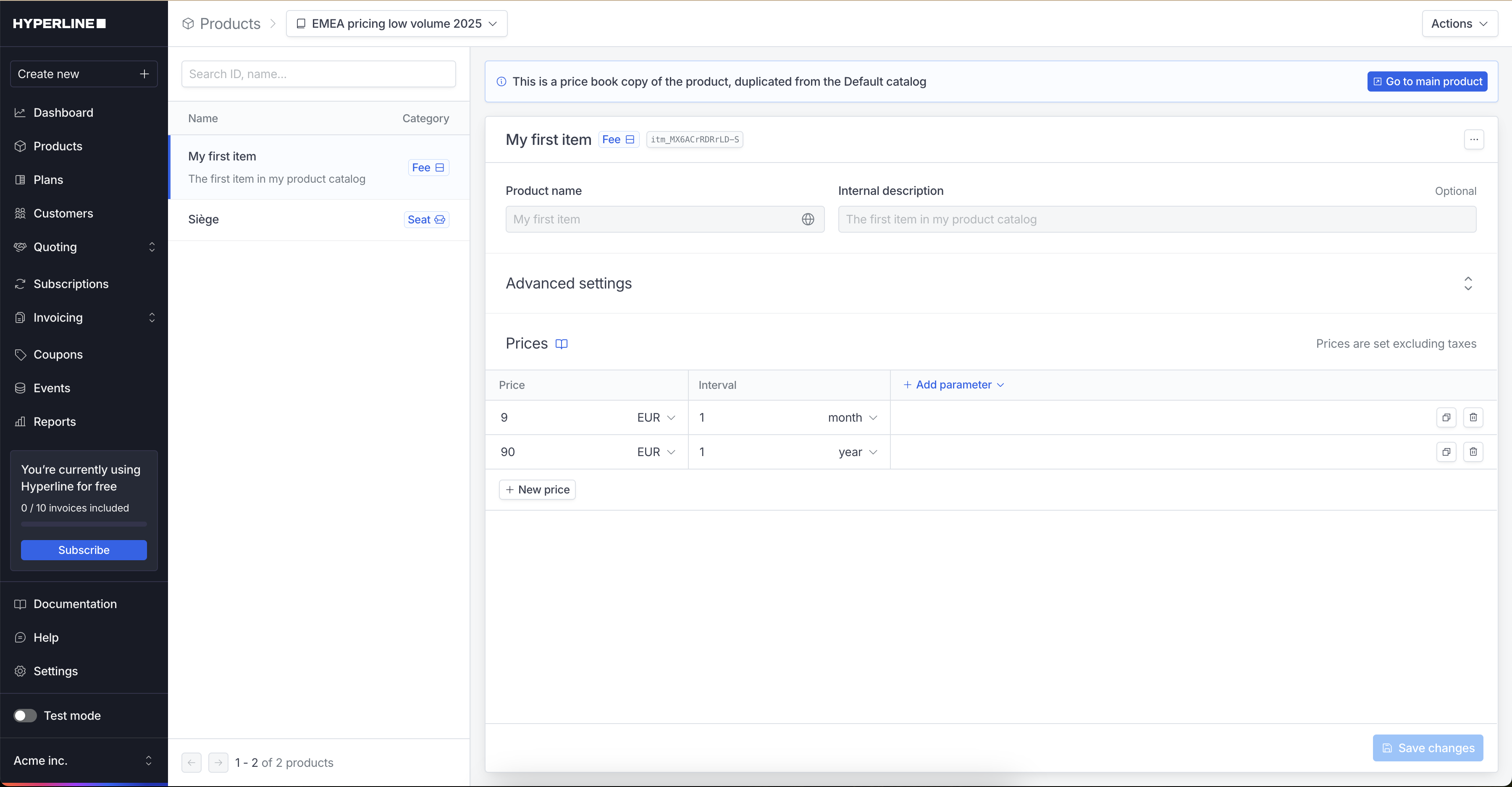
<Frame caption="You can edit or delete these prices without affecting the main catalog.">
  <img src="https://mintcdn.com/hyperline/byU6iUi1YRYNStxA/images/price-books/price-book-prices.png?fit=max&auto=format&n=byU6iUi1YRYNStxA&q=85&s=0b7695e5c2d2aad0377390c24999f13c" width="3600" height="1874" data-path="images/price-books/price-book-prices.png" />
</Frame>

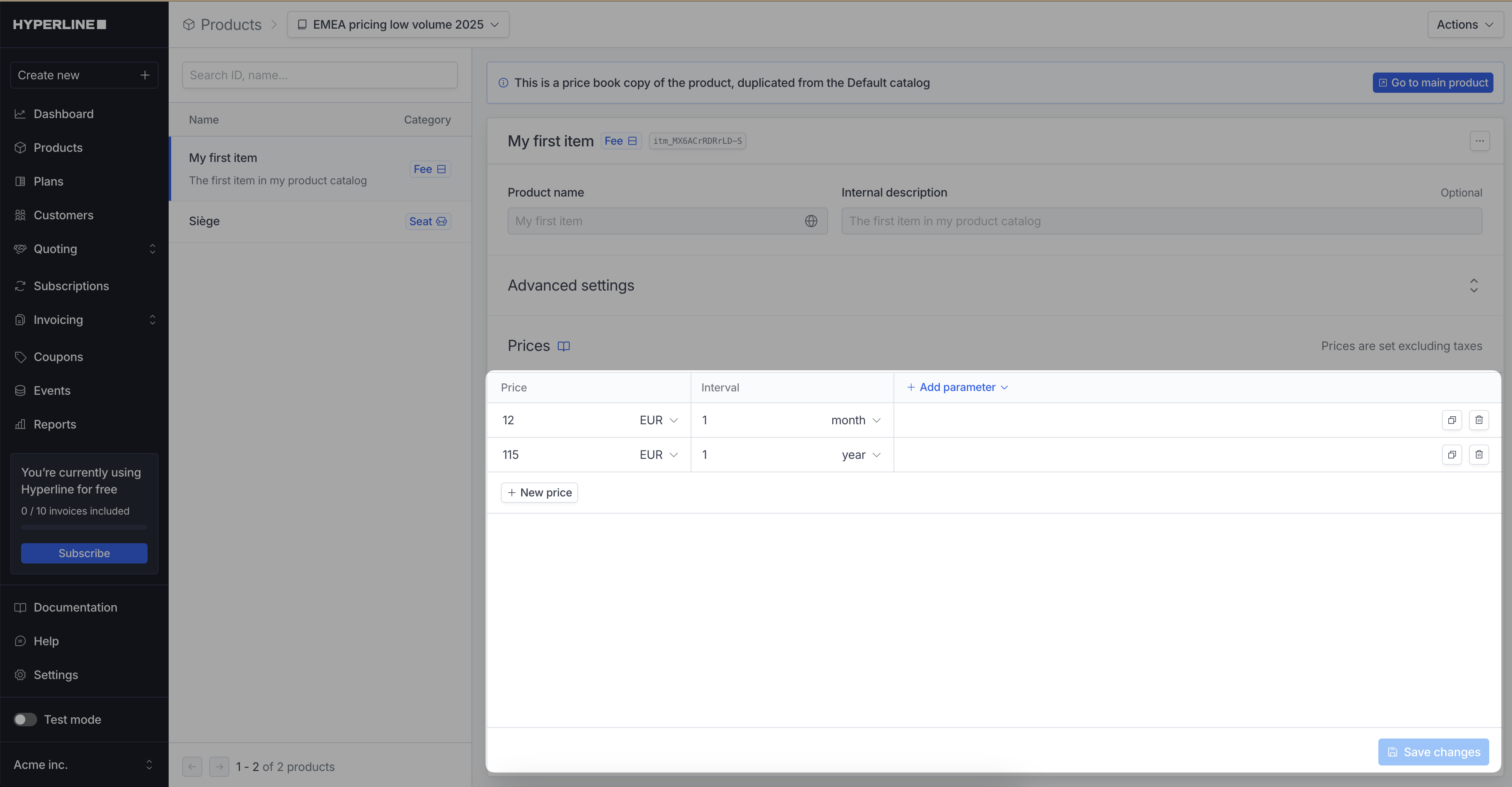
Note that you can only edit the prices from the price book section. The rest of the product information is for reference only.
<Frame>
  <img src="https://mintcdn.com/hyperline/Nzs4KUH1kGLJdieT/images/price-books/editable-price-section.png?fit=max&auto=format&n=Nzs4KUH1kGLJdieT&q=85&s=2cd9d4b699a24d368e2e770b7179bd93" width="3586" height="1866" data-path="images/price-books/editable-price-section.png" />
</Frame>

## Assign a price book to a customer

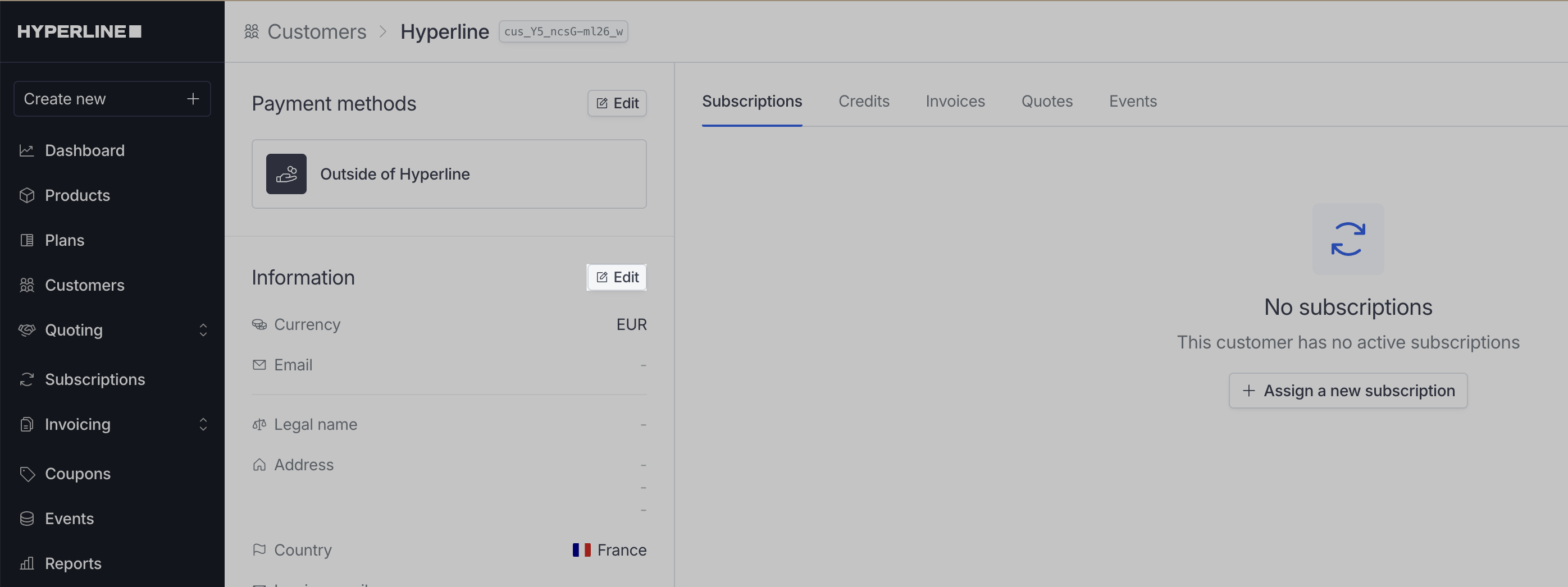
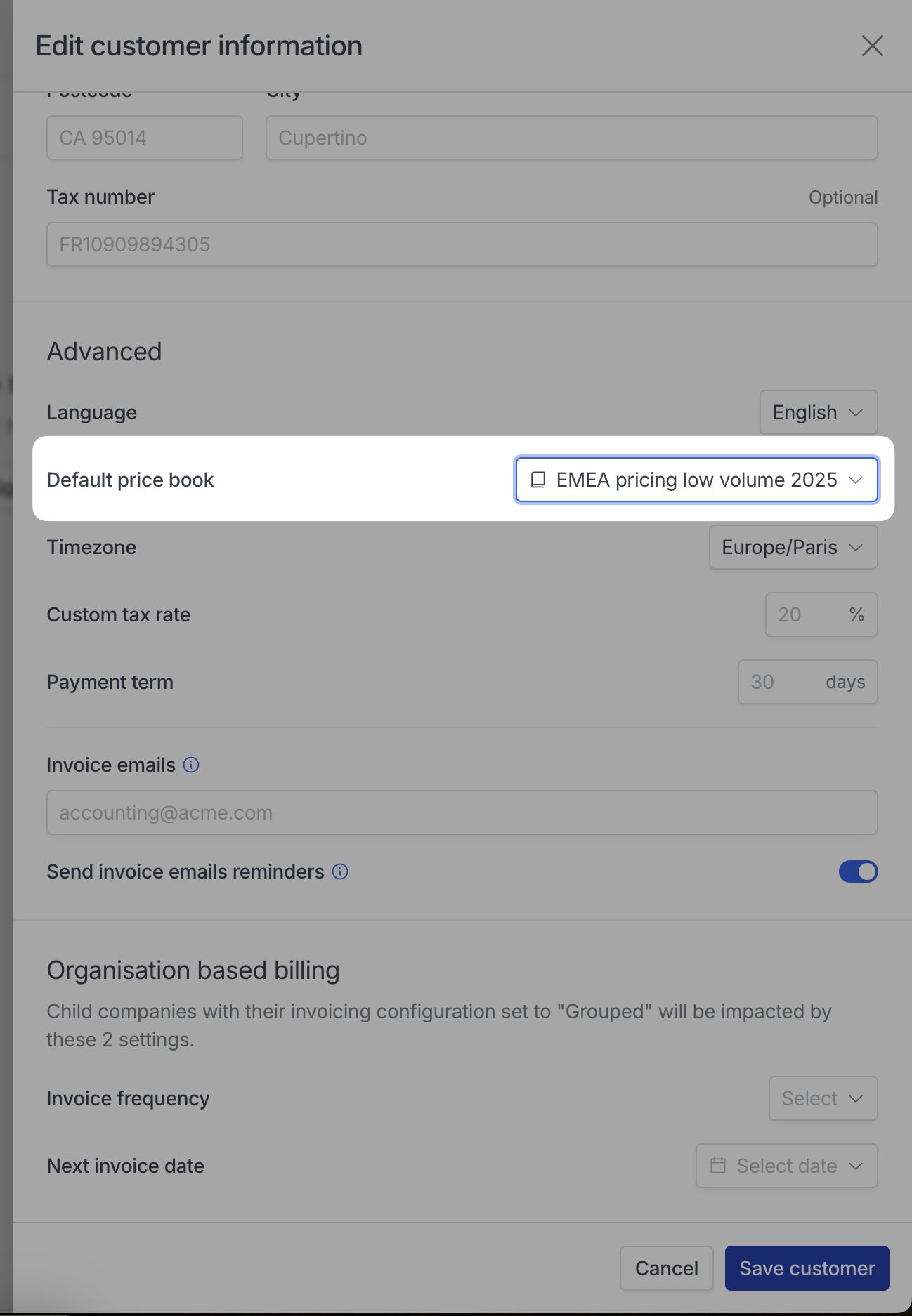
If a customer is assigned a specific price book, its prices will be used by default when creating a subscription or quote for them.
<Steps>
  <Step title="Click on the 'Edit' button">
    <Frame>
      <img src="https://mintcdn.com/hyperline/Nzs4KUH1kGLJdieT/images/price-books/customer-edit-button.png?fit=max&auto=format&n=Nzs4KUH1kGLJdieT&q=85&s=18ea2a8caf3381989837d6dcdeee284a" width="2792" height="1046" data-path="images/price-books/customer-edit-button.png" />
    </Frame>
  </Step>

  <Step title="Select the price book you want to assign">
    <Frame>
      <img src="https://mintcdn.com/hyperline/Nzs4KUH1kGLJdieT/images/price-books/edit-customer-price-book.png?fit=max&auto=format&n=Nzs4KUH1kGLJdieT&q=85&s=075ec6a9b14b7ea94db60ec71731e852" width="1298" height="1874" data-path="images/price-books/edit-customer-price-book.png" />
    </Frame>
  </Step>

  <Step title="Click on the 'Save' button" />
</Steps>

## Apply a given price book when assigning a subscription or a quote

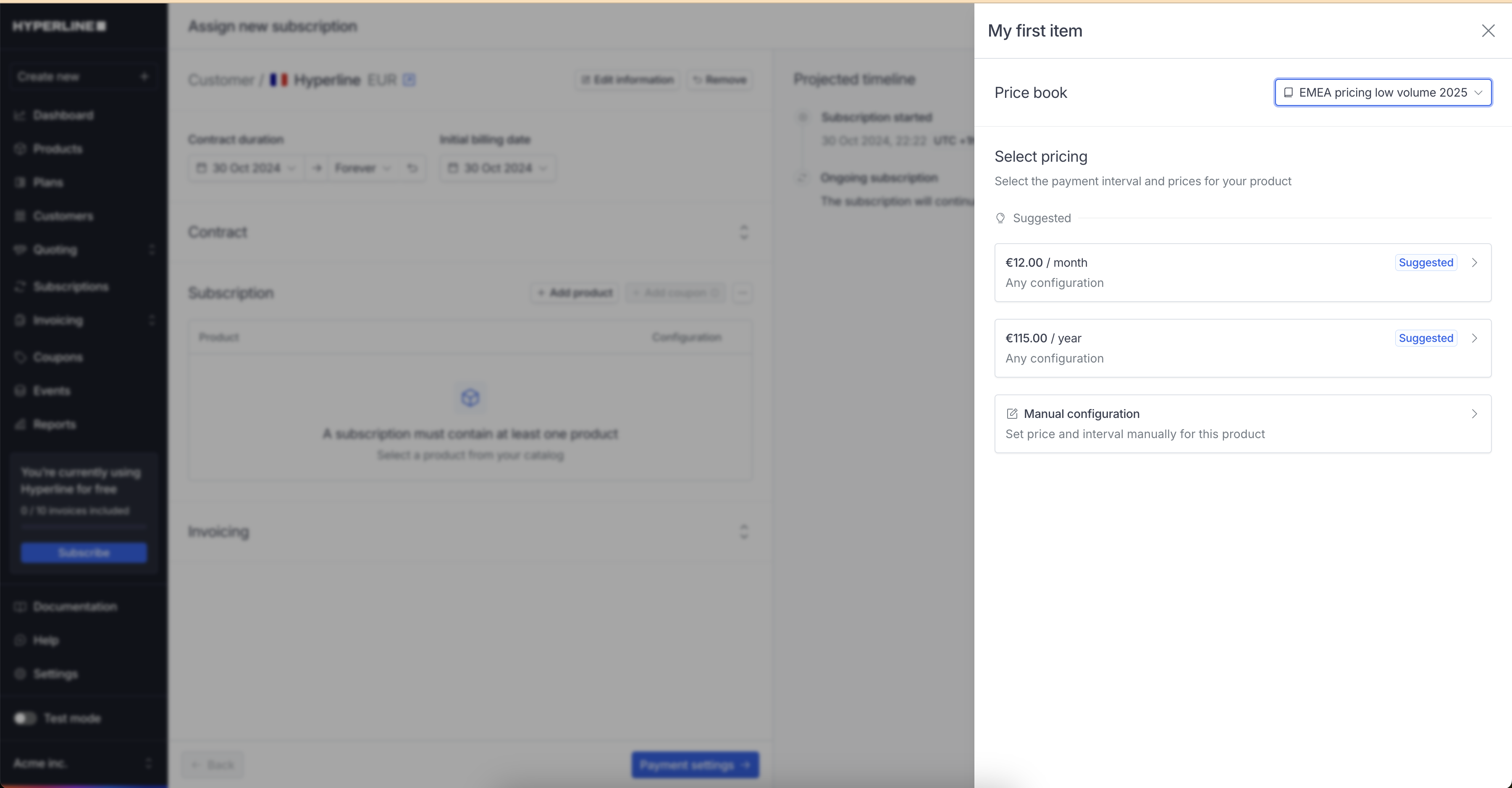
When creating a subscription or a quote, you can choose which price book to use. If a price book is already set for the customer, it will be selected by default.
<Frame>
  <img src="https://mintcdn.com/hyperline/Nzs4KUH1kGLJdieT/images/price-books/price-book-auto-selected.png?fit=max&auto=format&n=Nzs4KUH1kGLJdieT&q=85&s=a03ba43aa141daf37b91f1404042e082" width="3600" height="1876" data-path="images/price-books/price-book-auto-selected.png" />
</Frame>

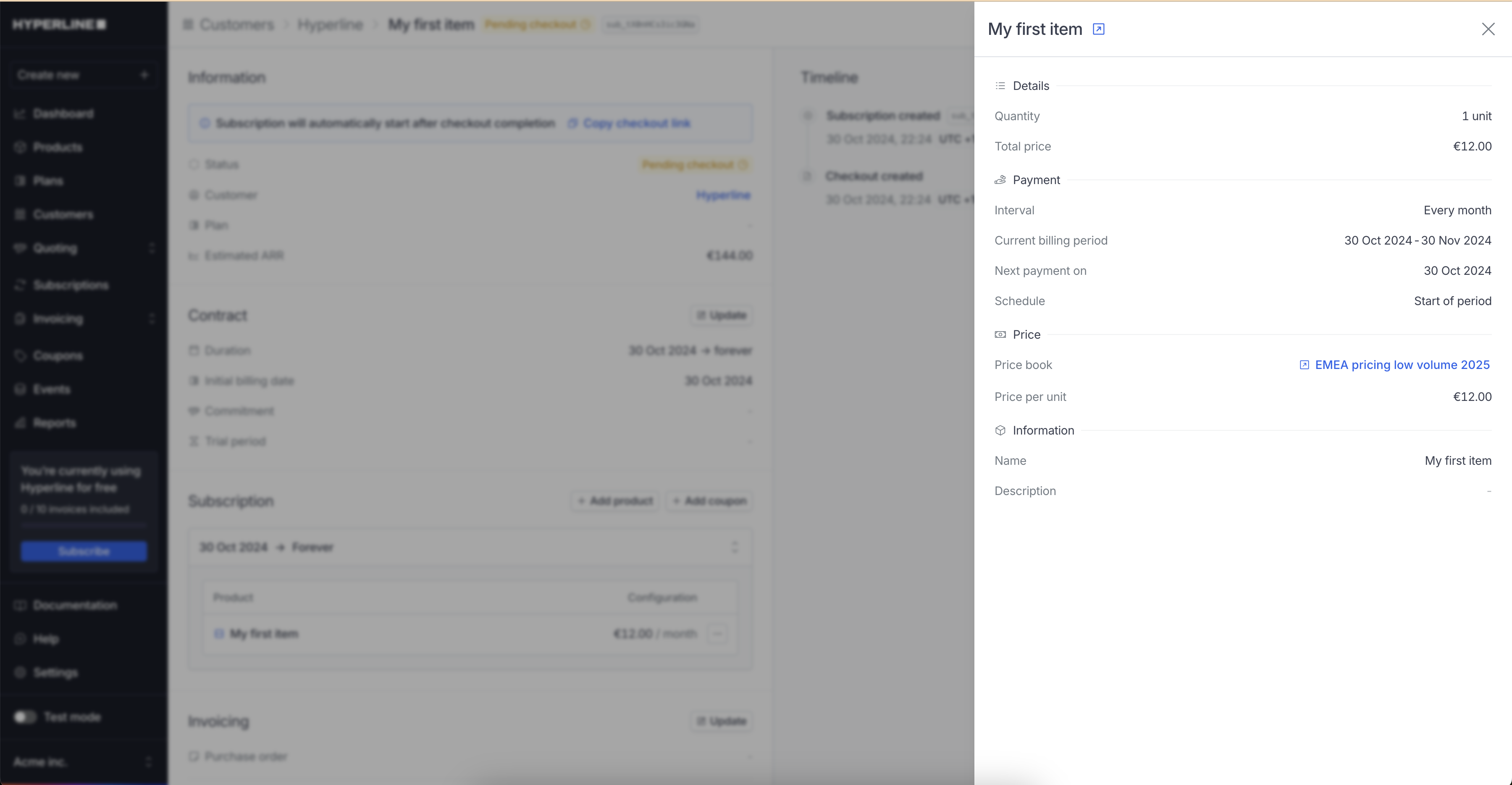
You will see the price book used for the product in the subscription details.
<Frame>
  <img src="https://mintcdn.com/hyperline/byU6iUi1YRYNStxA/images/price-books/price-book-on-product.png?fit=max&auto=format&n=byU6iUi1YRYNStxA&q=85&s=69a5f9a93eb288721774fe69f5eec1e5" width="3600" height="1868" data-path="images/price-books/price-book-on-product.png" />
</Frame>