> ## Documentation Index
> Fetch the complete documentation index at: https://docs.hyperline.co/llms.txt
> Use this file to discover all available pages before exploring further.
# Handling payment errors
> Learn how to handle invoice payment errors
## Payments in Hyperline
In most cases, Hyperline manages payment collection and reconciliation for you. But sometimes, payments can fail for a variety of reasons, resulting in unpaid invoices.
When an invoice is issued and ready to be paid, Hyperline will attempt to charge the active payment method of the customer by initiating a payment. This is the basic use case for Credit Cards and Direct Debit.
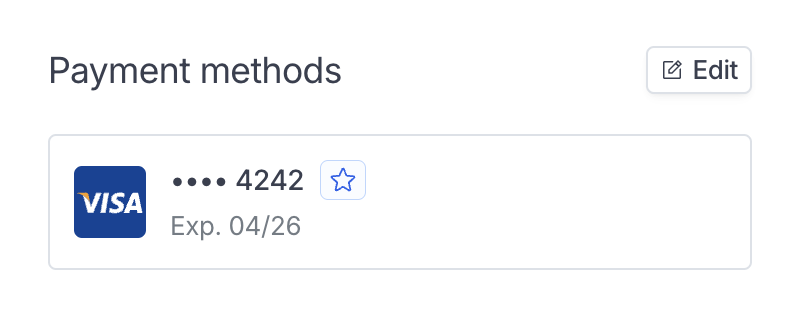 The payment method should have been previously added by the customer through checkout or portal page.
Note that if the customer pays by bank transfer, we send the invoice to be paid by email and the reconciliation needs to be done manually on Hyperline (learn how to proceed on this page). If you connected a PSP, no action is required on your part.
## Errors and retry
In certain situations, payment can fail (payment method expired, payment declined, processing issue on the bank side, etc.). For the relevant cases, we will attempt to retry the payment with the following schedule:
* 2 hours after the first attempt
* 12 hours after the second attempt
* 24 hours after the 3rd attempt
For each attempt, a new transaction is created for the invoice. If all the attempts fail, we will mark the invoice as "error".
Retryable errors include:
* **Insufficient funds**: The payment method doesn't have enough funds to complete the transaction
* **Declined payments**: The payment was declined by the card issuer or bank for various reasons (including cards reported as lost or stolen, reaching the limit available on the method, payment method on a known block list, security violations, banking service unavailability, etc.)
Other error types like expired or invalid payment methods will not be retried automatically and require customer action to resolve.
When a customer has multiple invoices in error and adds an automated payment method (credit card, direct debit), all previous invoices will be charged immediately.
This state corresponds to the `error` status on the invoice API, and to the
`invoice.errored` webhook message.
### Custom payment retry
Retry schedule can be customized in Settings > Payments > Payment retry. You can add or remove attempts and adjust the delay between them.
You can also disable payment retries entirely if you prefer to manually retry failed payments.
## Subscription error
Additionally, if the invoice is related to a running subscription, we will switch the subscription to an "Error" state. This behavior can be disabled in Settings > Subscriptions, letting subscriptions remain active even if some invoices failed to be paid.
If the subscription invoice is flagged as errored, we will consider the related subscription as **inactive** (as the customer failed to pay you) meaning that we won't invoice the customer in the future nor collect payment.
Invoices in `Open` state will stay in this state for as long as the subscription is paused.
**This behaves as a paused subscription**.
In this case, we offer you the choice to **manually re-activate the subscription** (the invoice will remain unpaid) or **fully cancel it**.
This state corresponds to the `errored` status on the subscription API, and to
the `subscription.errored` webhook message. This state can be used to switch
off the access to your product or move your customer to a free product access.
## Manual retry
If you wish to manually retry the payment of an invoice with a failed transaction, click on **Charge invoice** in the invoice actions dropdown.
The payment method should have been previously added by the customer through checkout or portal page.
Note that if the customer pays by bank transfer, we send the invoice to be paid by email and the reconciliation needs to be done manually on Hyperline (learn how to proceed on this page). If you connected a PSP, no action is required on your part.
## Errors and retry
In certain situations, payment can fail (payment method expired, payment declined, processing issue on the bank side, etc.). For the relevant cases, we will attempt to retry the payment with the following schedule:
* 2 hours after the first attempt
* 12 hours after the second attempt
* 24 hours after the 3rd attempt
For each attempt, a new transaction is created for the invoice. If all the attempts fail, we will mark the invoice as "error".
Retryable errors include:
* **Insufficient funds**: The payment method doesn't have enough funds to complete the transaction
* **Declined payments**: The payment was declined by the card issuer or bank for various reasons (including cards reported as lost or stolen, reaching the limit available on the method, payment method on a known block list, security violations, banking service unavailability, etc.)
Other error types like expired or invalid payment methods will not be retried automatically and require customer action to resolve.
When a customer has multiple invoices in error and adds an automated payment method (credit card, direct debit), all previous invoices will be charged immediately.
This state corresponds to the `error` status on the invoice API, and to the
`invoice.errored` webhook message.
### Custom payment retry
Retry schedule can be customized in Settings > Payments > Payment retry. You can add or remove attempts and adjust the delay between them.
You can also disable payment retries entirely if you prefer to manually retry failed payments.
## Subscription error
Additionally, if the invoice is related to a running subscription, we will switch the subscription to an "Error" state. This behavior can be disabled in Settings > Subscriptions, letting subscriptions remain active even if some invoices failed to be paid.
If the subscription invoice is flagged as errored, we will consider the related subscription as **inactive** (as the customer failed to pay you) meaning that we won't invoice the customer in the future nor collect payment.
Invoices in `Open` state will stay in this state for as long as the subscription is paused.
**This behaves as a paused subscription**.
In this case, we offer you the choice to **manually re-activate the subscription** (the invoice will remain unpaid) or **fully cancel it**.
This state corresponds to the `errored` status on the subscription API, and to
the `subscription.errored` webhook message. This state can be used to switch
off the access to your product or move your customer to a free product access.
## Manual retry
If you wish to manually retry the payment of an invoice with a failed transaction, click on **Charge invoice** in the invoice actions dropdown.
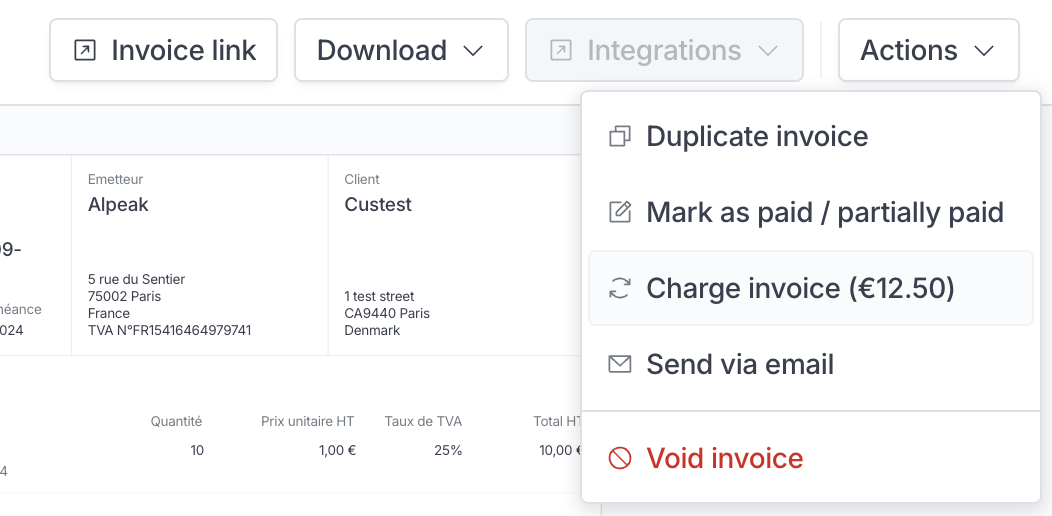 If the new payment is successful, the invoice will now be paid and the subscription will automatically switch back to the live state if the customer is still in the period of the subscription
This will correspond to an `active` status on the subscription API, and to a
`subscription.activated` webhook message
## Customer notification
If the problem can be resolved by your customer, for example, because their card has expired or declined and needs to be replaced, or because they do not have sufficient funds on the card and need to act accordingly, we will inform them by email, telling them that they can manage their payment on their dedicated portal page (with a link pointing to it).
## Error types
You can retrieve on the invoice the related transactions with the following
`error_type` if the status is `failed`:
* `authentication_required`: The card was declined as the transaction requires authentication (e.g.3-D Secure). The customer should go to their portal page and
authenticate their card. If the error happened on an already authenticated transaction, the customer needs to contact their card issuer for more information.
* `payment_method_authorization_error`: A transaction authorization cannot be created for a variety of reasons such as the card issuer couldn't be reached, or the card requires a PIN.
* `payment_method_declined`: The payment method was declined for a variety of reasons such as a card reported as lost or stolen, insufficient funds or reaching the limit available on the method to complete the purchase, a payment method on a known block list, etc.
* `payment_method_expired`: The payment method is expired. The customer should go to their portal page and change their payment method.
* `payment_method_invalid`: The payment method is invalid in most cases because of incorrect details (card/account number, CVC, expiration date, postal code).
* `payment_method_not_supported`: The payment method doesn't support this type of purchase (e.g. currency, online payment).
* `declined`: The payment was declined for a variety of reasons such as security
violation, banking service not available, transaction not allowed, etc.
* `fraud`: The payment provider suspected the transaction was fraudulent and has
been blocked. Don't report more detailed information to your customer,
and check on your provider account.
* `processing_error`: The payment couldn't be processed by the issuer for an unknown reason.
* `provider_error`: An error occurred when contacting the payment provider to initiate the transaction.
* `unknown`: A generic error happened on the payment provider side.
### Be notified of an errored invoice/subscription for a customer
If, as the merchant, you want to be notified when one of the invoices for your customer enters an error state because of a failed payment, you can implement multiple strategies.
You can set up a handler on the `invoice.errored` or `subscription.errored`
message. See more details on the using [webhooks
page](../../api-reference/docs/webhooks).
You can also **leverage a no-code solution** with our native [Zapier app](../../integrations/zapier) to connect the tool of your choice and trigger internal action on your side: notify a Slack channel, change state in one of your internal tools, email a specific team, etc.
If the new payment is successful, the invoice will now be paid and the subscription will automatically switch back to the live state if the customer is still in the period of the subscription
This will correspond to an `active` status on the subscription API, and to a
`subscription.activated` webhook message
## Customer notification
If the problem can be resolved by your customer, for example, because their card has expired or declined and needs to be replaced, or because they do not have sufficient funds on the card and need to act accordingly, we will inform them by email, telling them that they can manage their payment on their dedicated portal page (with a link pointing to it).
## Error types
You can retrieve on the invoice the related transactions with the following
`error_type` if the status is `failed`:
* `authentication_required`: The card was declined as the transaction requires authentication (e.g.3-D Secure). The customer should go to their portal page and
authenticate their card. If the error happened on an already authenticated transaction, the customer needs to contact their card issuer for more information.
* `payment_method_authorization_error`: A transaction authorization cannot be created for a variety of reasons such as the card issuer couldn't be reached, or the card requires a PIN.
* `payment_method_declined`: The payment method was declined for a variety of reasons such as a card reported as lost or stolen, insufficient funds or reaching the limit available on the method to complete the purchase, a payment method on a known block list, etc.
* `payment_method_expired`: The payment method is expired. The customer should go to their portal page and change their payment method.
* `payment_method_invalid`: The payment method is invalid in most cases because of incorrect details (card/account number, CVC, expiration date, postal code).
* `payment_method_not_supported`: The payment method doesn't support this type of purchase (e.g. currency, online payment).
* `declined`: The payment was declined for a variety of reasons such as security
violation, banking service not available, transaction not allowed, etc.
* `fraud`: The payment provider suspected the transaction was fraudulent and has
been blocked. Don't report more detailed information to your customer,
and check on your provider account.
* `processing_error`: The payment couldn't be processed by the issuer for an unknown reason.
* `provider_error`: An error occurred when contacting the payment provider to initiate the transaction.
* `unknown`: A generic error happened on the payment provider side.
### Be notified of an errored invoice/subscription for a customer
If, as the merchant, you want to be notified when one of the invoices for your customer enters an error state because of a failed payment, you can implement multiple strategies.
You can set up a handler on the `invoice.errored` or `subscription.errored`
message. See more details on the using [webhooks
page](../../api-reference/docs/webhooks).
You can also **leverage a no-code solution** with our native [Zapier app](../../integrations/zapier) to connect the tool of your choice and trigger internal action on your side: notify a Slack channel, change state in one of your internal tools, email a specific team, etc.