> ## Documentation Index
> Fetch the complete documentation index at: https://docs.hyperline.co/llms.txt
> Use this file to discover all available pages before exploring further.
# Credit notes & refunds
> Learn how to issue credit notes and handle refund money movement
If you are looking to cancel subscriptions, please visit the [manage
subscriptions page](../subscriptions/manage).
It's currently not possible to create a credit note for an invoice not created by Hyperline.
As an alternative, you can [provide a free top-up on your customer's wallet](/docs/wallets/balance),
which will be used to pay for future invoices.
## Choose the right action
Hyperline separates the accounting correction from the money movement:
* **Create a credit note** when an invoice amount must be cancelled or reduced. The credit note is the legal/accounting document. It can be created without money movement, or it can be settled by refunding the original payment method, crediting the customer wallet, or recording an external refund.
* **Refund a transaction directly** when a settled PSP payment must be sent back but the invoice should remain payable. This creates a refund transaction for the full remaining refundable amount. It does not create a credit note or cancel any invoice amount; once the refund settles, the related invoice payment status is recalculated and can go back to **to pay**.
| Situation | Use |
| ---------------------------------------------------------------------------------- | ------------------------------------------------------------------------- |
| Cancel or reduce an invoice amount | Create a credit note |
| Cancel or reduce an invoice amount and send money back now | Create a credit note and enable **Refund transaction** |
| Record money already refunded outside Hyperline for a cancelled or reduced invoice | Create a credit note and select **Mark as refunded outside of Hyperline** |
| Send a captured payment back while keeping the invoice due | Refund the transaction directly |
| Credit a customer for an invoice not created by Hyperline | Create an ad-hoc credit note or provide a wallet top-up |
## Configuring your credit notes
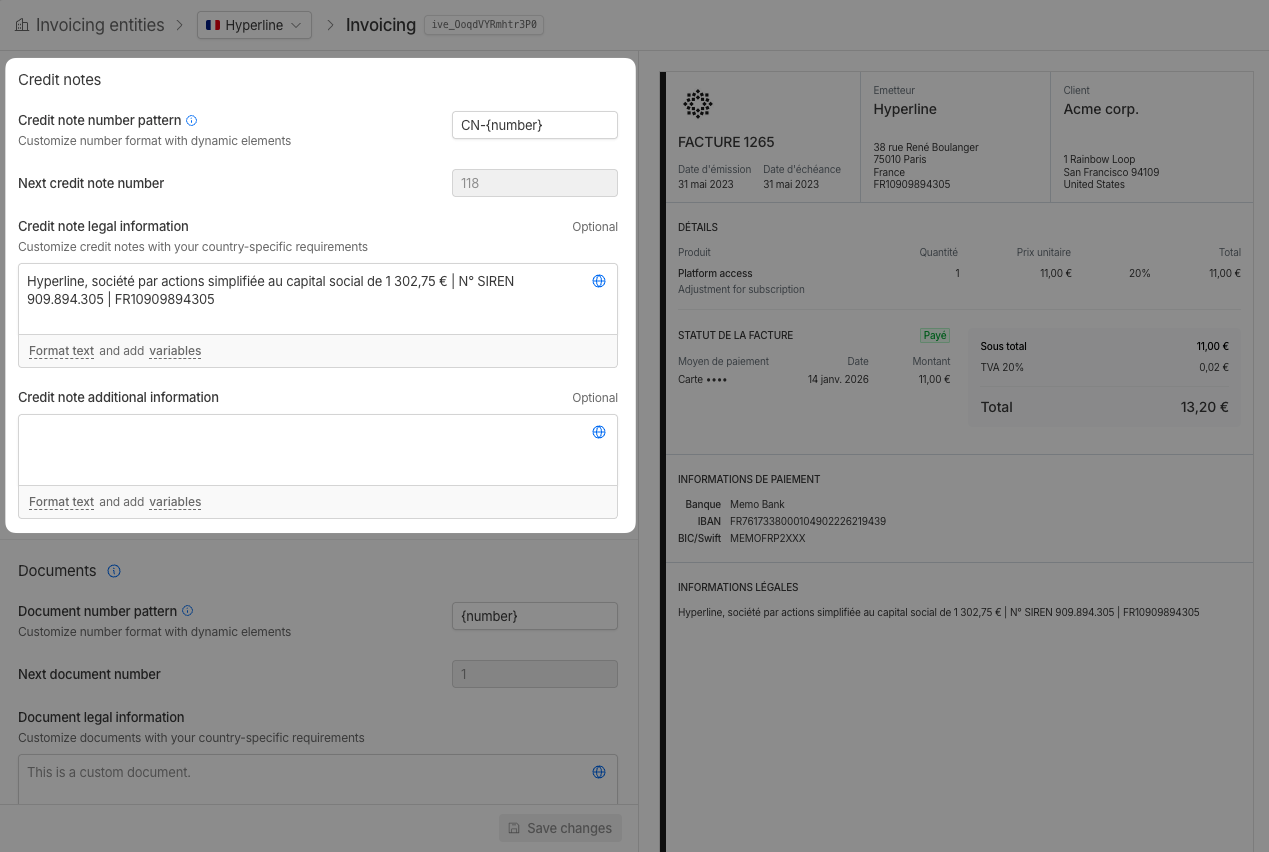
Credit notes are generated manually or when you create a credit note from an invoice. You can customize the credit note template in the **Settings > Invoicing** section.
You have access to:
* The **credit note number** pattern
* The available variables are: `number`, `YYYY`, `MM`, `DD`.
* `number` is mandatory.
* The **next credit note number**. This is a read-only field that shows the next
credit note that will be generated. If you want to update the value, please contact our support team.
* The **credit note legal information**. This field is optional.
* The additional **credit note footer**. This field is also optional.
By clicking on the globe on the right side of the text area, you can translate both the legal and additional information into multiple languages. The relevant language will be automatically selected when the credit note is generated.
 ## Create a credit note
You can create a credit note from any invoice with the following statuses: **paid**, **partially paid**, **to pay**, or **error**.
**Prerequisites and restrictions:**
* You cannot create a credit note for an invoice that has already been fully credited (indicated by the `refundedAt` timestamp)
* If an invoice has been partially credited, you can create additional credit notes up to the remaining amount available for credit notes
* Credit notes cannot be created for invoices imported from external billing systems (see [Ad-hoc credit notes](#ad-hoc-credit-notes) for alternatives)
Click on the invoice you want to create a credit note for.
## Create a credit note
You can create a credit note from any invoice with the following statuses: **paid**, **partially paid**, **to pay**, or **error**.
**Prerequisites and restrictions:**
* You cannot create a credit note for an invoice that has already been fully credited (indicated by the `refundedAt` timestamp)
* If an invoice has been partially credited, you can create additional credit notes up to the remaining amount available for credit notes
* Credit notes cannot be created for invoices imported from external billing systems (see [Ad-hoc credit notes](#ad-hoc-credit-notes) for alternatives)
Click on the invoice you want to create a credit note for.
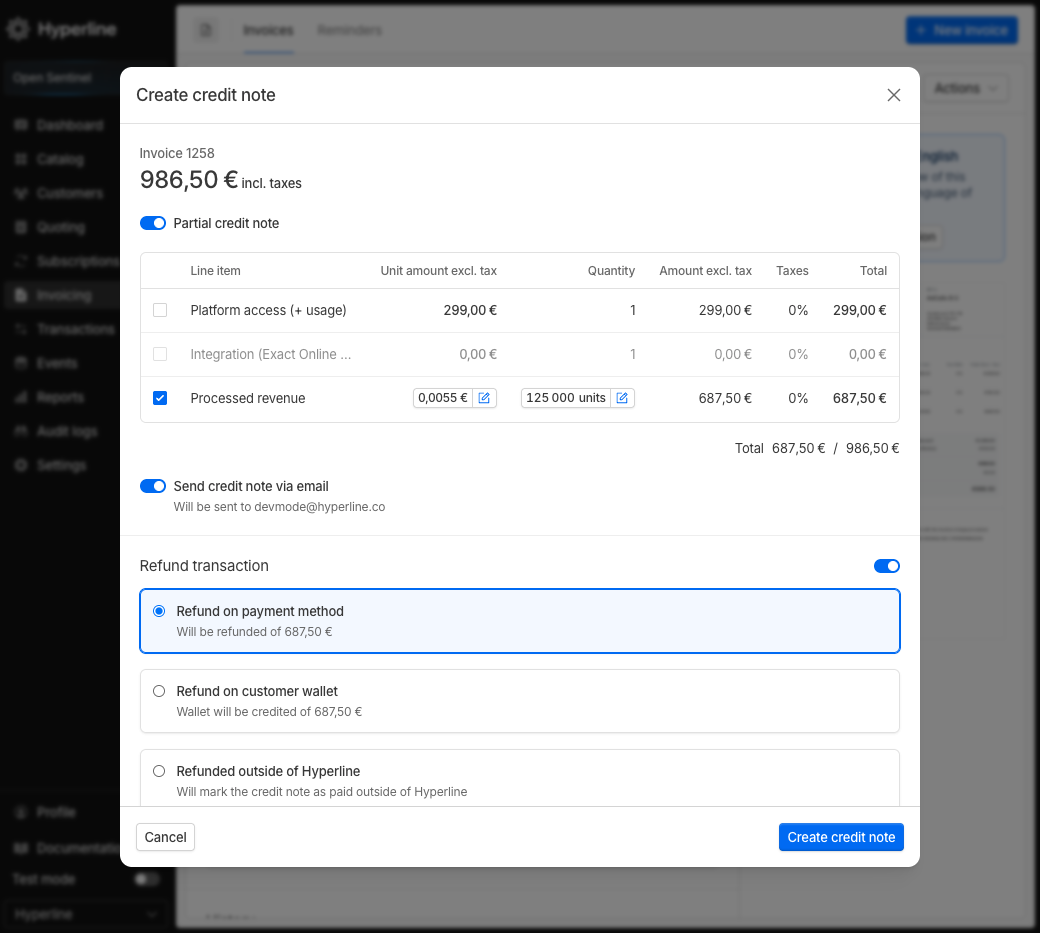
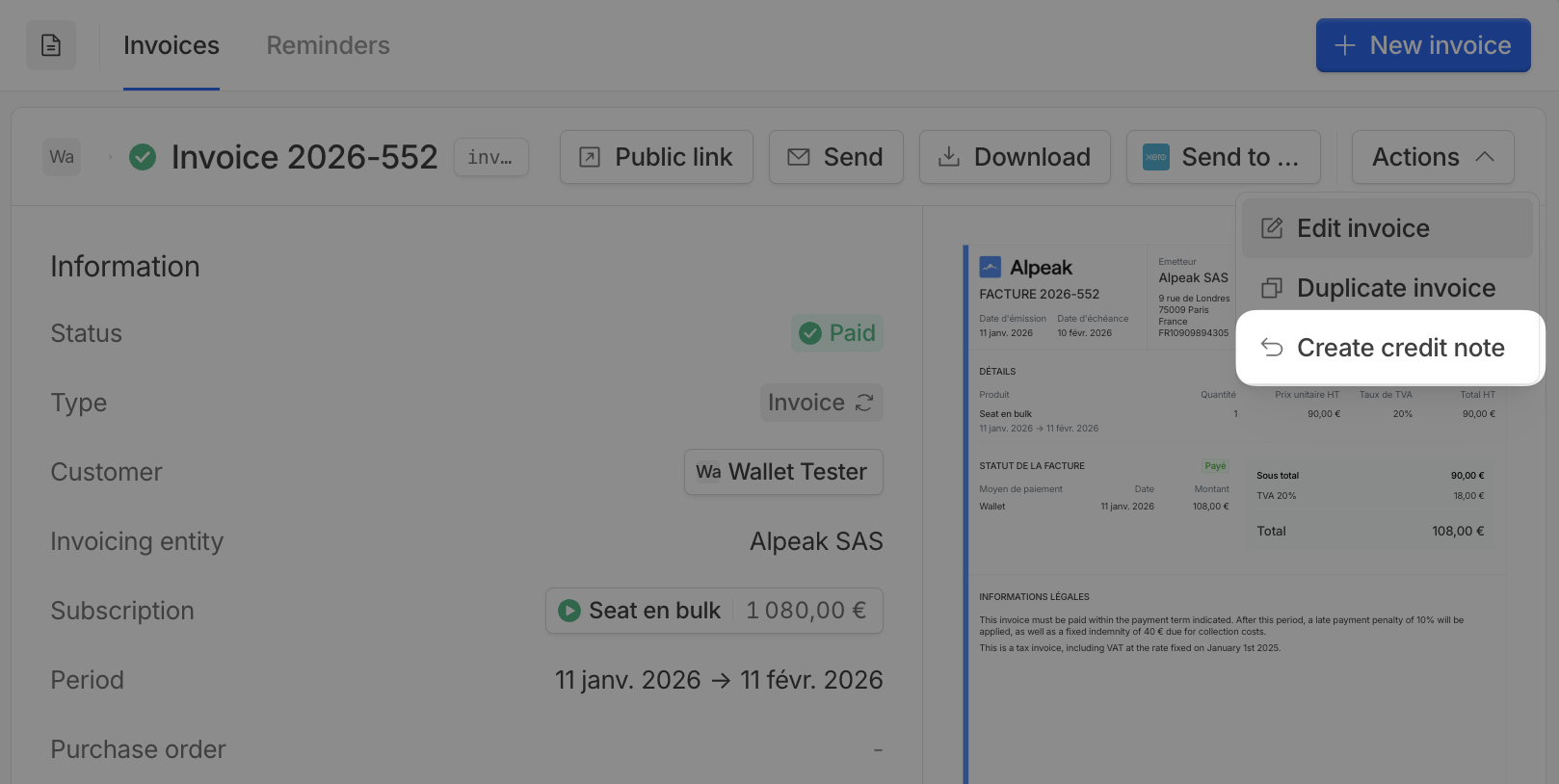 A modal will open with the credit note creation form.
 ### Credit note options
The creation modal includes the following options:
#### Partial credit note
By default, the credit note is created for the full invoice amount. Enable this option to create a partial credit note by selecting specific line items.
When enabled, a table displays all line items from the original invoice with the following columns:
| Column | Description |
| ------------------------- | ---------------------------------------------------- |
| Selected | Checkbox to include the line item in the credit note |
| Unit amount excluding tax | The unit price before tax |
| Unit count | The quantity to credit |
### Credit note options
The creation modal includes the following options:
#### Partial credit note
By default, the credit note is created for the full invoice amount. Enable this option to create a partial credit note by selecting specific line items.
When enabled, a table displays all line items from the original invoice with the following columns:
| Column | Description |
| ------------------------- | ---------------------------------------------------- |
| Selected | Checkbox to include the line item in the credit note |
| Unit amount excluding tax | The unit price before tax |
| Unit count | The quantity to credit |
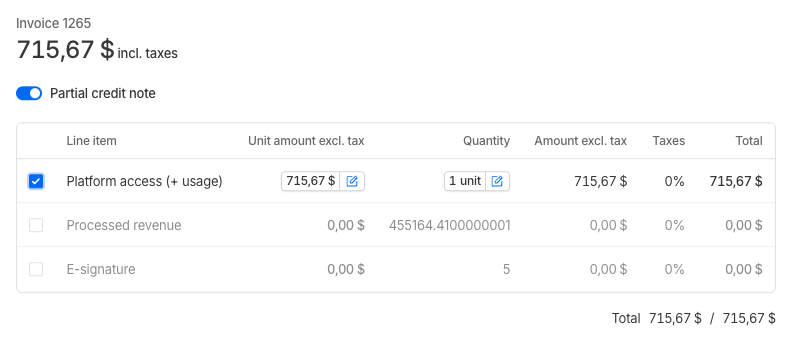 You can adjust both the quantity and the unit amount for each selected line item. The credited amount cannot exceed the original line item amount minus any amounts already credited for that line item.
If the invoice contains both credit and debit line items (including negative line item amounts), line item selection is not available. In this case, you can only specify a single amount to credit.
When creating a partial credit note, you must select at least one line item before submitting. The form will display an error message if you attempt to create a partial credit note without selecting any line items.
**Maximum credit note amount calculation:**
The maximum credit note amount is calculated as the total invoice amount minus the sum of all non-voided credit notes already issued. Voided credit notes are excluded from this calculation, allowing you to create new credit notes if a previous one was voided.
The total credit note amount cannot exceed the maximum credit note amount for the invoice. If you attempt to credit more than the available amount, the system will prevent you from creating the credit note.
#### Send credit note via email
When enabled, the credit note will be sent to the customer via email upon creation. This option is checked by default but only available if the customer has an email address configured for invoices.
#### Refund transaction
Enable this option to settle the credit note with a money movement. The availability of refund methods depends on the invoice status and payment method.
**Refund availability by invoice status:**
* **Paid invoices**: All refund methods are available (subject to additional restrictions below)
* **Partially paid, to pay, or error invoices**: The refund transaction option is disabled. You can only create a credit note without processing a refund
**Available refund methods:**
* **Refund on original payment method**: Initiates a refund to the payment method used for the original invoice. When you execute a refund, Hyperline sends the refund request to your payment provider. The success notification indicates the refund has been **initiated**, not that funds have been transferred. The refund is processed asynchronously by the payment provider, and funds will be returned to the customer according to the provider's timeline (typically immediately for card payments, or within 3-4 days for bank transfers). Available when:
* The invoice status is **paid**
* The invoice was paid using an automatic payment method (not bank transfer)
* The invoice has not been previously refunded
* For GoCardless transactions: At least 7 days have passed since the invoice settlement date
Monitor your payment provider dashboard for the final refund status and confirmation that funds have been transferred to the customer.
* **Refund on customer wallet**: Adds the credited amount to the customer's wallet balance. Available when:
* The invoice status is **paid**
* Wallets are enabled in your settings
* For invoices paid via bank transfer, this is the primary refund method available
* **Mark as refunded outside of Hyperline**: Creates a record of an external refund transaction. Available for paid invoices when automatic refund methods are not available or when you prefer to handle the refund manually
You can adjust both the quantity and the unit amount for each selected line item. The credited amount cannot exceed the original line item amount minus any amounts already credited for that line item.
If the invoice contains both credit and debit line items (including negative line item amounts), line item selection is not available. In this case, you can only specify a single amount to credit.
When creating a partial credit note, you must select at least one line item before submitting. The form will display an error message if you attempt to create a partial credit note without selecting any line items.
**Maximum credit note amount calculation:**
The maximum credit note amount is calculated as the total invoice amount minus the sum of all non-voided credit notes already issued. Voided credit notes are excluded from this calculation, allowing you to create new credit notes if a previous one was voided.
The total credit note amount cannot exceed the maximum credit note amount for the invoice. If you attempt to credit more than the available amount, the system will prevent you from creating the credit note.
#### Send credit note via email
When enabled, the credit note will be sent to the customer via email upon creation. This option is checked by default but only available if the customer has an email address configured for invoices.
#### Refund transaction
Enable this option to settle the credit note with a money movement. The availability of refund methods depends on the invoice status and payment method.
**Refund availability by invoice status:**
* **Paid invoices**: All refund methods are available (subject to additional restrictions below)
* **Partially paid, to pay, or error invoices**: The refund transaction option is disabled. You can only create a credit note without processing a refund
**Available refund methods:**
* **Refund on original payment method**: Initiates a refund to the payment method used for the original invoice. When you execute a refund, Hyperline sends the refund request to your payment provider. The success notification indicates the refund has been **initiated**, not that funds have been transferred. The refund is processed asynchronously by the payment provider, and funds will be returned to the customer according to the provider's timeline (typically immediately for card payments, or within 3-4 days for bank transfers). Available when:
* The invoice status is **paid**
* The invoice was paid using an automatic payment method (not bank transfer)
* The invoice has not been previously refunded
* For GoCardless transactions: At least 7 days have passed since the invoice settlement date
Monitor your payment provider dashboard for the final refund status and confirmation that funds have been transferred to the customer.
* **Refund on customer wallet**: Adds the credited amount to the customer's wallet balance. Available when:
* The invoice status is **paid**
* Wallets are enabled in your settings
* For invoices paid via bank transfer, this is the primary refund method available
* **Mark as refunded outside of Hyperline**: Creates a record of an external refund transaction. Available for paid invoices when automatic refund methods are not available or when you prefer to handle the refund manually
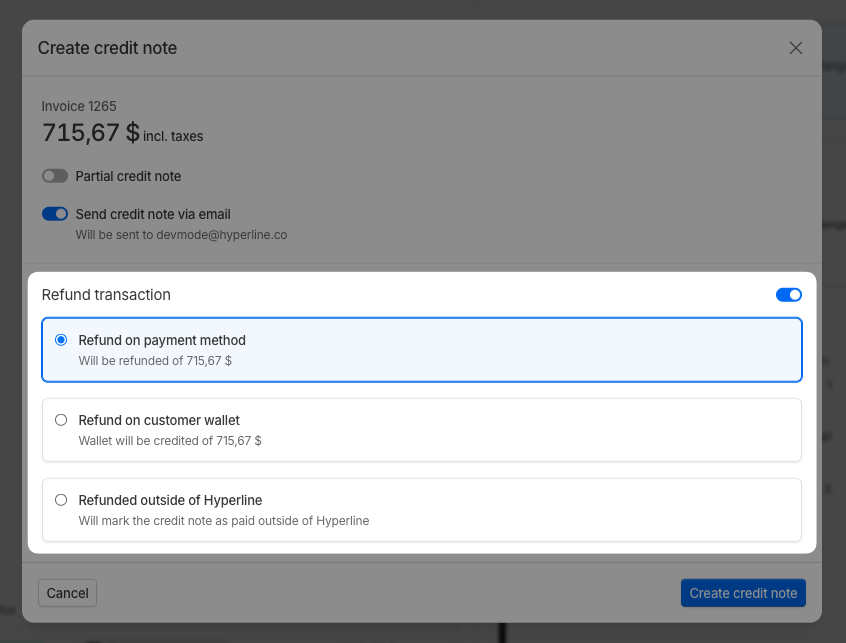 If you do not enable the refund transaction option, the credit note is created without any money movement. This is useful when you only need the accounting document or when you plan to process the refund separately.
**GoCardless refund delay**: For invoices paid via GoCardless, you must wait 7 days after the invoice settlement date before processing a refund through the original payment method. During this waiting period, you can create the credit note and either mark it as refunded externally or refund to the customer's wallet (if enabled).
## Invoice status changes
When you create a credit note, the status of the original invoice changes based on its current state:
* **To pay invoices**: Creating a credit note automatically voids the original invoice, unless the invoice has a pending payment transaction (`to_process`, `pending`, or `scheduled` status). If a payment transaction is pending, the invoice will not be voided to prevent conflicts with the ongoing payment process. The invoice status changes to **voided**, and it can no longer be collected. The invoice remains visible in your system for audit and compliance purposes.
**Irreversible action**: Once an invoice has been voided due to a credit note creation, you cannot reverse this action. If you need to correct a credit note, you can void the credit note itself and create a new one, but the original invoice will remain voided.
* **Paid invoices**: The invoice status remains **paid**, but the system tracks that a credit note has been issued. The invoice displays an indicator showing that a credit note has been created.
* **Partially paid invoices**: The invoice status remains **partially paid**. The credit note reduces the amount that can be credited in the future, but does not change the invoice's payment status.
* **Error invoices**: The invoice status remains **error**. Credit notes can be created to resolve billing discrepancies.
## Credit note lifecycle
Credit notes can be voided if they were created in error or need to be corrected. When a credit note is voided:
* The credit note status changes to **voided**
* Voided credit notes are excluded from credit note amount calculations
* You can create new credit notes up to the full invoice amount (minus any other non-voided credit notes)
* The voided credit note remains visible in the system for audit trail purposes
* The original invoice status is not automatically restored when a credit note is voided
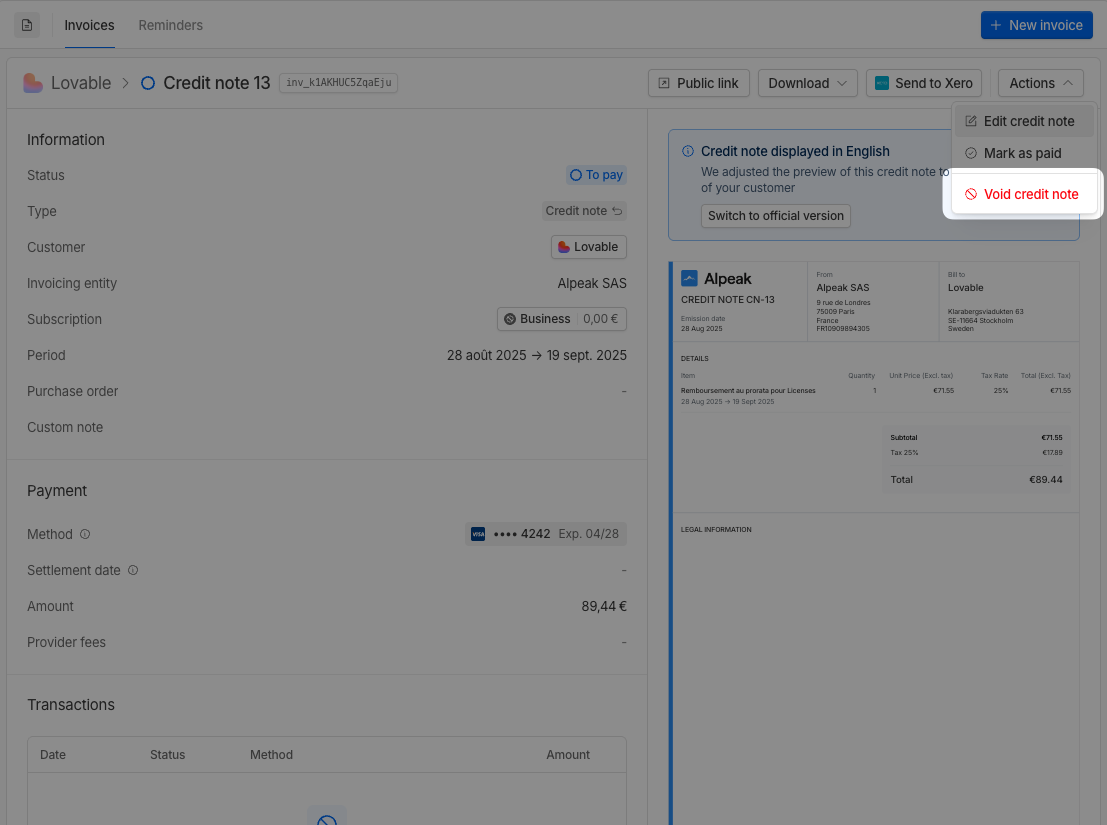
To void a credit note, navigate to the credit note detail page and use the void action from the actions menu.
**Voiding paid credit notes:**
A paid credit note means the credit note itself has been settled, for example through a PSP refund, a wallet credit, or an external settlement. You can still void it when the accounting document needs to be corrected.
Voiding a paid credit note does not reverse the money movement. You need to manually handle any necessary adjustment with your payment provider, wallet balance, or customer.
You can void credit notes regardless of their status, including paid credit notes and credit notes that have been applied to other invoices.
If you do not enable the refund transaction option, the credit note is created without any money movement. This is useful when you only need the accounting document or when you plan to process the refund separately.
**GoCardless refund delay**: For invoices paid via GoCardless, you must wait 7 days after the invoice settlement date before processing a refund through the original payment method. During this waiting period, you can create the credit note and either mark it as refunded externally or refund to the customer's wallet (if enabled).
## Invoice status changes
When you create a credit note, the status of the original invoice changes based on its current state:
* **To pay invoices**: Creating a credit note automatically voids the original invoice, unless the invoice has a pending payment transaction (`to_process`, `pending`, or `scheduled` status). If a payment transaction is pending, the invoice will not be voided to prevent conflicts with the ongoing payment process. The invoice status changes to **voided**, and it can no longer be collected. The invoice remains visible in your system for audit and compliance purposes.
**Irreversible action**: Once an invoice has been voided due to a credit note creation, you cannot reverse this action. If you need to correct a credit note, you can void the credit note itself and create a new one, but the original invoice will remain voided.
* **Paid invoices**: The invoice status remains **paid**, but the system tracks that a credit note has been issued. The invoice displays an indicator showing that a credit note has been created.
* **Partially paid invoices**: The invoice status remains **partially paid**. The credit note reduces the amount that can be credited in the future, but does not change the invoice's payment status.
* **Error invoices**: The invoice status remains **error**. Credit notes can be created to resolve billing discrepancies.
## Credit note lifecycle
Credit notes can be voided if they were created in error or need to be corrected. When a credit note is voided:
* The credit note status changes to **voided**
* Voided credit notes are excluded from credit note amount calculations
* You can create new credit notes up to the full invoice amount (minus any other non-voided credit notes)
* The voided credit note remains visible in the system for audit trail purposes
* The original invoice status is not automatically restored when a credit note is voided
To void a credit note, navigate to the credit note detail page and use the void action from the actions menu.
**Voiding paid credit notes:**
A paid credit note means the credit note itself has been settled, for example through a PSP refund, a wallet credit, or an external settlement. You can still void it when the accounting document needs to be corrected.
Voiding a paid credit note does not reverse the money movement. You need to manually handle any necessary adjustment with your payment provider, wallet balance, or customer.
You can void credit notes regardless of their status, including paid credit notes and credit notes that have been applied to other invoices.
 ## Visualize your credit notes
To view and manage your credit notes:
## Visualize your credit notes
To view and manage your credit notes:
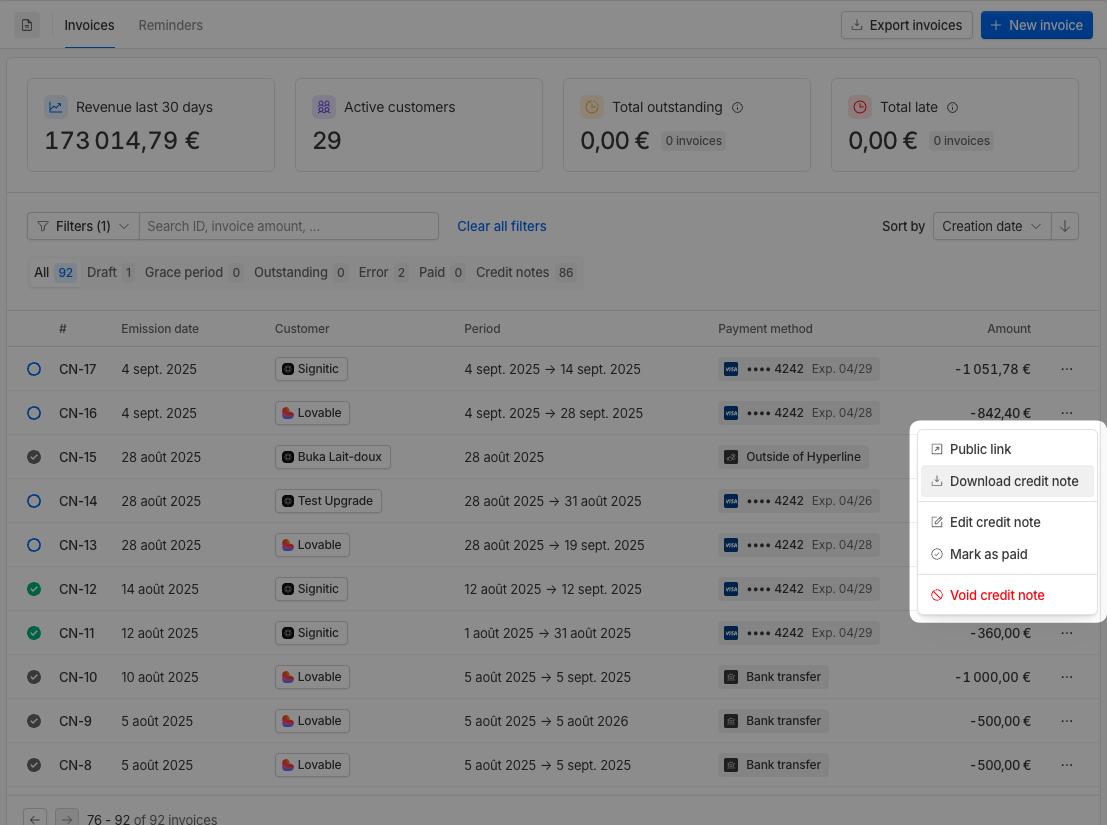
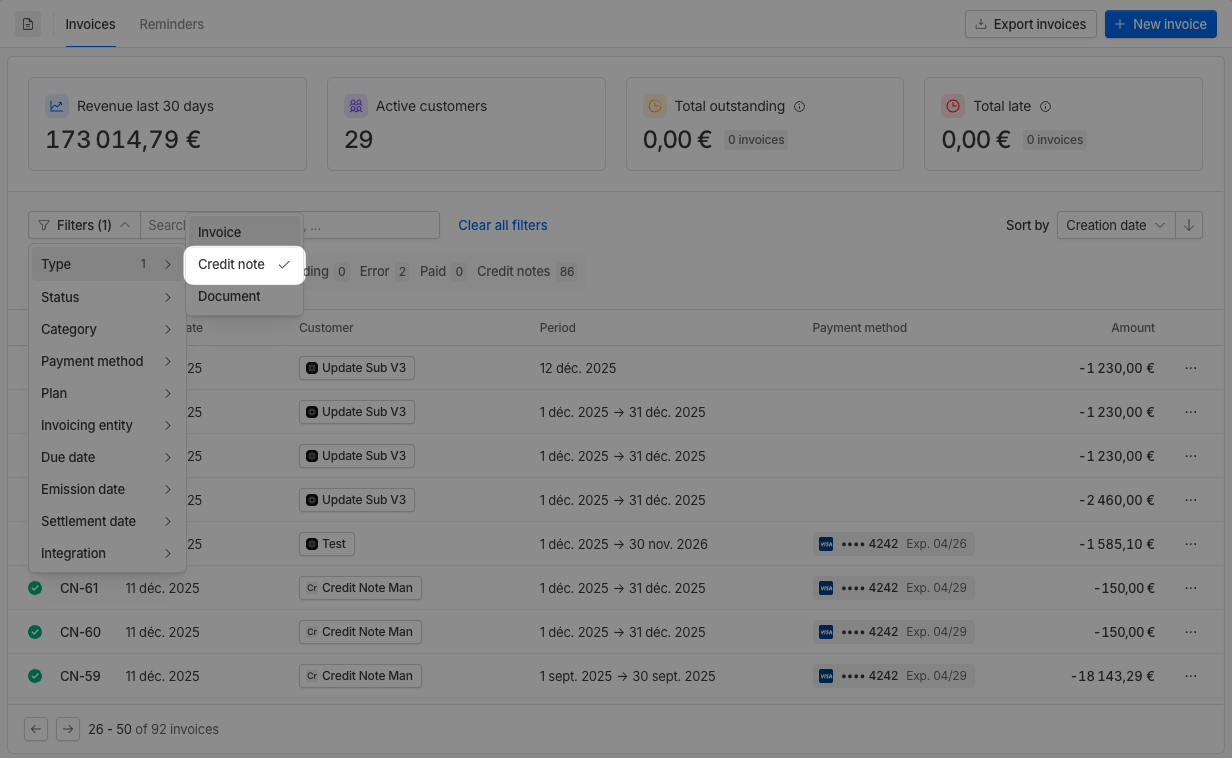 From there, you can:
* Download credit notes as PDF files
* View associated transactions on payment service providers (PSPs)
* Access credit note details and history
* Void credit notes if needed
All actions are available through the actions menu for each credit note.
From there, you can:
* Download credit notes as PDF files
* View associated transactions on payment service providers (PSPs)
* Access credit note details and history
* Void credit notes if needed
All actions are available through the actions menu for each credit note.
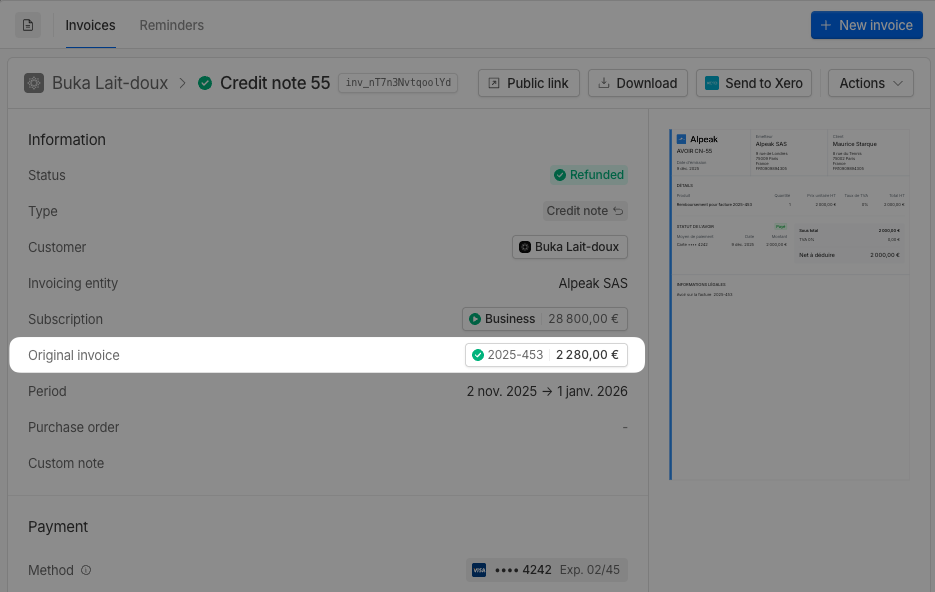
 Credit notes are linked to their original invoices. You can view this relationship from either the invoice or credit note detail pages. The invoice detail page shows all associated credit notes, while the credit note page displays the original invoice reference.
 ## Ad-hoc credit notes
Ad-hoc credit notes are standalone credit notes that are not linked to an existing invoice in Hyperline. This feature is useful when you need to issue a credit note for an invoice created in a different billing system or when providing a credit that doesn't correspond to a specific invoice.
**Key characteristics:**
* Not automatically applied to any invoice (manual application required if you want to offset amounts)
* Do not affect the credit note amount calculations of existing invoices
* Can be sent to customers via email
* Follow the same template configuration as regular credit notes
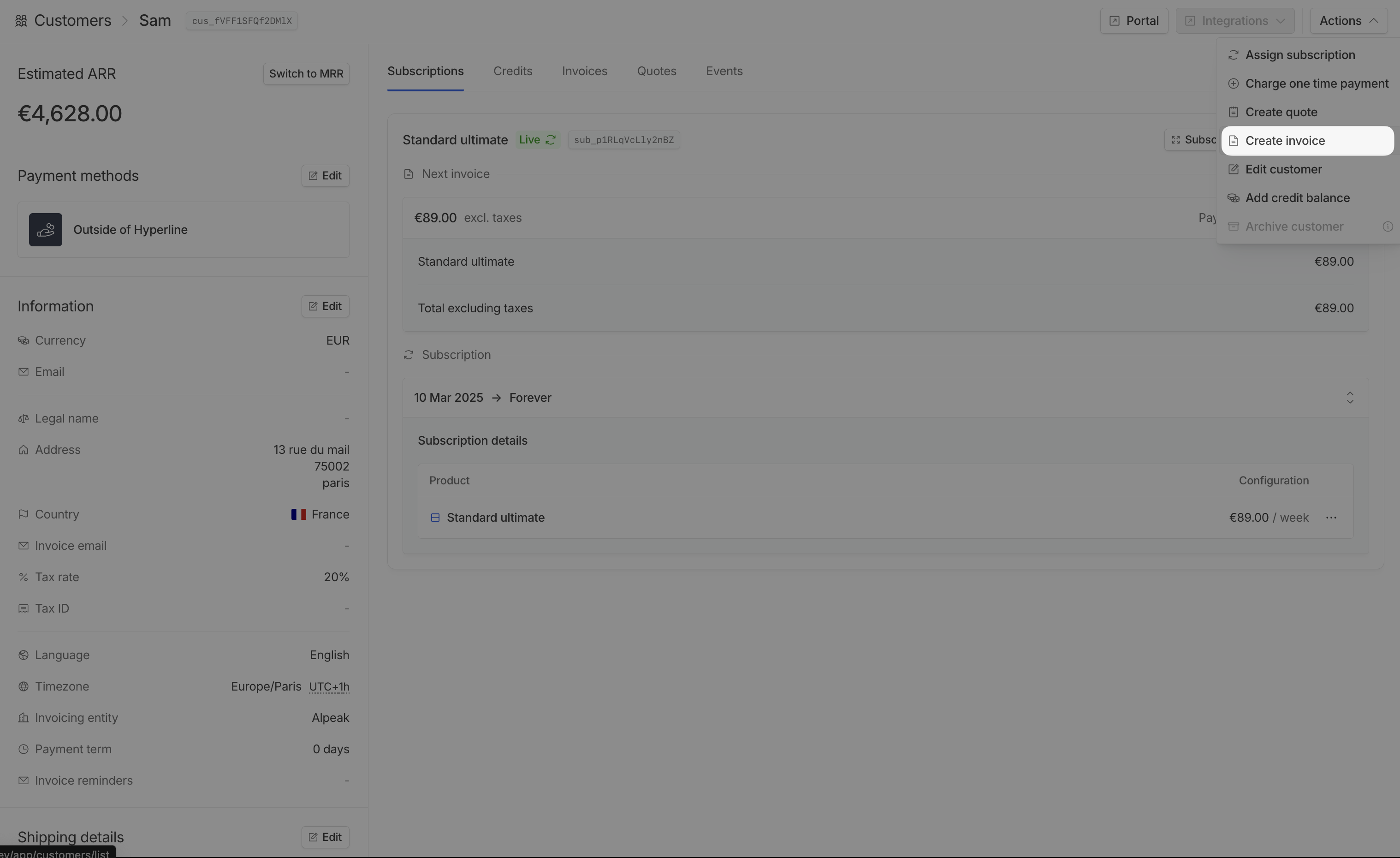
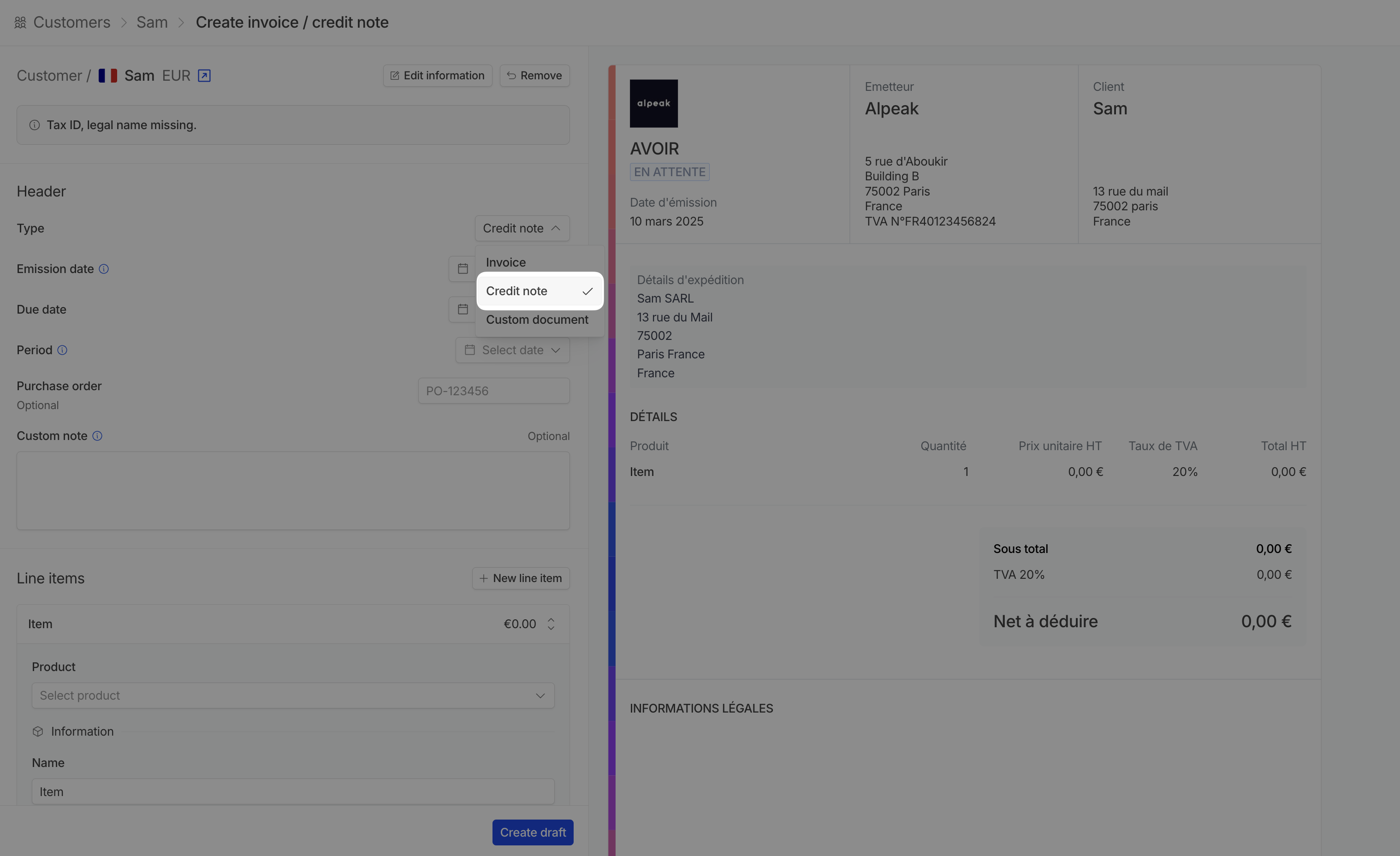
To create an ad-hoc credit note, use the **Create invoice** button in the customer details page.
## Ad-hoc credit notes
Ad-hoc credit notes are standalone credit notes that are not linked to an existing invoice in Hyperline. This feature is useful when you need to issue a credit note for an invoice created in a different billing system or when providing a credit that doesn't correspond to a specific invoice.
**Key characteristics:**
* Not automatically applied to any invoice (manual application required if you want to offset amounts)
* Do not affect the credit note amount calculations of existing invoices
* Can be sent to customers via email
* Follow the same template configuration as regular credit notes
To create an ad-hoc credit note, use the **Create invoice** button in the customer details page.