> ## Documentation Index
> Fetch the complete documentation index at: https://docs.hyperline.co/llms.txt
> Use this file to discover all available pages before exploring further.
# Reconciliation
> Learn how invoice reconciliation works in Hyperline
Hyperline natively supports reconciliation between banking transactions and invoices in multiple ways, depending on the payment method used by your customers.
## Payment Service Provider (PSP)
If you use a Payment Service Provider (PSP) with automated payment methods like cards or direct debit, invoices will automatically reconcile without manual intervention. As Hyperline orchestrates the payment initiation, it tracks payment status (money movement, chargebacks, etc.) in real-time and updates the invoice accordingly.
## Connected bank account
Hyperline **supports a wide range of bank connections in France, the UK, Germany, Belgium, Spain, and the US**, enabling you to link your business bank account with a single click. Once connected, your bank account details can be added to invoices, and Hyperline will **automatically suggest matching transactions for each invoice, facilitating easy reconciliation**.
Click on 'Connect bank account'.
 Click on the 'Link new bank' button and complete the authentication process.
Once linked, select the bank account you want to connect to Hyperline.
Click on the 'Link new bank' button and complete the authentication process.
Once linked, select the bank account you want to connect to Hyperline.
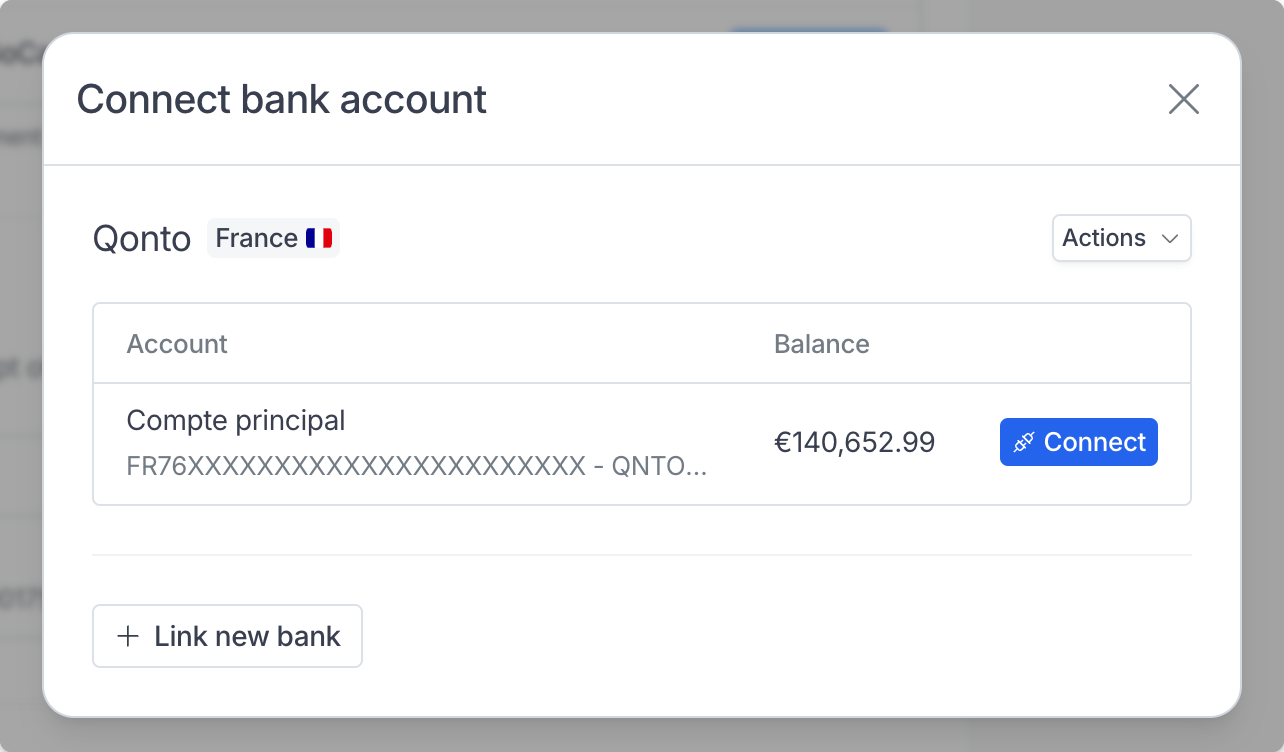 Hyperline will automatically match transactions or suggest one from your bank account for each unpaid invoice based on matching details.
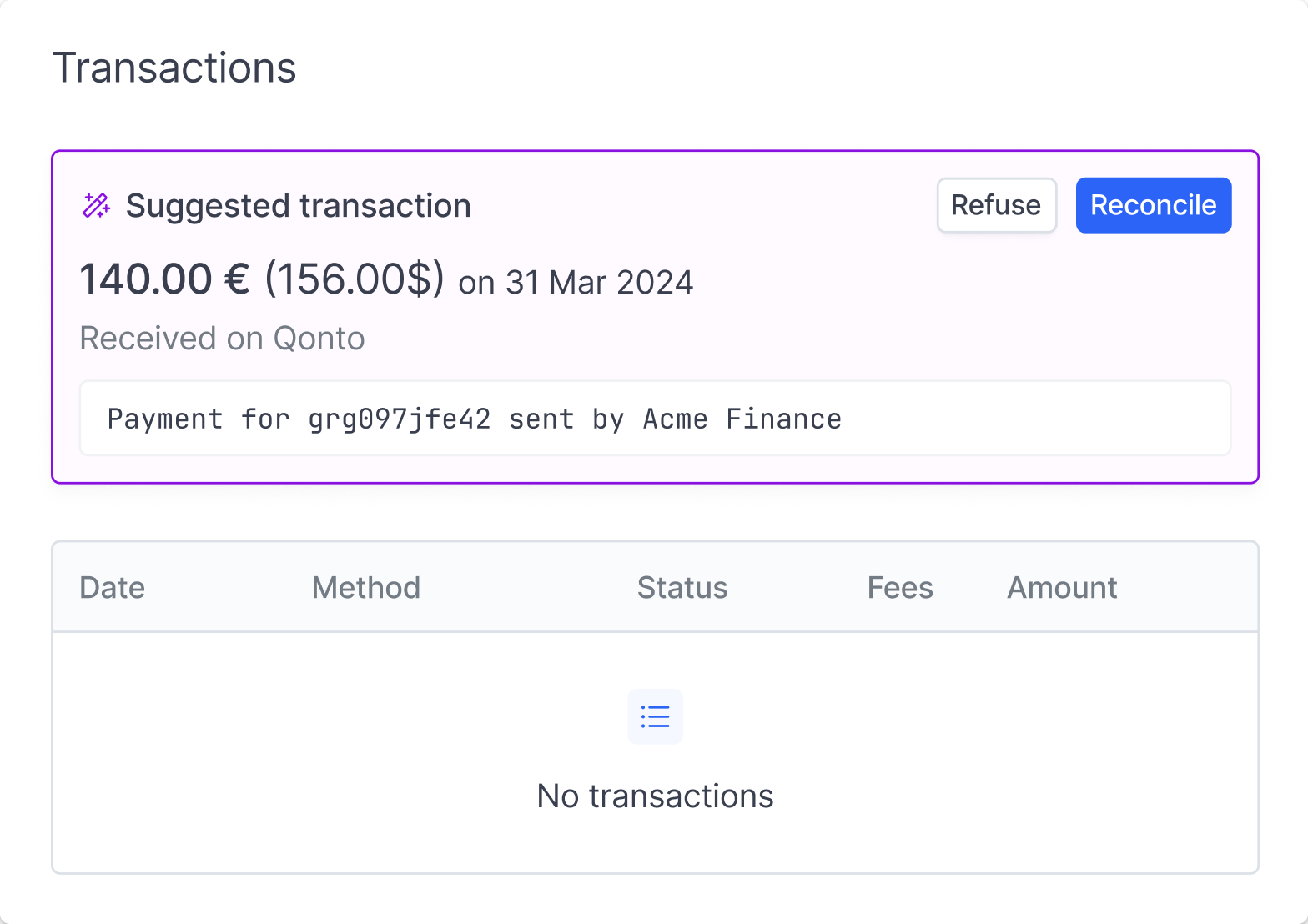 Additionally, you can access your bank statements and account balances, and reconcile invoices directly from the Transactions page.
### Reconciliation logic
Reconciliation targets invoices with status 'to\_pay' or 'partially\_paid', and is restricted to payment methods 'transfer' or 'external' (or no payment method set).
Hyperline automatically matches incoming bank transactions to outstanding invoices using a confidence-based scoring system. Each transaction is scored against unpaid invoices, and only matches above a minimum confidence threshold are suggested, ranked from most to least likely.
Matching signals (from strongest to weakest):
* Payment reference — If the transaction description contains the invoice's payment reference, it's an automatic match.
* Alphanumeric invoice number — Invoice numbers containing both letters and digits (e.g. INV-2024-042) found in the transaction description are also treated as certain matches.
* Known payer account + exact amount — When the paying bank account is already linked to the customer and the amount/currency match, confidence is very high.
* Invoice number, customer name, amount — These signals are scored individually and combined. An invoice number appearing as a distinct word carries more weight than a partial match. Customer name and exact amount each contribute additional confidence.
Only matches exceeding the confidence threshold are surfaced, sorted by likelihood so the best match appears first.
Transactions are fetched daily, meaning that a transaction arriving in the bank account on one day will be suggested for reconciliation the following day.
### Viewing invoice status in transactions
When viewing your bank transactions, Hyperline displays invoice status indicators next to reconciled or suggested invoices. These visual indicators help you quickly identify the payment status of each invoice.
This makes it easier to understand the current state of each invoice directly from the transactions view without needing to navigate to the invoice detail page.
## Automated customer bank transfer
Hyperline offers a method to **automate bank transfer reconciliation** by assigning unique bank account details per customer and a distinct reference for every invoice. The account details remain constant for each customer, while the reference changes with each invoice.
The bank account details and reference are added to the invoice **when it is ready to be paid** and sent for payment.
Additionally, you can access your bank statements and account balances, and reconcile invoices directly from the Transactions page.
### Reconciliation logic
Reconciliation targets invoices with status 'to\_pay' or 'partially\_paid', and is restricted to payment methods 'transfer' or 'external' (or no payment method set).
Hyperline automatically matches incoming bank transactions to outstanding invoices using a confidence-based scoring system. Each transaction is scored against unpaid invoices, and only matches above a minimum confidence threshold are suggested, ranked from most to least likely.
Matching signals (from strongest to weakest):
* Payment reference — If the transaction description contains the invoice's payment reference, it's an automatic match.
* Alphanumeric invoice number — Invoice numbers containing both letters and digits (e.g. INV-2024-042) found in the transaction description are also treated as certain matches.
* Known payer account + exact amount — When the paying bank account is already linked to the customer and the amount/currency match, confidence is very high.
* Invoice number, customer name, amount — These signals are scored individually and combined. An invoice number appearing as a distinct word carries more weight than a partial match. Customer name and exact amount each contribute additional confidence.
Only matches exceeding the confidence threshold are surfaced, sorted by likelihood so the best match appears first.
Transactions are fetched daily, meaning that a transaction arriving in the bank account on one day will be suggested for reconciliation the following day.
### Viewing invoice status in transactions
When viewing your bank transactions, Hyperline displays invoice status indicators next to reconciled or suggested invoices. These visual indicators help you quickly identify the payment status of each invoice.
This makes it easier to understand the current state of each invoice directly from the transactions view without needing to navigate to the invoice detail page.
## Automated customer bank transfer
Hyperline offers a method to **automate bank transfer reconciliation** by assigning unique bank account details per customer and a distinct reference for every invoice. The account details remain constant for each customer, while the reference changes with each invoice.
The bank account details and reference are added to the invoice **when it is ready to be paid** and sent for payment.
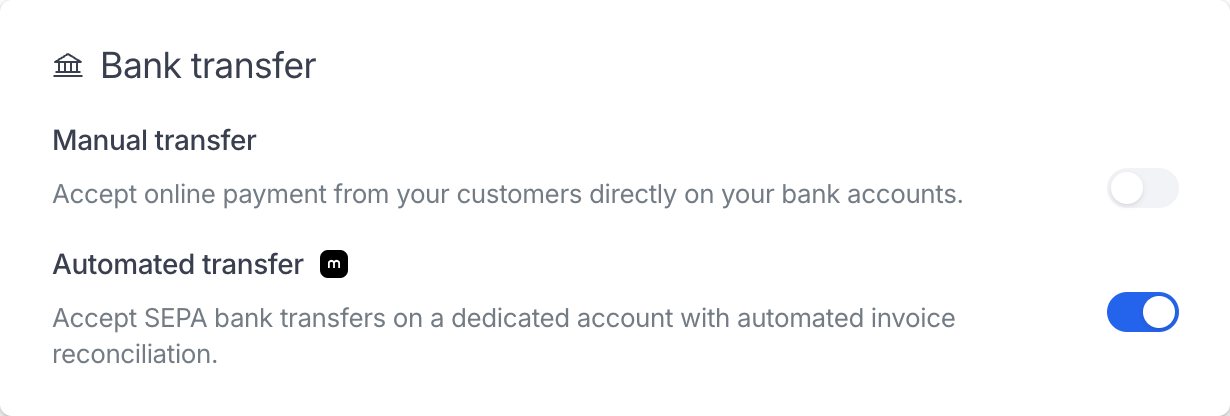 When a payment is received with the matching reference, Hyperline automatically reconciles the invoice and marks it as paid, eliminating the need for manual intervention. If a customer uses an incorrect or unrecognized reference, the funds are automatically returned to the customer's bank account.
This feature is currently available only with Mollie. You can transfer payouts from your Mollie account to another bank account, just as you would with any other card or direct debit payments.
## Manual customer bank transfer
If you enable manual bank transfers as a payment option (in the 'Settings > Payment' page), you will need to manually update invoice statuses to 'Paid' in Hyperline, as the platform cannot access your bank account information and transaction history.
After setting up a subscription for your customer, they can pay via their checkout page by selecting 'Bank transfer'.
When a payment is received with the matching reference, Hyperline automatically reconciles the invoice and marks it as paid, eliminating the need for manual intervention. If a customer uses an incorrect or unrecognized reference, the funds are automatically returned to the customer's bank account.
This feature is currently available only with Mollie. You can transfer payouts from your Mollie account to another bank account, just as you would with any other card or direct debit payments.
## Manual customer bank transfer
If you enable manual bank transfers as a payment option (in the 'Settings > Payment' page), you will need to manually update invoice statuses to 'Paid' in Hyperline, as the platform cannot access your bank account information and transaction history.
After setting up a subscription for your customer, they can pay via their checkout page by selecting 'Bank transfer'.
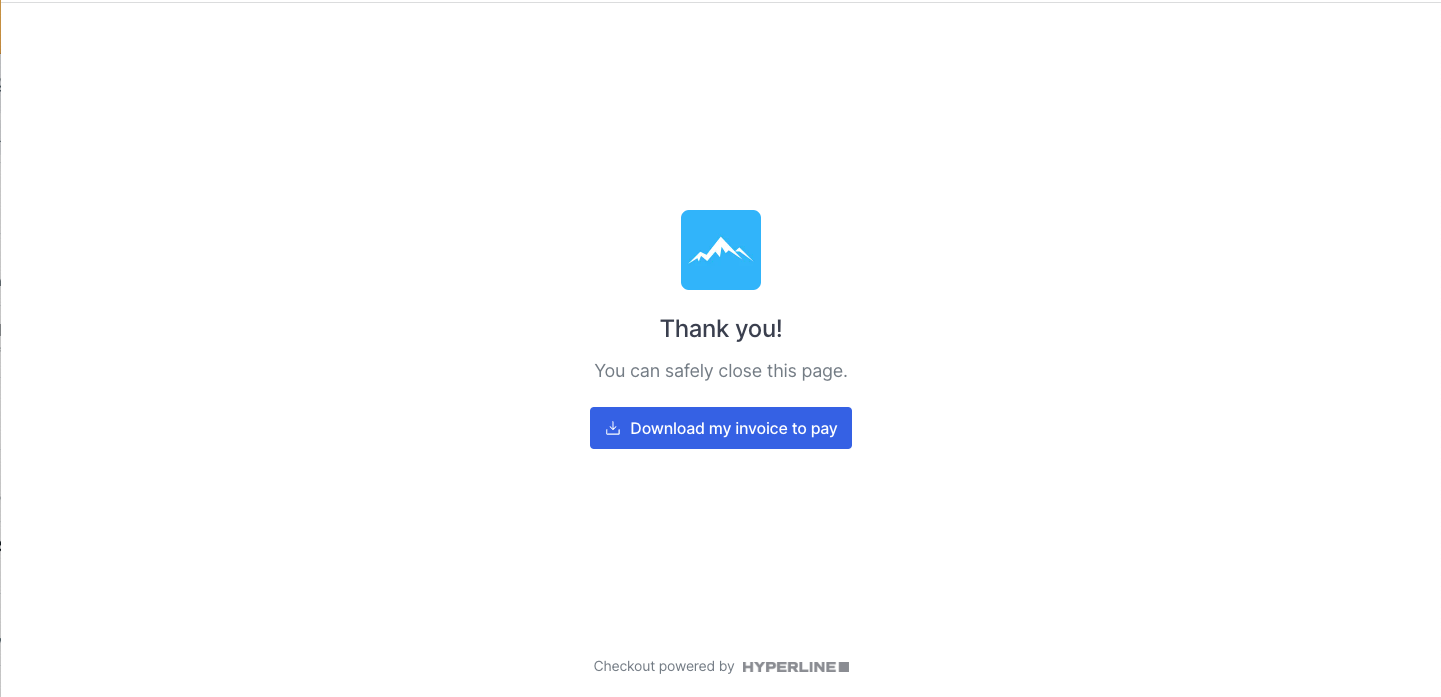
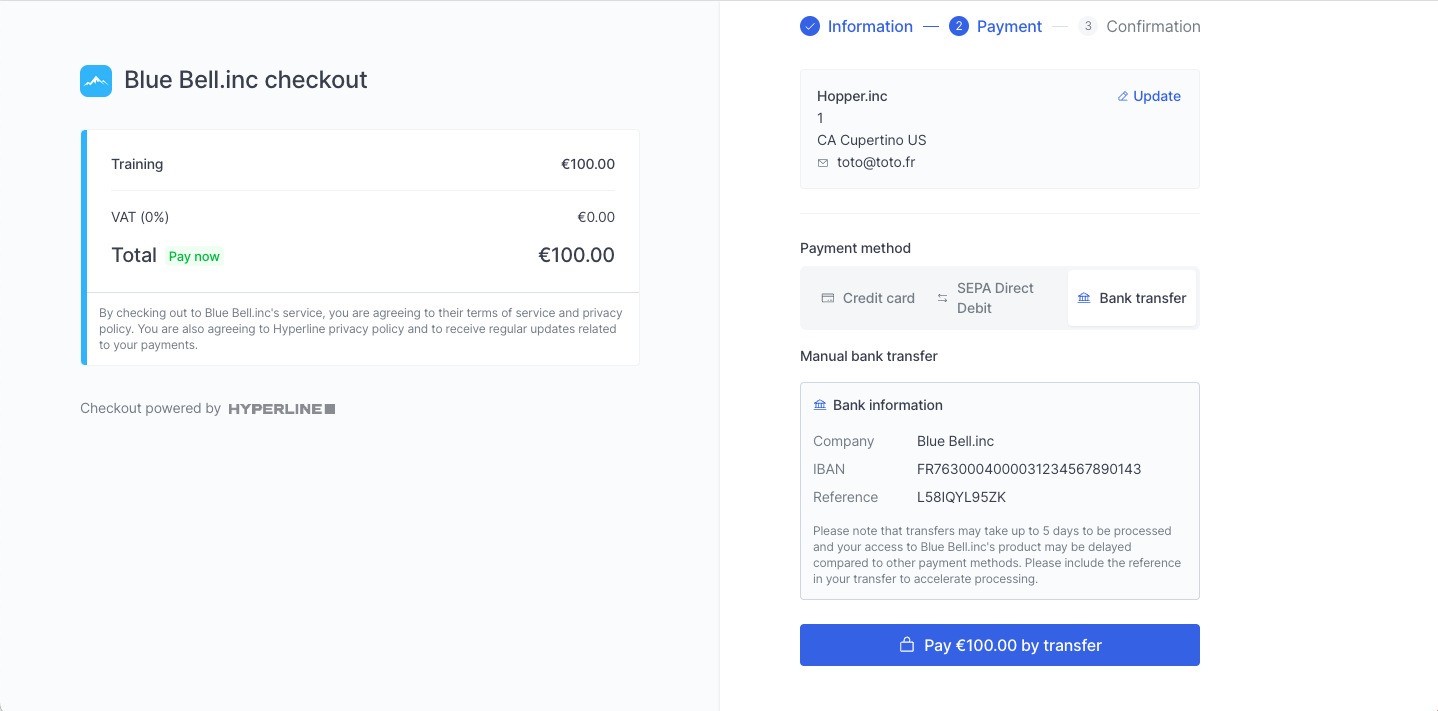 When the customer clicks on **Pay**, they will be presented with a link to download their invoice as a PDF document.
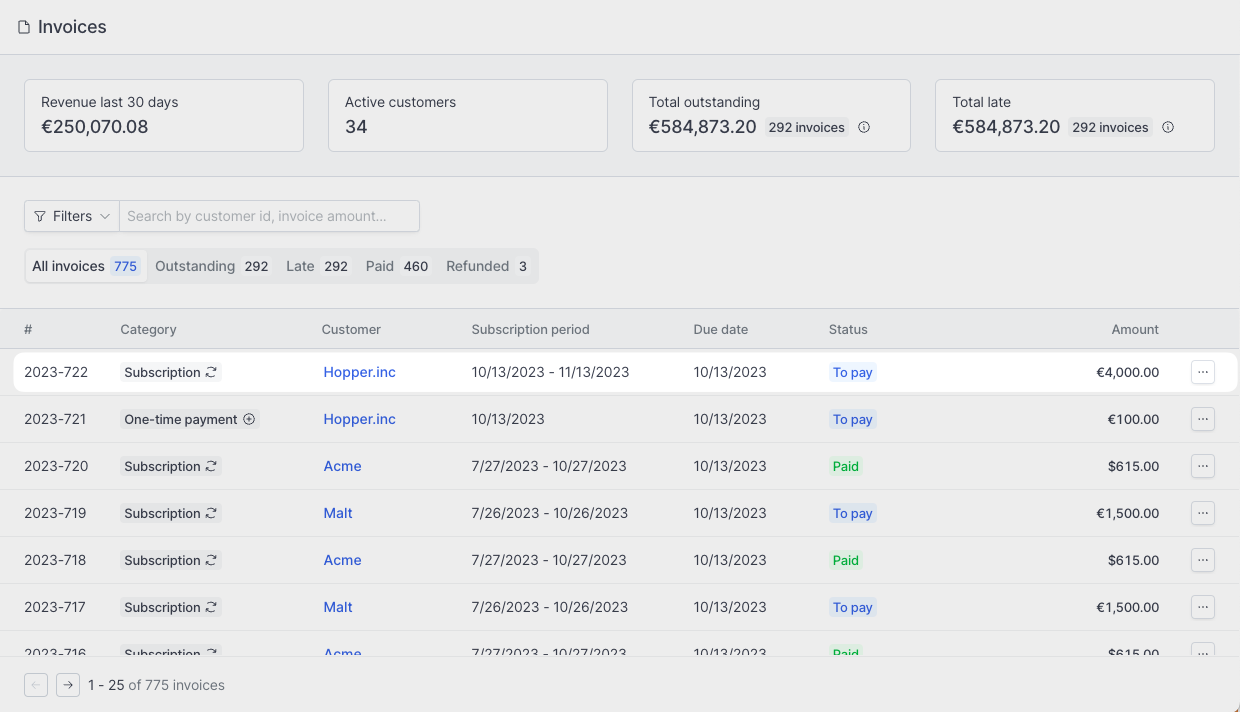
 The invoice will then appear in the **Invoices** section with the status **To pay**.
You will need to manually mark it as **Paid** or **Partially paid** in Hyperline once payment is received.
The invoice will then appear in the **Invoices** section with the status **To pay**.
You will need to manually mark it as **Paid** or **Partially paid** in Hyperline once payment is received.
 ### Manually marking invoices as paid
Manually changing the status of invoices only applies to bank transfers and
other offline transactions. For all other transactions (credit cards, direct
debit, automated transfers) through a Payment Service Provider, **invoices
will be automatically updated in Hyperline**.
When creating a new subscription with bank transfers, the invoice status will automatically be marked as **To pay** until the first payment is received from the customer.
### Manually marking invoices as paid
Manually changing the status of invoices only applies to bank transfers and
other offline transactions. For all other transactions (credit cards, direct
debit, automated transfers) through a Payment Service Provider, **invoices
will be automatically updated in Hyperline**.
When creating a new subscription with bank transfers, the invoice status will automatically be marked as **To pay** until the first payment is received from the customer.
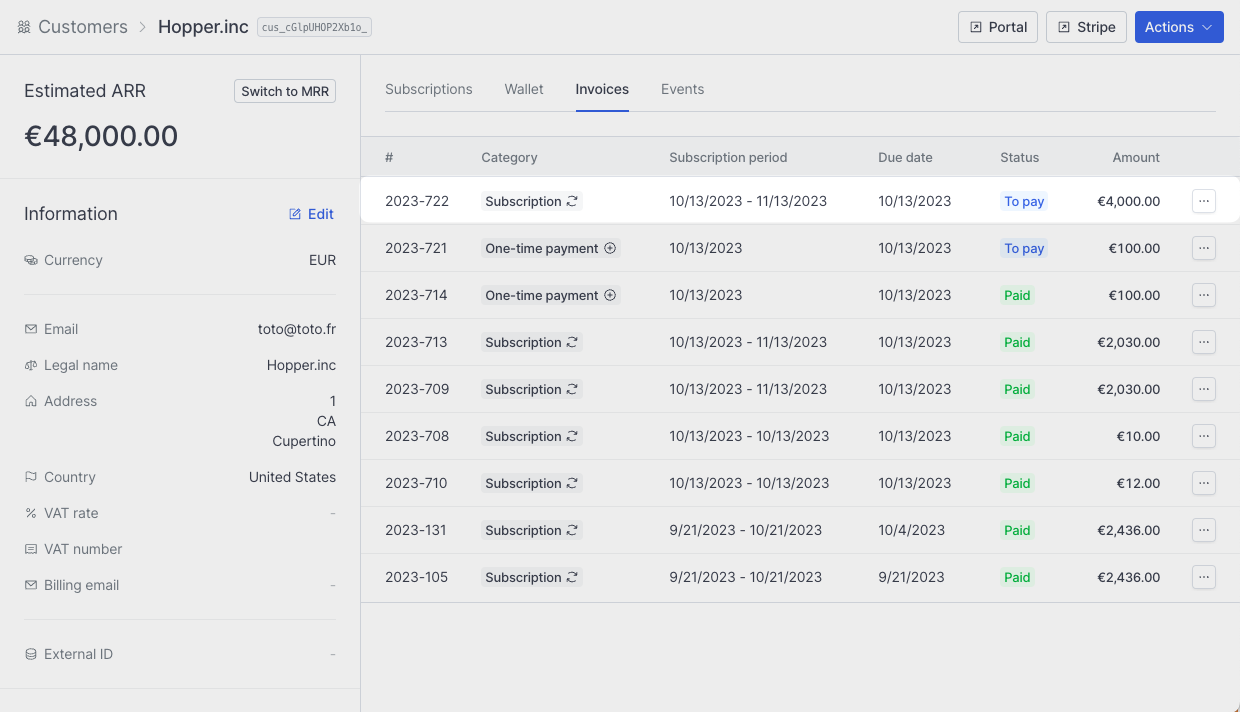 There are two ways to change an invoice status from **To pay** to **Paid** or **Partially paid**:
From the Invoices page, click the three-dots menu on the invoice row, then select **Mark as paid**.
There are two ways to change an invoice status from **To pay** to **Paid** or **Partially paid**:
From the Invoices page, click the three-dots menu on the invoice row, then select **Mark as paid**.
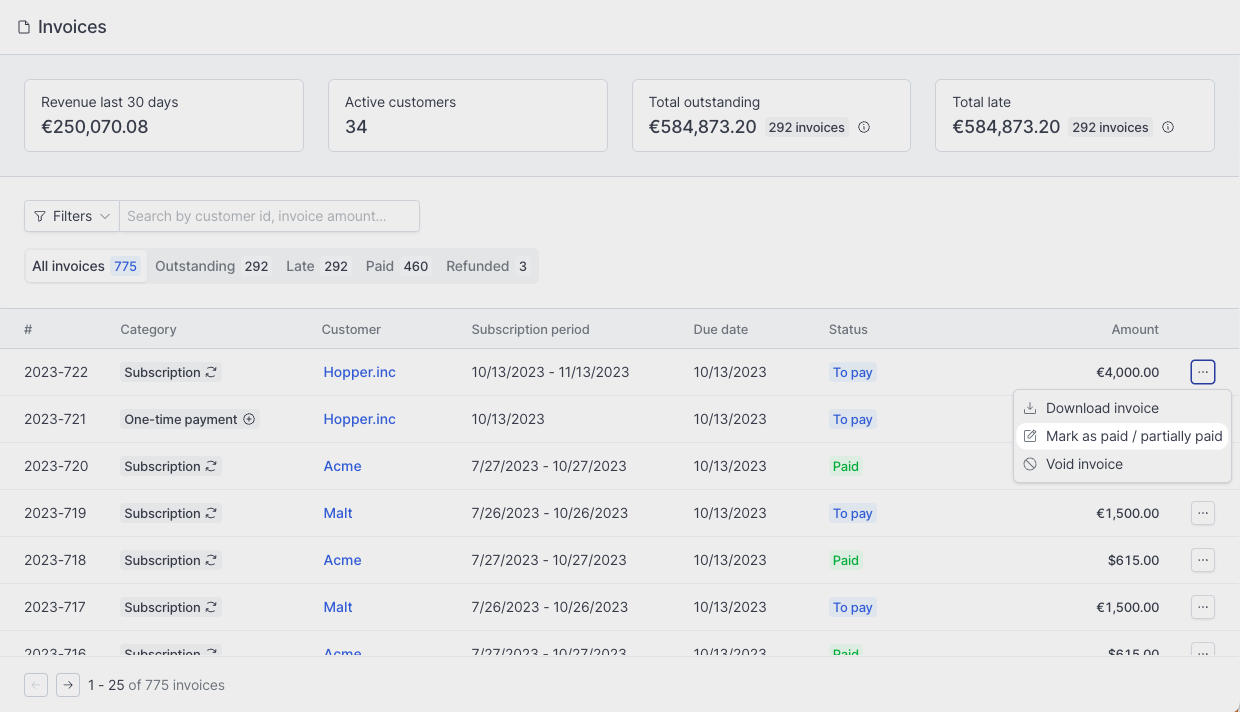 Alternatively, from the invoice detail page, click on **Actions** and select **Mark as paid**.
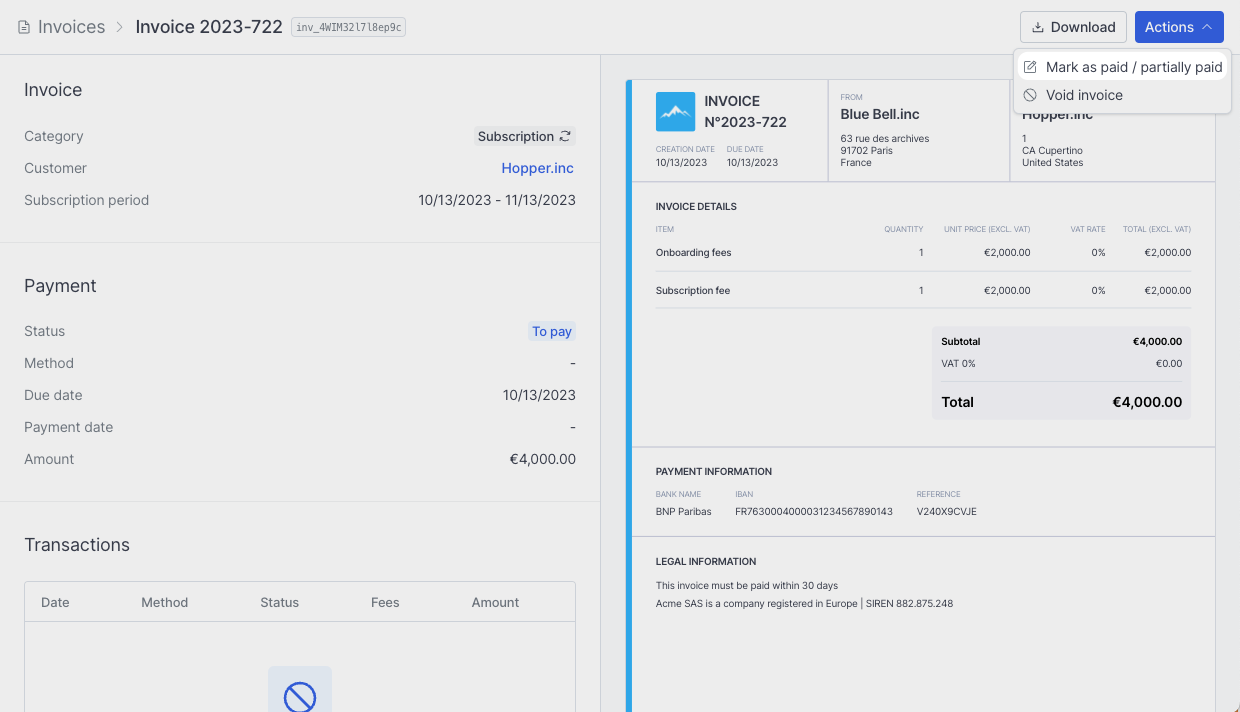 Select whether to mark the invoice as **Paid** or **Partially paid**, specify the amount paid, and click **Save**.
The **partially paid** status allows you to offer customers the flexibility to pay in
multiple installments. You can update the invoice status after each payment is received until
the total amount is paid.
Select whether to mark the invoice as **Paid** or **Partially paid**, specify the amount paid, and click **Save**.
The **partially paid** status allows you to offer customers the flexibility to pay in
multiple installments. You can update the invoice status after each payment is received until
the total amount is paid.
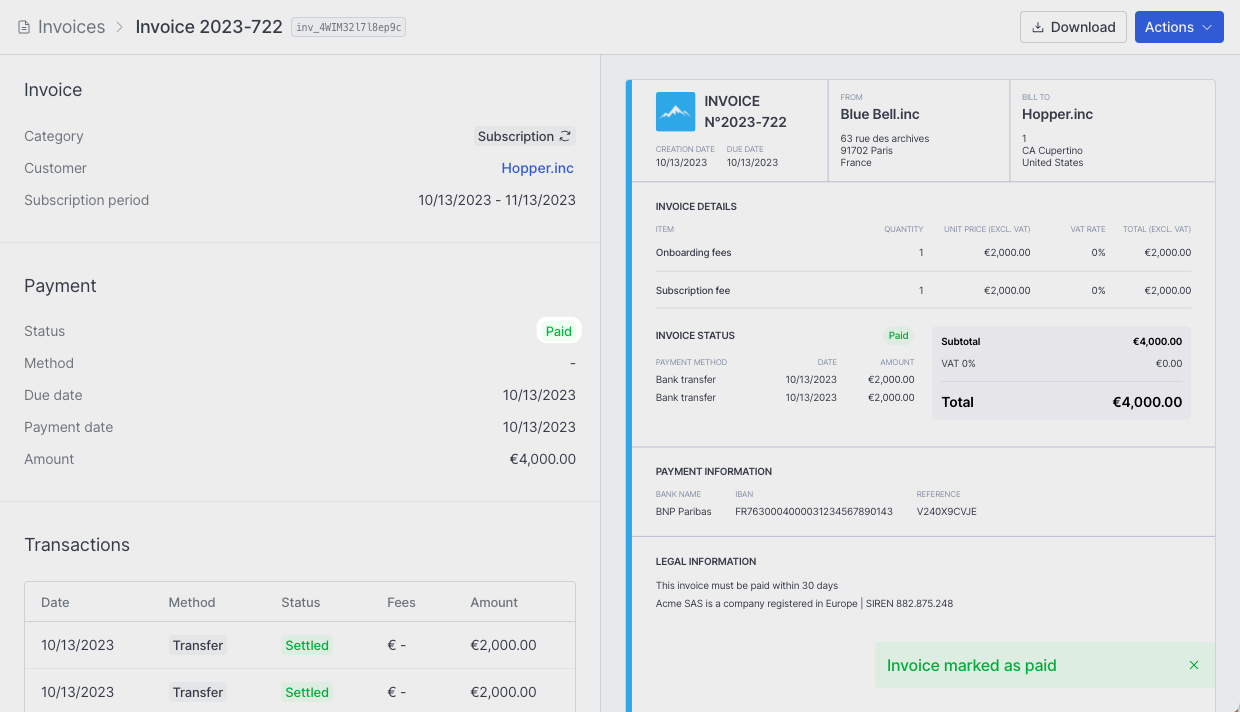
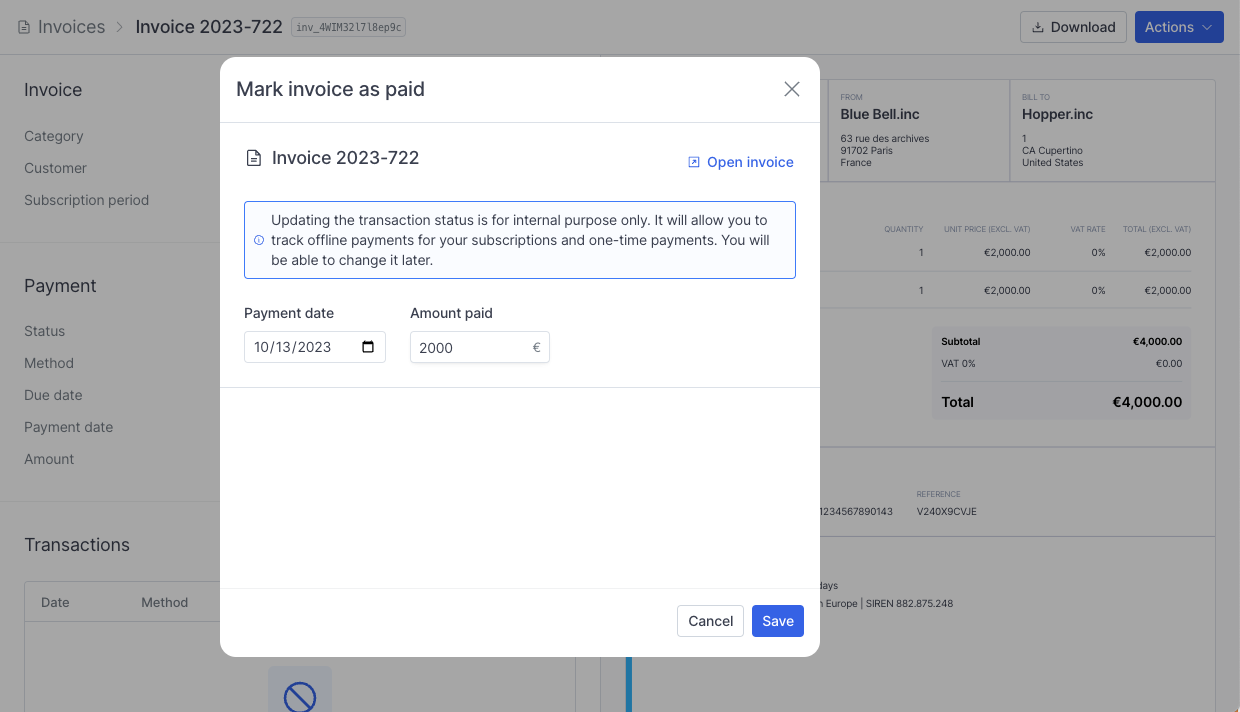 The invoice status will update to either **Paid** or **Partially paid**, and the transaction status will be marked as **Settled**.
Below is an example of a partially paid invoice:
The invoice status will update to either **Paid** or **Partially paid**, and the transaction status will be marked as **Settled**.
Below is an example of a partially paid invoice:
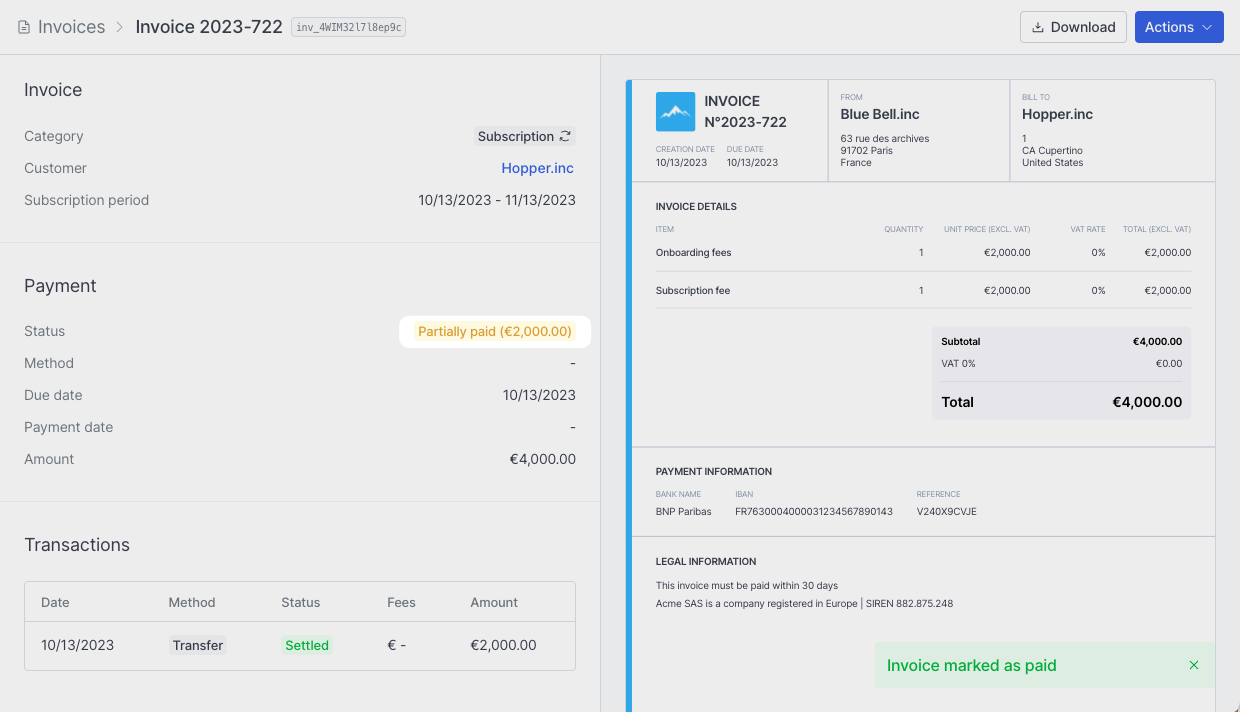 And a fully paid invoice: