> ## Documentation Index
> Fetch the complete documentation index at: https://docs.hyperline.co/llms.txt
> Use this file to discover all available pages before exploring further.
# Overview
> Overview of the invoice concept
## Invoices in Hyperline
Hyperline provides a simple and versatile invoicing solution to automate your invoicing, no matter the pricing model or the currency. Automate recurring billing or create one-off invoices on demand for your customers.
Hyperline automatically computes line items for invoices corresponding to products in the assigned plan.
Invoices are managed in the **Invoices** section of Hyperline. You can [configure your invoice](./configuration) in the Settings pages.
Invoices numbers always follow a sequential pattern (learn more in the
[invoice configuration](./configuration#invoicing-numbers)).
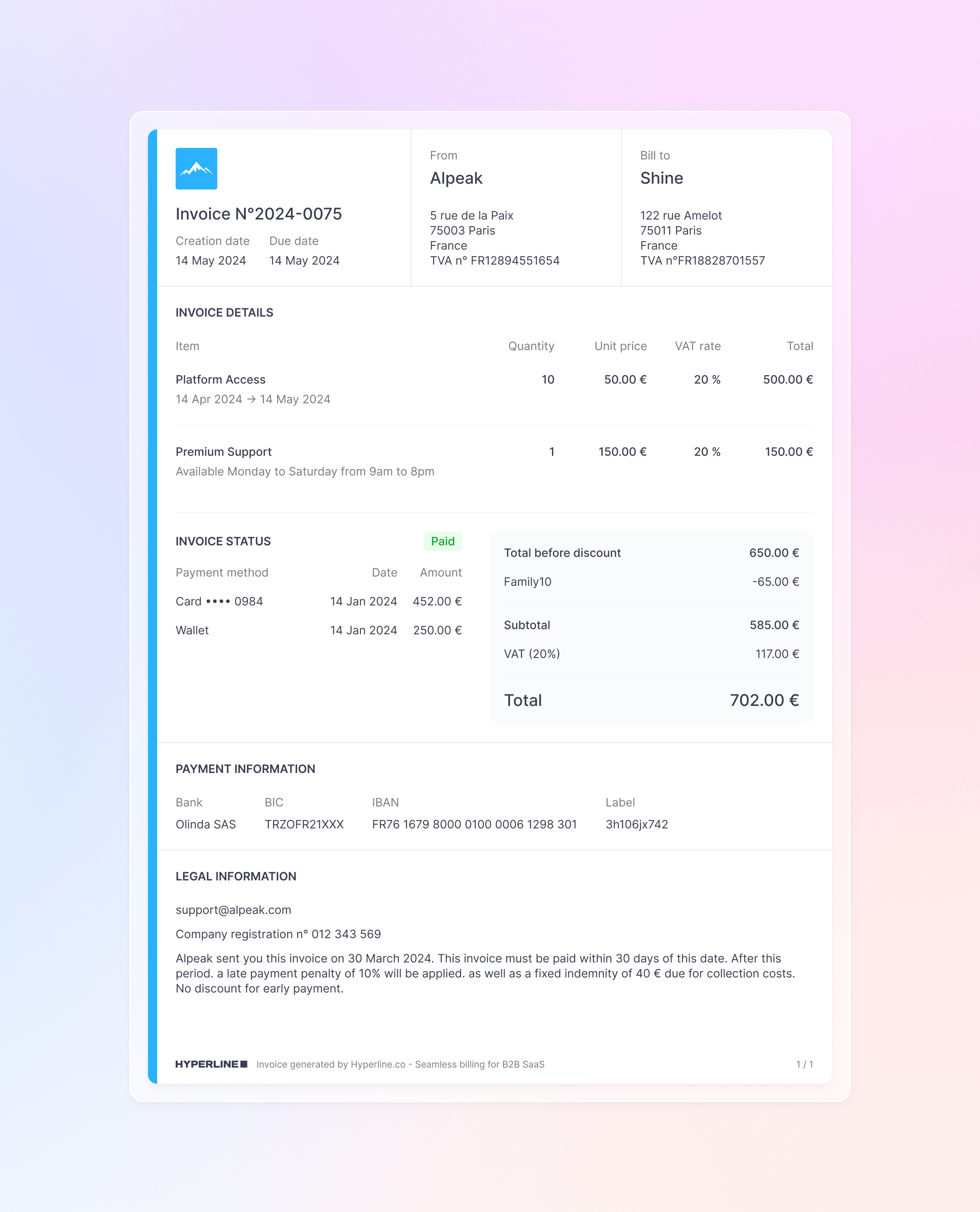
Invoices always feature:
* A creation date
* A due date
* The invoice status
* The invoice category
* The payment method
* The total amount for the transaction, including VAT if applicable
* Names and addresses of both parties
* Legal information (if any were added in the [Invoice settings](./configuration))
 ### Invoice language
Hyperline invoices are currently available in **English, French, German, Italian, Spanish, Polish, Portuguese and Dutch** languages.
The invoice is generated in the primary language of your country for legal and accounting purposes. However, depending on your customer's language preference, you or they can download the invoice in their preferred language.
### Invoice customer address
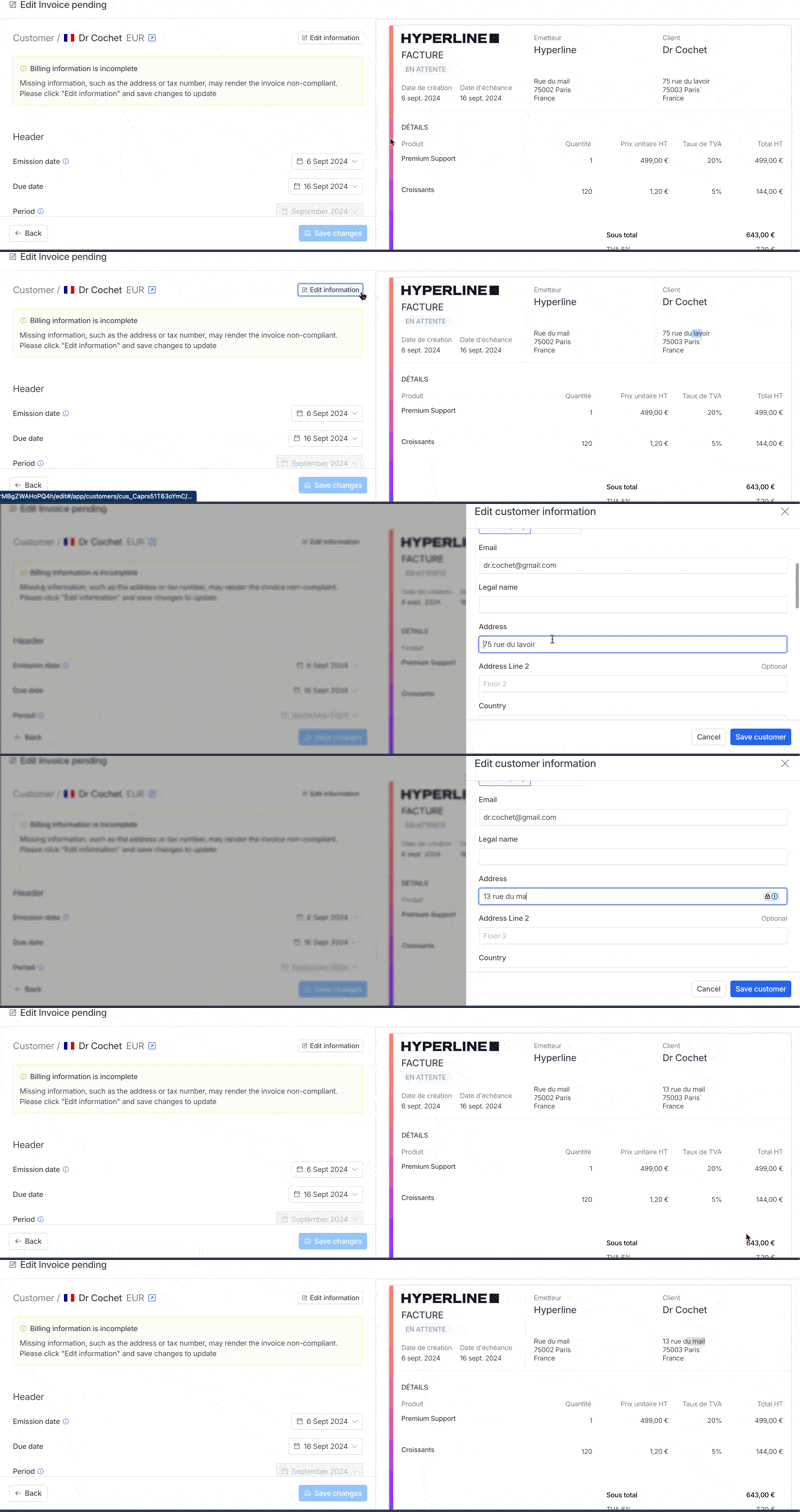
Invoices created before changing a customer's address will keep the previous address.
Any change made to an invoice through the "edit" action will automatically update the customer's address
### Invoice language
Hyperline invoices are currently available in **English, French, German, Italian, Spanish, Polish, Portuguese and Dutch** languages.
The invoice is generated in the primary language of your country for legal and accounting purposes. However, depending on your customer's language preference, you or they can download the invoice in their preferred language.
### Invoice customer address
Invoices created before changing a customer's address will keep the previous address.
Any change made to an invoice through the "edit" action will automatically update the customer's address
 ### Invoice payment method
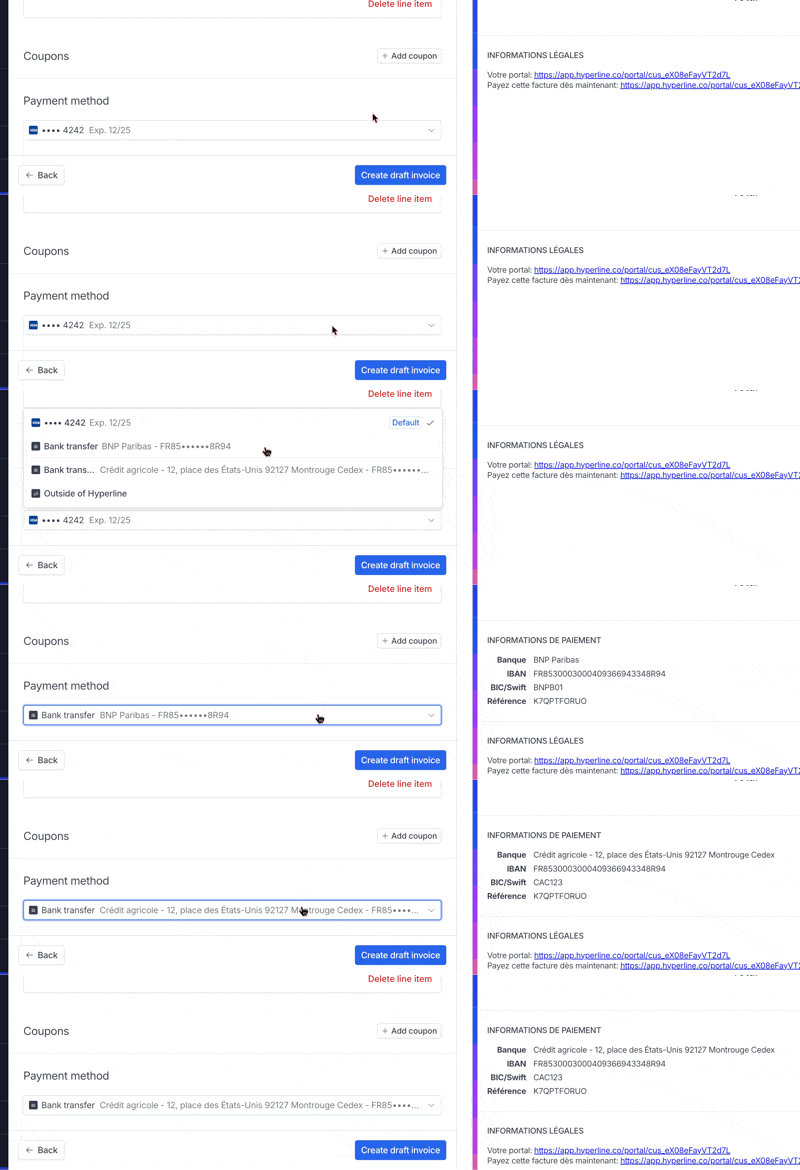
The customer's default payment method is used when creating an invoice. While an invoice is not paid, you can update it.
### Invoice payment method
The customer's default payment method is used when creating an invoice. While an invoice is not paid, you can update it.
 ### Invoice status
`Draft`
Represents an editable invoice. We are only using this status before the invoice is finalized (ready to pay). A draft invoice is generated without a number.
`Open`
Displays when your customer is assigned a metered subscription, we create an open invoice (generated without a number) in the background that we update on a regular basis to represent the latest consumption.
`Grace period`
Displays when a metered subscription has closed. During the grace period, the invoice isn't charged, and you can make modifications manually until the end of the grace period. A grace period invoice is generated without a number.
`To pay`
The invoice is finalized (a number is assigned) and is pending payment. Invoices attached to an automated payment method will be automatically charged. Invoices paid by bank transfer will remain with this status until [you mark them as paid](./reconciliations).
`Late`
The invoice has passed its due date and has not been fully paid yet. This status helps you identify overdue invoices that require follow-up.
`Partially paid`
The invoice has been paid only partially (only for transfers). See the [Reconciliation page](./reconciliations) for more details.
`Paid`
The invoice is fully paid and now has a settled date, you can book keep it.
`Missing payment info`
We haven't tried to process the invoice because the related customer doesn't have a payment method.
`Late`
The invoice has passed its due date and has not been fully paid yet. This status helps you identify overdue invoices that require follow-up.
`Error`
We have tried to charge the invoice 4 times (3 retries) and it failed. Learn more on how to handle payment errors [on this page](../payments/payment-errors).
`Uncollectible`
Represents an invoice that cannot be collected due to reasons like bankruptcy, disputes, or prolonged nonpayment, and which is typically written off as a bad debt. Can still be marked as paid in case funds are finally collected.
`Voided`
The invoice has been voided and is no longer valid. Voided invoices are kept for record-keeping purposes but have no financial impact.
`Closed`
The invoice has been closed without payment, typically because there was nothing to bill after the grace period ended (for example, when all metered items resulted in zero usage).
### Invoice status
`Draft`
Represents an editable invoice. We are only using this status before the invoice is finalized (ready to pay). A draft invoice is generated without a number.
`Open`
Displays when your customer is assigned a metered subscription, we create an open invoice (generated without a number) in the background that we update on a regular basis to represent the latest consumption.
`Grace period`
Displays when a metered subscription has closed. During the grace period, the invoice isn't charged, and you can make modifications manually until the end of the grace period. A grace period invoice is generated without a number.
`To pay`
The invoice is finalized (a number is assigned) and is pending payment. Invoices attached to an automated payment method will be automatically charged. Invoices paid by bank transfer will remain with this status until [you mark them as paid](./reconciliations).
`Late`
The invoice has passed its due date and has not been fully paid yet. This status helps you identify overdue invoices that require follow-up.
`Partially paid`
The invoice has been paid only partially (only for transfers). See the [Reconciliation page](./reconciliations) for more details.
`Paid`
The invoice is fully paid and now has a settled date, you can book keep it.
`Missing payment info`
We haven't tried to process the invoice because the related customer doesn't have a payment method.
`Late`
The invoice has passed its due date and has not been fully paid yet. This status helps you identify overdue invoices that require follow-up.
`Error`
We have tried to charge the invoice 4 times (3 retries) and it failed. Learn more on how to handle payment errors [on this page](../payments/payment-errors).
`Uncollectible`
Represents an invoice that cannot be collected due to reasons like bankruptcy, disputes, or prolonged nonpayment, and which is typically written off as a bad debt. Can still be marked as paid in case funds are finally collected.
`Voided`
The invoice has been voided and is no longer valid. Voided invoices are kept for record-keeping purposes but have no financial impact.
`Closed`
The invoice has been closed without payment, typically because there was nothing to bill after the grace period ended (for example, when all metered items resulted in zero usage).
 ### Invoice categories
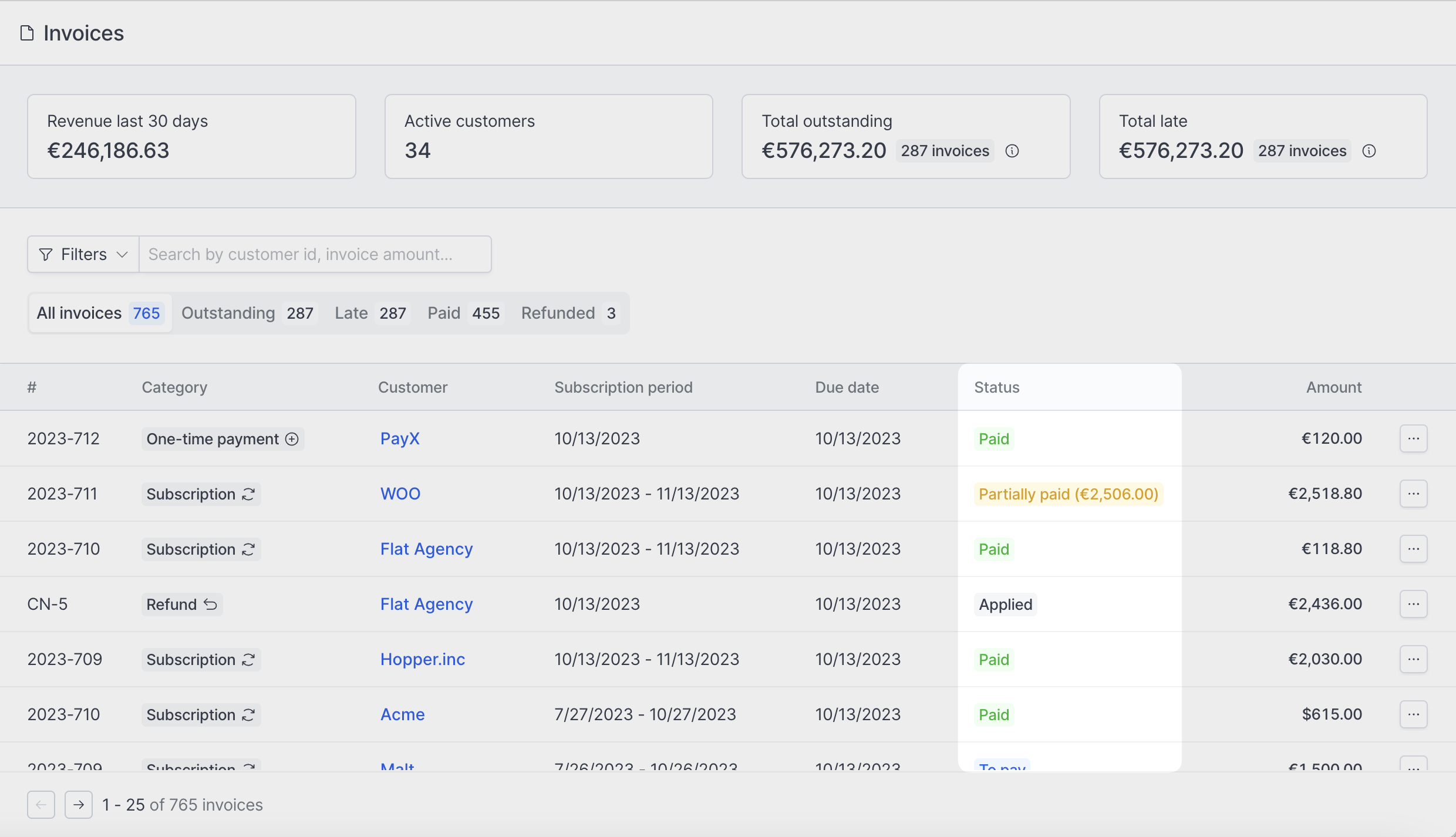
**Refund** - The related payment has been refunded. A credit note has been issued.
**One-off** - Describes a one-off invoice.
**Subscription** - Describes an invoice that is part of a subscription.
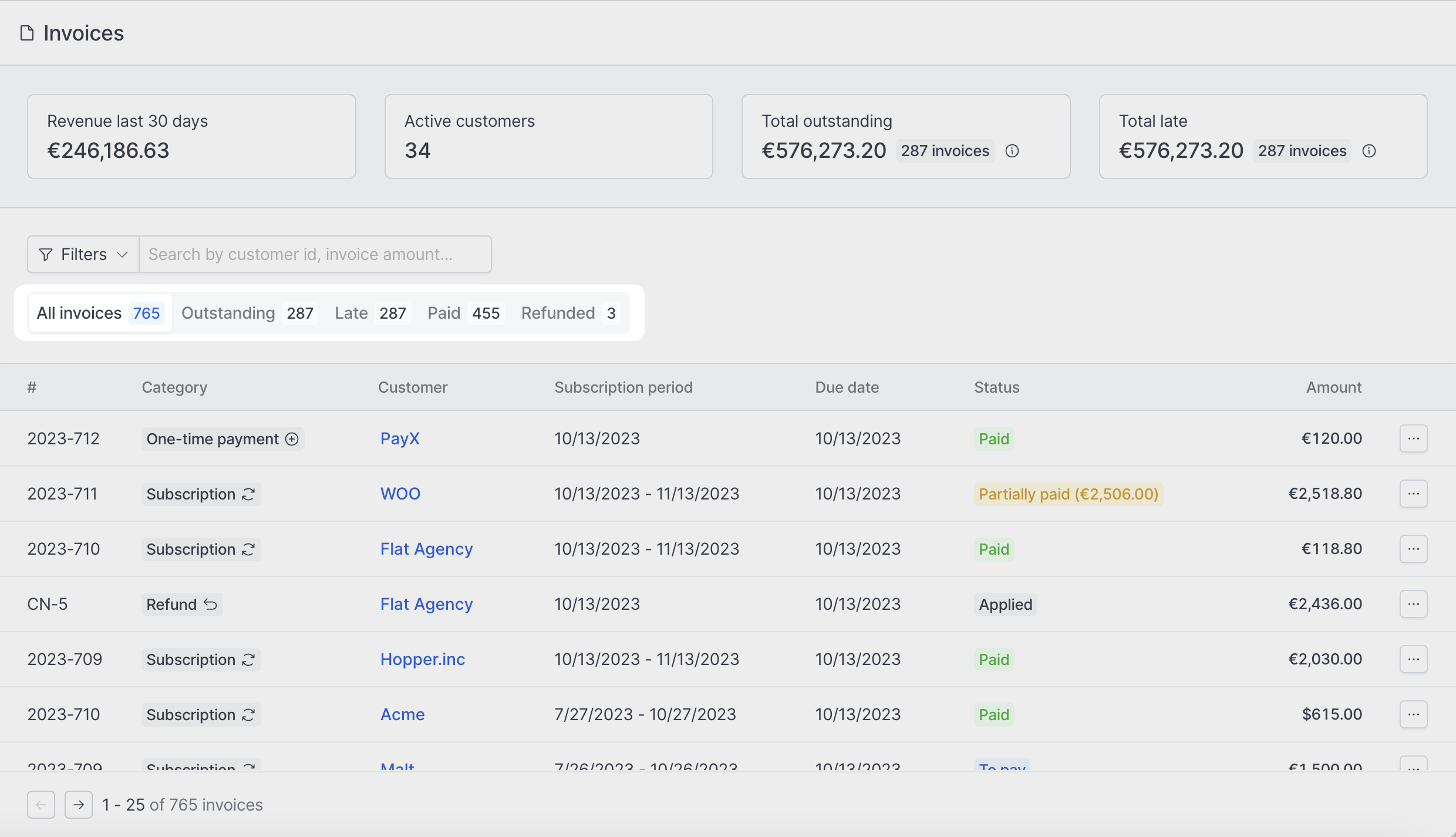
You can filter invoices by category in the **Invoices** page using the **Category** filter dropdown.
### Invoice filters
**Outstanding** - Invoices that have been only partially paid and still awaiting for payments.
**Late** - Invoices with passed due date and not fully paid yet.
**Paid** - Fully paid invoices.
**Refunded** - Refunded invoices.
### Invoice categories
**Refund** - The related payment has been refunded. A credit note has been issued.
**One-off** - Describes a one-off invoice.
**Subscription** - Describes an invoice that is part of a subscription.
You can filter invoices by category in the **Invoices** page using the **Category** filter dropdown.
### Invoice filters
**Outstanding** - Invoices that have been only partially paid and still awaiting for payments.
**Late** - Invoices with passed due date and not fully paid yet.
**Paid** - Fully paid invoices.
**Refunded** - Refunded invoices.
 ### View invoices by customer
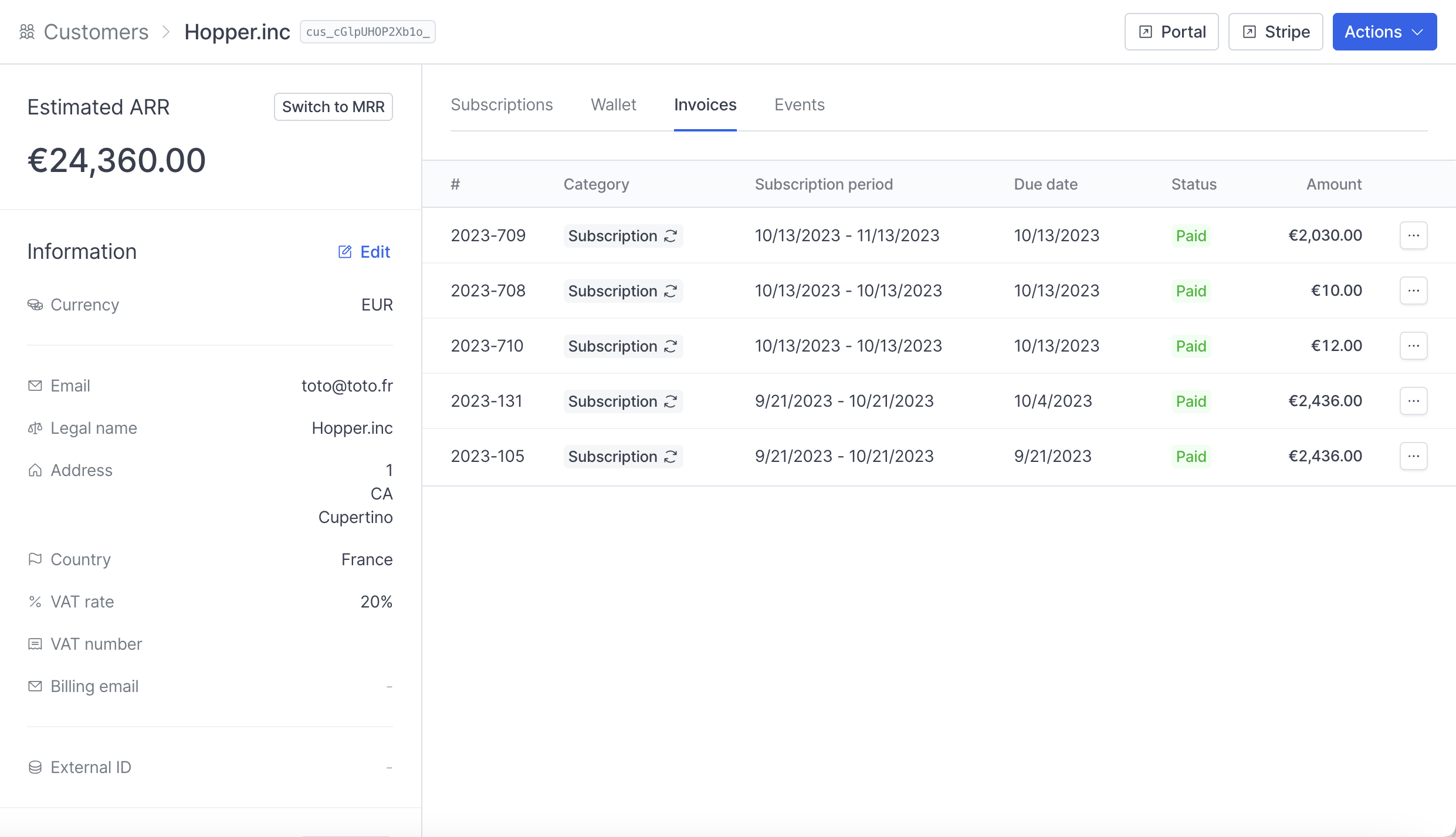
You can view all the invoices for a specific customer by going to **Customers**, selecting one customer and clicking on the **Invoices** tab.
### View invoices by customer
You can view all the invoices for a specific customer by going to **Customers**, selecting one customer and clicking on the **Invoices** tab.
 ## Send recurring invoices
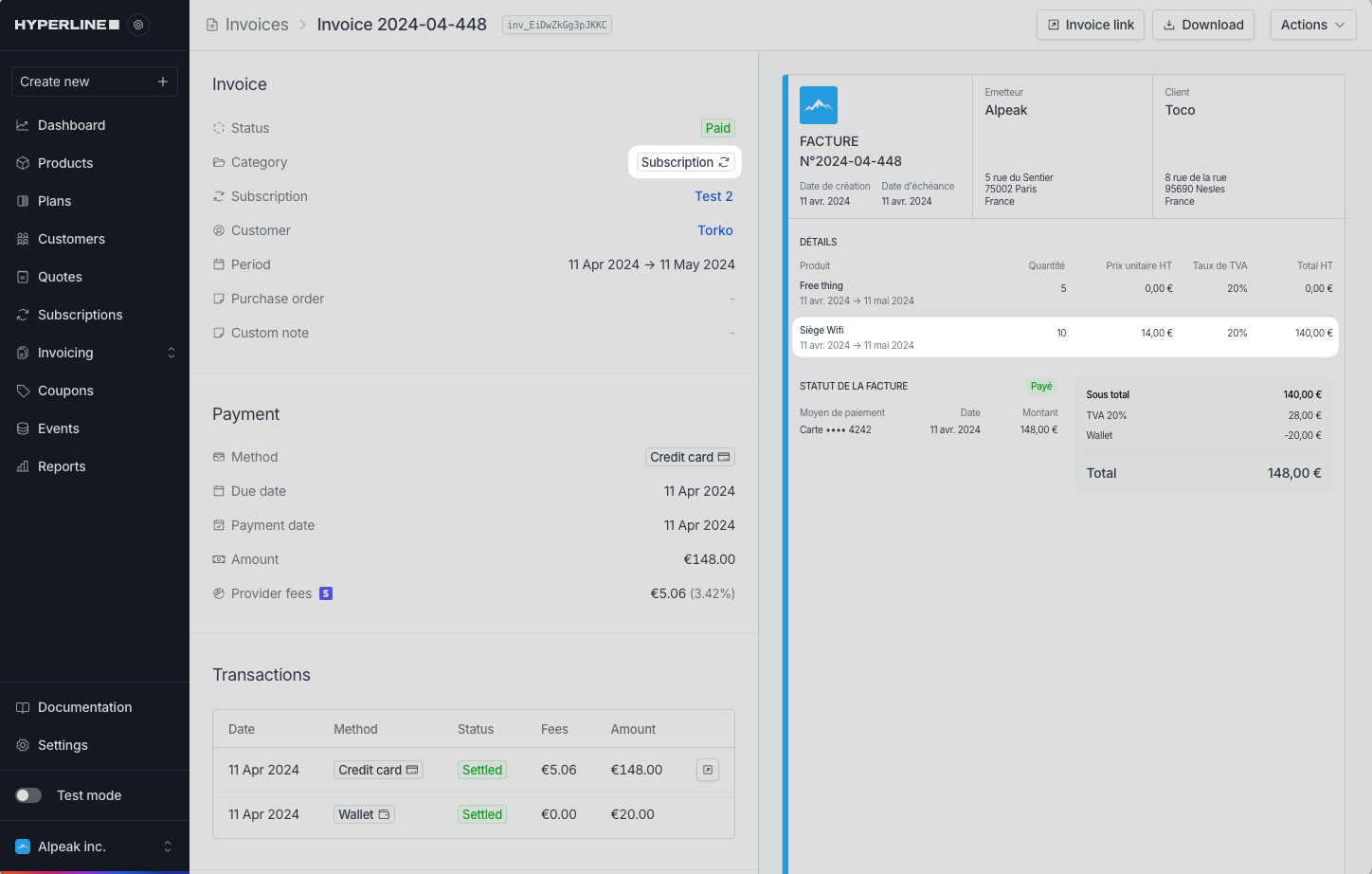
Recurring invoices are automatically generated with subscriptions. For this, you need to [assign a subscription](../subscriptions/create) and start a subscription to a customer to trigger recurrent invoicing.
Recurring invoices can have different amounts or the same amounts each time, depending on the pricing model (pay-per-use is more likely to vary over time than monthly fixed-price subscriptions).
## Send recurring invoices
Recurring invoices are automatically generated with subscriptions. For this, you need to [assign a subscription](../subscriptions/create) and start a subscription to a customer to trigger recurrent invoicing.
Recurring invoices can have different amounts or the same amounts each time, depending on the pricing model (pay-per-use is more likely to vary over time than monthly fixed-price subscriptions).
 ## One-time payments
One-off invoices will be generated for one-time payments, such as onboarding fees, unique license fees or any other kind of product with a **fee** model you create from the **Product catalog** section.
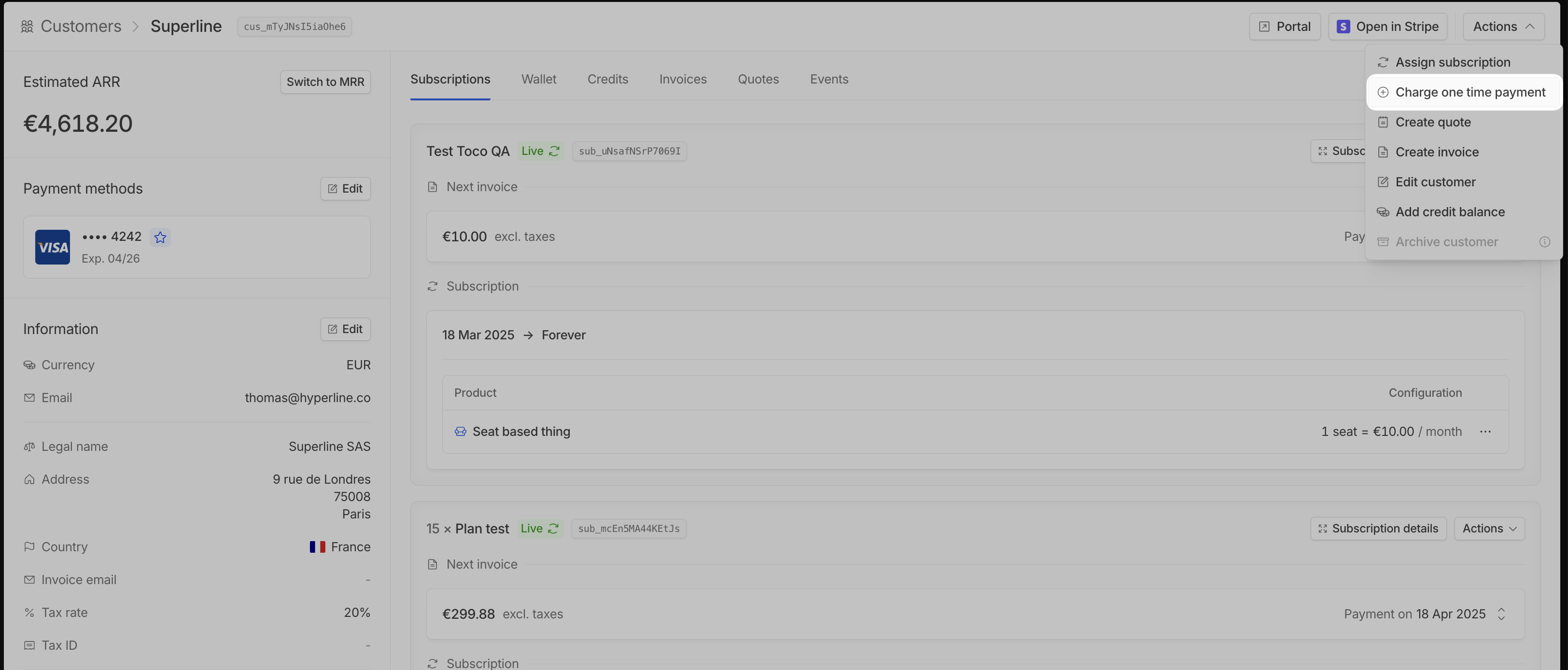
To charge a one-time payment:
Select the customer you want to charge.
## One-time payments
One-off invoices will be generated for one-time payments, such as onboarding fees, unique license fees or any other kind of product with a **fee** model you create from the **Product catalog** section.
To charge a one-time payment:
Select the customer you want to charge.
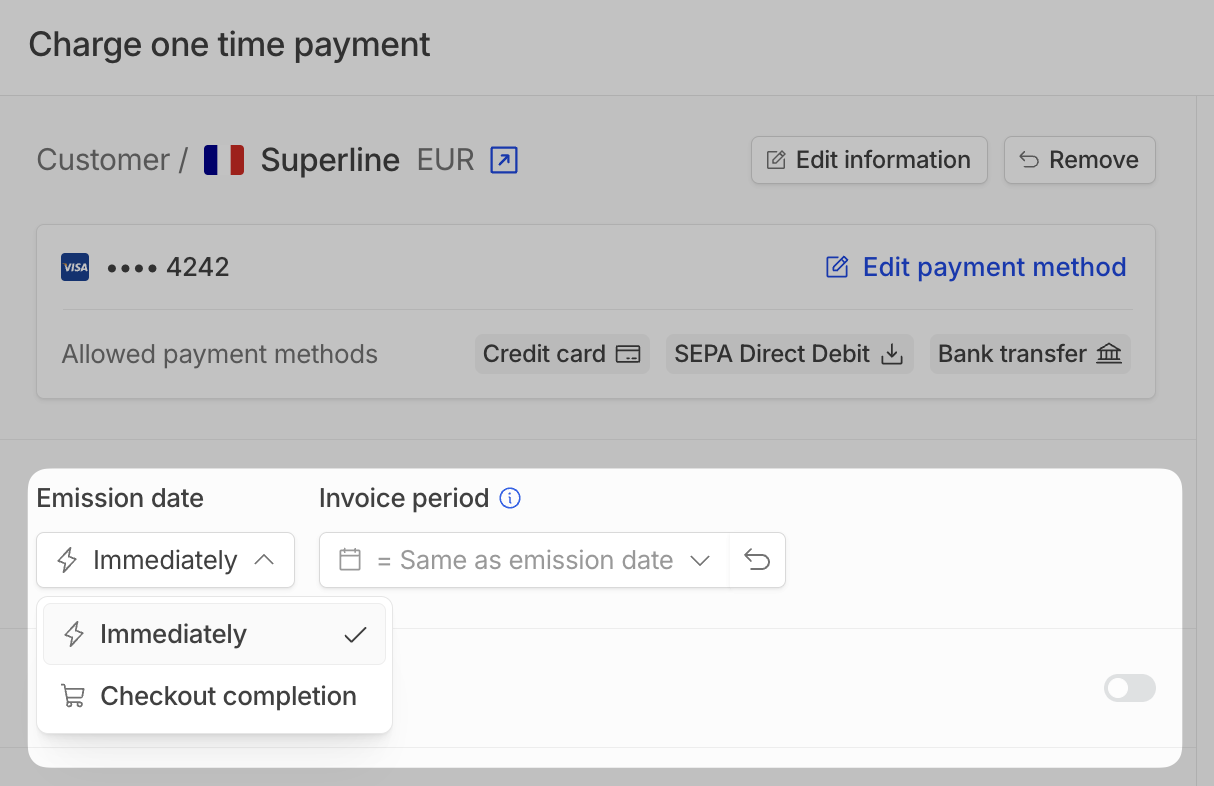
- Immediately: The date will be set to today, and result in a direct charge on your customer's payment method
- Checkout completion: It will create a checkout link for your customer pay with. The issue date will match the payment date
If none are set by default, you can still visit the **Product catalog** page to create new fee products.
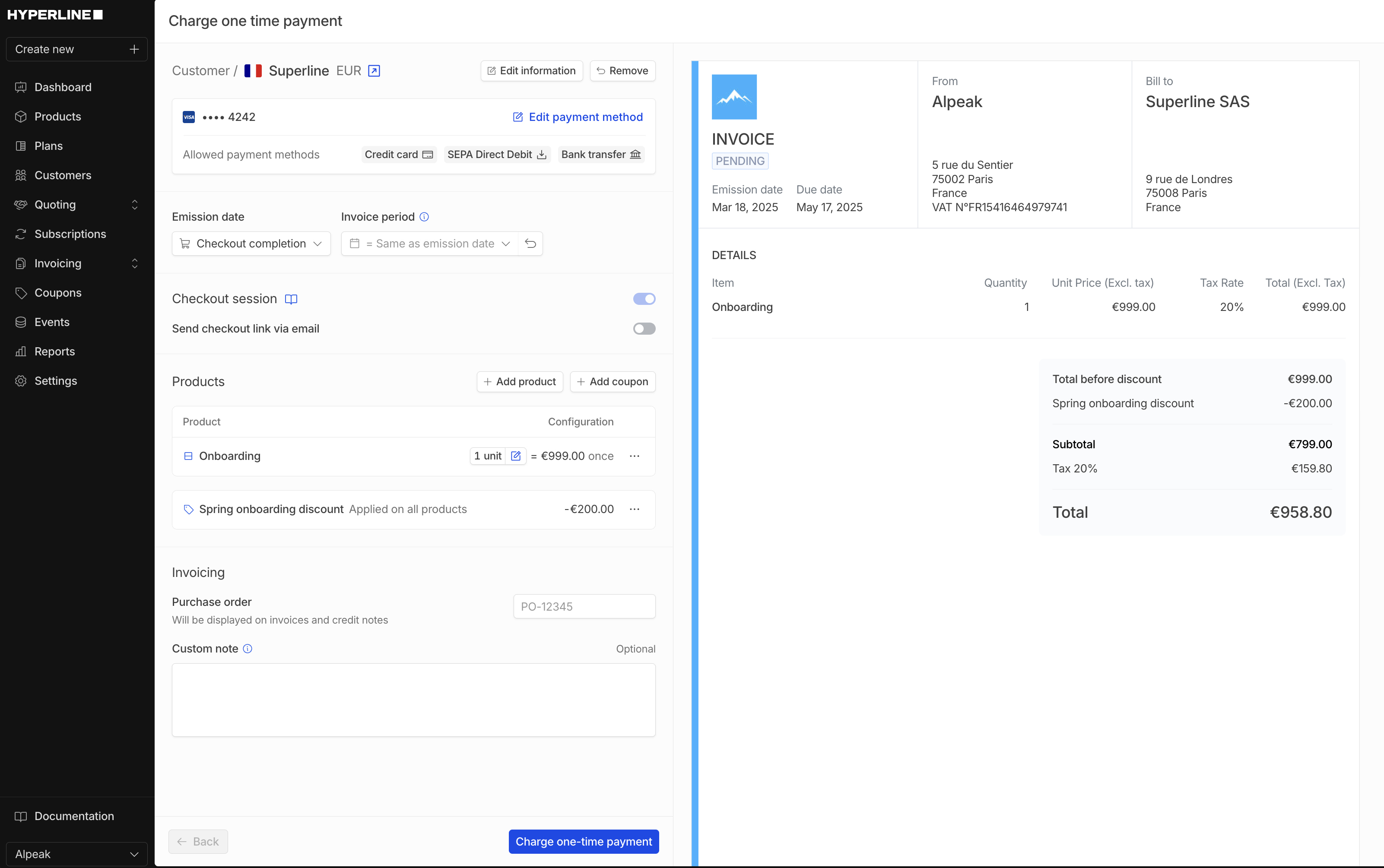 1. If you select **Immediately**, the invoice is created instantly and will appear with a **Paid** status.
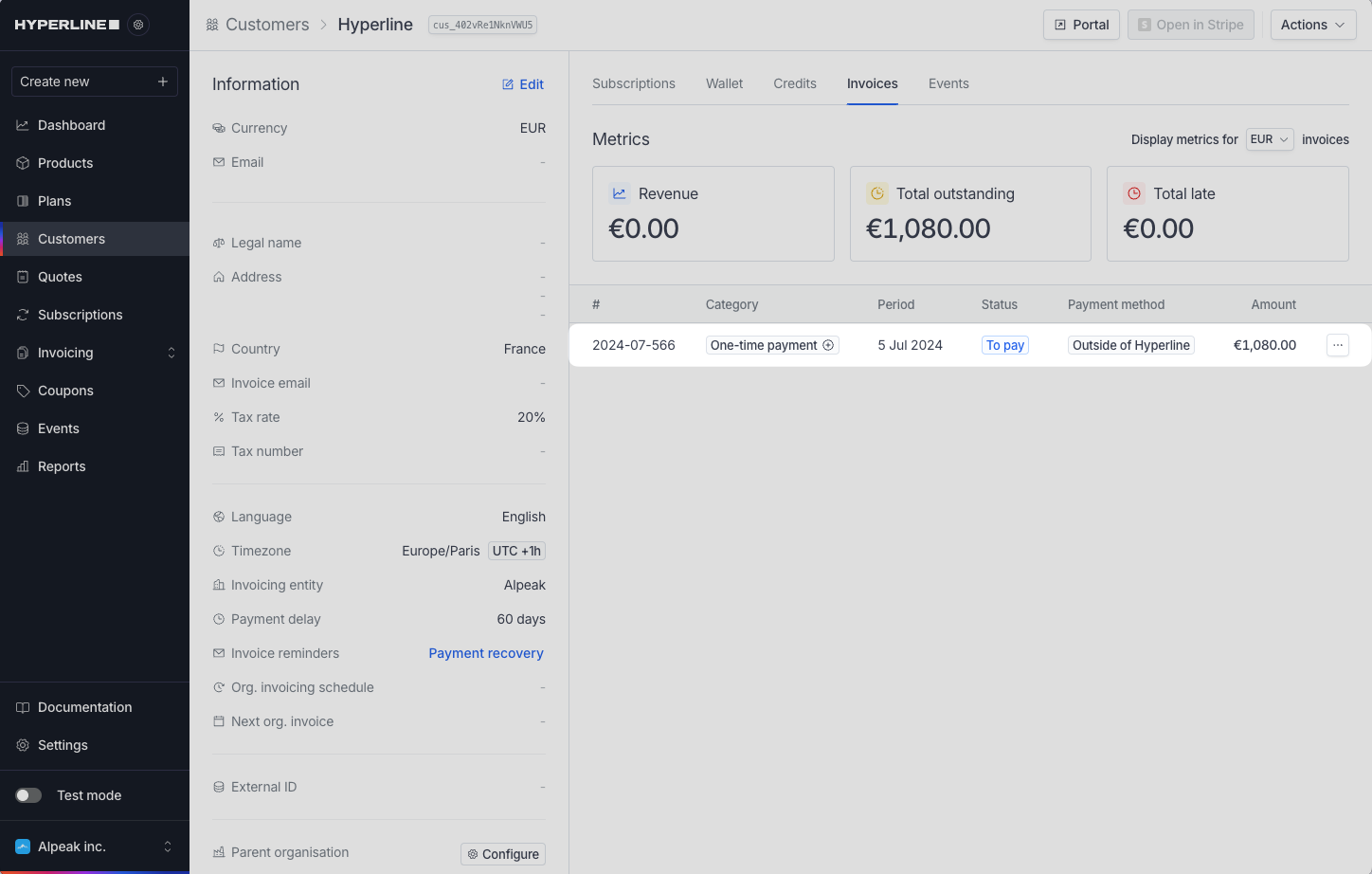 2. If you enabled the checkout session, an invoice will be created with a **Draft** status until the customer pays through their checkout page.
It is possible to generate one-time payment invoices for a customer who
already has an ongoing subscription with recurring invoices. Alternatively, it
is possible to generate one-time payment for a customer without an active
subscription.
2. If you enabled the checkout session, an invoice will be created with a **Draft** status until the customer pays through their checkout page.
It is possible to generate one-time payment invoices for a customer who
already has an ongoing subscription with recurring invoices. Alternatively, it
is possible to generate one-time payment for a customer without an active
subscription.