> ## Documentation Index
> Fetch the complete documentation index at: https://docs.hyperline.co/llms.txt
> Use this file to discover all available pages before exploring further.
# Public invoice page
> Easily share a dedicated invoice page with your customers
## Overview
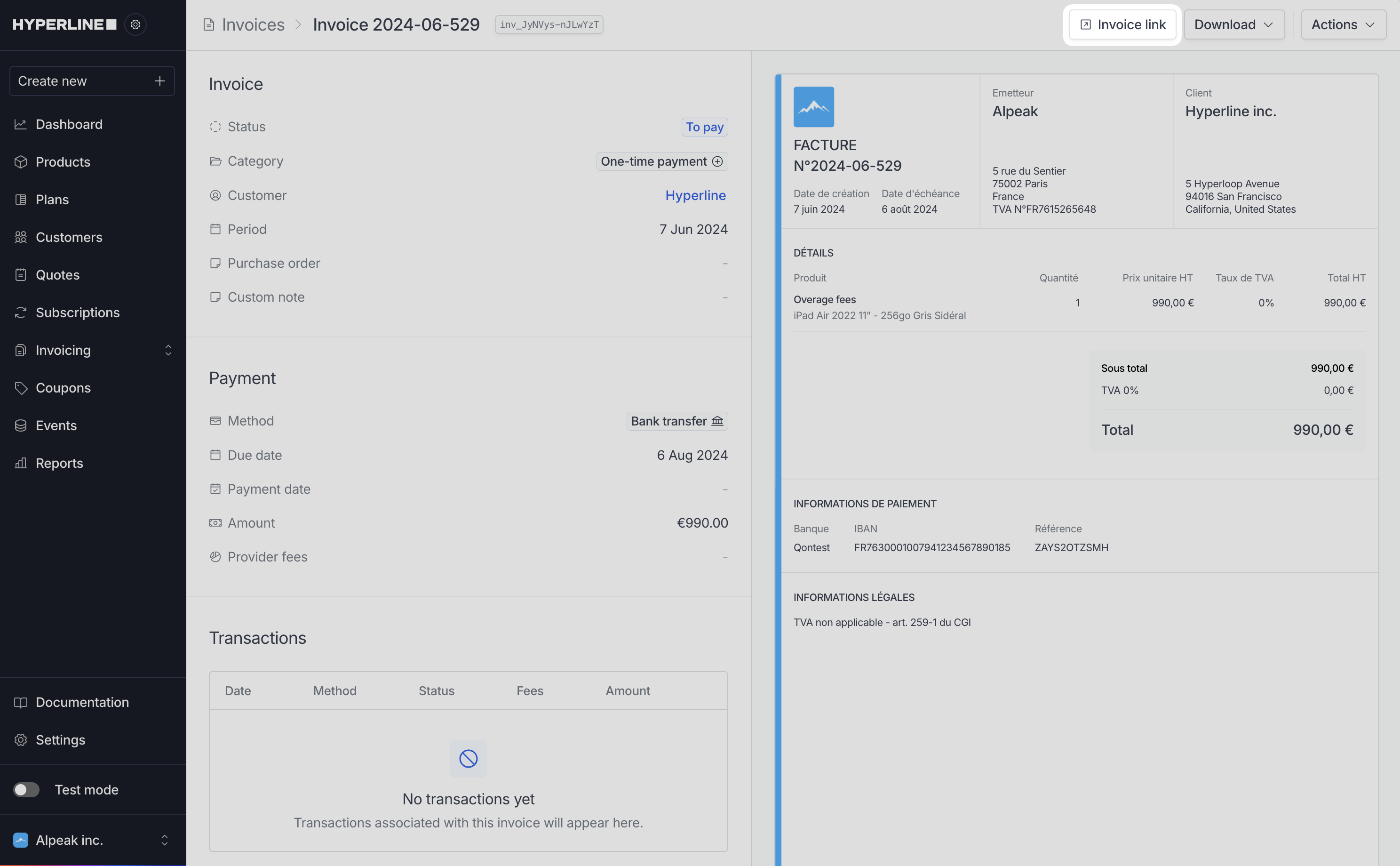
Hyperline provides an invoice page where your customers can access both outstanding and paid invoices. This public page is also linked in the "Invoice to pay" email sent.
This page can be accessed through your Hyperline interface on the invoice details page.
 ## Pay invoice
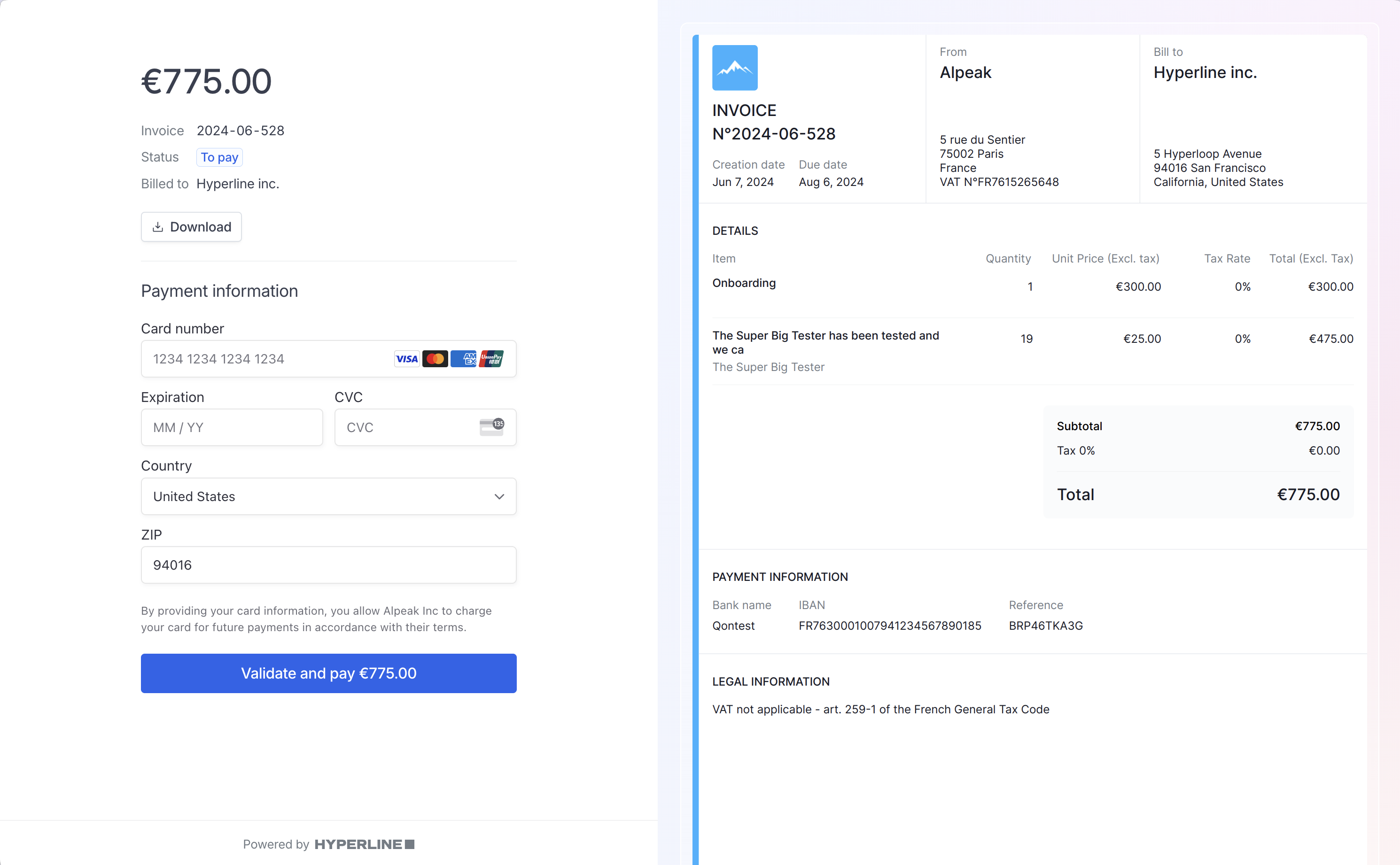
Customers can pay their invoices directly through the public invoice page which acts as a payment link, similar to the checkout process.
When the payment method allowed is credit card or direct debit, customers can enter their payment information to pay the invoice instantly.
## Pay invoice
Customers can pay their invoices directly through the public invoice page which acts as a payment link, similar to the checkout process.
When the payment method allowed is credit card or direct debit, customers can enter their payment information to pay the invoice instantly.
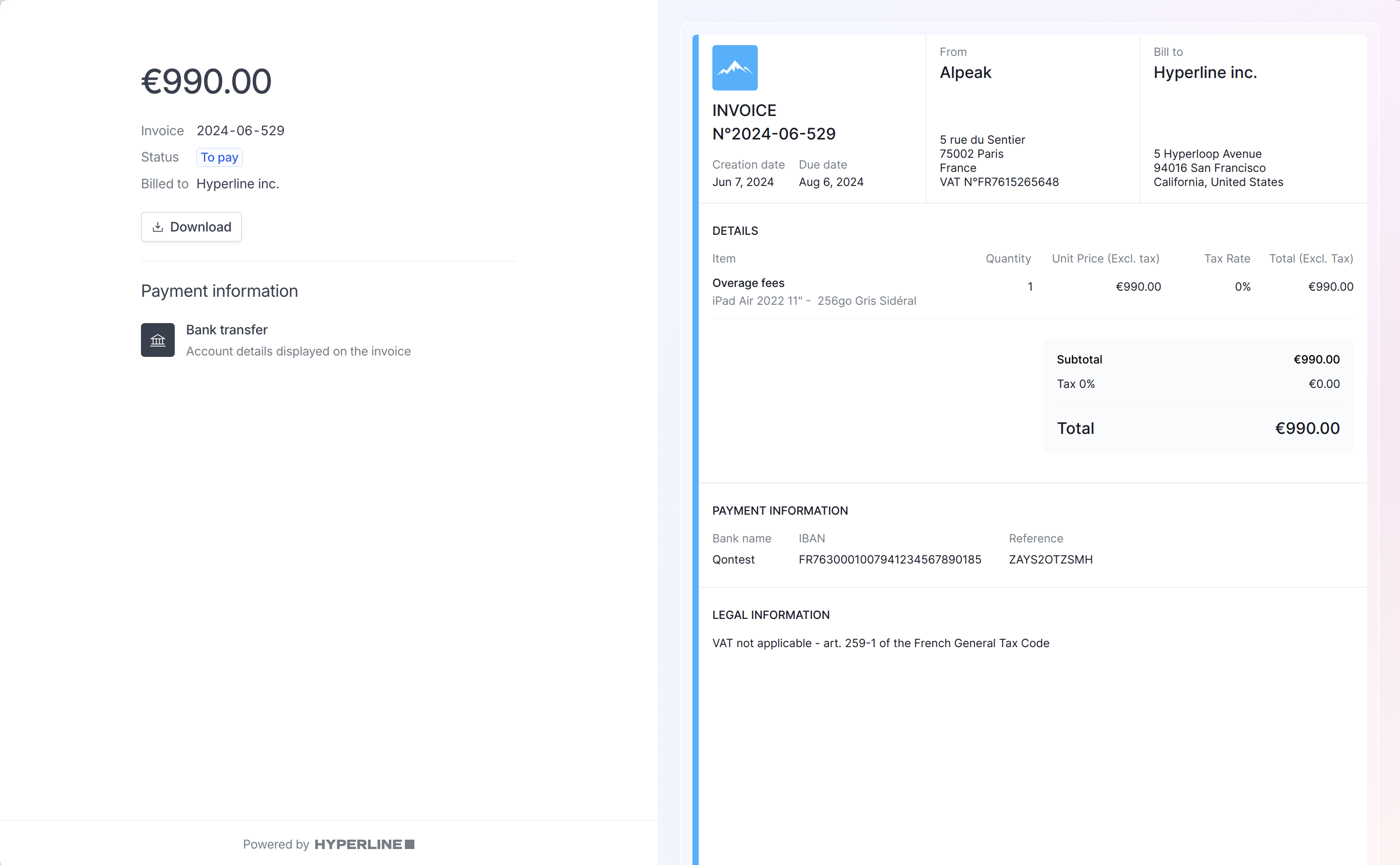
 When the allowed payment method is bank transfer, the invoice will be displayed and can be downloaded with the bank transfer details included in the payment information section.
 ## Paid invoice
Once an invoice is paid, the page will display the PDF invoice along with the date and payment method used.
## Paid invoice
Once an invoice is paid, the page will display the PDF invoice along with the date and payment method used.
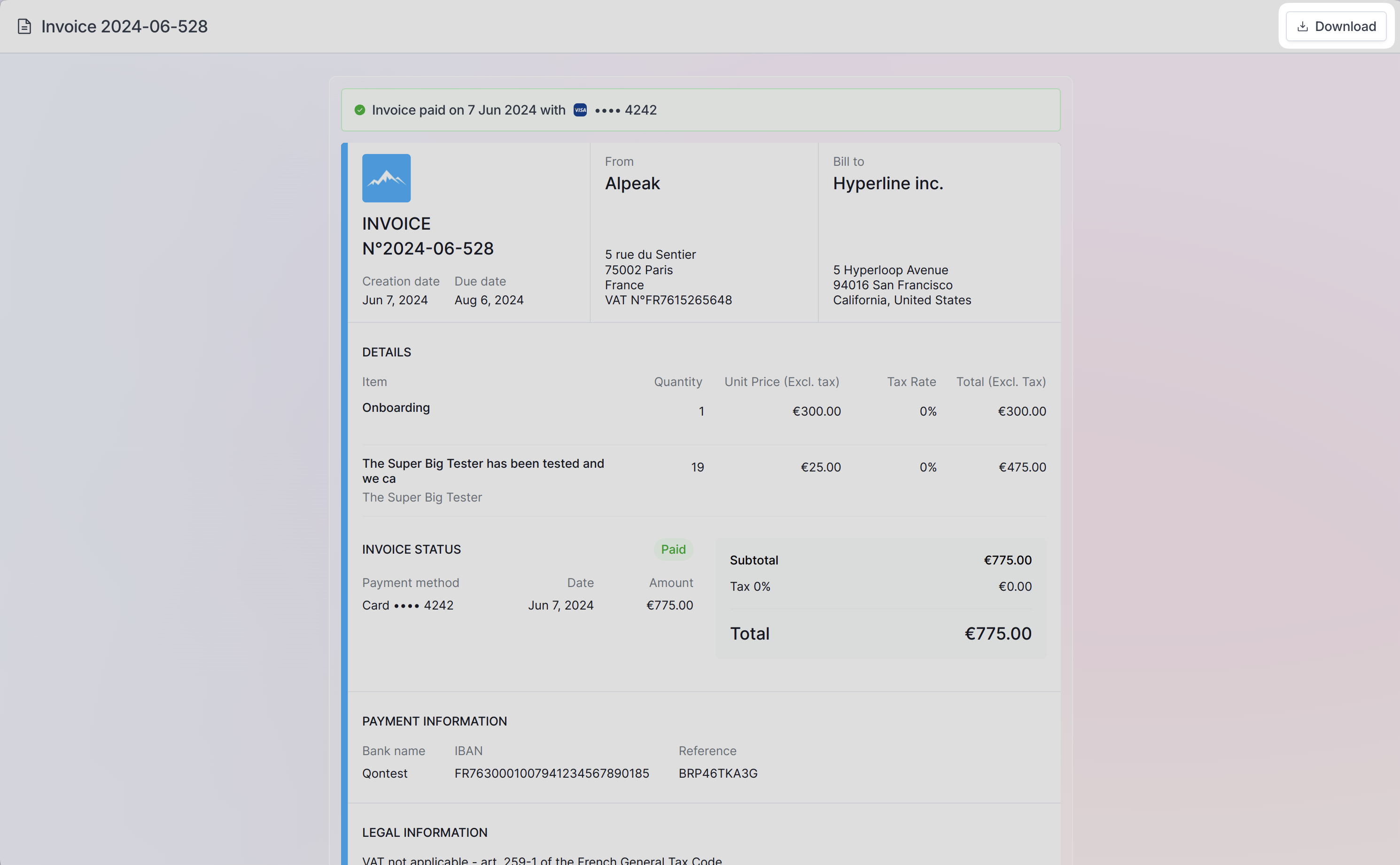
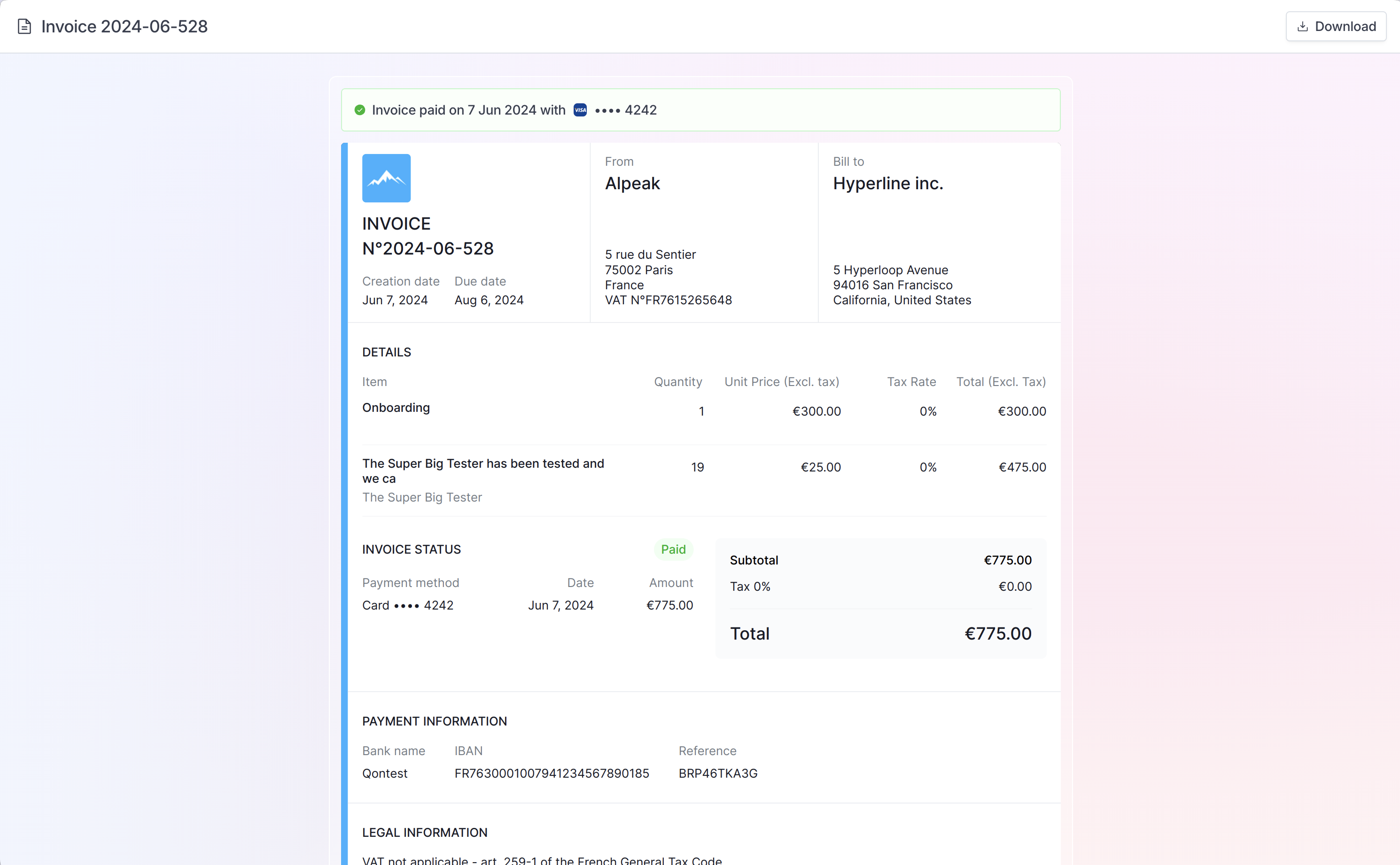 Customers can download the invoice using the button on the top right.
 ## Explore consumption
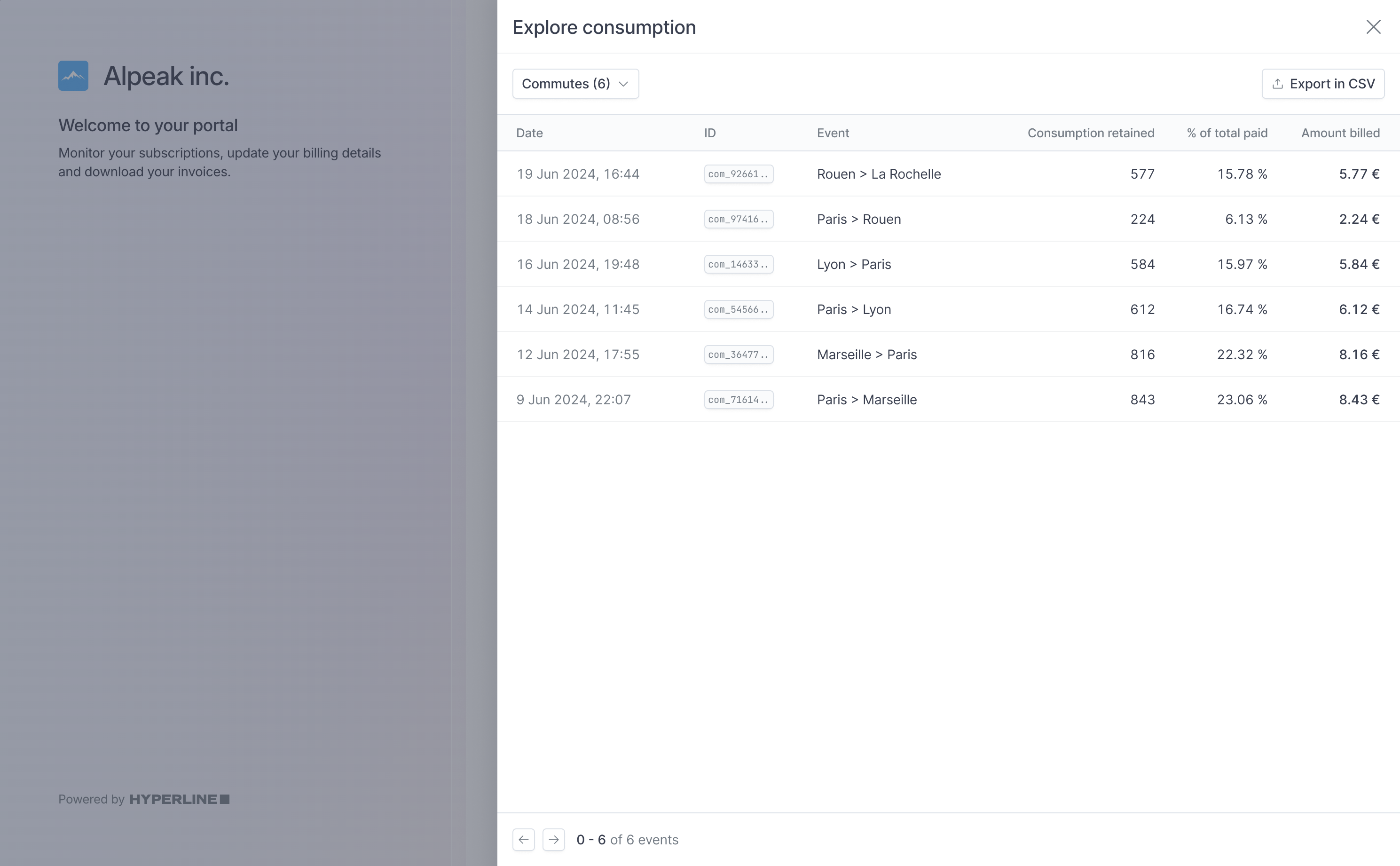
For invoices containing metered products (usage and connected seats), customers can explore the details of every event billed during the period with full context.
Additionally, they can export this data:
* **Export single product**: Click the export button within a specific product's event table to download a CSV file containing only that product's events
* **Export all products**: Click **Download all events** on the top-right corner to download a ZIP file containing separate CSV files for each product on the invoice
## Explore consumption
For invoices containing metered products (usage and connected seats), customers can explore the details of every event billed during the period with full context.
Additionally, they can export this data:
* **Export single product**: Click the export button within a specific product's event table to download a CSV file containing only that product's events
* **Export all products**: Click **Download all events** on the top-right corner to download a ZIP file containing separate CSV files for each product on the invoice