> ## Documentation Index
> Fetch the complete documentation index at: https://docs.hyperline.co/llms.txt
> Use this file to discover all available pages before exploring further.
# Chorus Pro
> Learn about automatic invoice transmission via Chorus Pro in France
## What is Chorus Pro
Chorus Pro is the official digital portal managed by the French public sector (AIFE), used to manage electronic invoicing with government entities in France.
As of today, it allows automatic transmission of invoices to public administrations (G2G/B2G sales). Since early 2020, all companies operating in France—regardless of their size—are required to submit invoices to public bodies (ministries, local authorities, hospitals, etc.) via Chorus Pro.
With the upcoming French e-invoicing reforms (2026-2027), Chorus Pro will become part of a broader "Portail public de facturation" (PPF), handling e-invoices between companies and public administrations.
## Setup
Before setting up the integration, you need a to configure a "Raccordement" (EDI/API).
From the [Chorus Pro portal](https://portail.chorus-pro.gouv.fr), connect to your account.
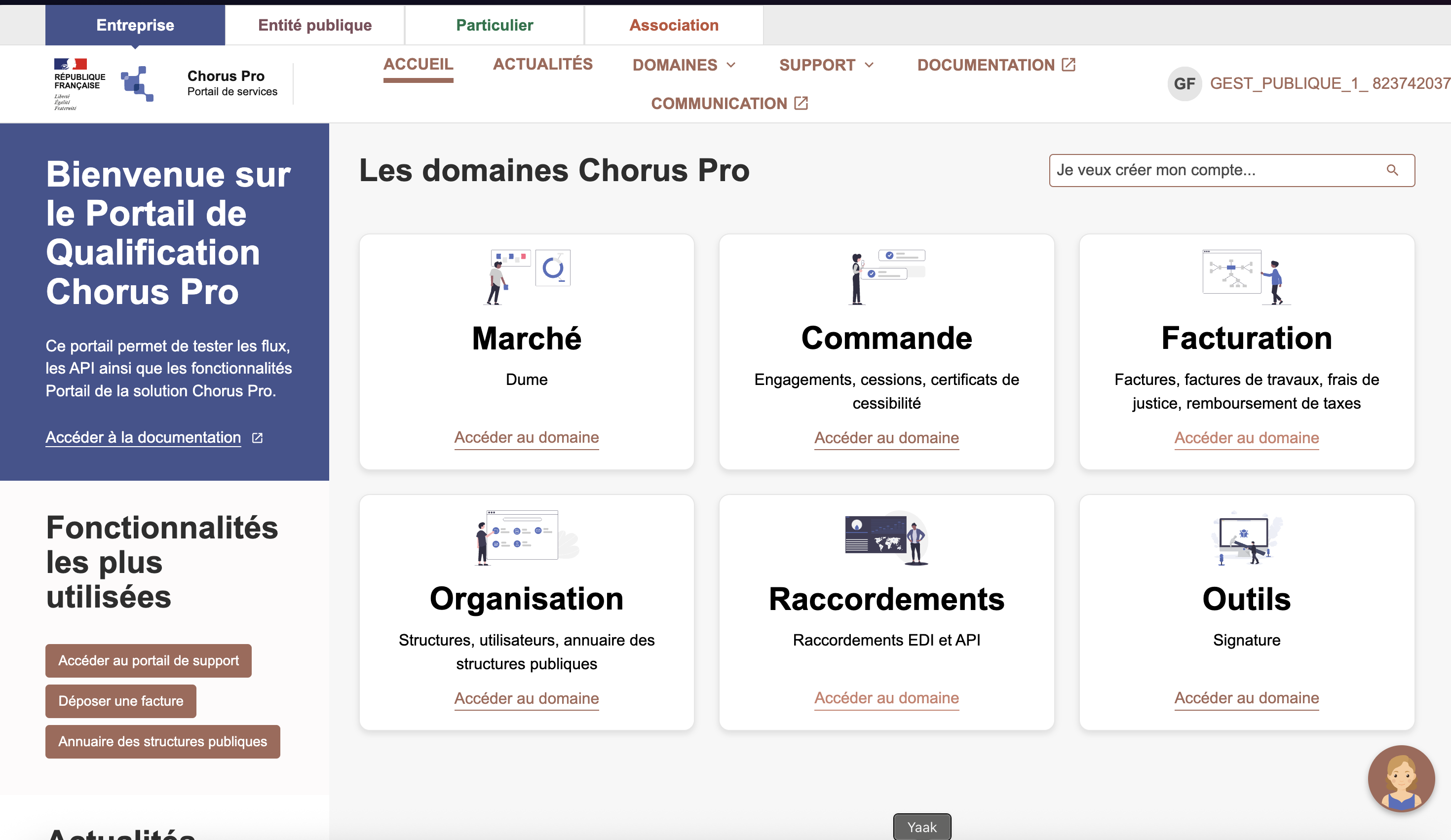
* Go to **Domaines** > **Raccordements** in the main menu
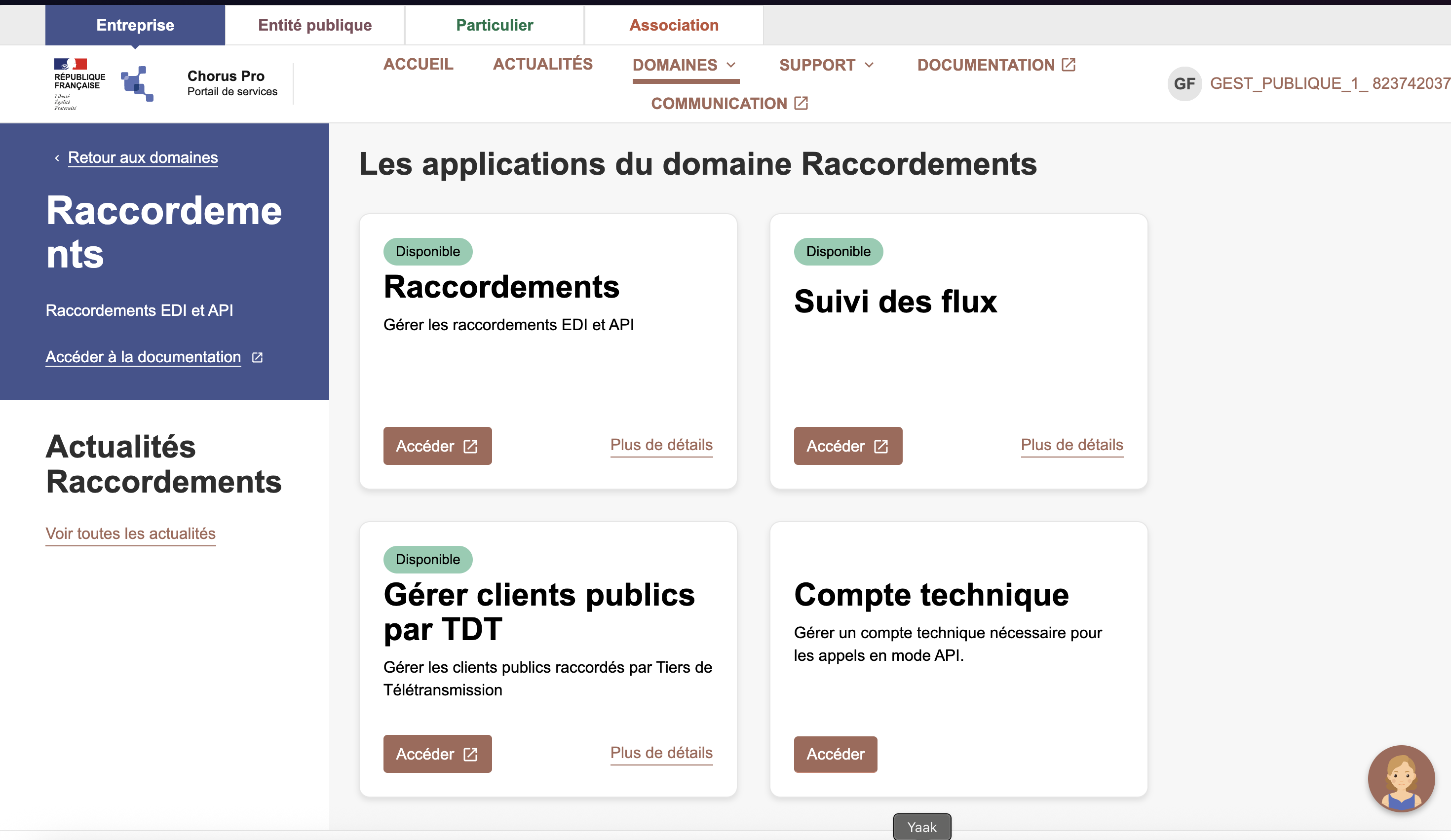
 * Go to the **Technical Account** section (**Compte technique** in French)
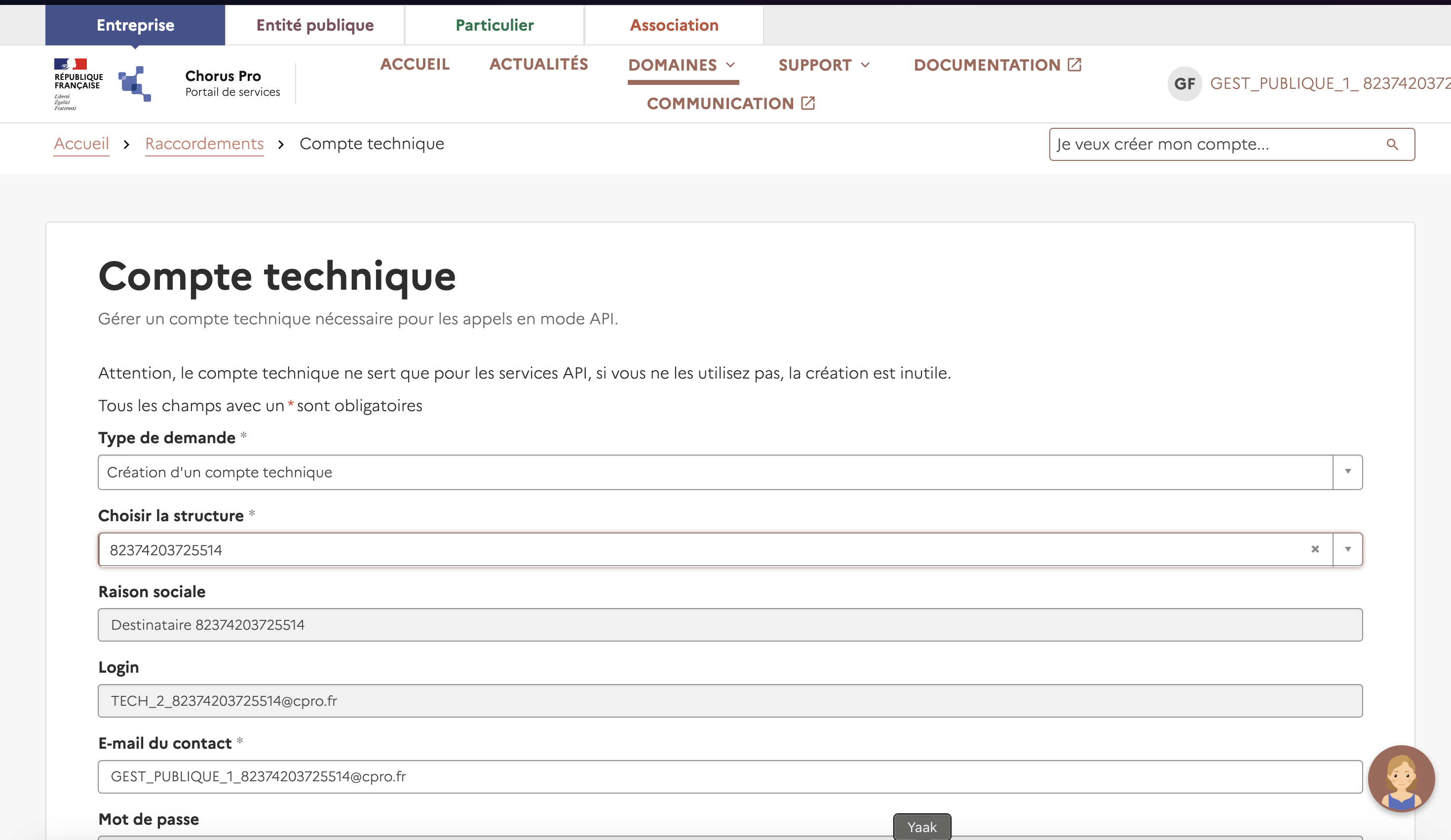
 * Set the type of request to **Création d'un compte technique** in French
* Select your company in the company field
* This creates a login and password — **copy these credentials** as you'll need them when setting up Chorus Pro in Hyperline.
* Set the type of request to **Création d'un compte technique** in French
* Select your company in the company field
* This creates a login and password — **copy these credentials** as you'll need them when setting up Chorus Pro in Hyperline.
 * Ensure you have entered your **VAT number** and **Registration number** (SIRET in France) on your invoicing entity.
* In **Settings > Invoicing**:
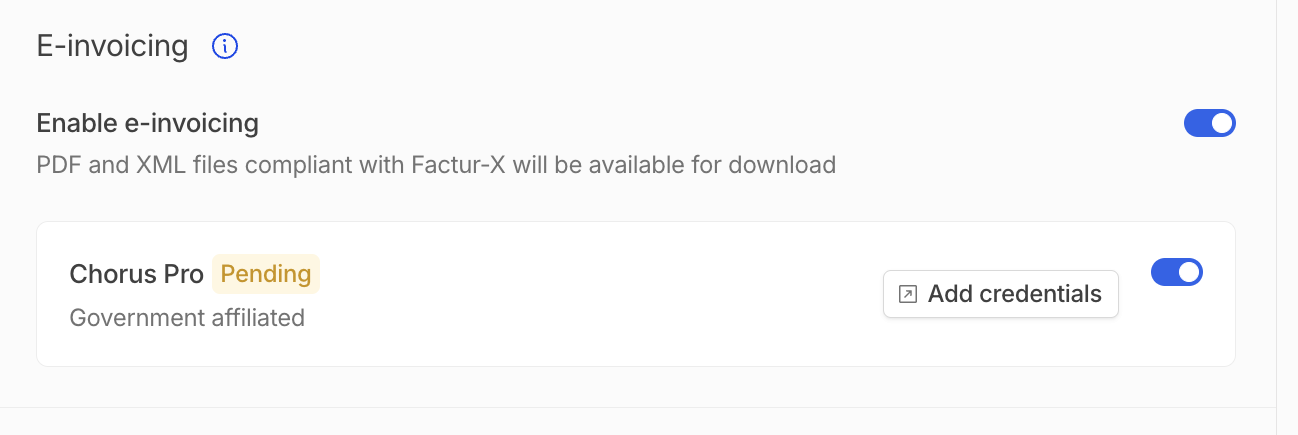
* Enable **Chorus Pro** — this option is only available for French invoicing entities.
* Click the **Add credentials** button and enter your technical account credentials in the Supplier portal that opens. Once logged in, you can safely close the portal.
* Ensure you have entered your **VAT number** and **Registration number** (SIRET in France) on your invoicing entity.
* In **Settings > Invoicing**:
* Enable **Chorus Pro** — this option is only available for French invoicing entities.
* Click the **Add credentials** button and enter your technical account credentials in the Supplier portal that opens. Once logged in, you can safely close the portal.
 ### Testing
To test in sandbox mode, create an account in the [Chorus Pro sandbox](https://qualif.chorus-pro.gouv.fr/). Download the CSV file with test accounts and use one of them to log in.
For more information, visit the [Chorus Pro documentation](https://portail.chorus-pro.gouv.fr/aife_documentation?sys_kb_id=2f95a09d3bbaae102e11034a85e45a6d\&id=kb_article_view).
## Enable Chorus Pro on customers
Chorus Pro automatic transmission is only relevant for government-affiliated customers (B2G sales). For Hyperline to send invoices via Chorus Pro, you need to enable the **Government affiliated** flag on the relevant customers.
For each customer where Chorus Pro transmission applies, go to the customer details page, click **Edit** in the **Information** section, and toggle on the **Government affiliated** option.
### Testing
To test in sandbox mode, create an account in the [Chorus Pro sandbox](https://qualif.chorus-pro.gouv.fr/). Download the CSV file with test accounts and use one of them to log in.
For more information, visit the [Chorus Pro documentation](https://portail.chorus-pro.gouv.fr/aife_documentation?sys_kb_id=2f95a09d3bbaae102e11034a85e45a6d\&id=kb_article_view).
## Enable Chorus Pro on customers
Chorus Pro automatic transmission is only relevant for government-affiliated customers (B2G sales). For Hyperline to send invoices via Chorus Pro, you need to enable the **Government affiliated** flag on the relevant customers.
For each customer where Chorus Pro transmission applies, go to the customer details page, click **Edit** in the **Information** section, and toggle on the **Government affiliated** option.
 ## Routing
By default, invoices are routed to the customer using their registration number (SIRET), which identifies the public institution. On the customer details page, click the **Edit** button in the **Information** section and set the value in the **Registration number** field.
Invoices for customers with a missing registration number will not be automatically transmitted via Chorus Pro.
Both your invoicing entity and your customer must have a **14-character** SIRET for Chorus Pro to accept the invoice.
### Service name/code
For some public institutions, an additional service name or code is required to route the invoice. This name or code identifies the service within the public institution. If not provided, the invoice may be rejected during transmission.
To set the service name or code for a specific customer, on the customer details page, click the **Edit** button in the **Information** section and scroll down to the **E-invoicing code** field, where you can enter the service name or code.
## Routing
By default, invoices are routed to the customer using their registration number (SIRET), which identifies the public institution. On the customer details page, click the **Edit** button in the **Information** section and set the value in the **Registration number** field.
Invoices for customers with a missing registration number will not be automatically transmitted via Chorus Pro.
Both your invoicing entity and your customer must have a **14-character** SIRET for Chorus Pro to accept the invoice.
### Service name/code
For some public institutions, an additional service name or code is required to route the invoice. This name or code identifies the service within the public institution. If not provided, the invoice may be rejected during transmission.
To set the service name or code for a specific customer, on the customer details page, click the **Edit** button in the **Information** section and scroll down to the **E-invoicing code** field, where you can enter the service name or code.