> ## Documentation Index
> Fetch the complete documentation index at: https://docs.hyperline.co/llms.txt
> Use this file to discover all available pages before exploring further.
# Manual journal entries
> Post free-form balanced journal entries in Hyperline for opening balances, adjustments, and corrections that aren't driven by an invoice.
Most journal entries in Hyperline are generated automatically from billing events — invoices, payments, credit notes, and revenue recognition. A **manual journal entry** lets you post your own balanced entry directly to a ledger, for activity that has no invoice behind it.
Use a manual entry to record:
* **Opening balances** when you start using a ledger
* **Adjustments** such as accruals, reclassifications, or period-end corrections
* **Corrections** to accounting activity that wasn't produced by an invoice
Posting a manual entry requires the `accounting_adjust` permission. Entries are **posted immediately** — there is no draft or reversal step. To undo a manual entry, post the opposite entry.
## Post a manual entry
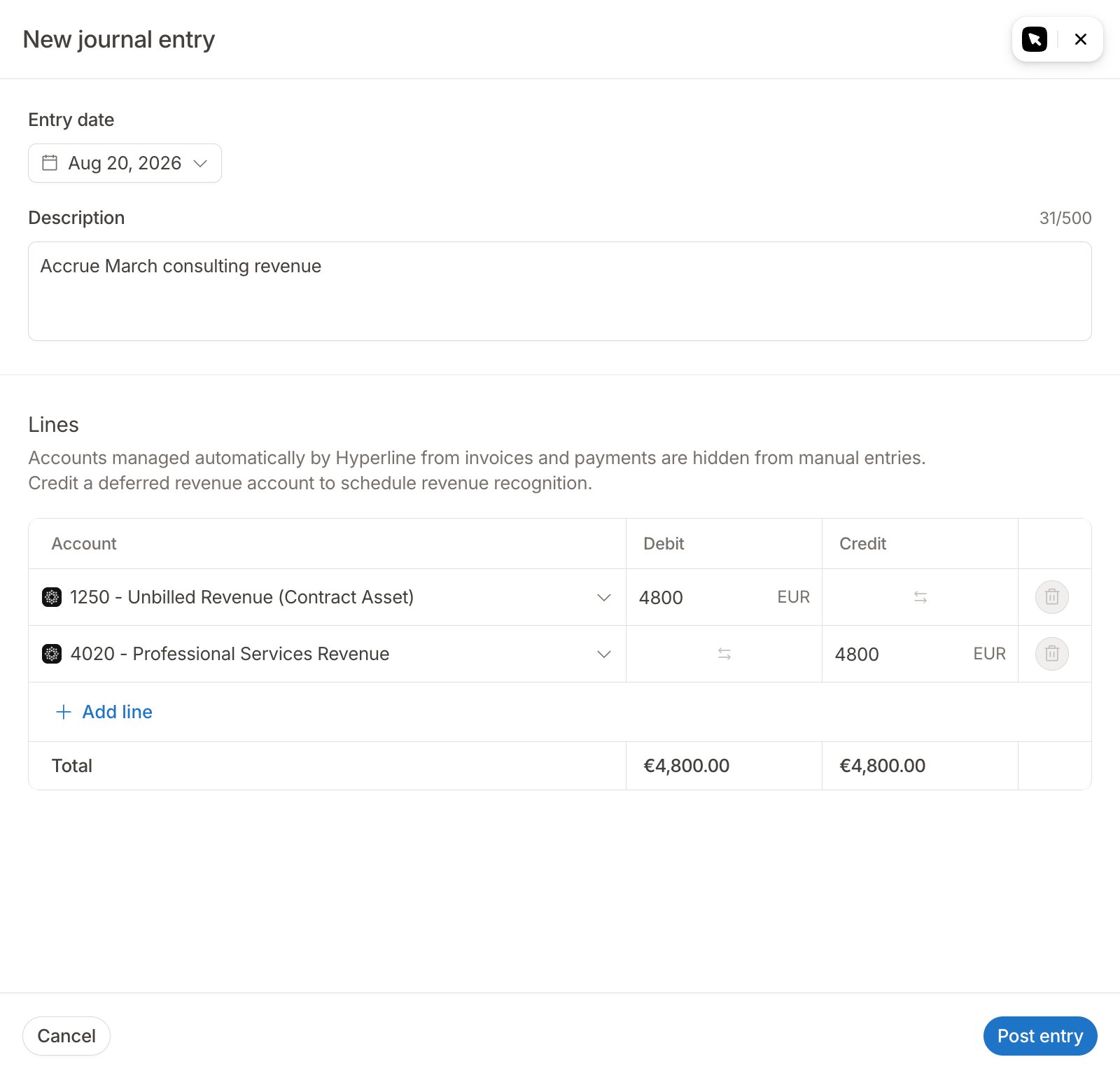
1. Open the **Journal entries** view for the ledger you want to post to.
2. Click **Post journal entry**.
3. Set the **Entry date** and a **Description** (up to 500 characters).
4. Add at least two lines. On each line, pick an **Account** and enter an amount in either **Debit** or **Credit** — a single line carries one side only. Click the switch icon on a line to flip its amount between debit and credit.
5. Check the totals. Total debit must equal total credit; the totals turn red while the entry is unbalanced.
6. Click **Post entry**.
 ## Accounts managed by Hyperline
Some accounts don't appear in the account picker on the entry form. As the form notes, *accounts managed automatically by Hyperline from invoices and payments are hidden from manual entries*.
This applies to your **accounts receivable**. A/R driven by invoices is a control account: its balance always equals your outstanding customer invoices, net of payments and credit notes, and Hyperline keeps it reconciled to those invoices. A manual entry has no invoice behind it, so posting one to a managed A/R account would break that reconciliation. To protect it, any account used in an accounts-receivable role by an accounting rule is hidden from the entry form.
To record a receivable by hand, create your own separate receivables account
in the [chart of accounts](./accounts) and post there. Both accounts still add
up to your total accounts receivable on the balance sheet, and the entry stays
balanced — so your balance sheet and P\&L remain correct.
Keep in mind this manual account is yours to reconcile and clear, and it won't
appear in the invoice-based aging.
To correct invoice-driven activity, use the matching document rather than a
manual entry: issue a [credit note](../invoices/refunds) for a wrong
invoice, or fix the payment for misapplied cash. The document posts the
correcting entry for you and keeps A/R reconciled to your invoices.
## Revenue recognition on a manual entry
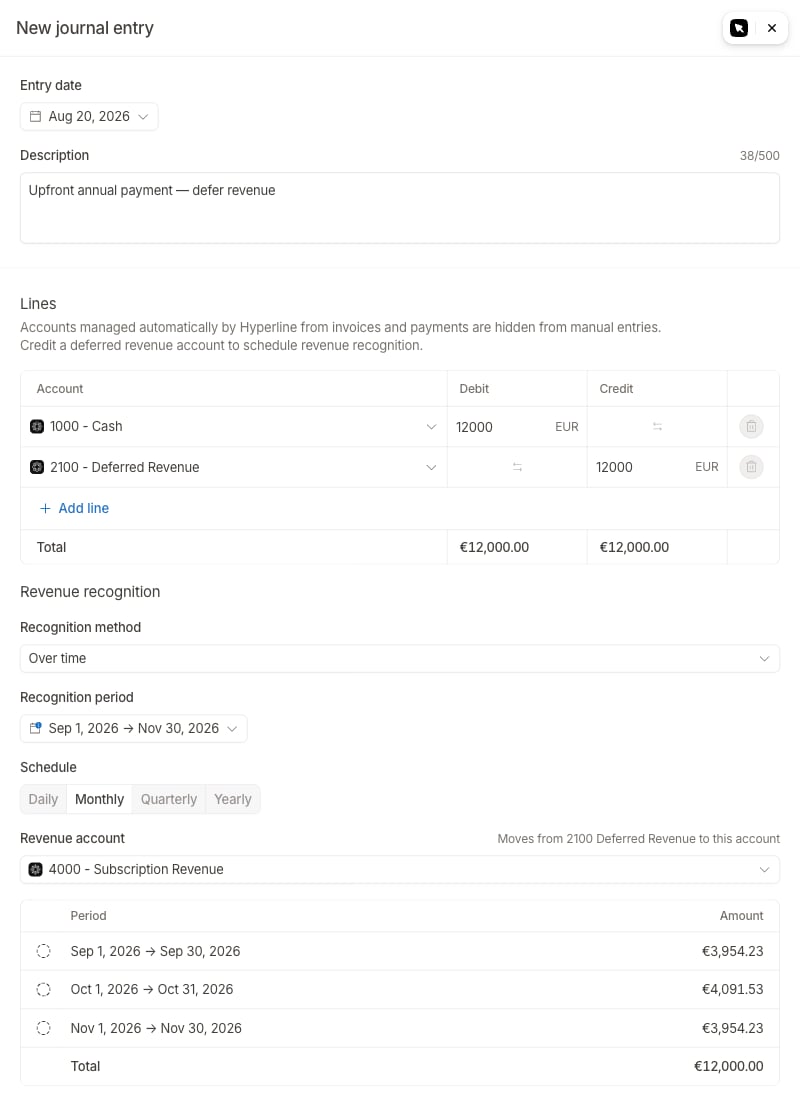
When one of your lines **credits a deferred-revenue account** (tagged **Deferred revenue** in the account picker), a **Revenue recognition** section appears on the form. Setting up a recognition schedule is **required** — deferred revenue is a liability that must be released over time, so Hyperline won't let you post the credit without telling it how.
You can defer revenue on **one credit line per entry**. To spread revenue across several deferred accounts, post them as separate entries. In the recognition section you set:
* **Recognition method** — **Point in time** (recognise the full amount on a single **Recognition date**) or **Over time** (spread it evenly between a **Start date** and **End date**, at the **Schedule** you choose: daily, monthly, quarterly, or yearly).
* **Revenue account** — the account the revenue moves to as it is earned.
A live preview lists the recognition slices — each period and amount — before you post. For the full mechanics of each method, see [revenue recognition](./revenue-recognition).
Post the deferred credit to a **dedicated deferred-revenue account** you
control, and check you aren't recognising the same revenue twice — once here
and once from an invoice.
## Accounts managed by Hyperline
Some accounts don't appear in the account picker on the entry form. As the form notes, *accounts managed automatically by Hyperline from invoices and payments are hidden from manual entries*.
This applies to your **accounts receivable**. A/R driven by invoices is a control account: its balance always equals your outstanding customer invoices, net of payments and credit notes, and Hyperline keeps it reconciled to those invoices. A manual entry has no invoice behind it, so posting one to a managed A/R account would break that reconciliation. To protect it, any account used in an accounts-receivable role by an accounting rule is hidden from the entry form.
To record a receivable by hand, create your own separate receivables account
in the [chart of accounts](./accounts) and post there. Both accounts still add
up to your total accounts receivable on the balance sheet, and the entry stays
balanced — so your balance sheet and P\&L remain correct.
Keep in mind this manual account is yours to reconcile and clear, and it won't
appear in the invoice-based aging.
To correct invoice-driven activity, use the matching document rather than a
manual entry: issue a [credit note](../invoices/refunds) for a wrong
invoice, or fix the payment for misapplied cash. The document posts the
correcting entry for you and keeps A/R reconciled to your invoices.
## Revenue recognition on a manual entry
When one of your lines **credits a deferred-revenue account** (tagged **Deferred revenue** in the account picker), a **Revenue recognition** section appears on the form. Setting up a recognition schedule is **required** — deferred revenue is a liability that must be released over time, so Hyperline won't let you post the credit without telling it how.
You can defer revenue on **one credit line per entry**. To spread revenue across several deferred accounts, post them as separate entries. In the recognition section you set:
* **Recognition method** — **Point in time** (recognise the full amount on a single **Recognition date**) or **Over time** (spread it evenly between a **Start date** and **End date**, at the **Schedule** you choose: daily, monthly, quarterly, or yearly).
* **Revenue account** — the account the revenue moves to as it is earned.
A live preview lists the recognition slices — each period and amount — before you post. For the full mechanics of each method, see [revenue recognition](./revenue-recognition).
Post the deferred credit to a **dedicated deferred-revenue account** you
control, and check you aren't recognising the same revenue twice — once here
and once from an invoice.
 ## After posting
A manual entry sits in the ledger alongside automatically generated entries, with a few markers that set it apart:
* It carries a **Manual** tag in the journal entries list.
* The **Source** filter lets you show only `Manual` or `Auto-generated` entries.
* The entry's detail panel shows its **origin** (manual) and the user who **created** it.
Manual entries are included in the [general ledger export](./entries#export) and, when they carry a recognition schedule, appear in the [revenue waterfall](./revenue-recognition#revenue-waterfall) with a manual origin.
Is something still unclear? Don't hesitate to reach out to our team via the
in-app chat if you need additional support.
## After posting
A manual entry sits in the ledger alongside automatically generated entries, with a few markers that set it apart:
* It carries a **Manual** tag in the journal entries list.
* The **Source** filter lets you show only `Manual` or `Auto-generated` entries.
* The entry's detail panel shows its **origin** (manual) and the user who **created** it.
Manual entries are included in the [general ledger export](./entries#export) and, when they carry a recognition schedule, appear in the [revenue waterfall](./revenue-recognition#revenue-waterfall) with a manual origin.
Is something still unclear? Don't hesitate to reach out to our team via the
in-app chat if you need additional support.