> ## Documentation Index
> Fetch the complete documentation index at: https://docs.hyperline.co/llms.txt
> Use this file to discover all available pages before exploring further.
# Authentication
> Authenticate to the Hyperline API with bearer tokens, manage API keys, and configure secure access for production and sandbox environments.
The Hyperline API requires either an **API key** or an **access token** to identify and authorize calls. API keys are associated with a single Hyperline account. An access token represents delegated access to a specific account (used for [third-party apps](./third-party-app)). You can have more than one token or key at any point in time.
These tokens can authenticate to Hyperline and perform actions on your account. Keep them as safe as you would a password.
## Manage API keys
### Generate an API key
An **API key** allows you to use Hyperline's API or integrations such as Zapier.
As a Hyperline admin:
1. Go to your workspace [Settings](https://app.hyperline.co/app/settings/api), section API
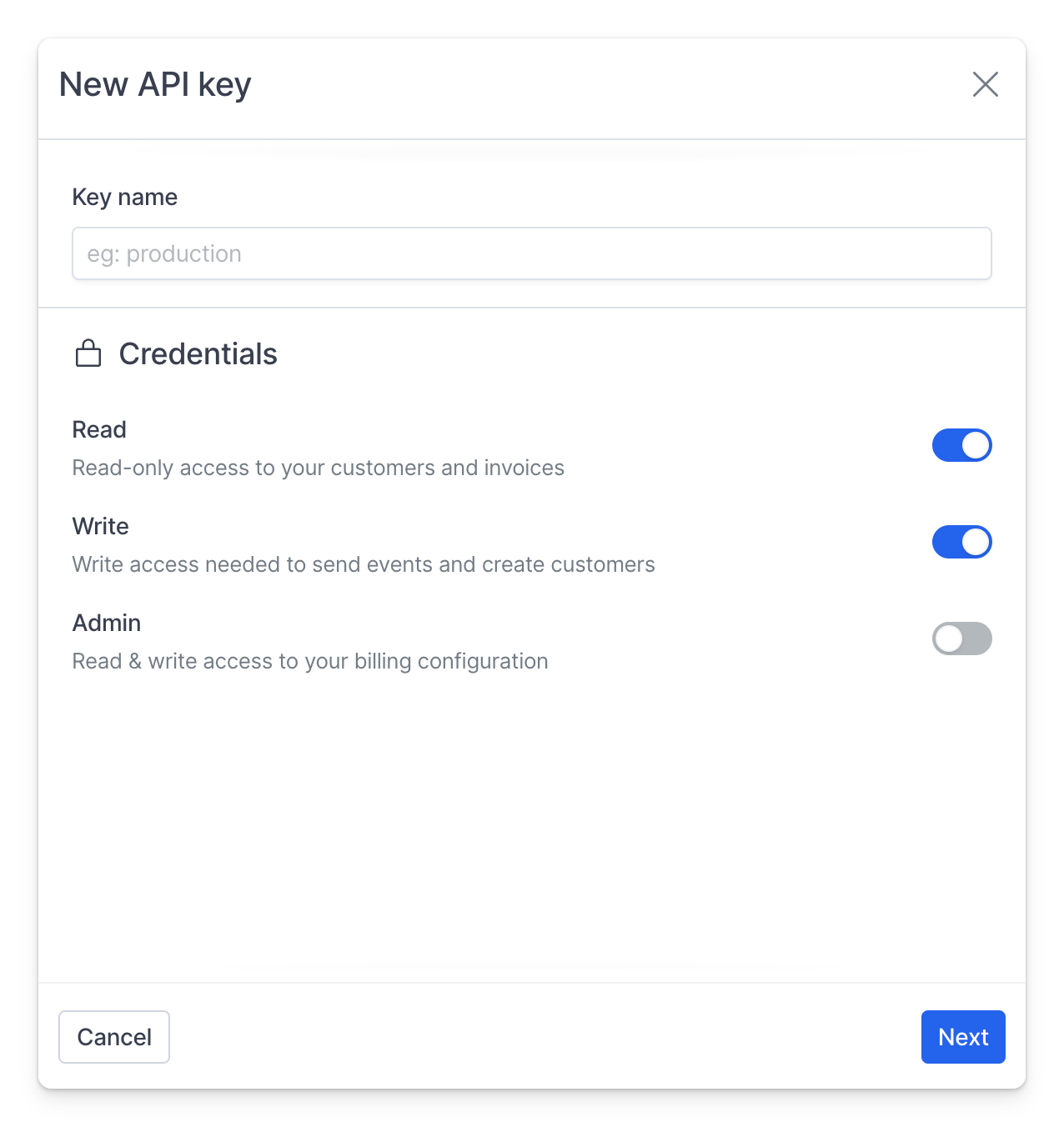
2. Click **+ New API key**
3. Add a name for this key, and select the appropriate scopes (in most cases you'll need read/write access)
4. Copy the key and store it in a safe space. You won't be able to see it later in Hyperline
 API keys are prefixed either with `prod_` or `test_` to easily identify and
distinguish them between environments.
### Use an authentication token
You must provide an API key or access token with every API call, specified in the `Authorization` header after a `Bearer` prefix. All requests happen using HTTPS.
For example:
```sh theme={null}
curl -H "Authorization: Bearer " https://api.hyperline.co/v1/customers
```
Hyperline also supports HTTP Basic Authentication, where the `username` is the
API key and the `password` is left blank. Use Bearer Authentication instead
because it's simpler to debug.
### Keep your data safe
Treat your API keys as **highly sensitive information**. Think of a token like a password. You should only give tokens to services you fully trust.
Anyone who obtains a leaked token could use it maliciously. A leaked token can give someone access to all of your Hyperline data. If you suspect a token has been compromised, revoke it and replace it with a new one.
Never share tokens with support teams or your customers.
### Revoke a key
Workspace admins can permanently revoke tokens from the [API Settings](https://app.hyperline.co/app/settings/api) in Hyperline.
To revoke a token, click the `…` icon on the line of the key name, then **Delete** to permanently delete it. You can't recover a deleted key.
This documentation is built and hosted on [Mintlify](https://mintlify.com), a developer documentation platform.
API keys are prefixed either with `prod_` or `test_` to easily identify and
distinguish them between environments.
### Use an authentication token
You must provide an API key or access token with every API call, specified in the `Authorization` header after a `Bearer` prefix. All requests happen using HTTPS.
For example:
```sh theme={null}
curl -H "Authorization: Bearer " https://api.hyperline.co/v1/customers
```
Hyperline also supports HTTP Basic Authentication, where the `username` is the
API key and the `password` is left blank. Use Bearer Authentication instead
because it's simpler to debug.
### Keep your data safe
Treat your API keys as **highly sensitive information**. Think of a token like a password. You should only give tokens to services you fully trust.
Anyone who obtains a leaked token could use it maliciously. A leaked token can give someone access to all of your Hyperline data. If you suspect a token has been compromised, revoke it and replace it with a new one.
Never share tokens with support teams or your customers.
### Revoke a key
Workspace admins can permanently revoke tokens from the [API Settings](https://app.hyperline.co/app/settings/api) in Hyperline.
To revoke a token, click the `…` icon on the line of the key name, then **Delete** to permanently delete it. You can't recover a deleted key.
This documentation is built and hosted on [Mintlify](https://mintlify.com), a developer documentation platform.